 FieldCamp
Reviewing AI Dispatch Suggestions
Learn how to review AI-generated technician assignments on the AI Dispatched tab, interpret confidence scores, and expand reasoning details before approving.
Where AI Suggestions Appear
When AI Dispatcher generates recommendations for unassigned jobs, those suggestions appear on the AI Dispatched tab on your Jobs page.
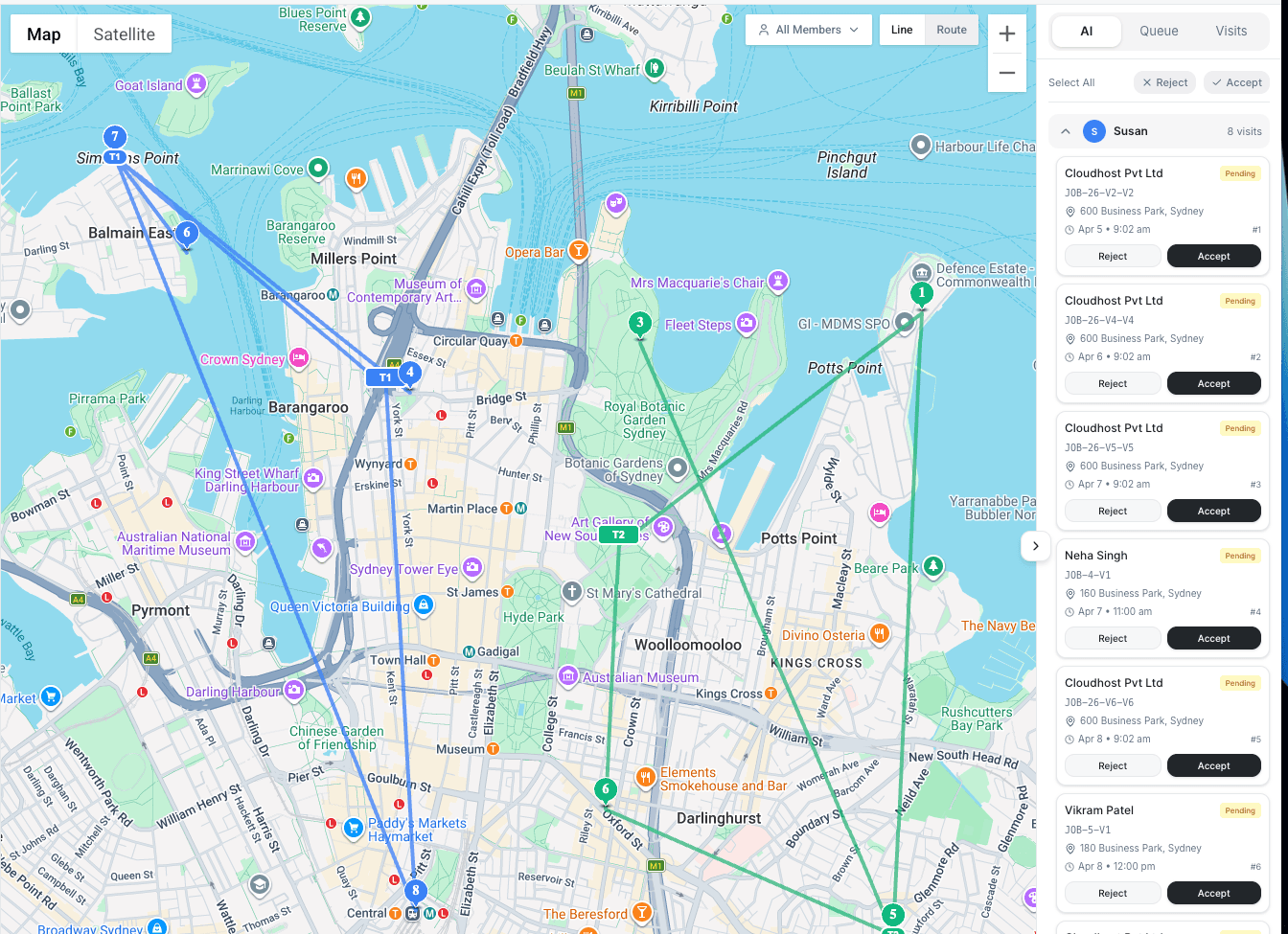
Each suggestion is a card showing the AI's recommended technician assignment along with supporting data to help you decide whether to accept or reject it.
You can also see suggestions reflected on the Live Dispatch timeline as pending blocks on the assigned technician's row.
What Each Suggestion Shows
Every AI suggestion card displays four key pieces of information:
- Technician name -- the person the AI recommends for the job
- Confidence score -- a percentage from 0-100% indicating how strong the match is
- Scheduled time -- when the AI recommends the job should start and end
- Travel time -- estimated drive time from the technician's previous job or starting location
Understanding Confidence Scores
The confidence score is a weighted calculation based on how well the technician matches the job across multiple factors. Use these ranges as a quick guide:
- 90-100% -- Excellent match. Skills align, travel is short, no conflicts. Safe to approve with minimal review.
- 70-89% -- Good match with minor trade-offs, such as slightly longer travel or moderate workload. Worth a quick check of the reasoning.
- 50-69% -- Review recommended. Notable compromises exist. Expand the reasoning to understand what is not ideal before deciding.
- Below 50% -- Suboptimal assignment. Always check alternatives before accepting.
Confidence scores combine multiple factors including skills match, proximity, availability, workload balance, and route efficiency. A score of 75% does not mean something is wrong -- it means the AI found a good option with a minor trade-off somewhere.
Expanding the Reasoning
Click on a suggestion card to expand the detailed reasoning panel. This shows you exactly why the AI chose this technician:
- Skills match -- does the technician have the required certifications and capabilities?
- Proximity -- how far is the technician from the job site based on actual driving time?
- Availability -- does the suggested time fit both the technician's schedule and the customer's preferred window?
- Workload -- how busy is the technician already today? Adding this job could push them past comfortable capacity.
Each factor shows a status indicator (excellent, good, moderate, or poor) so you can quickly identify which aspects are strong and which are driving the score down. To learn more about the scoring methodology, see our article on how AI matches jobs to technicians.
Reviewing Multiple Suggestions
When several unassigned jobs have been processed, the AI Dispatched tab lists all pending suggestions. You can:
- Sort by confidence -- review highest-confidence suggestions first for fast batch approval
- Filter by technician -- see all suggestions assigned to a specific team member to check their total workload
- Filter by status -- show only suggestions with conflicts or warnings that need attention
Processing high-confidence suggestions in bulk and then focusing on lower-confidence items individually is the fastest way to clear your queue.
Best Practices
- Check the AI Dispatched tab regularly -- suggestions accumulate as new jobs come in throughout the day
- Start with 85%+ suggestions -- these rarely need deep inspection and can be approved quickly
- Always expand reasoning on sub-70% suggestions -- understand the trade-offs before deciding
- Compare against the Live Dispatch timeline -- verify that suggestions look reasonable in the context of the full day's schedule
- Provide feedback when rejecting -- your rejection reasons help the AI improve future suggestions
Related Articles
- Live Dispatch Map and Timeline View
- Accepting or Rejecting AI Dispatch Suggestions
- Submitting a Job for AI Dispatch
- Configuring Skills and Capabilities
- Handling Conflicts and Overlaps
Further Reading
- How AI Matches Jobs to Technicians — The scoring factors behind every dispatch suggestion
- Fair Distribution Algorithms — How the AI ensures work is distributed equitably across your team
Live Dispatch Map and Timeline View
Use the Live Dispatch page to view technician locations on a map, manage job assignments on a timeline, and track real-time performance metrics across your team.
Accepting or Rejecting AI Dispatch Suggestions
Learn how to accept, reject, or batch-process AI dispatch suggestions, use Auto Mode for hands-free approvals, and how rejection history improves future recommendations.