 FieldCamp
Creating Invoices from Jobs | FieldCamp
Generate invoices from completed jobs in FieldCamp. Line items, labor hours, and materials carry over so you can bill field service customers quickly.
Under the hood — see how Jobs work in the FieldCamp data model: the fields they hold, how they connect to your other records, and how to customize them.
When a job is done, the next step is getting paid. FieldCamp lets you create an invoice directly from the job, pre-filled with line items, labor hours from logs, and materials. No retyping, no missed charges.
The Fastest Way: Ask the Command Centre
Open the Command Centre and describe what you need:
- "Create an invoice for the completed HVAC repair at Smith Residence"
- "Invoice job 1036"
- "Generate an invoice for Sarah Johnson's plumbing work"
- "Bill ABC Plumbing for the roof repair job"
The Command Centre creates the invoice with all job details pre-filled and lets you review before sending.
When to Create an Invoice
Create an invoice from a job when:
- The work is complete and the job status is Completed (or all visits are finished)
- You want to bill for a portion of the work mid-project (progress billing)
- The customer has approved the final scope and pricing
You do not need to wait until the job is marked Completed. Some businesses invoice after each visit on long-running jobs.
If the job originated from an approved estimate, any deposits the customer already paid are tracked and will appear as credits on the invoice.
How to Create an Invoice from a Job
Option 1: From the Assets Tab
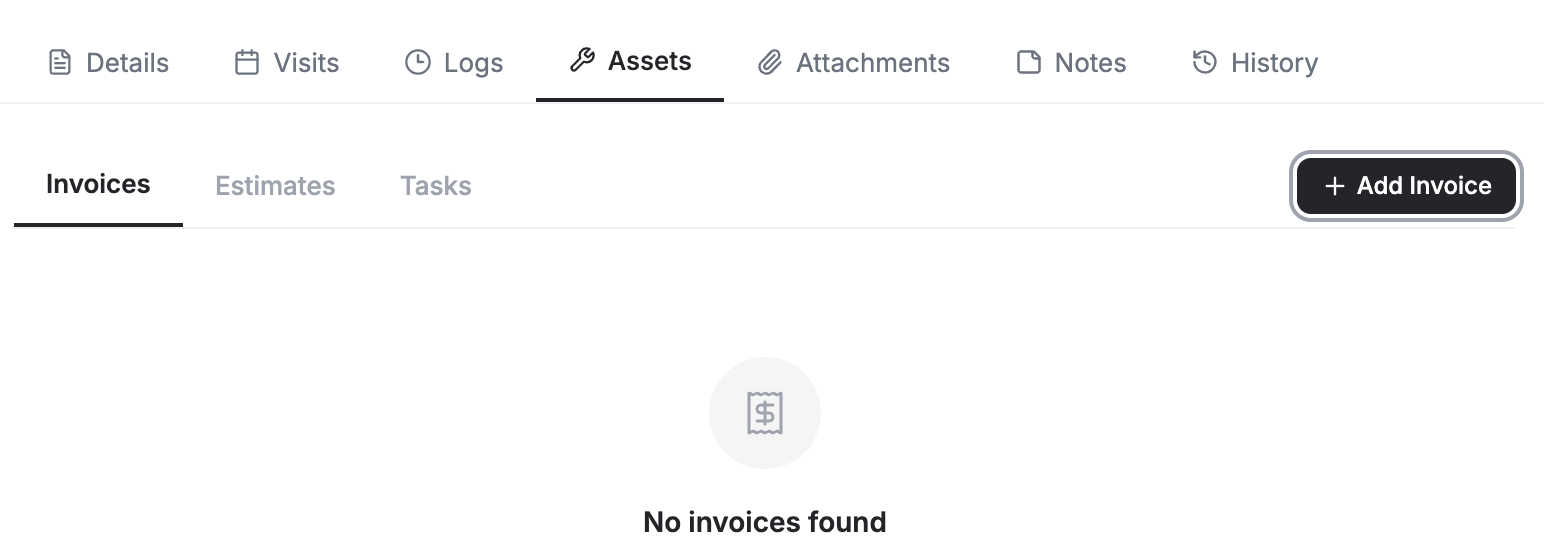
- Open the job detail page
- Click the Assets tab
- Click + Add Invoice
- FieldCamp opens a new invoice pre-filled with the job's data
Option 2: From the Actions Menu
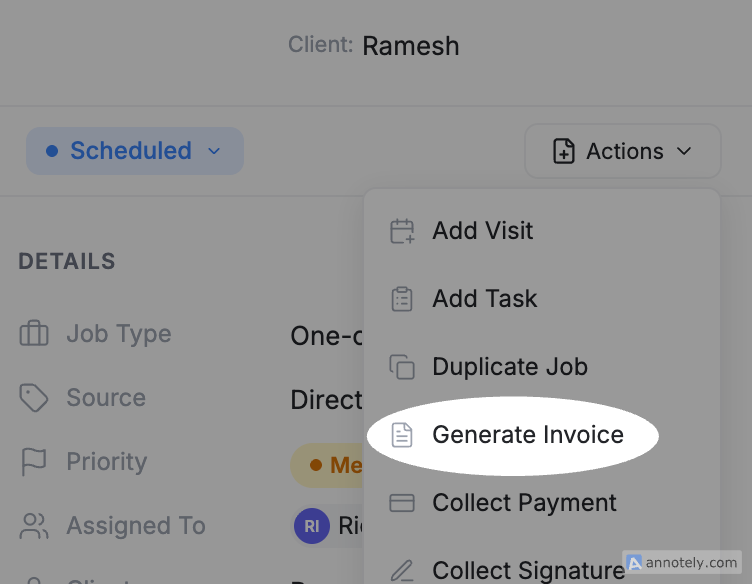
- Open the job detail page
- Click the Actions button in the top-right corner
- Select Generate Invoice
- The invoice form opens with job details loaded
Both paths produce the same result. Use whichever is more convenient.
What Carries Over
| From the Job | Into the Invoice |
|---|---|
| Client name and contact | Pre-filled in the billing section |
| Billing address | Copied from the job or client record |
| Line items | Services and products with quantities and pricing |
| Labor hours | Pulled from job logs if logged |
| Materials | Any materials recorded in visit logs |
| Deposits | Applied as credits if collected on the original estimate |
Adjustments Before Sending
The pre-filled invoice is a starting point. Before sending, you can:
- Add or remove line items -- Include work that was not on the original job, or remove items that were not completed
- Adjust quantities and prices -- Update hours worked, material costs, or discount rates
- Apply deposits -- If the customer paid a deposit, it appears as a line credit reducing the balance due
- Set payment terms -- Net 15, Net 30, Due on Receipt, or custom terms
- Add notes -- Thank the customer, explain charges, or include warranty information
- Attach files -- Add before/after photos, completion reports, or signed forms
For detailed options on formatting, taxes, and terms, see Creating and Managing Invoices.
Sending the Invoice
Once the invoice is ready, you have several delivery options:
Email -- Click Send and FieldCamp emails the invoice directly to the customer. The email includes a link to view and pay online.
Customer Portal -- If your customer has portal access, the invoice appears in their portal automatically. They can view, download, and pay from there.
Download -- Export the invoice as a PDF to share manually, print, or attach to your own email.
After sending, FieldCamp tracks whether the invoice has been viewed, is overdue, or has been paid. Payment status updates automatically when the customer pays through Stripe or another connected payment method.
You can create multiple invoices from the same job. This is useful for progress billing on large projects where you invoice at milestones rather than at the end.
Tracking Payment
After invoicing, monitor payment status from:
- The invoice detail page -- Shows sent, viewed, paid, or overdue
- The job detail page -- The Assets tab shows linked invoices and their payment status
- The analytics dashboard -- See outstanding invoices and revenue trends
- The Command Centre -- Ask "What invoices are unpaid?" or "Has the Smith Residence invoice been paid?"
For automatic payment collection on recurring jobs, see Auto-Deducting Payments.
Related Articles
Converting Estimates to Jobs | FieldCamp
Convert approved estimates into scheduled jobs in FieldCamp with one click. Client details, line items, pricing, and deposits carry over automatically.
Calendar Overview | FieldCamp
Use FieldCamp's Event calendar, Team Tracking route tools, four scheduling views, Job Tray, and separate Team Location live map.