 FieldCamp
AI Job Scheduling | FieldCamp
Use FieldCamp's AI to find the best time slot, match the right technician, and reduce travel costs — schedule field service jobs in seconds instead of minutes.
Under the hood — see how Jobs work in the FieldCamp data model: the fields they hold, how they connect to your other records, and how to customize them.
FieldCamp's AI Job Scheduling analyzes team availability, travel routes, skill requirements, and workload distribution to find the best possible time slot for any job. Instead of manually cross-referencing calendars and maps, the AI handles the optimization in seconds.
Schedule Jobs with the Command Centre
The fastest way to use AI scheduling is through the Command Centre:
- "Schedule an HVAC inspection for Smith Residence this week, 2-hour job"
- "Find the best time for a plumbing repair at 789 Pine Street, keep travel under 30 minutes"
- "Schedule Sarah Johnson's annual maintenance — assign the closest available tech"
- "Dispatch all unscheduled jobs for this week"
The AI considers every factor below and returns the best slot. You confirm and the job is created. See AI Skills for more examples.
AI Scheduling Inside FieldCamp vs AI Dispatcher
FieldCamp has two ways to use AI for scheduling. It helps to understand when to use which:
| Feature | AI Scheduling (Inside FieldCamp) | AI Dispatcher (Standalone App) |
|---|---|---|
| Where | Checkbox on the job creation form | Separate app at dispatcher.fieldcamp.ai |
| Best for | Scheduling one job at a time | Managing your entire dispatch queue |
| How it works | AI suggests the best slot when you create a job | Dedicated dashboard for bulk dispatch, live map, and automation |
| Features | Single-job optimization, team suggestions | Live dispatch map, dispatch assistants, analytics, batch processing |
| Setup | Built into every FieldCamp account | Requires the AI Dispatcher add-on |
For day-to-day job creation, the built-in AI scheduling is all you need. For teams handling high volumes of incoming work or wanting a dedicated dispatch workflow, the AI Dispatcher provides a full dispatch operations center.
How AI Scheduling Works Step by Step
Here is exactly what happens when you enable AI scheduling for a job:
-
You enable "Let AI Find The Best Time" — On the job creation form, check the AI scheduling toggle. The smart scheduling interface appears.
-
You set the parameters — Duration, completion timeline, and travel limits (detailed in the sections below).
-
AI checks all technicians — The engine scans every team member's schedule for the requested time window.
-
AI applies filters — It eliminates anyone who:
- Does not have the required skills (exact match required)
- Is already booked during the requested window (conflict detection)
- Exceeds their daily job capacity
- Is on time-off or outside business hours
-
AI ranks remaining candidates — From the qualified, available technicians, the AI ranks by:
- Travel distance from their previous job to this job site
- Current workload balance (prefers underloaded technicians)
- Customer time window preference (if the client requested a morning or afternoon slot)
- Performance history on similar job types
-
AI presents the suggestion — The best option appears with reasoning ("Mike Torres is closest, has the right skills, and has a light schedule on Tuesday"). Alternatives are available if you want to compare.
-
You confirm — Click Accept and the visit is created with the selected time and technician.
AI Scheduling in the Job Modal
You can also activate AI scheduling while creating a job manually:
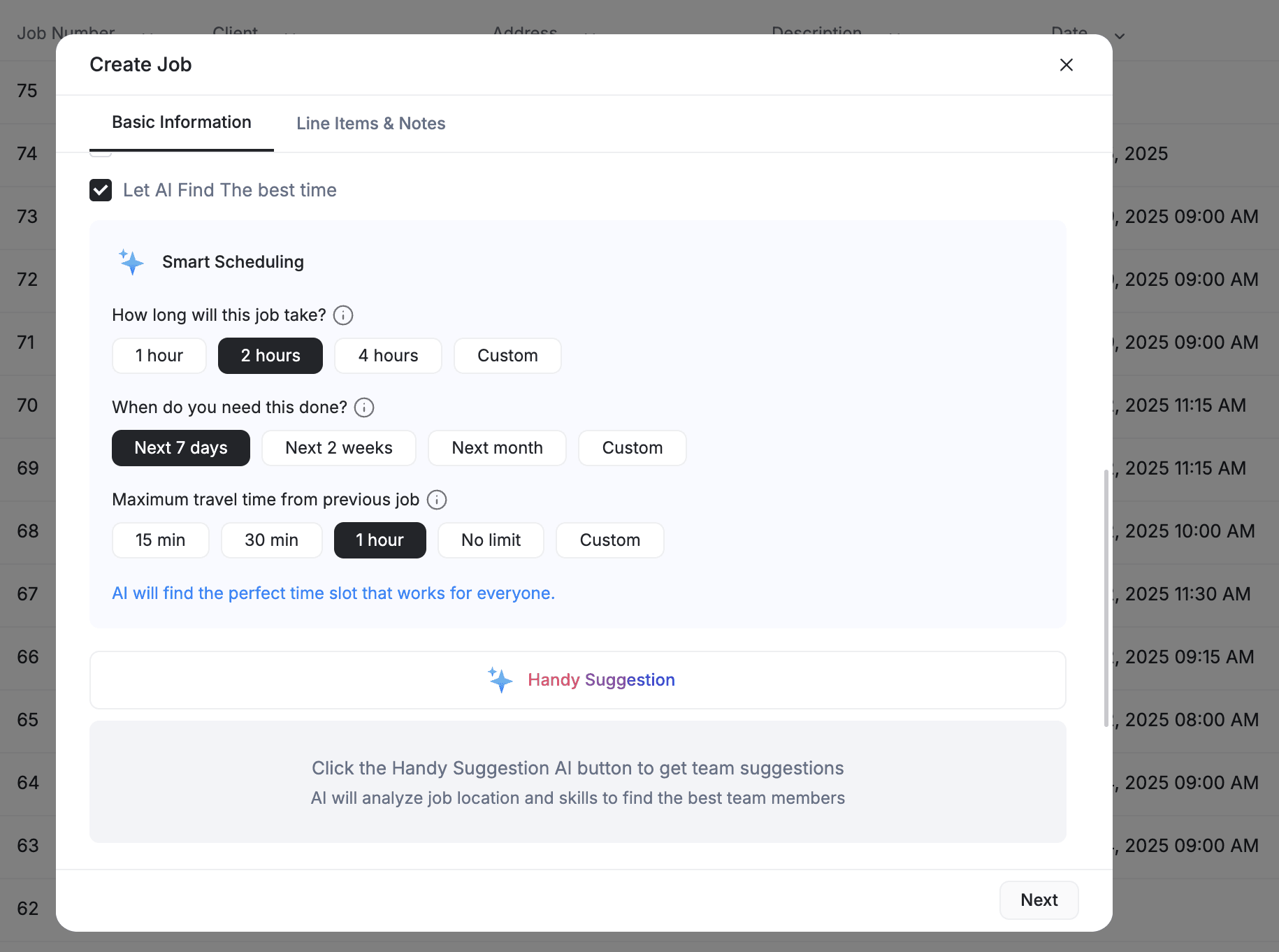
Step 1: Enable AI Scheduling
In the scheduling section of the job creation modal, check "Let AI Find The Best Time". The smart scheduling interface appears.
Step 2: Set Job Duration
"How long will this job take?"
- Quick options: 1 hour, 2 hours, 4 hours
- Custom for specific durations (e.g., 90 minutes, 6 hours)
- The AI uses this to block the right amount of time and avoid conflicts
Step 3: Define Completion Timeline
"When do you need this done?"
| Option | Best For |
|---|---|
| Next 7 days | Urgent or priority work |
| Next 2 weeks | Standard scheduling |
| Next month | Flexible, non-urgent work |
| Custom | Specific date constraints |
Step 4: Set Travel Parameters
"Maximum travel time from previous job"
| Option | Effect |
|---|---|
| 15 min | Tight geographic clusters, minimal drive time |
| 30 min | Balanced efficiency and coverage |
| 1 hour | Wider service area |
| No limit | Distance is not a factor |
| Custom | Your specific threshold |
Step 5: Review the Suggestion
The AI presents the optimal time slot with reasoning, plus alternatives if available. Click Accept to use the suggestion, Show Alternatives for other options, or override manually.
What the AI Considers
Here is the full list of factors the AI evaluates for every scheduling decision:
| Factor | How It Affects the Decision |
|---|---|
| Skills match | Exact match required. If the job needs "HVAC Certified," only techs with that skill are considered. |
| Travel distance | AI calculates drive time from the tech's previous job to this job site. Shorter travel is preferred. |
| Current workload | Prefers techs with lighter schedules to balance the team's workload evenly. |
| Availability | Checks business hours, per-tech schedules, and time-off requests. |
| Customer time preference | If the client requested "morning only" or "after 2pm," the AI respects that. |
| Daily capacity | Will not exceed the maximum jobs per day set for each technician. |
| Equipment and vehicle | Considers what equipment or vehicle the tech has access to, if configured. |
| Historical performance | Techs with strong track records on similar jobs get a slight preference. |
AI Team Suggestions

Click the Handy Suggestion button (sparkle icon) in the team assignment section. The AI ranks team members by:
- Distance from the team member to the job location
- Skills matching the job requirements
- Availability during the suggested time slot
- Workload balance across the team
- Performance history on similar jobs
This is useful even when you are not using full AI scheduling — you are picking the time manually but want help choosing the right person.
Dispatch Modes
AI scheduling supports two dispatch modes:
Immediate dispatch — The AI assigns and schedules the job the moment you confirm. The visit is created, the technician is notified, and the calendar updates instantly. Use this for urgent jobs or when you want to finalize the schedule right away.
Queue dispatch — The job goes into a pending queue for review. You (or the AI Dispatcher) can review the queue and dispatch jobs in batches. This is useful for operations that prefer to plan the full day or week before committing.
Bulk Dispatch
Select multiple unscheduled jobs and dispatch them all at once:
- Go to the Jobs list and filter by "Unscheduled"
- Select the jobs you want to dispatch (checkbox on each row)
- Click Dispatch Selected
- The AI optimizes all selected jobs together — considering the combined travel routes, skill requirements, and team capacity
- Review the suggested assignments and confirm
Bulk dispatch saves significant time when you have a queue of incoming work from online booking, service requests, or recurring job creation.
When AI Cannot Find Anyone
Sometimes the AI cannot find a conflict-free assignment. When this happens, the job is flagged and the AI explains why. Common reasons:
| Reason | What To Do |
|---|---|
| No one has the required skills | Add the skill to a qualified tech, or remove the skill requirement from the job |
| Everyone is fully booked | Extend the time window (e.g., from "next 7 days" to "next 2 weeks") |
| Travel time too long | Increase the travel limit or consider a tech in a closer service area |
| Outside business hours | Adjust the customer's preferred time window or override business hours |
| Capacity limits reached | Increase the daily max for a tech, or reassign one of their existing jobs |
See Conflict Detection and Resolution for how to handle specific conflict types.
AI scheduling works best when your team availability data and skill profiles are complete. The more data the AI has, the smarter its suggestions become. Take 10 minutes to verify each team member's skills, working hours, and daily capacity in Team Management.
AI Dispatcher Add-on
For teams that handle high volumes of incoming work, FieldCamp offers the AI Dispatcher as an add-on. The Dispatcher goes beyond single-job scheduling to manage your entire queue:
| Feature | What It Does |
|---|---|
| Immediate dispatch | Assigns and schedules a job the moment it comes in |
| Queue dispatch | Batches unscheduled jobs and optimizes them together |
| Bulk dispatch | Schedules dozens of jobs at once with one click |
| Conflict resolution | Automatically resolves overlapping assignments |
| Live dispatch map | See every tech's location and job status on a real-time map |
| Dispatch assistants | Automated agents that handle dispatch without human input |
| Analytics dashboard | Track dispatch efficiency, travel time, and utilization |
The Dispatcher uses the same AI engine described above but applies it across your whole operation. For teams that need dedicated dispatch management, the AI Dispatcher app at dispatcher.fieldcamp.ai offers advanced features like multi-day route chaining and automated dispatch workflows.
The built-in AI scheduling and the AI Dispatcher add-on use the same intelligence engine. The difference is scope: built-in handles one job at a time, the Dispatcher manages your full queue with a dedicated interface.
Related Articles
Understanding Visits | FieldCamp
Learn what visits are in FieldCamp, how they relate to jobs, visit statuses, charges, signature capture, and how to manage your daily field service schedule.
AI Dispatcher Inside FieldCamp
Use AI Dispatcher as an add-on inside FieldCamp to auto-assign jobs to technicians based on skills, location, and availability — no separate app needed.