 FieldCamp
Job Detail Page | FieldCamp
Navigate the job (work order) detail page in FieldCamp — view the sidebar, tabs, AI summary, visit history, and quick actions for managing field service jobs.
Under the hood — see how Jobs work in the FieldCamp data model: the fields they hold, how they connect to your other records, and how to customize them.
Every job (work order) in FieldCamp has a dedicated detail page that puts all the information you need in one place. Whether you arrived here from the jobs dashboard, a calendar click, or a quick search, the layout is the same.
The Fastest Way: Ask the Command Centre
Before clicking through menus, try the Command Centre. Open it and type a plain-English request:
- "Show me details for job 1036"
- "What's the status of the Smith Residence HVAC job?"
- "Pull up Sarah Johnson's latest job"
The Command Centre returns the job summary instantly and lets you jump straight to the detail page.
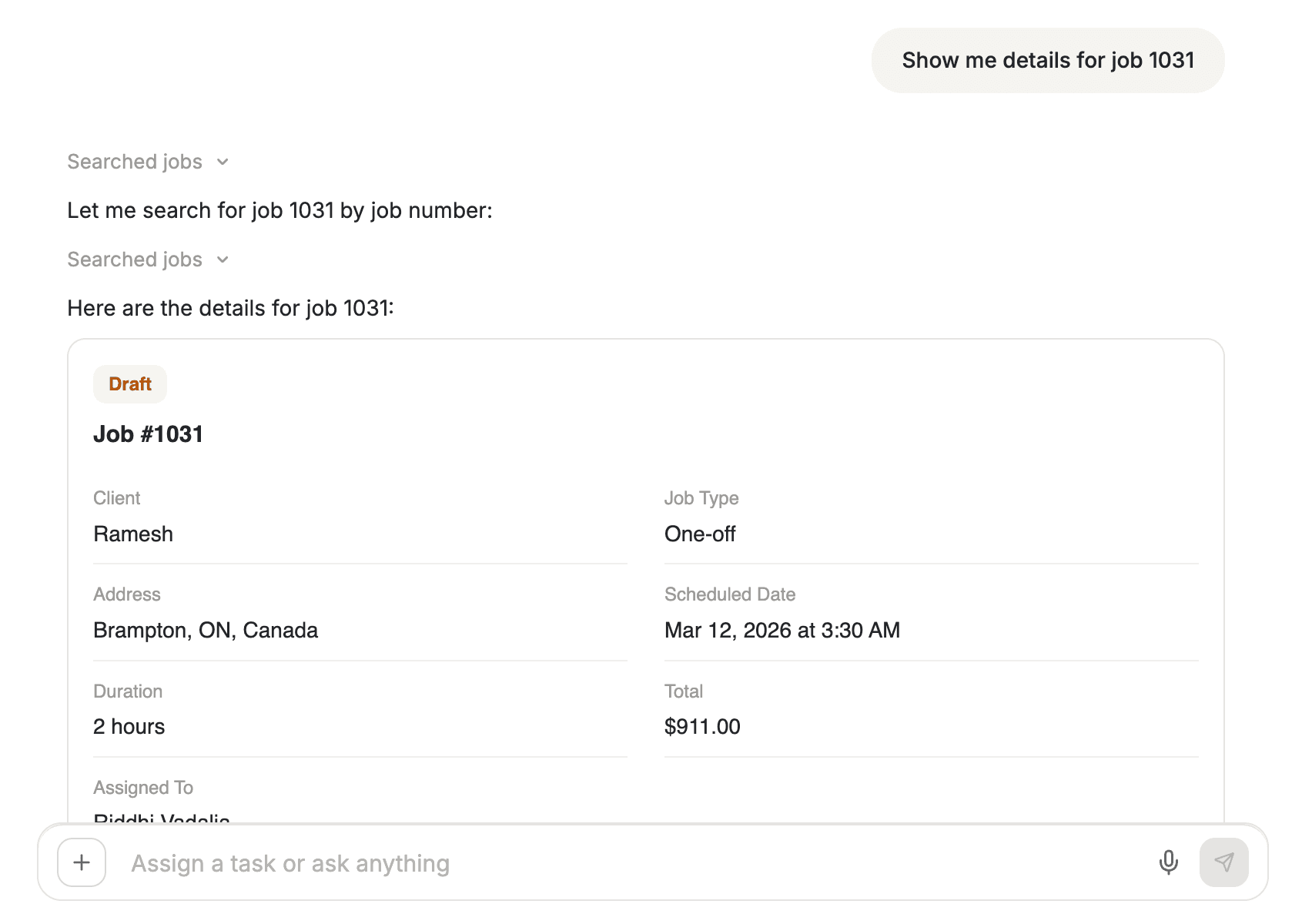
The Command Centre understands job numbers, client names, and descriptions. You do not need to remember exact IDs.
Sidebar Overview
The left sidebar on the job detail page displays the core facts at a glance:
| Field | What It Shows |
|---|---|
| Job Number | Unique identifier (e.g., #1036) |
| Status | Current job status such as Open, In Progress, or Completed |
| Client | Linked client name and contact info |
| Scheduled Date | Start date and time for the first visit |
| Assigned Team | Team members responsible for the job |
| Priority | Emergency, High, Normal, or Low |
| Job Type | One-time or Recurring |
| Service Address | Where the work happens |
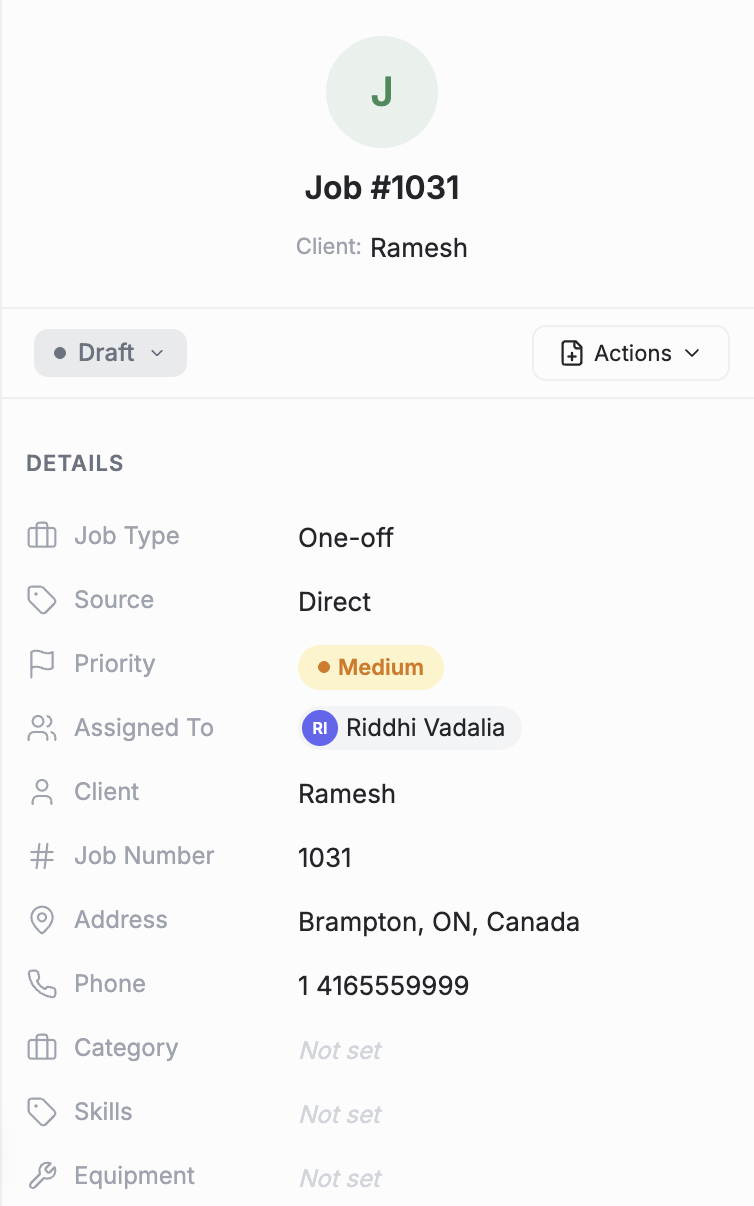
You can edit most sidebar fields inline. Click any value, make your change, and it saves automatically.
Tabs on the Detail Page
Below the sidebar, a row of tabs organizes deeper information:
Visits
Lists every scheduled visit tied to this job. One-time jobs show a single visit. Recurring jobs display the full series. Click any visit to open its own detail view.
Logs
Financial tracking for the job. Miles, expenses, labor hours, income, and profit calculations all live here.
Notes
Internal notes visible only to your team. Add gate codes, safety reminders, or client preferences. Notes sync across desktop and mobile.
Attachments
Upload photos, PDFs, floor plans, or any supporting file. Field technicians see these on the mobile app before arriving on site.
Forms
Digital checklists and inspection forms assigned to this job. Completed forms show filled responses with timestamps.
Assets
Linked financial documents. View connected estimates, invoices, and contracts. You can also create a new invoice or estimate directly from this tab.
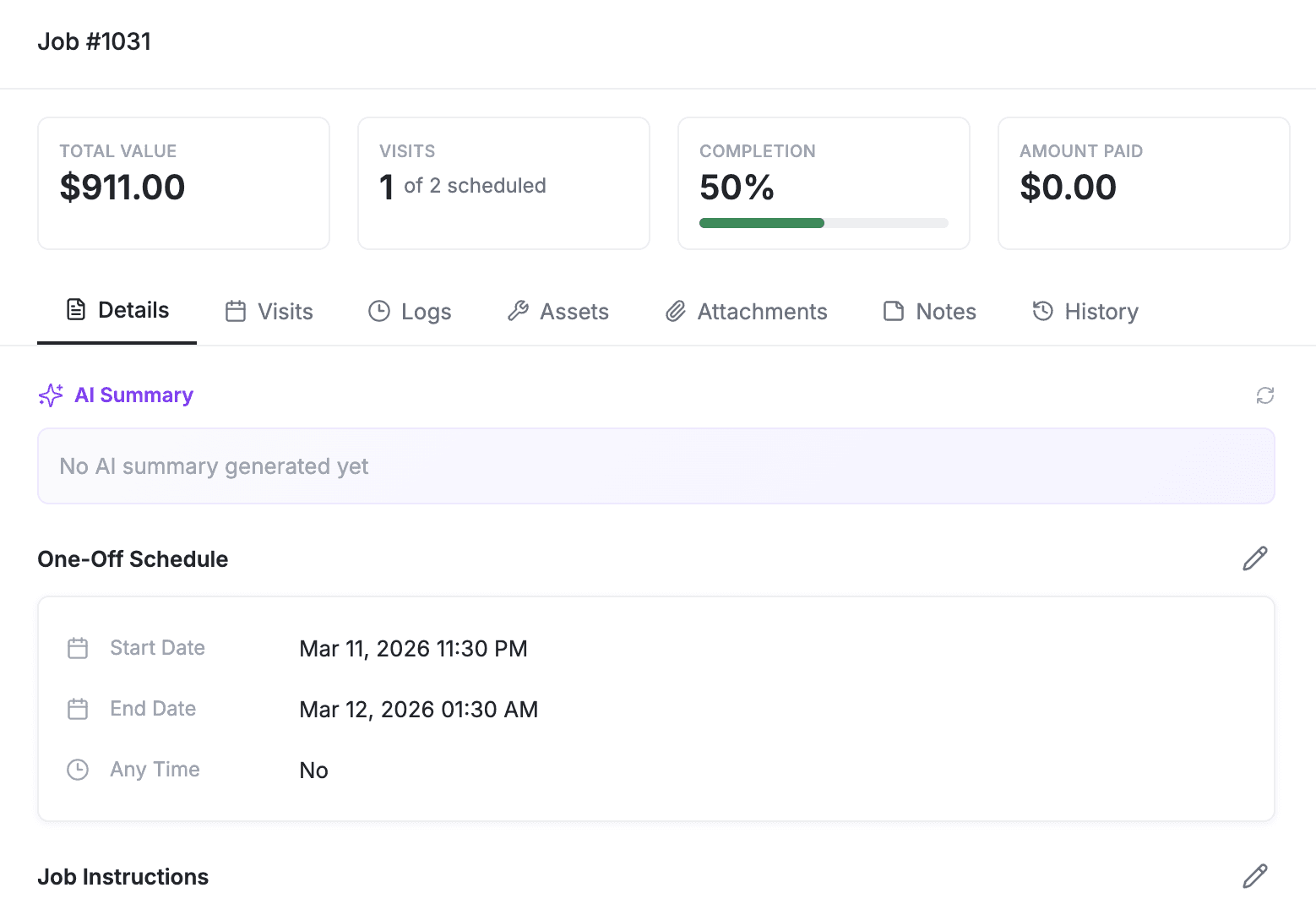
AI Summary Card
At the top of the detail page, FieldCamp generates an AI summary of the job. This card pulls together the current status, upcoming visit dates, assigned technician, and any recent activity into a short paragraph. It updates automatically as the job progresses.
The AI summary is especially useful for managers reviewing a large number of jobs quickly. Instead of clicking through every tab, read the summary for the essentials.
Actions Menu
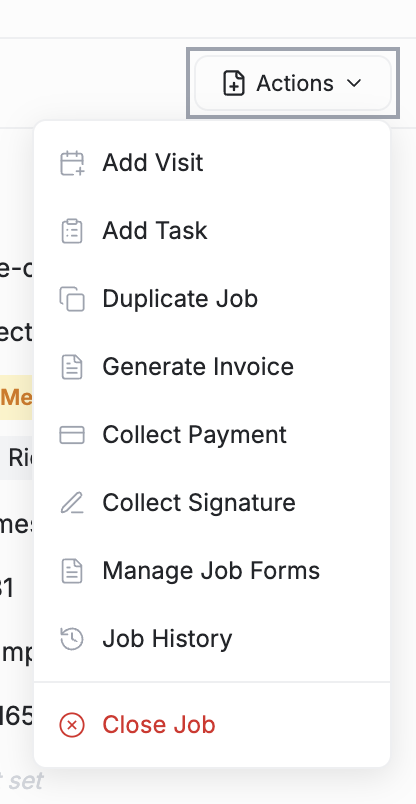
The Actions button in the top-right corner gives you quick access to common operations:
- Add Visit -- Schedule an additional visit under this job
- Add Task -- Create a task linked to this job
- Duplicate Job -- Create a copy of this job with the same details. Useful for repeat work at the same property
- Generate Invoice -- Generate an invoice pre-filled with the job's line items
- Collect Payment -- Record a payment against this job
- Collect Signature -- Send a signature request to the client
- Manage Job Forms -- Add or review digital checklists for this job
- Job History -- View the full audit trail of changes
- Close Job -- Mark the job as closed
Deleting a job also removes all of its visits and logs. If the work was completed but you no longer need the job, change its status to Completed instead.
Editing Fields Inline
Most fields on the job detail page support inline editing. Click the field value, type or select a new entry, and the change saves immediately. Fields that support inline editing include:
- Status
- Priority
- Assigned team members
- Scheduled date and time
- Service address
- Job notes
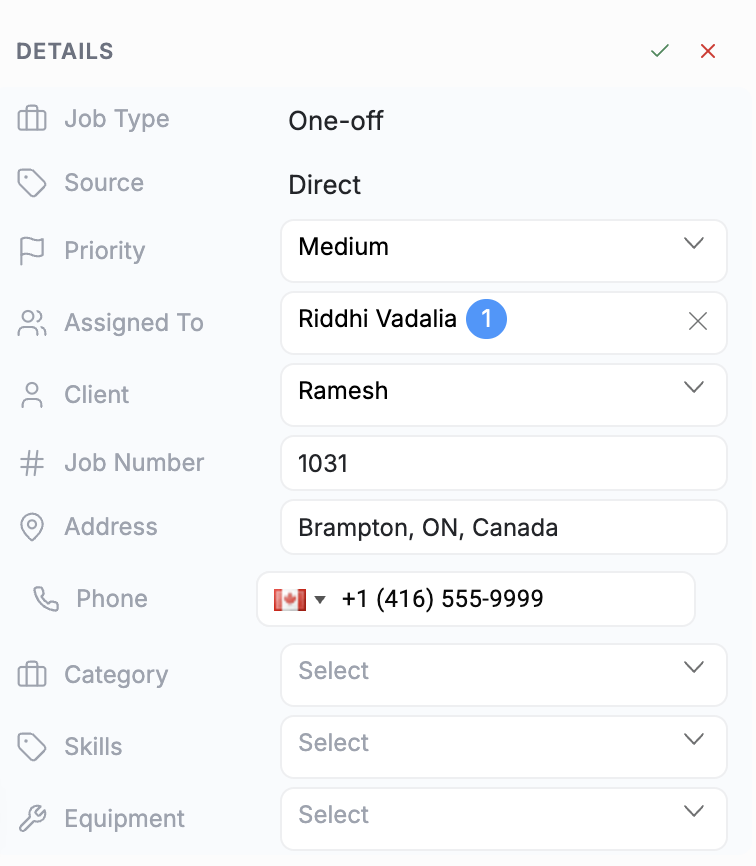
For larger changes like adding line items or reconfiguring a recurring schedule, use the Edit Job button from the Actions menu.
Related Articles
Creating a Job | FieldCamp
Learn how to create one-time and recurring jobs (work orders) in FieldCamp using the AI Command Centre or the manual stepped modal with client, schedule, and team details.
Job Types & Job Templates | FieldCamp
Use FieldCamp job types and templates to pre-fill technicians, skills, products, forms, and log templates every time you create a job.