 FieldCamp
Duplicating & Importing Jobs | FieldCamp
Duplicate existing jobs or import jobs in bulk from CSV and Excel files in FieldCamp. Export your job data anytime for reporting, backup, or migration.
Under the hood — see how Jobs work in the FieldCamp data model: the fields they hold, how they connect to your other records, and how to customize them.
When you need to create a job that looks a lot like one you already have, duplicating saves time. When you are migrating from another system or loading a batch of work orders, importing from a spreadsheet gets the job done in minutes.
The Fastest Way: Ask the Command Centre
Open the Command Centre and describe what you need:
- "Create a job just like job 1036 but for next week"
- "Duplicate the Smith Residence HVAC job for a new client, City Hospital"
- "Copy job 1042 and assign it to Mike's team"
The Command Centre duplicates the job and lets you adjust details before saving.
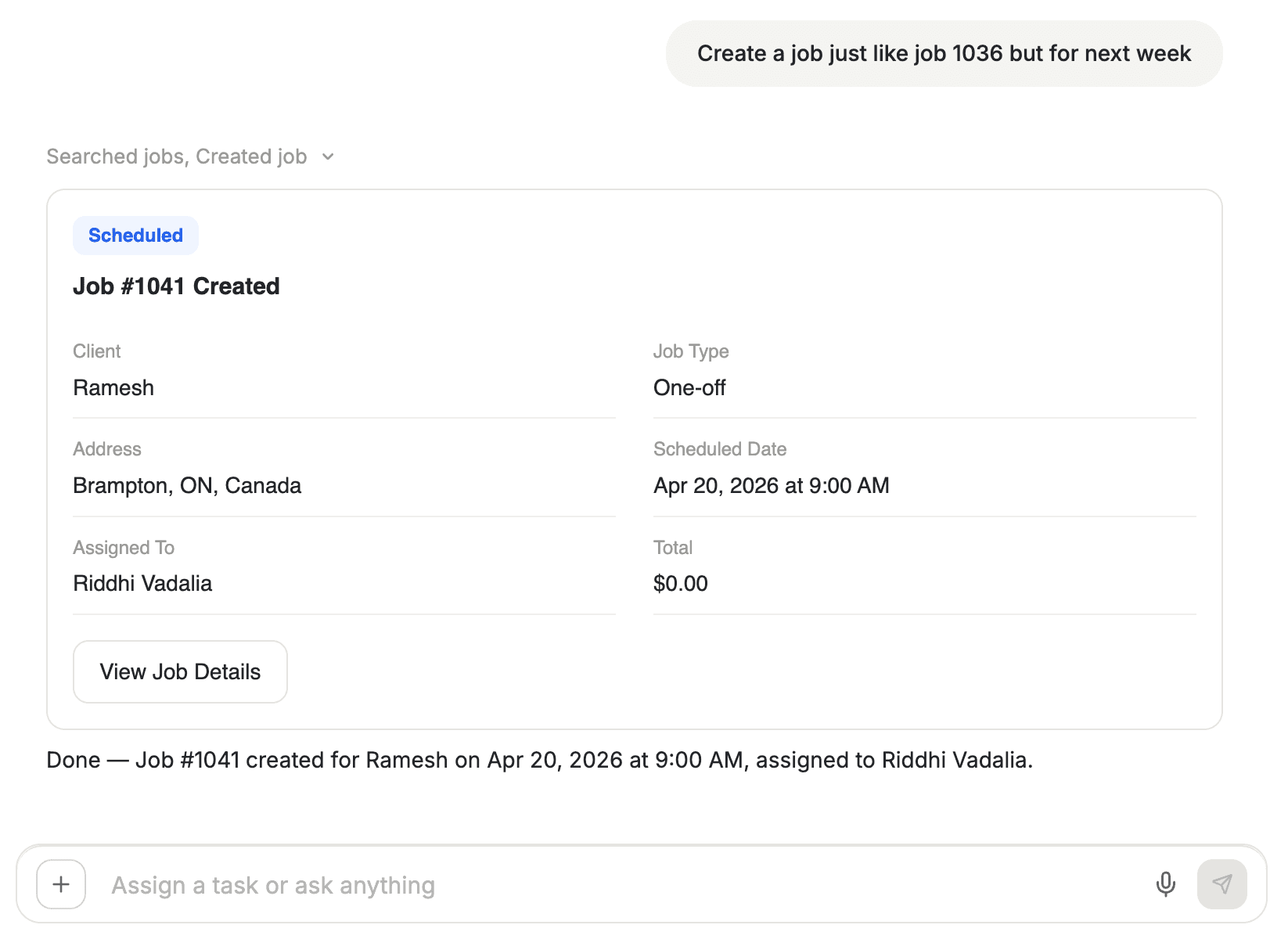
Duplicating a Job
When to Duplicate
Duplicate a job when you need to repeat similar work -- same service type, same line items, same instructions -- for the same client or a different one.
How to Duplicate
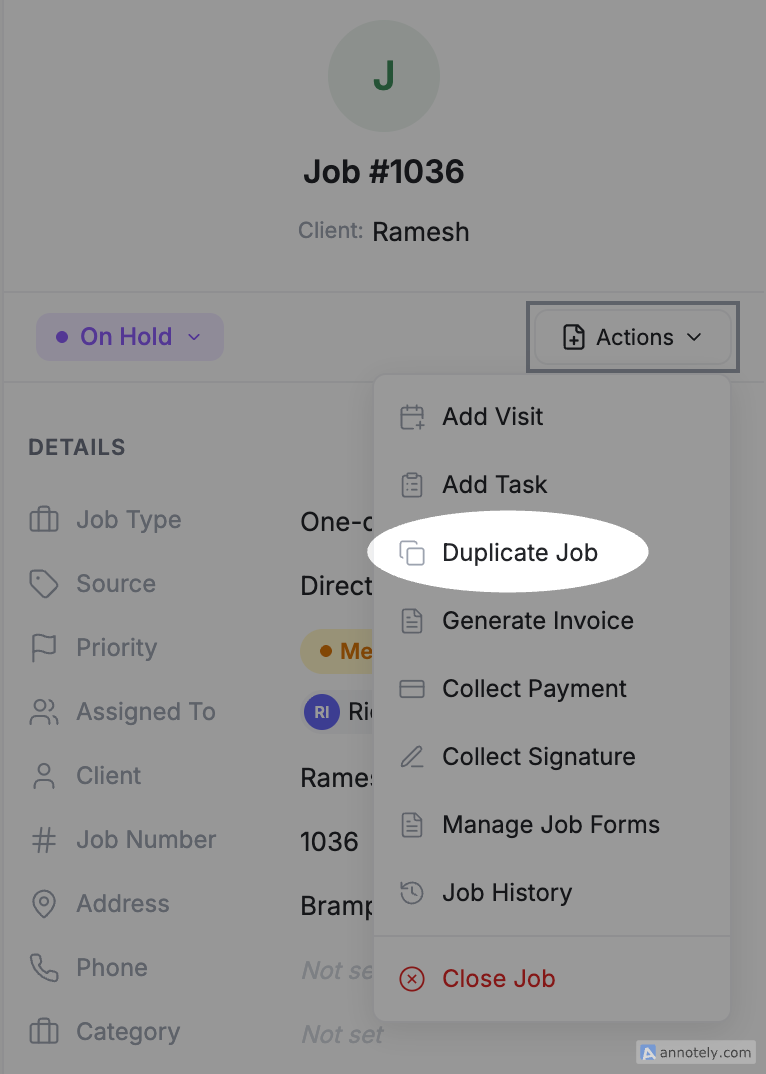
- Open the job detail page for the job you want to copy
- Click the Actions menu in the top-right corner
- Select Duplicate
- FieldCamp creates a new job pre-filled with the original's details
- Adjust anything that needs to change: client, date, team assignment, line items
- Click Create to save the new job
What Carries Over
| Included | Not Included |
|---|---|
| Client name and address | Visit history |
| Line items and pricing | Logs and expenses |
| Job notes and instructions | Completed forms |
| Team assignment | Attachments |
| Priority and job type | Invoices or estimates |
The duplicated job gets a new job number and starts with an Open status. No financial data from the original carries over.
Importing Jobs from CSV or Excel
When to Import
Use the import feature when you are:
- Moving from another field service platform to FieldCamp
- Loading a batch of work orders from a property management company
- Adding seasonal jobs in bulk (e.g., 50 spring cleanup jobs)
How to Import
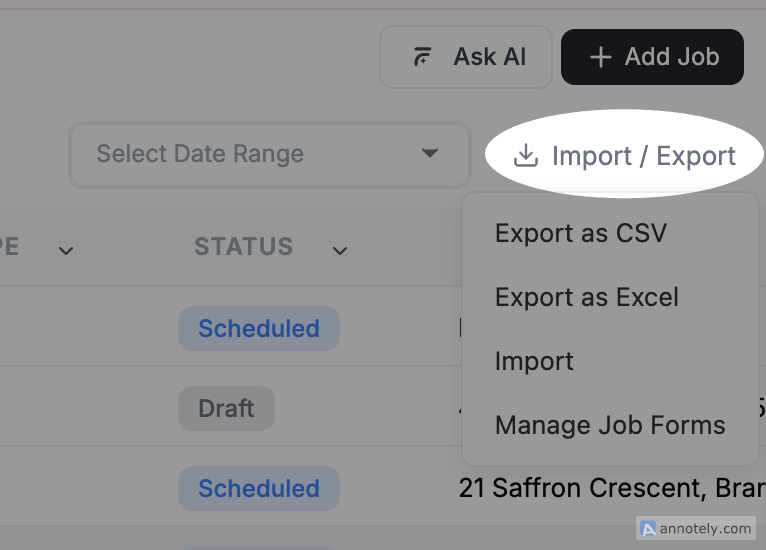
- Navigate to the Jobs list page
- Click Import / Export in the toolbar and select Import
- Upload your CSV or Excel file
- Map your file's columns to FieldCamp fields
- Review the preview for any errors
- Click Import to create the jobs
Required and Recommended Columns
| Column | Required? | Notes |
|---|---|---|
| Client Name | Yes | Must match an existing client or a new one is created |
| Service Address | Yes | Street, city, state, zip |
| Job Type | Recommended | One-time or Recurring |
| Scheduled Date | Recommended | Start date for the first visit |
| Duration | Recommended | Estimated hours |
| Priority | Optional | Emergency, High, Normal, Low |
| Skills Required | Optional | Helps with team matching |
| Description | Optional | Job instructions or notes |
| Line Items | Optional | Service names and prices |
If a client name in your file does not match an existing record, FieldCamp creates a new client card automatically. Review new clients after import to fill in missing details.
Exporting Jobs
Need a spreadsheet of your jobs for reporting, accounting, or backup?
- Go to the Jobs list page
- Apply any filters you need (date range, status, team member)
- Click Export
- Choose CSV or Excel
- The file downloads with all visible columns
Exported data includes job number, client, status, dates, team, line items, and totals.
Related Articles
Scheduling Multi-Day Jobs | FieldCamp
Step-by-step guide to enabling multi-day templates, setting up team skills, creating job templates, and scheduling multi-day field service jobs in FieldCamp.
Understanding Visits | FieldCamp
Learn what visits are in FieldCamp, how they relate to jobs, visit statuses, charges, signature capture, and how to manage your daily field service schedule.