 FieldCamp
Using Forms in the Field | FieldCamp
Complete mobile guide for filling out job forms, capturing signatures, taking photos, and syncing data offline using the FieldCamp mobile app in the field.
Under the hood — see how Jobs work in the FieldCamp data model: the fields they hold, how they connect to your other records, and how to customize them.
FieldCamp's mobile forms let field technicians complete digital checklists, capture customer signatures, upload photos, and document work — all from their phone. Dispatchers can assign forms to jobs directly from the Command Centre — see AI Skills for available commands. The mobile interface is designed for speed so your team can focus on the job, not paperwork.
Accessing Forms on Mobile
Step 1: Open Your Assigned Job
- Open FieldCamp on your phone
- Go to your assigned job visit
- Tap the "Job Form" tab
Step 2: Select and Complete the Form
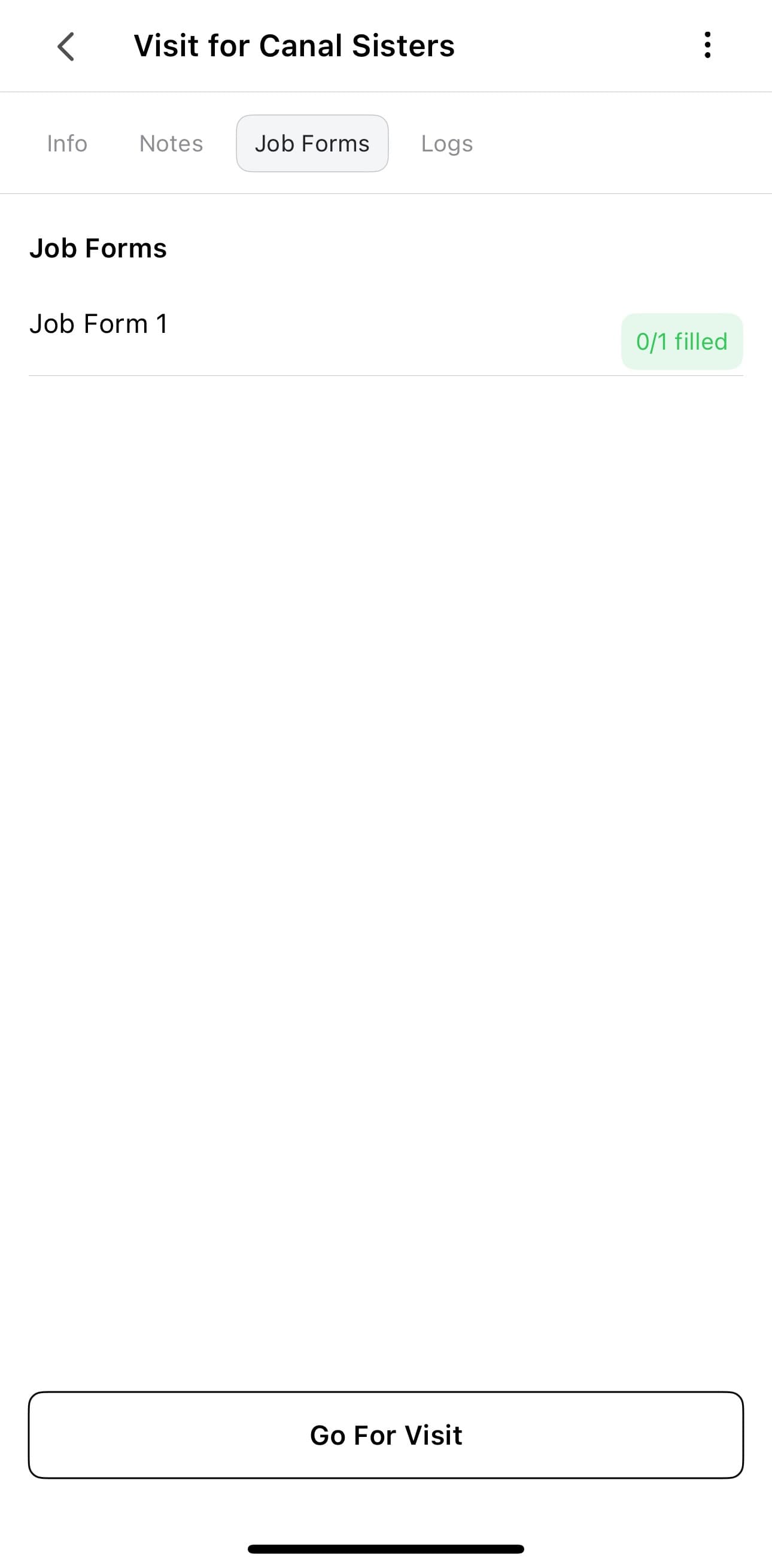
- Choose the form from the list (auto-attached forms appear automatically)
- Work through each field:
- Type in text fields
- Select checkboxes and radio buttons
- Choose from dropdowns
- Take photos when required
- Fill in table and matrix fields by tapping each cell
- Use repeater fields to add multiple entries (e.g., inspecting several units)
- Complete all required fields (marked with *)
Complex Field Types on Mobile
| Field Type | How It Works on Mobile |
|---|---|
| Table | Scroll horizontally, tap cells to edit |
| Matrix | Tap grid cells to select ratings |
| Repeater | Tap + Add to create another row of fields |
| Address | Tap to auto-fill from GPS or type manually |
| Content | Read-only — displays instructions or safety warnings |
| Attachment | Tap to open camera or select from gallery |
Collecting Customer Signatures
Automatic prompt — when you change the visit status to "Finish Work", FieldCamp automatically prompts for a customer signature. Hand the phone to the customer, they sign with their finger, and tap Accept.
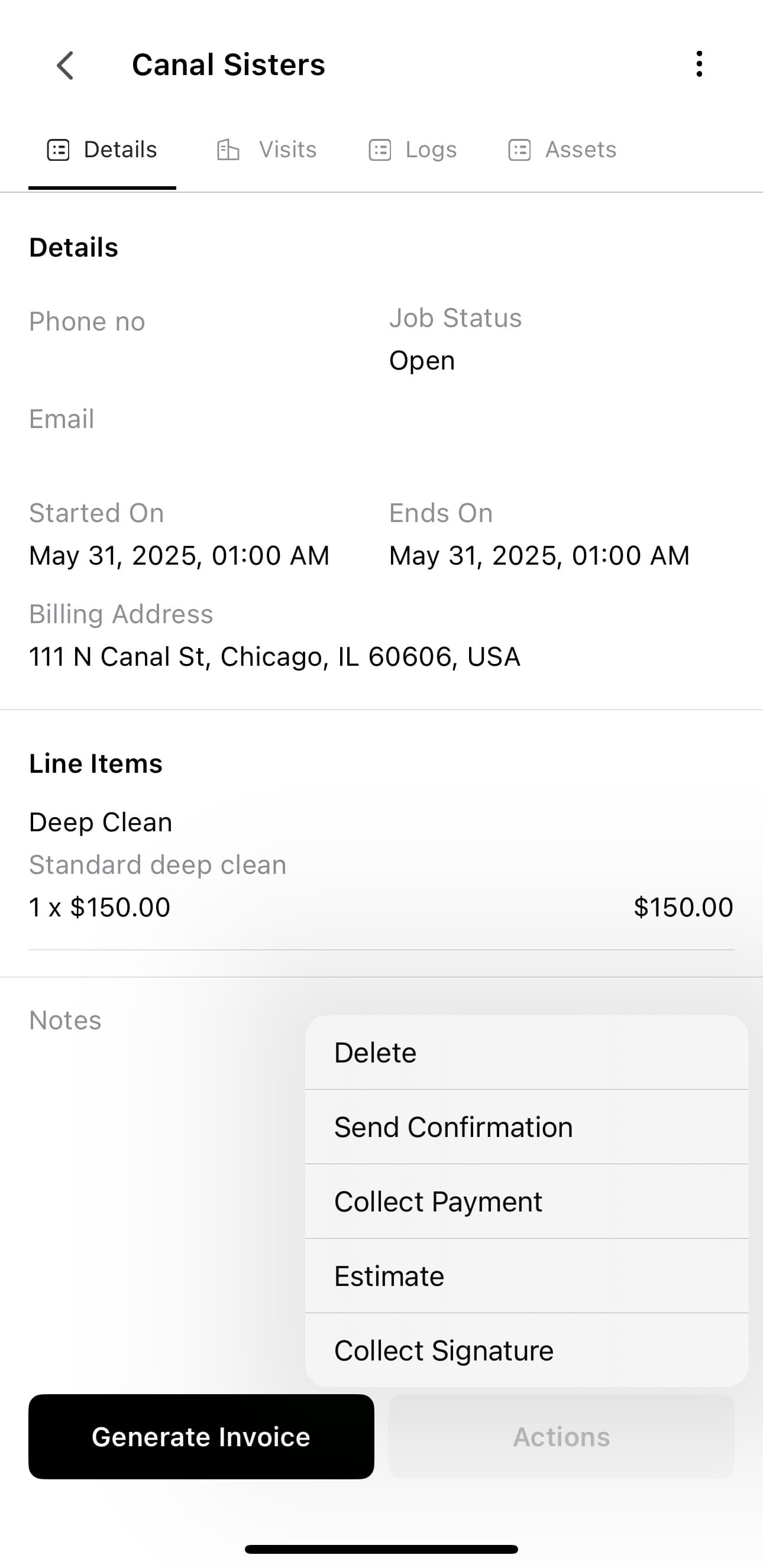
Manual collection — open job details, tap "Actions" (three dots), and select "Collect Signature". The signature screen opens immediately.
You can also collect a signature at the job level through the Job actions button, not just at the visit level.
Voice Notes
Tap the microphone icon on any text field to dictate notes instead of typing. FieldCamp converts speech to text automatically — useful when your hands are dirty or you are wearing gloves.
Taking Photos
- Tap any attachment or photo field to open your camera
- Take photos as you work, not all at the end — this gives you accurate before/during/after documentation
- Photos upload in the background so they do not interrupt your workflow
Offline Mode
Forms work without internet connectivity. Fill out the entire form, capture signatures, and take photos while offline. When your phone reconnects (Wi-Fi or cellular), FieldCamp syncs everything automatically. No data is lost.
Submitting Forms
- Complete all required fields
- The form saves automatically with the job
- Data syncs in real time to the office
- Submitted forms are locked and cannot be edited — this ensures your records are tamper-proof
Quick Tips
- Complete forms during the job, not after — accuracy drops when you try to remember details later
- Keep the screen clean for signature capture
- Use voice notes for long descriptions
- Check that photos are clear before moving on — blurry images are hard to fix later
- If working offline, look for the sync indicator when you are back online
Related Articles
Forms Management for Job Forms | FieldCamp
Admin guide to forms management in FieldCamp — create, organize, preview, bulk-delete, and auto-attach digital job forms across your business.
Job Cost Tracking & Logs | FieldCamp
Track miles, expenses, labor costs, and profitability for every job and visit in FieldCamp with the two-tier job logs system and custom log templates.