 FieldCamp
Schedule Conflicts | FieldCamp
Learn how FieldCamp detects double-bookings and overlapping visits automatically, and how to resolve scheduling conflicts with reassign or reschedule.
Under the hood — see how Jobs work in the FieldCamp data model: the fields they hold, how they connect to your other records, and how to customize them.
When two visits overlap for the same technician, or when travel time between jobs makes a schedule impossible, FieldCamp flags the problem before it causes a missed appointment. Conflict detection runs automatically across every scheduling action — manual assignment, drag-and-drop on the calendar, AI Dispatch, and bulk reassignment.
The Fastest Way: Ask the Command Centre
Open the Command Centre to check availability before scheduling:
- "Is anyone available tomorrow between 2-4pm?"
- "Can Sarah Johnson take a job at 10am on Friday?"
- "Show me team availability for next Monday"
- "Who's free this afternoon?"
- "Are there any scheduling conflicts this week?"
The Command Centre checks the schedule in real time and tells you exactly who is open, busy, or overbooked.
Asking the Command Centre before scheduling is the easiest way to avoid conflicts entirely. It factors in existing visits, travel time, and time-off requests.
Types of Conflicts
FieldCamp detects six types of scheduling conflicts:
| Conflict Type | What It Means | Example |
|---|---|---|
| Double-booking | Same technician assigned to two visits at the exact same time | Sarah Johnson has two visits both starting at 10:00am on Tuesday |
| Time overlap | A visit runs long and bleeds into the next one | A 2-hour job starts at 1:00pm but another job is scheduled at 2:30pm for the same person |
| Travel time shortage | Not enough drive time between consecutive visits | Mike Torres has a 1:00pm job on the north side and a 1:30pm job 45 minutes away on the south side |
| Skill mismatch | Technician does not have the required skills for the job | A spray foam job is assigned to someone without "Spray Foam - Closed Cell" certification |
| Capacity exceeded | Technician already at their maximum jobs for the day | Company policy is 6 jobs per tech per day and the tech already has 6 scheduled |
| Outside business hours | Visit scheduled during off-hours or on a day the technician does not work | A visit is booked for Saturday but the technician only works Monday through Friday |
When Conflicts Are Detected
FieldCamp automatically checks for conflicts at every scheduling touchpoint:
During manual scheduling — When you create a job and assign a date, time, and technician, FieldCamp checks before saving. If there is a conflict, the warning appears on the job creation form.
During drag-and-drop on the calendar — When you drag a job from the Job Tray onto a technician's time slot, FieldCamp checks for overlap before confirming the placement.
During AI Dispatch — The AI scheduling engine checks all conflict types proactively. It will not suggest a time slot that creates a conflict unless no conflict-free option exists.
During bulk reassignment — When you select multiple visits and reassign them to a different technician, each visit is checked against the target technician's existing schedule.
During recurring job creation — When you set up a recurring job, FieldCamp checks whether the pattern creates conflicts with existing recurring commitments.
How FieldCamp Detects Conflicts
Conflict detection runs automatically in the background. You do not need to turn it on or configure it. When FieldCamp finds a problem, a conflict warning appears:
- On the job creation form, before you save
- On the calendar view, as a visual indicator on the affected time slot
- In the dispatch panel, next to the affected technician's name
The warning explains what the conflict is and which visits are involved.
The Conflict Modal
When you try to save a schedule that has a conflict, FieldCamp opens a conflict modal. This dialog shows:
- The problem — Which visits overlap, for which technician, and what type of conflict it is
- The time gap — How much overlap exists (e.g., "30-minute overlap") or how short the travel window is (e.g., "needs 45 minutes of travel time but only 15 minutes between visits")
- Who is affected — The technician name, both visit details, and the client names
- Available alternatives — Other team members who are free during that time slot, or nearby open time slots for the same technician
From the modal, you can take action immediately without leaving the page.
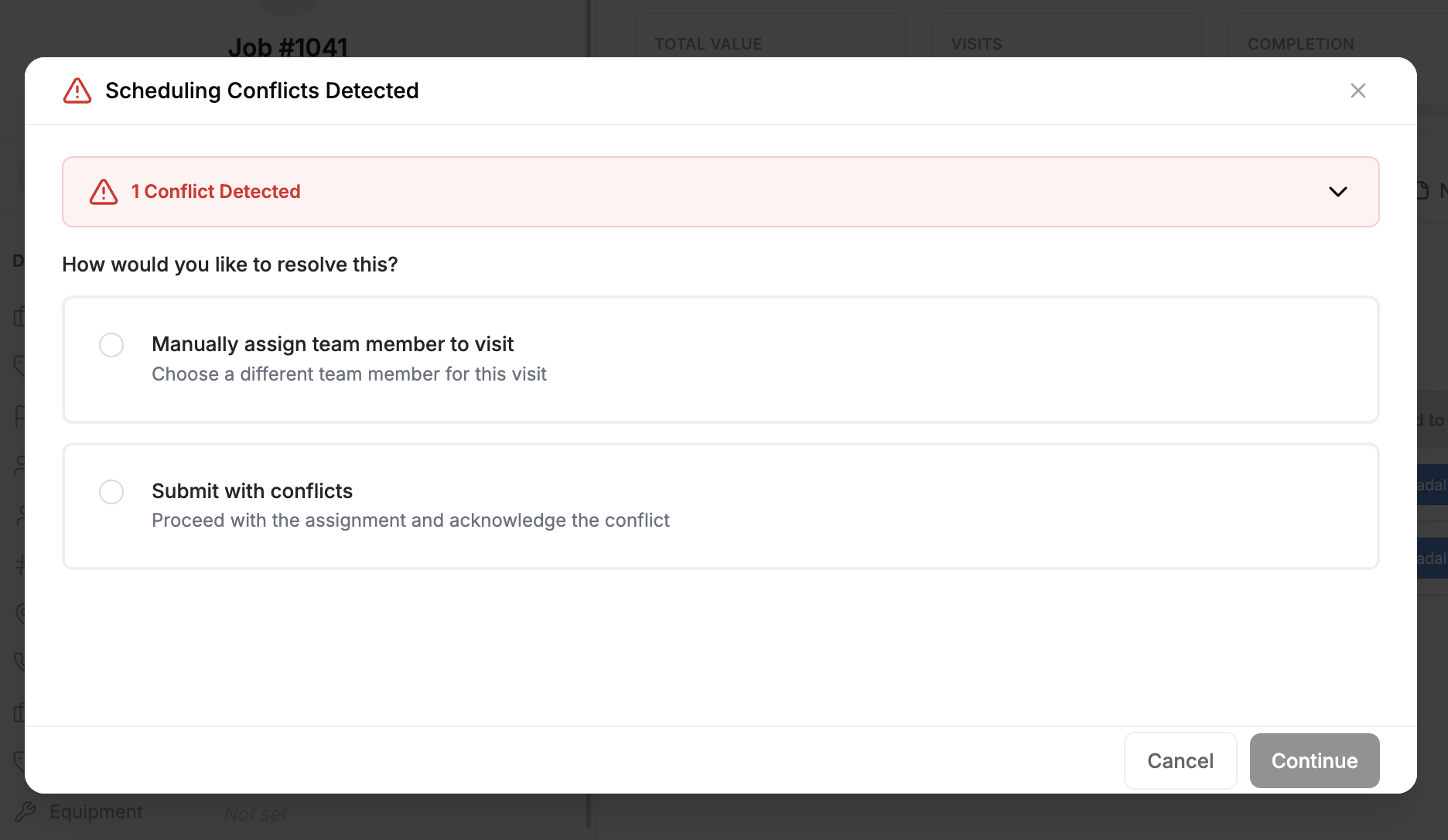
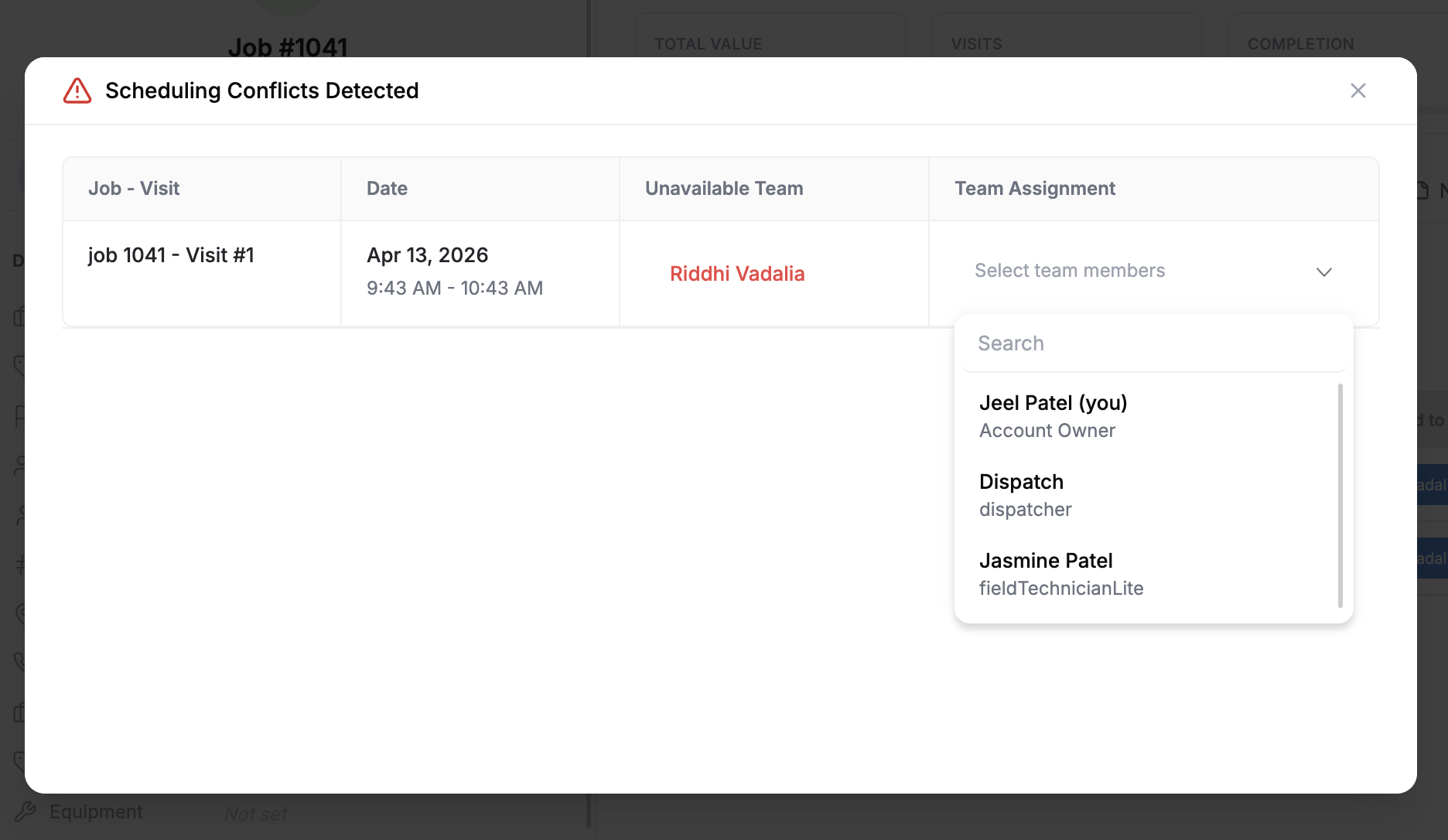
Resolution Options
Reassign to a Different Technician
If the conflict is a double-booking, the simplest fix is often to move one visit to a different technician.
- Review the list of available team members shown in the conflict modal
- Check each alternative's fit — the modal shows their distance from the job site, relevant skills, and current workload
- Select the best fit
- Confirm the reassignment
FieldCamp updates the visit and notifies the newly assigned technician via the mobile app.
Reschedule the Visit
If the same technician must handle both jobs, move one visit to a different time.
- The conflict modal suggests open time slots nearby (same day, adjacent days)
- Pick a slot that works for the customer and the technician
- Confirm the new time
The calendar updates automatically and the customer can be notified if you have workflow automation configured.
Override the Conflict
In some cases you may want to proceed despite the overlap — for example, when a technician can handle a quick 15-minute callback between two longer jobs. Click Override to save the schedule as-is.
The conflict indicator remains visible on the calendar so dispatchers stay aware of the tight schedule.
Split the Visit
For multi-day capable work, you can split a long visit into two shorter sessions across different days or times. This resolves the overlap by reducing the duration on the conflicting day.
Overriding a conflict does not remove it. The warning stays on the calendar as a reminder. Use this option only when you are confident the schedule is workable.
How AI Handles Conflicts
The AI Dispatcher automatically avoids all six conflict types when dispatching jobs. Here is how it works:
- AI checks every available technician's schedule for the requested time window
- It filters out anyone who would have a double-booking, time overlap, or travel time shortage
- It eliminates technicians who lack the required skills
- It respects daily capacity limits and business hours
- From the remaining candidates, it picks the best fit based on distance, workload balance, and performance history
When AI cannot find anyone — If no conflict-free assignment exists, the AI flags the job as unassignable and explains why. Common reasons:
- No technician has the required skills
- Everyone is fully booked during the requested window
- Travel distances are too long for any available tech
- The requested time falls outside business hours
In these cases, the job stays in the pending queue for manual review. See AI Job Scheduling for more on how the AI dispatches work.
Preventing Conflicts Before They Happen
The best conflict is one that never occurs. Use these settings to reduce scheduling collisions:
Set business hours — Configure your company's operating hours in Settings. Visits cannot be scheduled outside these hours unless manually overridden.
Set per-technician availability — Each team member can have custom working hours. If Mike Torres works Monday through Thursday only, Friday jobs will not be assigned to him.
Set maximum jobs per day — In team member settings, define a daily cap. Once reached, FieldCamp prevents additional assignments to that person.
Keep time-off current — When technicians request time off, mark it in the system. Conflict detection treats time-off blocks the same as existing visits.
Use AI scheduling — Let the AI scheduling engine handle assignments. It considers all conflict types by default, so you do not need to check manually.
Buffer time between visits — Configure a default buffer (e.g., 15 or 30 minutes) between visits in your scheduling settings. This accounts for travel time and prevents back-to-back overlaps.
For advanced conflict prevention across your entire operation, the AI Dispatcher at dispatcher.fieldcamp.ai offers a live dispatch map, real-time conflict monitoring, and automated resolution through dispatch assistants.
Conflicts in Recurring and Multi-Day Jobs
Conflict detection applies to every scheduling type, not just one-time jobs:
Recurring jobs — When you create a recurring job (e.g., weekly pool cleaning every Monday at 9am), FieldCamp checks whether the pattern conflicts with existing recurring commitments. If Mike Torres already has a Monday 9am recurring visit, the system flags the overlap across the entire series, not just the first occurrence.
Multi-day jobs — When scheduling a 3-day project, FieldCamp checks the crew's availability across all consecutive days. If the crew is free Monday and Tuesday but one member has a conflict Wednesday, the entire multi-day job is flagged before you save. The AI Dispatcher handles this by searching for windows where the crew is available for the full duration.
Drag-and-drop on the calendar — When you drag a job from the Job Tray onto a technician's time slot, conflicts are highlighted in real time as you hover. Red indicators appear on time slots where dropping the job would create an overlap, so you can visually find clear spots.
Checking Team Availability
Beyond conflict detection, you can proactively check who is available before creating a job:
- Calendar view — Switch to team view to see each person's schedule side by side
- Command Centre — Ask "Who's available Thursday afternoon?"
- AI scheduling — When creating a job, enable Let AI Find The Best Time to have FieldCamp pick a slot that avoids all conflicts
- Dispatch board — The dispatch board shows a real-time view of each technician's capacity and remaining availability
- Visit list filters — The Visits list page lets you filter by technician and date range to quickly spot overloaded days
Quick Availability Check from the Command Centre
The Command Centre is the fastest way to verify availability before creating a job. Try these prompts:
- "Is Mike Torres free Thursday from 10am to 2pm?"
- "Which technicians have fewer than 4 jobs on Friday?"
- "Show me everyone's schedule for next Tuesday"
The Command Centre cross-references all existing visits, time-off, recurring commitments, and multi-day job blocks to give you an accurate answer in seconds.
Related Articles
Arrival windows on jobs and visits | FieldCamp
Promise a FieldCamp customer an arrival window instead of an exact time, keep the calendar booked for the real visit length, and move the window with the visit.
Job Forms & Checklists | FieldCamp
Create digital job forms and checklists in FieldCamp to standardize field operations, capture signatures, and ensure compliance with mobile-ready forms.