 FieldCamp
Dispatch equipment settings | FieldCamp
Create and manage FieldCamp dispatch equipment records, including quantities, categories, transfer settings, depot addresses, and job type presets.
Use Equipment under Settings > Jobs & Scheduling to maintain aggregate equipment resources used in dispatch planning. Each record identifies a resource, its quantity, whether it can move between crews, and its saved handoff preferences.
This page is for shared dispatch resources such as trailers, lifts, or specialty tools. It is separate from customer-owned assets that your business inspects, repairs, or services.
Before you begin
The Equipment item appears in the Settings sidebar for Account Owners, Admins, Super Admins, and Dispatchers. If it is missing, confirm your access using Roles and permissions.
Before creating a record, decide:
- The name dispatchers will recognize.
- The positive whole-number quantity available to plan.
- Whether the resource can move between crews.
- Whether one or more categories will help organize it.
- Which handoff preference and buffer should be stored on the record.
- Whether the equipment should later be connected to a job type preset.
The FieldCamp settings overview explains where Equipment fits with the other Jobs & Scheduling settings.
Open Equipment settings
- Open Settings.
- Under Jobs & Scheduling, select Equipment.
- Wait for the equipment table to load.
Understand the equipment table
The table includes these columns:
| Column | What it shows |
|---|---|
| Selection | A checkbox used for bulk deletion |
| Name | The equipment title |
| Equipment Category | Saved categories, separated by commas; a dash appears when no category exists |
| Quantity | The saved quantity |
| Transferable | Yes or No, based on Can move between crews? |
Additional table behavior:
- Select a row to open Edit Equipment.
- The page loads the first 30 records, then loads more as you scroll.
- The footer shows how many records are currently displayed out of the total.
- The select-all checkbox selects the records currently loaded into the table, not records that have not loaded yet.
- Delete (count) appears only after you select at least one row.
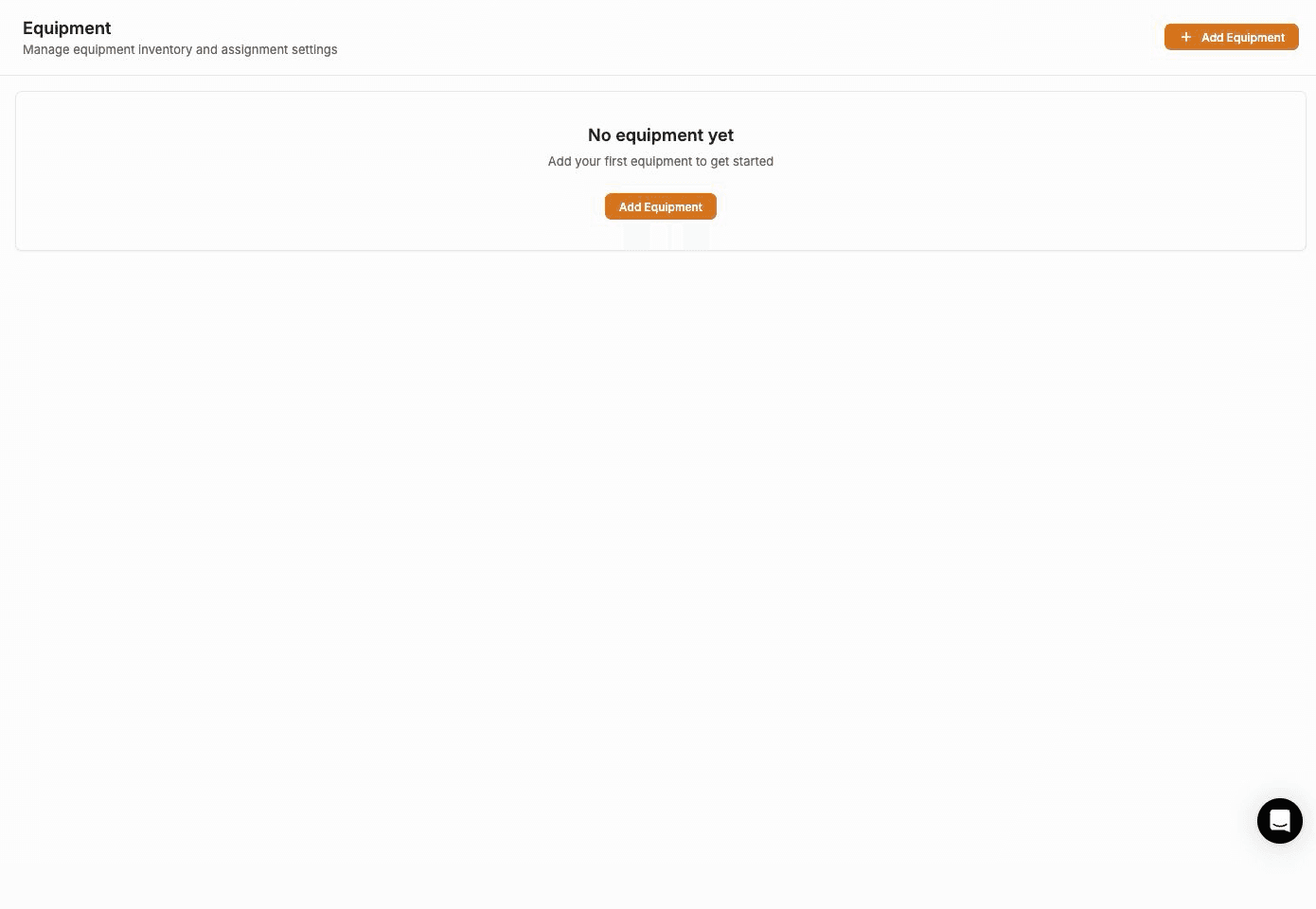
- When no records exist, the page shows No equipment yet and an Add Equipment action.
The table does not show Handoff Strategy, Handoff Buffer, Depot Location, or Requires Inspection?. Select a row and review those saved values in Edit Equipment.
Add equipment
- Select Add Equipment.
- Enter an Equipment title.
- Add any useful categories.
- Enter a Quantity.
- Review the transfer, handoff, buffer, depot, and inspection fields.
- Select Add Equipment in the modal.
- Wait for Equipment created successfully! and confirm the record appears in the table.
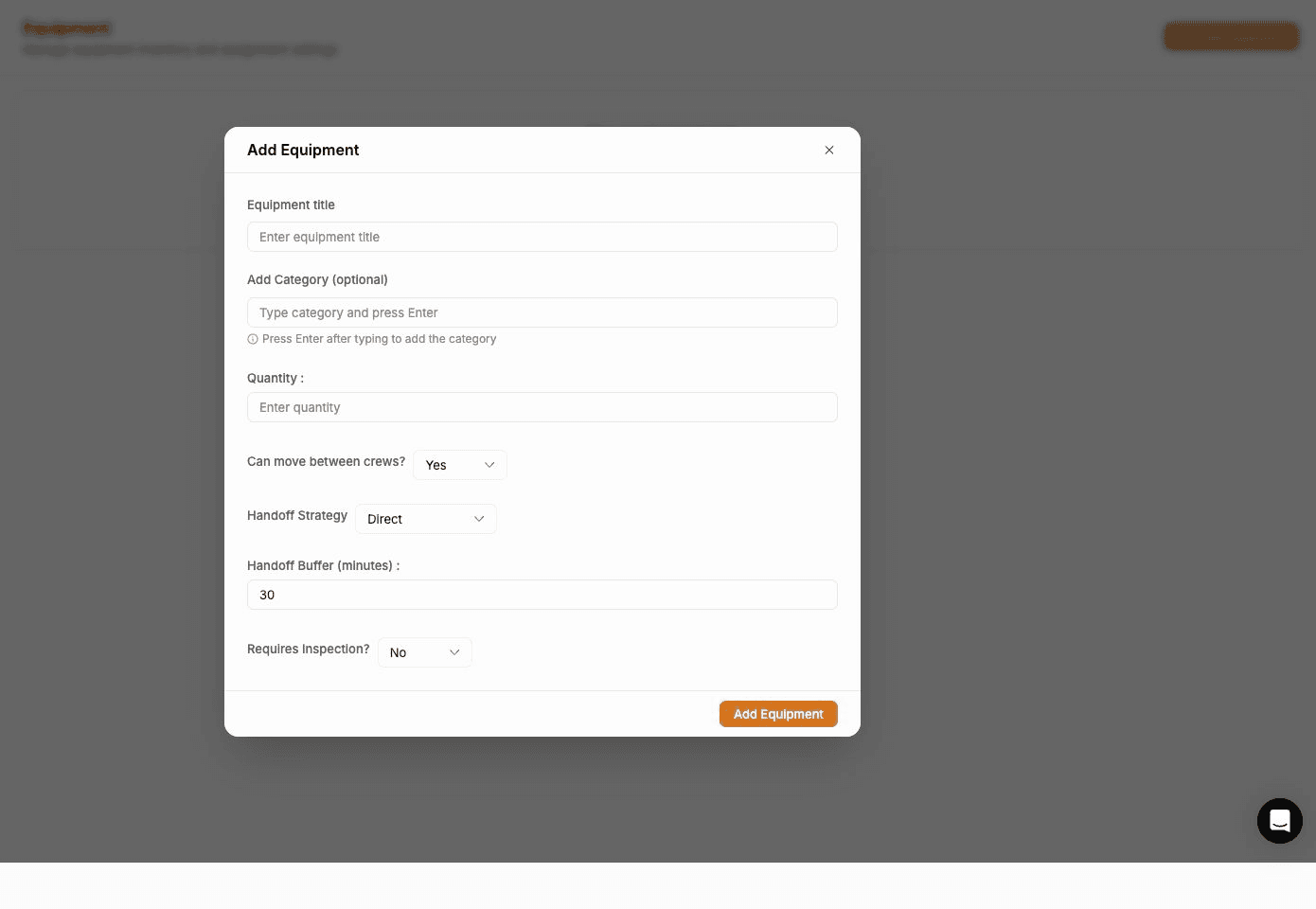
While the record is saving, the form is disabled and the action reads Adding....
Complete field reference
| Field | Required | New-record default | What to enter |
|---|---|---|---|
| Equipment title | Yes | Empty | A clear, recognizable name. Duplicate titles are allowed; blank or whitespace-only values are rejected. |
| Add Category (optional) | No | None | One or more category names. Select a suggestion or type a new value and press Enter. |
| Quantity | Yes | Empty | Use a positive whole number of 1 or more for the available units. |
| Can move between crews? | No | Yes | Choose Yes when the resource can be transferred, or No when it should remain with its current crew. |
| Handoff Strategy | No | Direct | Choose Direct, Depot, or Meet Halfway. |
| Handoff Buffer (minutes) | No | 30 | A nonnegative whole number stored with the handoff preference. An empty value is saved as 30. |
| Depot Location | No | Hidden | Appears only when the handoff strategy is Depot. Select a result from the address search. |
| Requires Inspection? | No | No | Choose Yes or No to store the inspection flag on the equipment record. |
The form can accept a quantity of 0, but other FieldCamp views do not treat zero consistently. Use a positive whole number of 1 or more for a resource that should be available to dispatch.
Add and manage categories
Categories help dispatchers recognize related resources in the equipment list.
Select an existing category
- Start typing in Add Category (optional).
- Wait for matching categories to appear.
- Select a category from the suggestions.
- Repeat to add more categories.
The category appears as a chip. Select the X on a chip to remove it before saving.
Create a category while adding equipment
- Type the new category name.
- Press Enter.
- Confirm that the new category appears as a chip.
- Save the equipment record.
FieldCamp creates the new category when the equipment record is saved. Selecting a suggestion prevents the same category from being added twice, but manually entering a value does not perform the same duplicate check. Review the chips and remove duplicates before saving.
You can save multiple categories, and all of them appear in the Equipment table. If the equipment is later supplied to AI dispatch, only its first category is used as the dispatch equipment type. Put the most important operational category first.
Configure a Depot handoff
Use these steps when the equipment should carry a saved depot address.
- Set Handoff Strategy to Depot.
- Start typing in Depot Location.
- Select the correct result from the address suggestions.
- Confirm the formatted address appears in the field.
- Set the Handoff Buffer (minutes).
- Save the equipment record.
Selecting an address result lets FieldCamp store its formatted address and location details. On a new record, merely typing an address without choosing a result sends no depot location.
Changing the handoff strategy away from Depot and updating the record clears the saved depot location.
Depot Location is not required even when Depot is selected. Verify that you selected an address suggestion before saving. Clearing the address while leaving Depot selected is not a reliable way to remove an existing location; change the strategy away from Depot, save, then edit the record again if needed.
Understand the handoff and inspection fields
Can move between crews?, Handoff Strategy, Handoff Buffer, and Requires Inspection? are saved on the equipment record. They describe the intended dispatch setup, but saving them does not itself:
- Schedule an equipment transfer.
- Create a depot visit.
- Calculate a halfway meeting point.
- Reserve time on a crew calendar.
- Create or enforce an inspection task.
Use these values consistently so administrators and dispatchers can interpret the record correctly. Confirm any operational handoff or inspection process separately.
Edit equipment
- Select the equipment row.
- Review the populated values in Edit Equipment.
- Change the applicable fields.
- Select Update Equipment.
- Wait for Equipment updated successfully! and confirm the table reloads.
During the update, the action reads Updating.... The modal has a close X but no separate footer Cancel button.
Connect equipment to a job type preset
Create the equipment record before adding it to a job type.
- Open Settings > Jobs & Scheduling > Job Type Presets.
- Add or edit a preset.
- Use Add Equipment in the preset.
- Select one or more equipment records.
- Save the preset.
See Job Types and Templates for the complete preset workflow.
Delete equipment
- Select one or more loaded rows using the table checkboxes.
- Select Delete (count).
- Review the deletion confirmation and its selected count, such as Delete 2 Equipment.
- Confirm the deletion.
- Wait for the list to reload and confirm the records are gone.
Deletion cannot be undone or restored from the Equipment page. Select-all covers only the records currently loaded into the table, so review the displayed count before confirming.
Troubleshooting
Equipment is missing from Settings
The sidebar item is shown to Account Owners, Admins, Super Admins, and Dispatchers. Confirm your current role and reload Settings after a role change.
Equipment title is required
Enter a name containing more than spaces. The form will not save an empty title.
Quantity is required
Enter a positive whole number. Avoid zero because the table and dispatch data do not represent zero consistently.
A category suggestion does not appear
Pause briefly after typing so the category search can run. You can type a new category and press Enter, but first check the existing chips to avoid duplicates.
The depot address was not saved
Edit the record, choose Depot, type the address, and select a result from the location suggestions. Plain text without a selected result does not include the location details FieldCamp needs.
Create or update failed
If you see Failed to create equipment. Please try again. or Failed to update equipment. Please try again., keep the form open, review the required fields, and try once more. If the list itself does not load or a bulk deletion appears to do nothing, reload the page before repeating the action.
An inspection was not created
Requires Inspection? stores a flag on the equipment record. It does not automatically create an inspection workflow or task.
Related articles
- AI Dispatcher inside FieldCamp — understand the Suite dispatch workspace that can consume equipment data
- Equipment data model — manage customer-owned assets that your team services, not shared dispatch resources
AI Dispatcher Inside FieldCamp
Use AI Dispatcher as an add-on inside FieldCamp to auto-assign jobs to technicians based on skills, location, and availability — no separate app needed.
Schedule Later & Visit Schedule Links | FieldCamp
Use Schedule Later to park one-off jobs as unscheduled and share a per-visit schedule link so customers can pick their own slot.