 FieldCamp
Export Clients to Excel or CSV | FieldCamp
Export your FieldCamp client data to Excel or CSV for analysis, reporting, and backup. Filter by stage or location, customize columns, then download instantly.
Under the hood — see how Customers work in the FieldCamp data model: the fields they hold, how they connect to your other records, and how to customize them.
FieldCamp makes it easy to download your client data as an Excel or CSV file for backup, analysis, reporting, or sharing with your team.
With the Command Centre: Type "How many active clients do I have?" or "Show me clients in New York" in the Command Centre to quickly get insights without exporting. For full data downloads, use the export feature below. See AI Skills for more.
Quick Export
- Go to the Clients page
- Set up filters if you want to export only specific clients
- Click the Import / Export button in the toolbar
- Select Export View as Excel (for .xlsx) or Export View as CSV (for .csv)
- Your file downloads automatically to your device
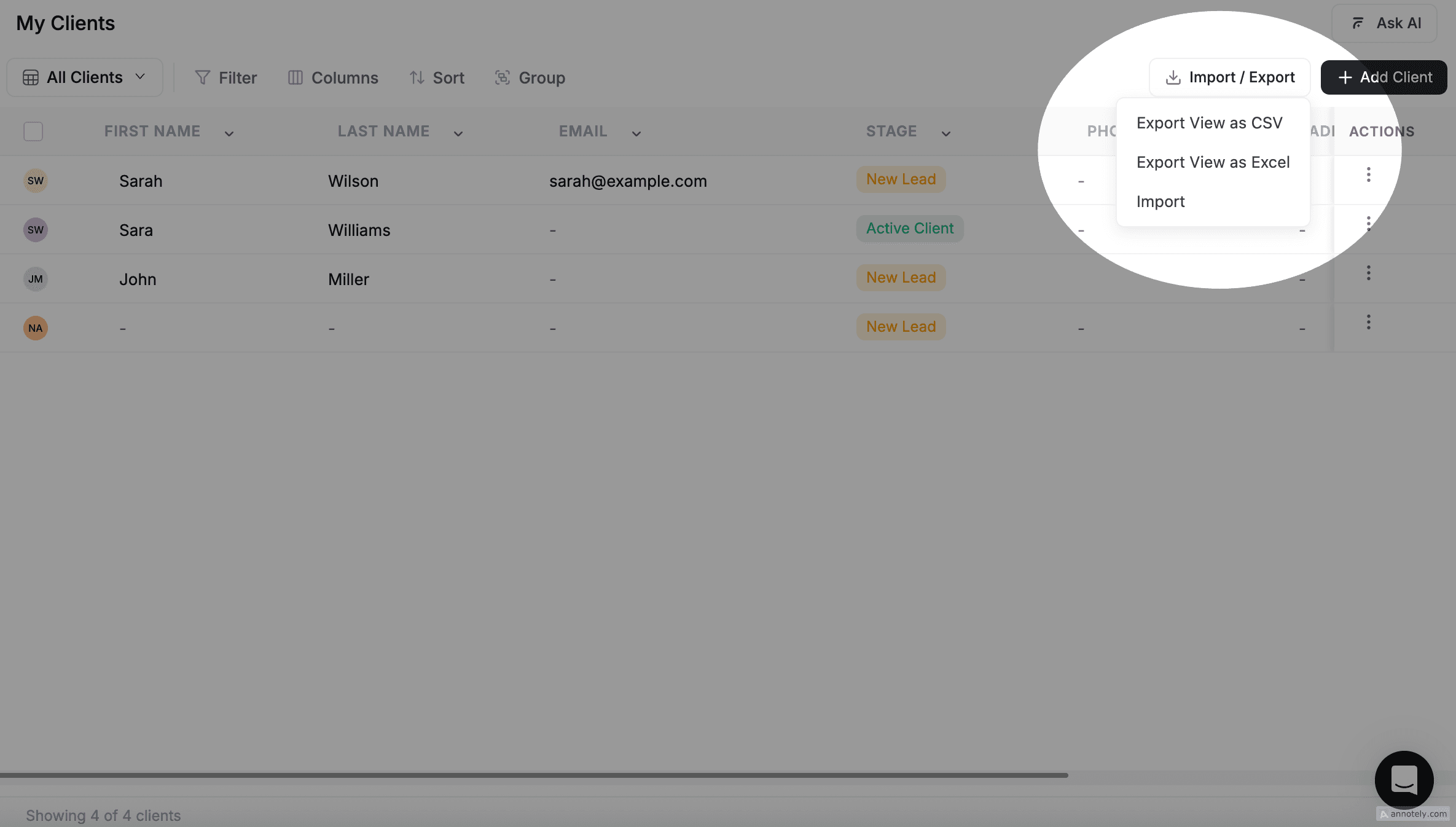
You need the Export permission for Clients to see the Import / Export button. If you do not see it, contact your admin to update your role.
Tip: The export only includes clients matching your current filters. Set up filters first to export exactly the clients you need.
What Gets Exported
Your export only includes clients you have permission to view. If your role is set to "View Assigned," you will only export your assigned clients. Admins export all clients.
Columns Exported
Your export includes all the columns currently visible in your table:
- If you hide a column, it will not be in the export
- If you add a column, it will be included
- To export specific columns, customize your table columns first
Data Included
| Field | Export Column Header |
|---|---|
| First Name | First Name |
| Last Name | Last Name |
| Email address | |
| Phone number (with country code) | Phone |
| Company Name | Company |
| Client Type (Business or Individual) | Client Type |
| Primary Address | Primary Address |
| Billing Address | Billing Address |
| Business Address | Business Address |
| Website | Website |
| Tax Number | Tax Number |
| Pipeline Stage | Stage |
| Custom fields | Uses the property name as the column header |
Export Formats
- Excel (.xlsx) — Best for analysis in Microsoft Excel, Google Sheets, Numbers, or LibreOffice
- CSV (.csv) — Best for importing into other tools, CRMs, or mail merge systems
Both formats contain the same data. The exported file is named with a timestamp so you can keep multiple exports organized by date.
Filtering Before Export
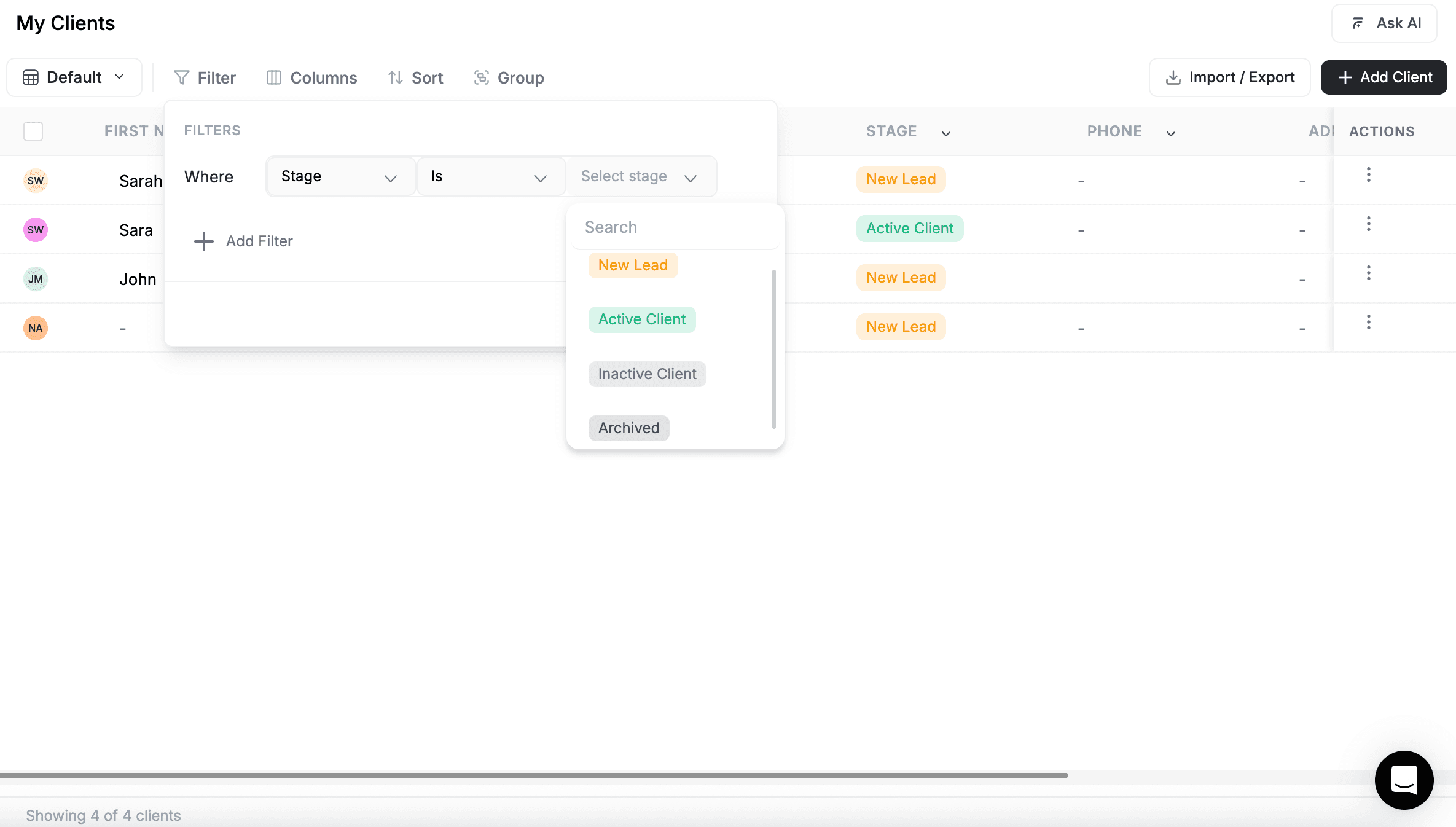
You can export different segments of your client base by using filters:
- Export only Active Clients: Filter by Stage = "Active Client", then export
- Export specific location: Filter by City = "New York", then export
- Export recent signups: Filter by Created Date = "This Month", then export
- Export by assigned team member: Filter by Assigned To = specific person, then export
Customizing Columns Before Export
To export only certain columns:
- In the Clients table, click the column settings
- Hide any columns you do not want in the export
- Show only the columns you want
- Click Import / Export and select your preferred format
Tip: Create a custom view with your preferred columns, filters, and sorts, then export from that view. It is faster than customizing every time.
Common Uses for Exported Data
- Backup — Keep a copy of your client database for record-keeping
- Analysis — Use Excel to analyze trends, create charts, and generate reports
- Sharing — Send client lists to team members, accountants, or partners
- Mail merge — Use the data to create personalized letters or emails
- Integration — Import the data into other business systems
- Reporting — Create custom reports for your business
Category-Specific Exports
The export respects whichever category or view you are currently viewing:
- Leads — Export only clients at the lead stage
- Pipeline — Export clients in active pipeline stages
- Clients — Export all established clients
What is NOT Included in Export
The export contains client contact information and properties, but does NOT include:
- Detailed interaction history
- Email threads
- Job records or estimates
- Invoice details
- Internal notes or comments
If you need to export this detailed information, contact support for custom export options.
Troubleshooting Exports
If the Import / Export button is not visible: Your role may not have the Export permission — contact your admin.
If the file does not download: Check your browser's download settings and make sure automatic downloads are allowed.
If Excel shows a warning about the file format: This is normal for .xlsx files. Click "Enable" or "Open" to proceed — the file is safe.
FAQs
How do I export only specific clients from FieldCamp?
Go to the Clients page and apply filters to narrow down to the clients you want. Then click Import / Export and select either "Export View as CSV" or "Export View as Excel."
What columns are included in a FieldCamp client export?
The export includes all columns currently visible in your Clients table — including First Name, Last Name, Email, Phone, Company, Client Type, addresses, Website, Tax Number, Stage, and any custom fields. Hide or show columns before exporting to control what is included.
Can I use exported data to re-import clients?
Yes. You can use an exported Excel or CSV file as a template for re-importing. Upload your file, map the columns, and FieldCamp will create the records.
Related Articles
- Import Clients — Add clients in bulk from CSV or Excel
- Filter, Sort & Group — Set up filters before exporting
- Client Views — Save views for easy repeat exports
- Custom Fields — Custom fields are included in exports
- Creating Clients — Add individual clients via AI or manually
Import Clients (CSV & Excel) | FieldCamp
Import clients into FieldCamp from CSV or Excel files. Map spreadsheet columns to client fields automatically, track import progress, and bring custom fields along.
Create Custom Client Fields | FieldCamp
Create custom client fields in FieldCamp to track business-specific information like industry, referral source, budget, and service preferences with eight field types.