 FieldCamp
Clients and Requests: Managing Service Inquiries | FieldCamp
Learn how Requests work in FieldCamp — track pre-sales service inquiries per client, manage the pipeline, and convert Requests into Jobs, Estimates, or Invoices.
Under the hood — see how Customers work in the FieldCamp data model: the fields they hold, how they connect to your other records, and how to customize them.
In FieldCamp, a Request is how potential work enters your pipeline before it becomes a scheduled job. When someone reaches out about a service — but nothing is confirmed or booked yet — you create a Request to track that inquiry. One client can have many Requests over time.

What Is a Request?
A Request is a pre-sales service inquiry. It captures the details of what a client wants done, but it has not yet been scheduled or committed to as a job.
Think of it this way: a Request is the conversation before the work, and a Job is the work itself. When a Request is ready to move forward — whether you need to quote it, bill it, or schedule it — you convert it into the appropriate record.
Every Request gets its own number (REQ #123) and can hold a full set of details:
- Description and service type
- Urgency level (low, medium, high, or critical)
- Contact phone and service address
- Scheduled dates and assigned team
- Line items and estimated value
- Notes and custom properties
Requests vs. Sales Pipeline: FieldCamp has two separate but related areas. The Sales Pipeline view (/sales-pipeline) is a filtered view of your Clients table — it shows which stage each client is in. Requests (/requests) is the actual service inquiry pipeline where individual jobs-in-progress live. These are different things and serve different purposes.
How Requests Connect to Clients
Every Request is linked to a Client. This relationship is one-to-many: a single client record can accumulate as many Requests as needed over the lifetime of that relationship — one for a repair inquiry this month, another for a maintenance estimate next quarter, and so on.
Because Requests are tied to a client, all the context you need is in one place. You can see a client's full inquiry history, track what has been converted, and understand where each piece of potential work stands.
Viewing a Client's Requests
To see all Requests for a specific client:
- Open the client's detail page from the Clients list (or search with CMD+K / Ctrl+K)
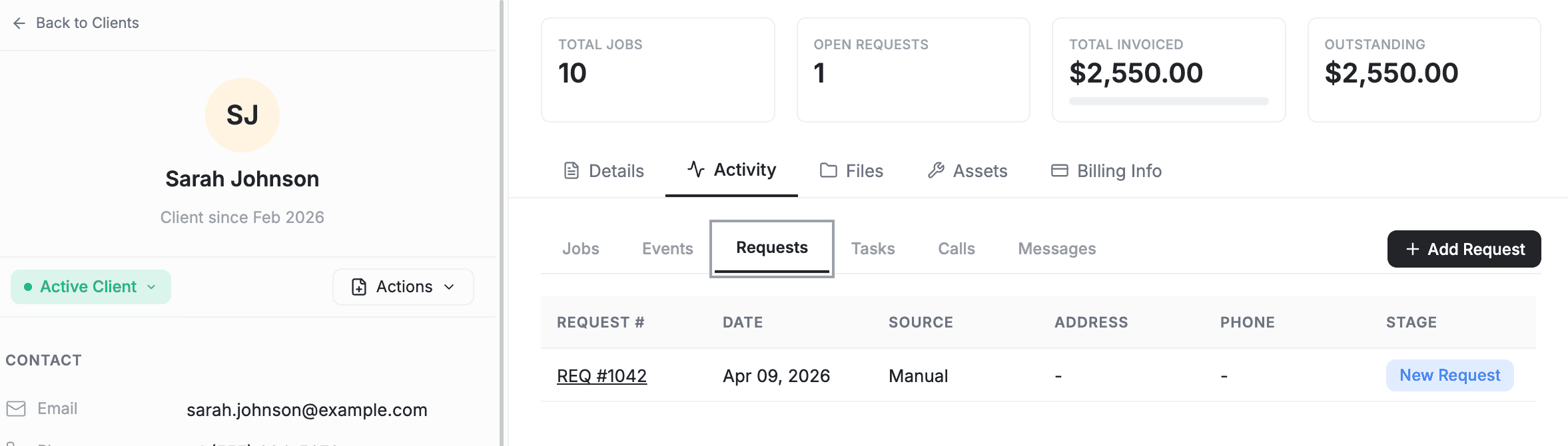
- Click the Requests tab near the top of the page
The Requests tab displays a table with the following columns:
- Request # — The unique identifier (e.g., REQ #123)
- Date — When the Request was created
- Source — How the inquiry came in
- Address — The service address for the request
- Phone — The contact phone number
- Stage — Where the Request currently sits in the pipeline
The table is paginated at 10 rows per page. Click any row to open the full Request detail.
Creating a Request from a Client
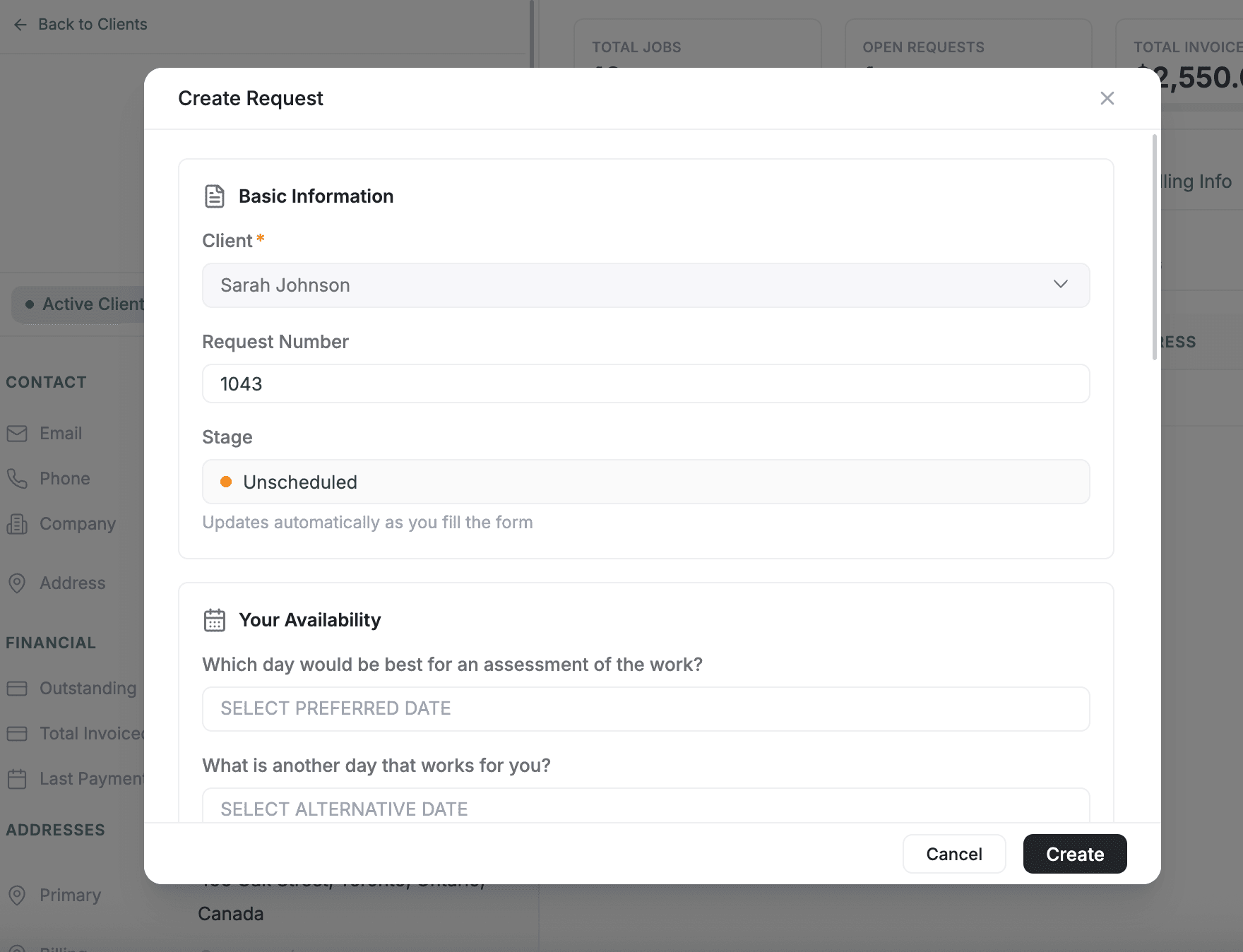
The fastest way to add a Request is directly from the client record — the form pre-fills the client's contact information so you do not have to enter it again.
- Open the client's detail page
- Click the Requests tab
- Click + Add Request
- Work through the multi-step form:
- Client details — Pre-filled with the client's phone and address; confirm or update as needed
- Request details — Enter a description, service type, urgency level, and estimated value
- Schedule — Set preferred or scheduled dates for the work
- Assign team — Choose which technician or crew handles this request
- Requirements — Add any special requirements or notes
- Line items — Add the services or materials the client is inquiring about
- Save the Request
The new Request appears in the tab table and is immediately visible in the main Requests list at /requests.
You can also create Requests from the main Requests page without starting from a client record. In that case, you will need to search for and select the client manually.
The Request Pipeline
Requests move through three stage groups as they progress from initial inquiry to resolution. You can change a Request's stage at any time using the stage dropdown on the Request detail page.
| Stage Group | Stages |
|---|---|
| Requests | New Request, Unscheduled, Overdue |
| Pipeline | Inspection Scheduled, Inspection Complete, Quote Created, Quote Sent, Converted |
| Archived | Lost - No Response, Lost - Rejected, Cancelled, Duplicate |
Requests stages cover the initial intake period — a new inquiry that has not yet been acted on, one that is missing a scheduled date, or one that has passed its expected date.
Pipeline stages track active progress through the sales and quoting process. When you convert a Request to an Estimate, the stage automatically moves to Quote Created. When you convert to a Job or Invoice, it moves to Converted.
Archived stages close out Requests that will not move forward — whether the client went silent, rejected the quote, cancelled, or the record was a duplicate entry.
Converting a Request
When a Request is ready to move forward, you convert it into the record that fits the next step. Open the Request detail page and use the action menu to choose a conversion path.
Convert to Job
Use this when the work is confirmed and needs to be scheduled. Converting to a Job opens the job creation form with the Request's details pre-loaded. The Request stage changes to Converted.
Convert to Estimate
Use this when you need to send a formal quote before committing to the work. The Request's line items carry over into the new Estimate, and the stage changes to Quote Created.
Convert to Invoice
Use this when you are ready to bill the client directly — no separate estimate needed. The Request stage changes to Converted.
Archived clients: You cannot convert a Request if the linked client is in an Archived stage. Move the client back to an active stage first, then return to the Request to convert it.
Other Request Actions
Beyond converting, you can take the following actions from the Request detail page:
- Change stage — Move the Request to any stage using the stage dropdown
- Duplicate — Create a copy of the Request (useful for recurring inquiry types)
- Delete — Permanently remove the Request
- Make Call / Send SMS — Contact the client directly from the Request (requires the Calls add-on)
Best Practices
- Create a Request as soon as an inquiry comes in — even if the details are vague. It is easier to fill in information later than to reconstruct a conversation from memory.
- Set the urgency field accurately. Critical and high-urgency Requests are easier to spot and prioritize when the pipeline gets busy.
- Use the Overdue stage as a trigger — if a Request sits there, someone needs to follow up or close it out.
- Convert Requests promptly once the work is confirmed. A long list of "New Request" items is a sign that the pipeline needs attention.
- Use the Archived stages intentionally. Marking a Request as "Lost - Rejected" or "Lost - No Response" gives you data on why inquiries are not converting, which helps you improve follow-up processes over time.
- Keep line items on the Request accurate before converting. When you convert to an Estimate or Invoice, those line items carry over — clean data saves time downstream.
Explore Requests and Clients
Understand how FieldCamp's CRM connects clients, jobs, and communication.
View and manage everything about a client from one page.
Schedule and track jobs once a Request is converted and confirmed.
Understand pipeline stages and which stages are considered final.
Related Articles
- CRM Overview — How clients, jobs, requests, and communication connect in FieldCamp
- Create a Client — Add a new client record before creating a Request
- Client Detail Page — The full guide to everything on a client's detail page
- Client Actions Menu — Quick actions available from the client toolbar
- Categories & Stages — How stages work for clients and why archived clients block conversions
Client Actions: Add Jobs, Estimates & More | FieldCamp
Use the client Actions menu to quickly add jobs, tasks, estimates, and invoices, or make calls and send SMS directly from the client detail page in FieldCamp.
Save Custom Client Views | FieldCamp
Create custom client views with table and kanban layouts in FieldCamp. Save filters, sorts, and column settings as reusable named views for one-click access.