 FieldCamp
Email Management | FieldCamp
Connect Gmail, Outlook, or an IMAP/SMTP mailbox to FieldCamp Inbox, then read, search, and reply to customer email conversations.
Under the hood — see how Customers work in the FieldCamp data model: the fields they hold, how they connect to your other records, and how to customize them.
FieldCamp Inbox can receive and send customer email through connected Gmail, Microsoft Outlook, or Email (IMAP/SMTP) mailbox channels. The separate Email (SMTP) integration sends outbound operational email only and does not import replies into Inbox. Email conversations can be linked to the matching client record so the team can work with shared context.
AI shortcut: Open the Command Centre and type "Show me unread emails from this week" or "Find emails from Sarah Johnson about the kitchen remodel." The AI searches your inbox instantly.
Connecting Your Email
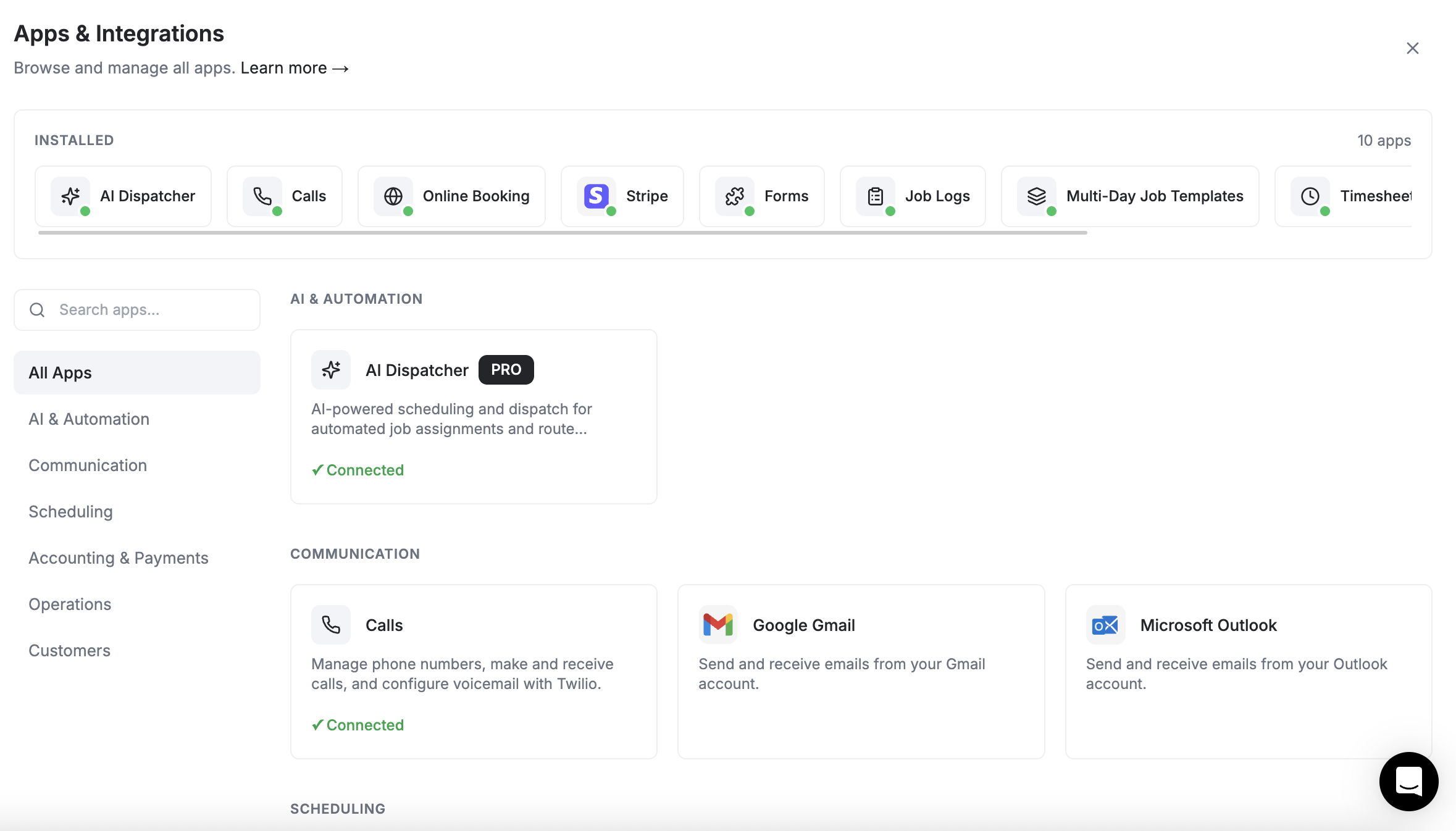
Before incoming email appears in FieldCamp, connect Gmail, Microsoft Outlook, or the Email (IMAP/SMTP) add-on. Browse the current options in Apps & Integrations.
Open Apps & Integrations
Navigate to Settings > Apps & Integrations and find the Communication section.
Choose the mailbox connection
Open Google Gmail, Microsoft Outlook, or Email (IMAP/SMTP). Gmail and Outlook use their provider authorization flow; IMAP/SMTP asks for the mailbox server credentials shown in its setup form.
Complete setup
Finish the provider authorization or mailbox configuration, then return to the app card and confirm that it shows a connected state.
After the mailbox syncs, its email conversations appear as a channel in Inbox.
See Connect Gmail & Outlook for the full step-by-step setup guide, including screenshots for both providers.
Microsoft 365 / Outlook OAuth Permissions
When you connect a Microsoft 365 mailbox, FieldCamp requests the following Microsoft Graph scopes:
Mail.Read— read messages from your inbox and subfoldersMail.Send— send messages on your behalfMail.ReadWrite— flag, move, and update message state (read/unread)offline_access— keep the connection alive without re-prompting you dailyUser.Read— confirm your account identity
Org-blocked accounts: If your IT admin has restricted third-party app consent in Microsoft Entra ID (Azure AD), the connection will fail with an error like AADSTS65001: The user or administrator has not consented to use the application or AADSTS900971: No reply address provided. Ask your admin to either grant tenant-wide consent to FieldCamp or to approve your individual consent request through the Enterprise applications portal.
Custom SMTP as an Alternative Outbound Transport
If your organization can't use OAuth (for example, you're on a legacy Exchange server or a private email host), choose Custom SMTP to send mail directly through your own server. You'll provide:
| Field | Description |
|---|---|
| SMTP host | Your mail server hostname, e.g. smtp.yourdomain.com |
| Port | Usually 587 (STARTTLS) or 465 (SSL/TLS) |
| Username & password | Often the full email address and an app-specific password |
| From address | The address recipients will see |
| Reply-to (optional) | A different address for replies, if desired |
Inbound replies on SMTP-only setups: Custom SMTP is an outbound-only transport. To receive replies into FieldCamp, you also need an inbound channel — either a connected Gmail/Outlook mailbox on the same address, or an IMAP fetch (configured per workspace). If you set up SMTP without an inbound channel, your replies will land in your normal mail client instead of the FieldCamp inbox, and the conversation thread inside FieldCamp will stop at the last outbound message.
Viewing Your Emails
- Select Inbox in the sidebar — see the Inbox overview for the full triage view.
- Under Channels, select the connected email channel.
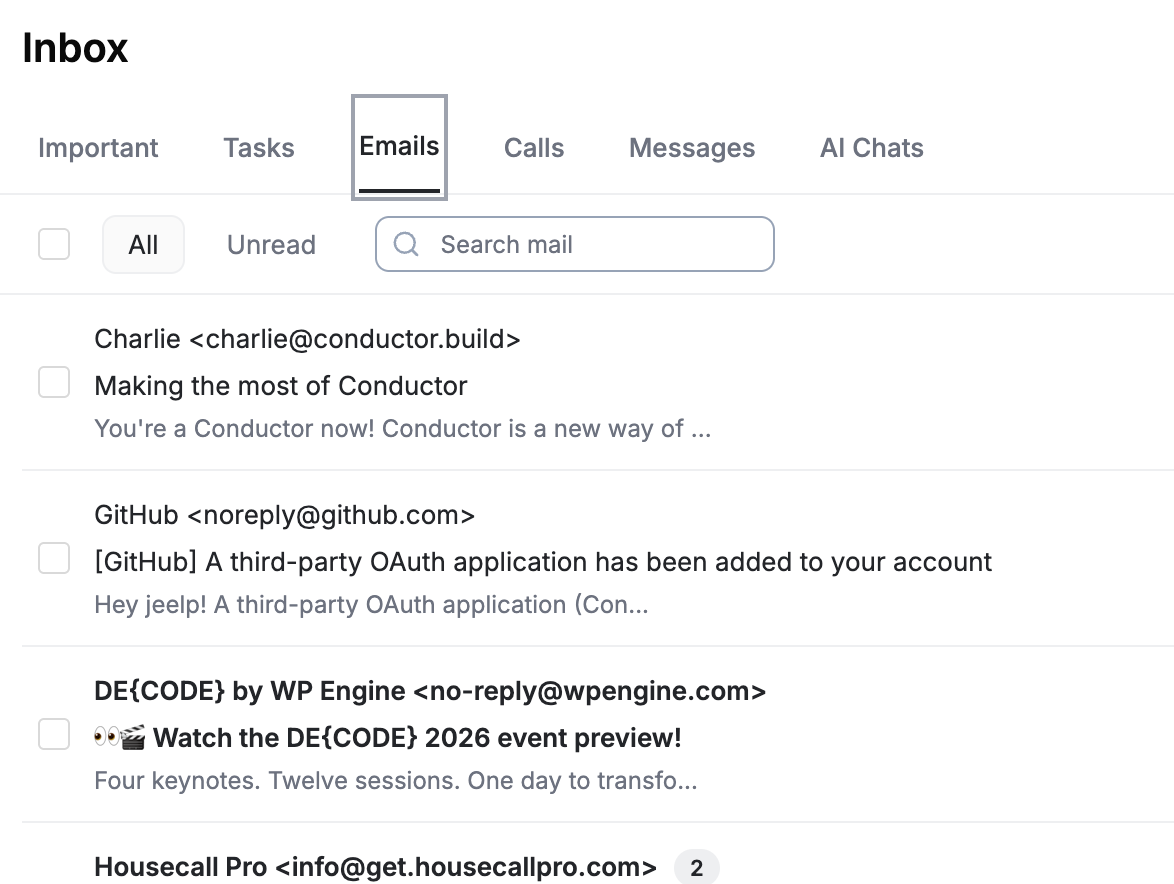
The inbox displays all email threads in chronological order. Each thread shows:
| Column | What It Shows |
|---|---|
| Sender / Recipients | Who sent or received the email |
| Subject | The email topic |
| Preview | A short snippet of the latest message |
| Read / Unread | Unread emails appear in bold |
| Attachment icon | Appears when the email has files attached |
| Timestamp | When the latest message arrived |
Emails from all linked accounts are consolidated into one view.
Reading and Replying
Open the thread
Click any email thread to expand the full conversation history.
Use Reply, Reply All, or Forward
FieldCamp preserves the original Message-ID, In-Reply-To, and References headers, so your reply lands in the same thread inside the recipient's mail client (Gmail, Outlook, Apple Mail, etc.) instead of starting a new conversation. Forwards keep the original From, Date, Subject, and any inline attachments intact.
Compose and send
Type your message, attach files if needed, then click Send. The thread updates instantly in both FieldCamp and your linked mailbox.
AI Smart-Reply Generation
Every open thread in v2 has a Generate reply button in the composer. Click it to have FieldCamp's AI draft a context-aware response in seconds.
Click Generate reply
The AI reads the most recent inbound message plus any linked client, job, estimate, or invoice context.
Pick a tone (optional)
Choose Professional, Friendly, Brief, or Apologetic — or describe the tone in a short prompt like "polite but firm follow-up about the overdue balance."
Edit and send
Tweak the draft if you want, then send. Drafts are never sent automatically — you always review first.
For multi-paragraph drafts (cold outreach, estimate follow-ups, post-visit recaps), use the dedicated AI Email Composer — it can pull in line items from a job, attach the latest estimate PDF, and personalize from a saved email template.
Composing a New Email
- In the Emails tab, click the Compose button
- The compose window opens
- Enter the recipient, subject, and message body
- Add CC or BCC recipients if needed
- Attach files if needed
- Click Send
When you compose from a client's detail page, FieldCamp pre-fills the recipient and automatically links the email to that client.
Searching and Filtering
Use the conversation search in Inbox to find email conversations by:
- Keywords in the subject or body
- Client name
- Email address
- Date range
- Attachment type (e.g.
has:pdf)
Results update as you type, making it fast to locate specific conversations. For platform-wide lookups across clients, jobs, and invoices, see Universal Search.
Managing Emails
Mark as Read or Unread
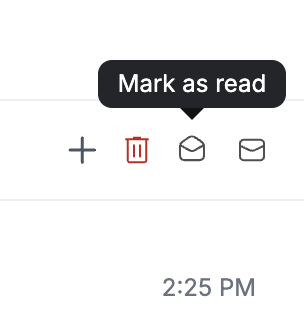
Hover over an email and click the read/unread icon to toggle its status. Unread emails stay bolded for visibility.
Select Multiple Emails
Use the checkbox next to each email to select multiple messages for bulk actions like mark-as-read, archive, or delete.
Delete Emails
Click the trash icon next to an email. A confirmation dialog appears before the email is permanently removed. Deleted emails also move to Trash in the connected Gmail or Outlook mailbox.
More Options
Click the three-dot menu next to any email for additional actions like archiving, snoozing, or converting the email to a service request.
Attachments
When an email contains attachments, you can:
- Preview PDFs, images, and documents directly in FieldCamp
- Download files to your device
- Save to client — attach the file to the client's document library
- Forward the email with attachments included
How Emails Link to Clients
FieldCamp matches incoming emails to client records using the sender's email address. If the address matches a client on file, the email is automatically linked. If the sender is unknown, you can link the email to an existing client or create a new client record directly from the email row.
All linked emails appear on the client's detail page under the Emails tab, giving every team member full visibility into past conversations. See Communication Records for how this ties into call and SMS history.
Pagination
If you have a large volume of emails, the list is paginated. Use the controls at the bottom of the list to navigate between pages, or filter by date range to narrow the view.
Permissions
Email conversations are available when your role can access Inbox and the workspace has a connected email channel. If the channel is missing, ask an administrator to review your role and permissions and the mailbox connection.
Best Practices
- Reply to emails from within FieldCamp so the conversation stays linked to the client record
- Use AI smart-reply for routine acknowledgments — it drafts context-aware responses in seconds
- Search by client name rather than scrolling through the full inbox
- Check your unread count at the start of each day
- If you're on Custom SMTP, also configure an inbound channel so replies don't get stranded outside FieldCamp
- Pair Email with Two-Way Text Messaging and Calls for a complete client-comms hub
Troubleshooting
"Connection failed" or "Token expired" on Gmail/Outlook
Re-run the OAuth flow from Settings > Apps & Integrations by clicking Reconnect. Tokens can expire if you changed your account password or if your IT admin revoked third-party app access. For broader login and sync issues, see Troubleshooting Common Issues.
Microsoft 365 connection shows AADSTS65001 or AADSTS900971
Your tenant blocks third-party app consent. Forward the error to your IT admin and request either user-level consent through the My Apps portal or tenant-wide admin consent for FieldCamp in Microsoft Entra ID.
Replies start a new thread in the recipient's inbox
This usually means the original message was forwarded into FieldCamp from outside, so the thread headers were lost. Reply to the original email conversation in Inbox rather than from a forwarded copy.
Custom SMTP works for sending but no replies appear
SMTP is outbound-only. Pair it with an inbound channel — either connect the same mailbox over Gmail/Outlook OAuth, or set up IMAP fetch. Without an inbound transport, replies will go to your normal mail client.
AI smart-reply button is greyed out
Smart-reply needs an unread or recent inbound message in the thread. If the thread is older than 90 days or has no inbound message to respond to, use the standalone AI Email Composer instead.
Attachments fail to upload
Attachments over 25 MB exceed most email provider limits. Compress the file or share it as a link from your client's document library instead.
FAQs
Can I connect multiple mailboxes? Yes. Connected Gmail, Outlook, and IMAP/SMTP mailboxes appear as email channels in Inbox. Remember that the separate Email (SMTP) integration is outbound-only and does not import replies.
Does FieldCamp store the entire email body? Yes, plain-text and HTML bodies are stored so you can search them later. Attachments are stored in your workspace's encrypted file storage.
What happens if I disconnect Gmail or Outlook? Historical emails stay in FieldCamp and remain linked to clients, but no new mail will sync until you reconnect. Outbound sending from FieldCamp will also stop.
Can the AI auto-send replies without me reviewing? No. Every AI draft requires a human click to send. This is intentional — emails to clients carry your brand and tone, so we keep you in the loop.
Related Articles
Set up AI CSR for chat, SMS, WhatsApp and email | FieldCamp
Set up FieldCamp AI CSR, formerly AI Receptionist, to answer customers by chat, SMS, WhatsApp and email. Write its prompt, add knowledge, test and turn it on.
AI Email Composer | FieldCamp
Draft professional client emails in seconds using FieldCamp's AI. The Email Canvas reads client history and job details to generate context-aware messages.