 FieldCamp
Connect Gmail & Outlook | FieldCamp
Connect Gmail and Outlook to FieldCamp with the right OAuth scopes, per-user or workspace mailbox setup, manual Resync, and SMTP fallback for blocked tenants.
Connecting Gmail or Outlook to FieldCamp lets you send and receive client emails directly inside your account, so replies to invoices, estimates, and appointment confirmations land in one unified inbox. This guide walks through the connect Gmail and Outlook to FieldCamp setup, the exact OAuth scopes requested, the difference between per-user and workspace-level mailbox connections, and how to handle Microsoft 365 tenants that block third-party OAuth apps.
Once connected, replies thread automatically inside your FieldCamp Inbox and your provider's Sent folder, so nothing slips through the cracks.
How to Connect Gmail
Open Apps & Integrations
Go to Settings → Apps & Integrations. If you're not sure where that lives, see the Settings overview.
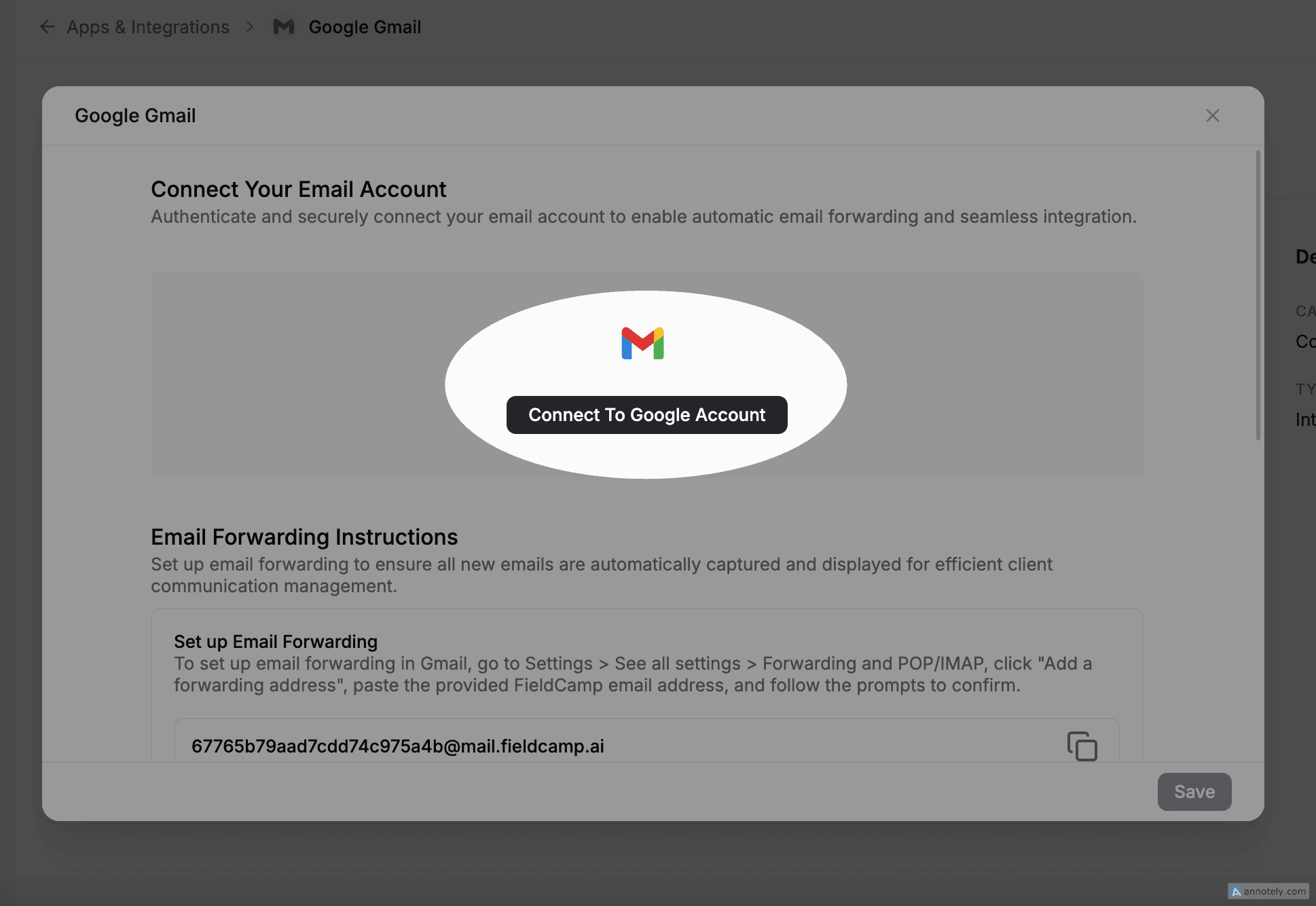
Click Connect on Gmail
Find Gmail in the integrations list and click Connect.
Sign in with Google
A Google sign-in window opens. Sign in with the Gmail or Google Workspace account you want to use for client communication.
Review and grant permissions
Review the scopes FieldCamp requests (see the section below) and click Allow.
Confirm the connection
You'll be redirected back to FieldCamp. Gmail now shows as Connected with a last-synced timestamp.
Using Outlook? The flow is identical. Look for Outlook instead of Gmail in Apps & Integrations, sign in with your Microsoft account, and accept the Microsoft consent prompt.
OAuth Scopes FieldCamp Requests
FieldCamp uses standard Google and Microsoft OAuth — we never store your password. The scopes requested are the minimum needed to read replies, compose new messages, and send mail on your behalf.
Gmail (Google) scopes
- gmail.readonly — read incoming client replies so they can be threaded into FieldCamp.
- gmail.compose — let you draft messages from the FieldCamp Inbox before sending.
- gmail.send — send invoices, estimates, appointment reminders, and replies from your business address.
- userinfo.email / profile — identify which mailbox you connected.
Microsoft 365 / Outlook scopes
- Mail.Read — read incoming client replies.
- Mail.ReadWrite — create and save drafts in your mailbox.
- Mail.Send — send outbound messages from your address.
- offline_access — keep the connection alive without prompting you to sign in every hour.
- User.Read — identify the connected account.
FieldCamp filters server-side to messages that match your FieldCamp activity — client threads, invoice replies, estimate responses, and booking confirmations. We don't index your personal or unrelated business email.
Per-User vs Workspace Mailbox Connections
FieldCamp supports two ways to connect email, and choosing the right one matters for visibility and deliverability.
Per-user mailbox (default)
Each team member connects their own Gmail or Outlook account. Outbound emails go from that user's personal address (e.g. taylor@yourcompany.com), and replies route back into both their FieldCamp Inbox and their own email Sent folder.
- Best for: dispatchers and sales reps who want client replies in their own mailbox.
- Sender address: the connected user's email.
- Replies visible to: the connected user; plus anyone in FieldCamp with the right permissions.
Workspace-level mailbox (shared inbox)
An admin connects a shared address — hello@yourcompany.com, dispatch@yourcompany.com, or a similar role mailbox — that the whole team sends from. This is the address that appears on invoices, estimates, and customer portal confirmations regardless of who triggered the send.
- Best for: businesses that want a single brand address on all outbound mail.
- Sender address: the shared mailbox.
- Replies visible to: all team members with Inbox access.
Most field-service teams use a hybrid setup — a workspace mailbox for transactional emails (invoices, booking confirmations) plus per-user mailboxes for sales follow-ups. You can mix both inside the same workspace.
What You Can Do After Connecting
Unified Inbox
- All messages in one place — your Inbox shows emails sent to and from your connected addresses.
- Automatic threading — customer replies appear in both FieldCamp and your email provider.
- AI assist — let AI handle email triage so urgent threads bubble up first.
Send Emails from FieldCamp
- Invoices and estimates go out through your connected mailbox, so they appear in your Sent folder.
- Appointment reminders are sent from your business address, not a generic FieldCamp domain.
- Compose new emails to clients directly from a client detail page or the Inbox.
Communication records
Every email is logged against the client and any related job, so you have a full communication history without manual data entry.
Manual Resync
If you suspect emails are missing or threading looks wrong, you can force a manual sync without disconnecting.
Open the integration
Go to Settings → Apps & Integrations and click on the connected Gmail or Outlook tile.
Check last sync time
The integration panel shows the most recent successful sync timestamp.
Click Resync
Click Resync to trigger a full re-pull of recent mail. Depending on mailbox size, this can take 1–10 minutes.
Verify in the Inbox
Refresh your Inbox and confirm the missing thread now appears.
Resync re-pulls recent mail but does not delete any previously synced messages. It's safe to run multiple times in a day if something looks off.
Microsoft 365 Tenants That Block Third-Party OAuth
By default, Microsoft 365 enterprise tenants restrict which third-party OAuth apps users can authorize. If your team gets an error like "Need admin approval" or "This app is blocked by your IT department" when connecting Outlook, your tenant admin has to approve FieldCamp before users can complete the connection.
Option 1 — Ask your tenant admin to approve FieldCamp
The admin signs in to the Microsoft Entra admin center, finds the FieldCamp app under Enterprise applications, and grants tenant-wide consent for the scopes listed above. Once approved, every user in the tenant can connect without seeing the block.
Option 2 — Use the Custom SMTP fallback
If your IT department won't approve third-party OAuth (a common policy in regulated industries), you can still send mail from FieldCamp using SMTP credentials or an app password.
- Have the user generate an app password in their Microsoft account security settings (requires MFA to be enabled).
- In FieldCamp, choose Custom SMTP when connecting the mailbox instead of OAuth.
- Enter your SMTP host, port, username, and the app password.
This sends outbound mail through your account but does not pull replies via IMAP unless you also configure inbound — see the Apps & Integrations overview for the full fallback flow.
SMTP fallback is outbound-only by default. Replies will still arrive in your Outlook inbox, but won't auto-thread into FieldCamp unless you forward them or configure inbound IMAP. For most use cases (sending invoices, estimates, reminders), outbound-only is sufficient.
Disconnecting Gmail or Outlook
- Go to Settings → Apps & Integrations.
- Find Gmail or Outlook and click Disconnect.
- Confirm the disconnection.
After disconnecting, new emails will no longer sync. Your existing email history in FieldCamp is preserved, and you can reconnect at any time. If you want to revoke FieldCamp's access from the provider side too, sign in to your Google Account or Microsoft Account security page and remove FieldCamp from connected apps.
Troubleshooting
- Connection shows an error. Disconnect and reconnect from Settings → Apps & Integrations. Make sure to click Allow on every requested scope.
- Emails not appearing. Click Resync on the integration tile. If the issue persists, check that the connected mailbox isn't in a different account than the one you're sending from.
- "Need admin approval" on Outlook. Your Microsoft 365 tenant blocks third-party OAuth. Ask your admin to approve FieldCamp in Entra ID, or switch to the SMTP fallback.
- Google Workspace third-party block. Your Workspace admin needs to allow FieldCamp in the Google Admin Console under Security → API controls → App access control.
- Wrong sender address on invoices. Check whether the workspace mailbox or a per-user mailbox is set as the default sender in Settings → Email defaults.
- Replies threading to the wrong client. Open the misthreaded message and use Move to client to reassign — FieldCamp will learn the address mapping going forward.
For broader help, see Troubleshooting — Common Issues & Fixes.
FAQs
Does FieldCamp work with Google Workspace business accounts?
Yes. FieldCamp works with personal Gmail and Google Workspace business accounts. Workspace admins may need to allow FieldCamp in the Admin Console under Security → API controls before users can connect.
Will FieldCamp read my personal emails?
No. FieldCamp filters to threads tied to your FieldCamp activity — invoice replies, estimate responses, client communication, and booking confirmations. Unrelated personal mail isn't indexed.
Can I connect multiple email accounts to one FieldCamp workspace?
Yes. You can connect a workspace-level mailbox (e.g. hello@yourcompany.com) for transactional sends, and have individual team members connect their own per-user mailboxes for sales and one-to-one communication.
What if my IT department won't approve FieldCamp on Microsoft 365?
Use the Custom SMTP fallback with an app password. This lets FieldCamp send mail from your address without requiring tenant-wide OAuth consent. See the Microsoft 365 section above for setup details.
How often does email sync?
Connected mailboxes sync in near real time via push notifications from Google and Microsoft. You can also trigger a manual Resync any time from the integration tile.
What happens to my emails in FieldCamp if I disconnect?
Your existing history is preserved — past messages remain visible against client records. New emails stop syncing until you reconnect, and outbound sends from FieldCamp will fail until a mailbox is reconnected or SMTP is configured.
Related Articles
- Connect Google Calendar & Outlook — sync your calendar alongside email
- Efficient Email Management — manage your unified inbox
- Effortless Email Management Using AI — let AI triage threads
- Apps & Integrations Overview — see every available connector
- Creating and Managing Invoices — send invoices from your connected mailbox
- Communication Records for Clients — review the full email trail per client
- Client Detail Page Actions — send mail from a client record
- Settings Overview — find every FieldCamp setting
- Roles and Permissions — control who can see synced email
- Troubleshooting Common Issues — general fixes
FieldCamp MCP Server — Connect Your AI Assistant
Connect FieldCamp to Claude, ChatGPT, Cursor, VS Code and other AI tools to manage clients, jobs, estimates, invoices and scheduling in plain language.
Email (SMTP) Setup — Send Mail Through Your Own Server | FieldCamp
Connect your own SMTP server to FieldCamp so invoices, estimates, and workflow emails leave from your business mailbox instead of a Gmail or Outlook OAuth account.