 FieldCamp
Client Actions: Add Jobs, Estimates & More | FieldCamp
Use the client Actions menu to quickly add jobs, tasks, estimates, and invoices, or make calls and send SMS directly from the client detail page in FieldCamp.
Under the hood — see how Customers work in the FieldCamp data model: the fields they hold, how they connect to your other records, and how to customize them.
The client detail page includes an Actions dropdown that gives you quick access to common tasks for that client — without navigating away from the page.
With the Command Centre: You can do many of these actions by typing in the Command Centre. Try "Create a job for Sarah Johnson" or "Send an estimate to ABC Company." See AI Skills for all available commands.
Accessing the Actions Menu
- Open any client from the Clients list (or search with CMD+K / Ctrl+K)
- Click the Actions button in the toolbar
- Select the action you want to perform
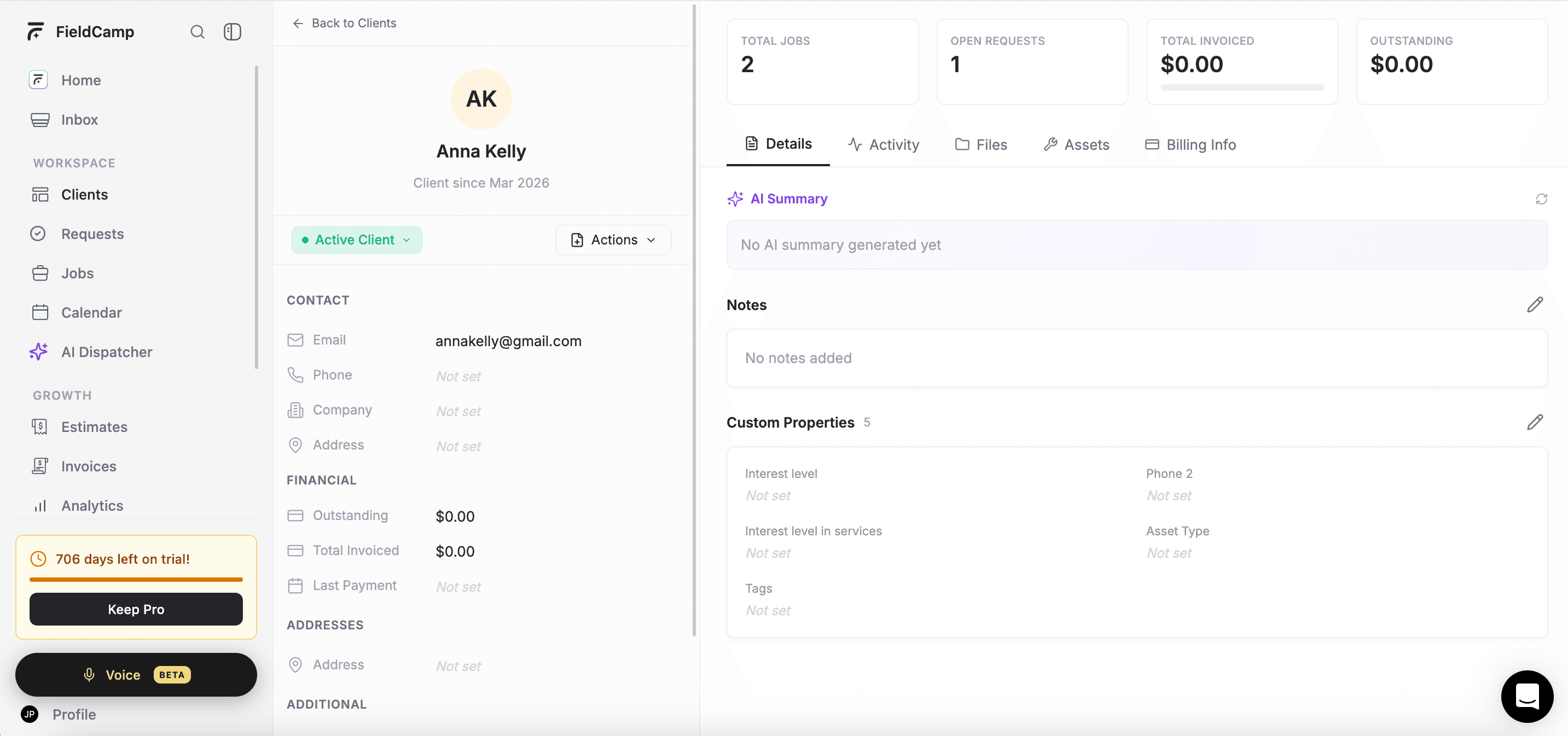
Click the Actions button to reveal the dropdown menu with all available quick actions for this client.
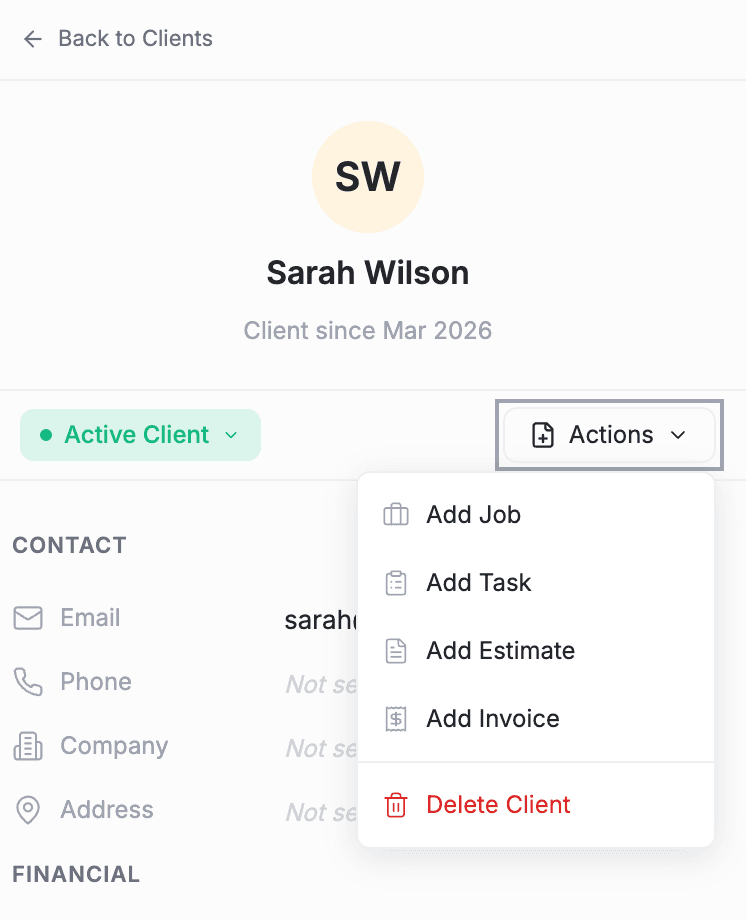
Available Actions
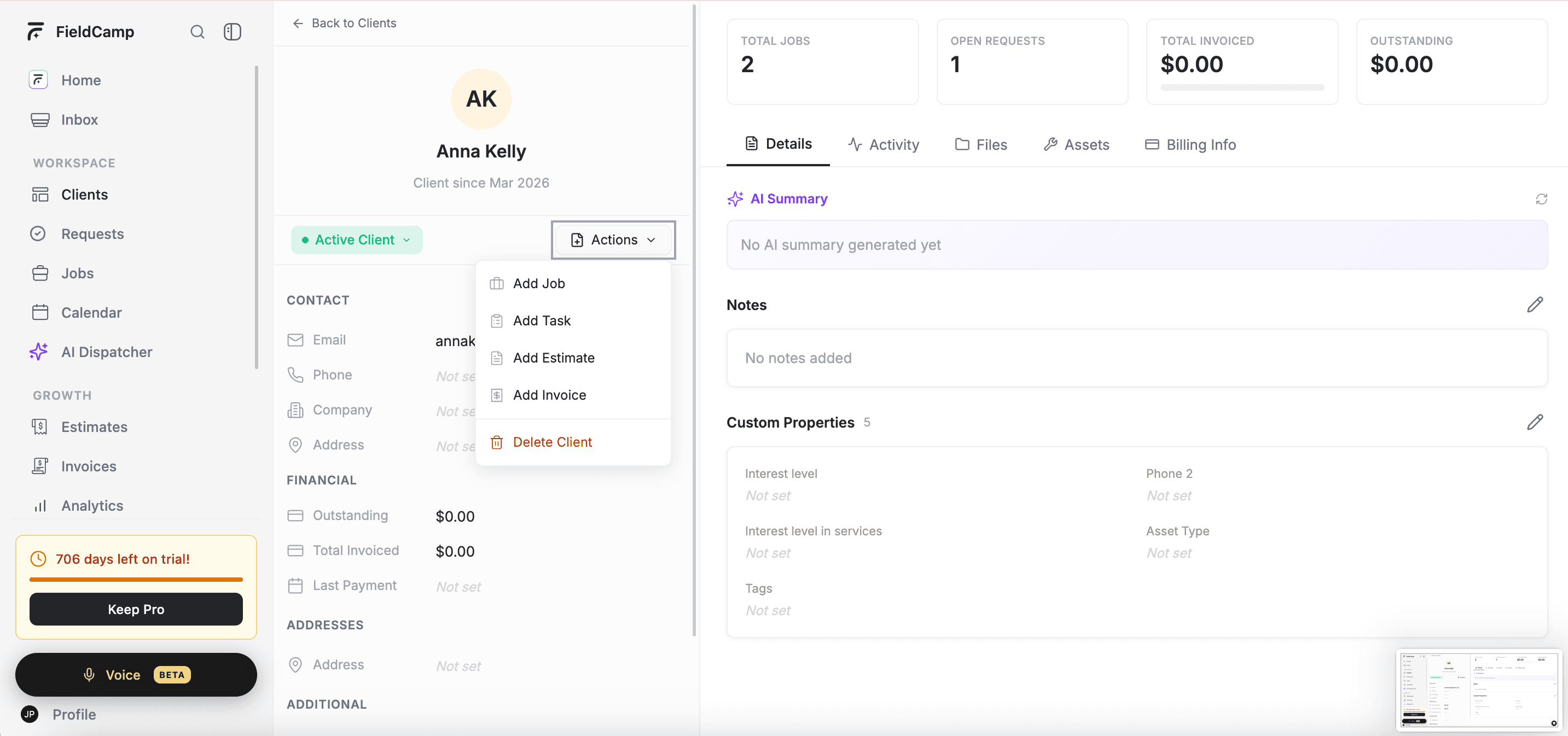
The actions available depend on your role and the client's current stage:
| Action | What It Does | When Available |
|---|---|---|
| Add Job | Creates a new job linked to this client | Job creation permission, client not in a final stage |
| Add Task | Opens a task creation modal for this client | Task creation permission, client not in a final stage |
| Add Estimate | Opens estimate creation in a new tab, pre-linked to this client | Estimate creation permission, client not in a final stage |
| Add Invoice | Opens invoice creation in a new tab, pre-linked to this client | Invoice creation permission, client not in a final stage |
| Call | Shows a phone number dropdown to initiate a call | Calls add-on enabled |
| SMS | Opens the SMS modal to send a text message | Calls add-on enabled |
| Delete Client | Opens a confirmation modal to delete this client | Delete permission (appears at the bottom with a red style) |
Permissions & Stage Restrictions
Actions and Final Stages
When a client is in a final stage (such as Archived), most creation actions — Add Job, Add Task, Add Estimate, and Add Invoice — are automatically hidden. This prevents accidentally creating new work for clients that are no longer active. Call, SMS, and Delete remain available regardless of stage.
To create new work for an archived client, first move them back to an active stage (e.g., Active Client), then use the Actions menu.
Tip: You can also create jobs directly from the Activity tab on the client detail page by clicking "Create New Job."
FAQs
Can I duplicate a client in FieldCamp?
No. Client duplication is not currently available. To create a similar client, create a new client record and re-enter the shared details. Note: Job duplication IS available from the job detail page's Actions menu.
Why don't I see all the actions in the menu?
Actions are filtered by your role permissions and the client's current stage. If the client is in a final stage (e.g., Archived), Add Job, Add Task, Add Estimate, and Add Invoice are hidden. Call and SMS only appear if the Calls add-on is enabled. Delete only appears if you have delete permission.
Can I add a job or estimate for an archived client?
No. When a client is in a final stage like Archived, creation actions are hidden. First move them back to an active stage (e.g., Active Client), then use the Actions menu.
Related Articles
- Client Detail Page — View and manage all information about a client
- Delete or Archive a Client — Archive or permanently delete client records
- Categories & Stages — Understand pipeline stages and final stages
- Scheduling Jobs — Create and schedule jobs for your clients
- Creating Clients — Add new clients via AI or manually
- AI Skills — Everything you can do with the Command Centre
Delete or Archive a Client | FieldCamp
Archive clients to preserve their data or permanently delete them in FieldCamp. Learn what gets removed, how to restore archived clients, and how to bulk delete.
Clients and Requests: Managing Service Inquiries | FieldCamp
Learn how Requests work in FieldCamp — track pre-sales service inquiries per client, manage the pipeline, and convert Requests into Jobs, Estimates, or Invoices.