 FieldCamp
Client Categories & Stages | FieldCamp
Organize clients into Leads, Pipeline, and Clients categories in FieldCamp. Track relationships with customizable stages like New Lead, Active Client, and Archived.
Under the hood — see how Stages & Workflows work in the FieldCamp data model: the fields they hold, how they connect to your other records, and how to customize them.
FieldCamp uses two organization tools to help you understand where each client stands: categories (broad groupings) and stages (specific positions in your sales or service flow). Categories are determined by the stage a client is in — you do not set them manually.
With the Command Centre: Type "Move John Smith to Active Client" or "Change ABC Company's stage to Archived" in the Command Centre and the AI updates the stage instantly. See AI Skills for more.
The Three Client Categories
Every client belongs to one of three categories based on their current stage:
| Category | Description | Default Stages |
|---|---|---|
| Leads | People or businesses who have expressed interest but are not yet paying clients. This is where cold prospects and warm referrals start. | New Lead |
| Pipeline | Active prospects you are working to convert into clients. These are leads who have engaged further and are moving toward becoming clients. | Additional stages like Proposal, Negotiation, Won, Lost can be enabled by your admin |
| Clients | People or businesses you have successfully worked with or are currently serving. | Active Client, Inactive Client |
Important: Category tabs appear at the top of the client table in table view. They are not visible in kanban view.
Understanding Stages
Within each category, a client has a stage that describes exactly where they are in your relationship. FieldCamp comes with these default stages:
| Stage | Color | Description |
|---|---|---|
| New Lead | Yellow | Fresh contact, not yet engaged |
| Active Client | Green | Currently working together or have active jobs |
| Inactive Client | Grey | Previously worked together, but no current activity |
| Archived | Grey | No longer active — useful for historical records |
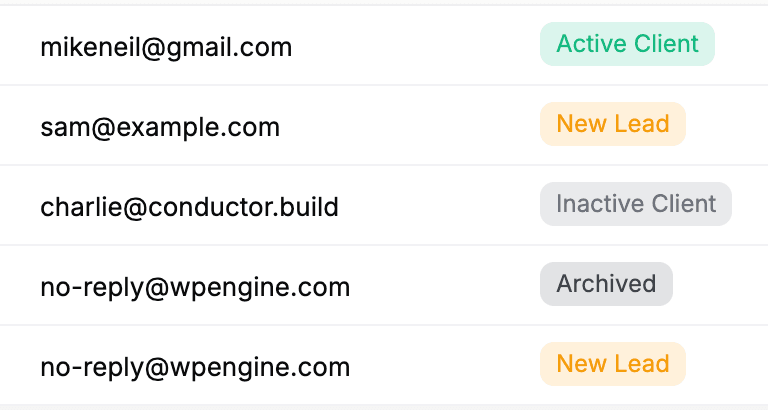
Your account admin can enable additional stages and create custom ones in Settings > Pipeline Config. Additional stages available include Contacted, Qualified, Proposal, Negotiation, Inspection, Won, and Lost.
How Categories and Stages Work Together
The category is determined by the stage. When you move a client to a new stage, they automatically move to the correct category:
- A client in "New Lead" stage appears under the Leads category — they just expressed interest, maybe through your booking form
- A client in "Active Client" stage appears under the Clients category — you are currently working together
- A client in "Inactive Client" stage appears under the Clients category — you have worked together but they are not currently active (useful for win-back campaigns)
- A client in "Won" stage (if enabled) appears under the Pipeline category — the deal has closed and they are ready to become an active client
Moving Clients Between Stages
As your relationship evolves, you can move a client to a new stage in three ways:
From the Command Centre:
Open the Command Centre and type "Move Sarah Johnson to Active Client" — the AI updates the stage immediately.
From the client detail page:
- Open the client's detail page
- Click the Stage dropdown
- Select the new stage
- Changes save automatically
From Stage Kanban view:
- Switch to Stage Kanban view on the Clients page
- Drag and drop the client card from one stage column to another
- The stage updates automatically
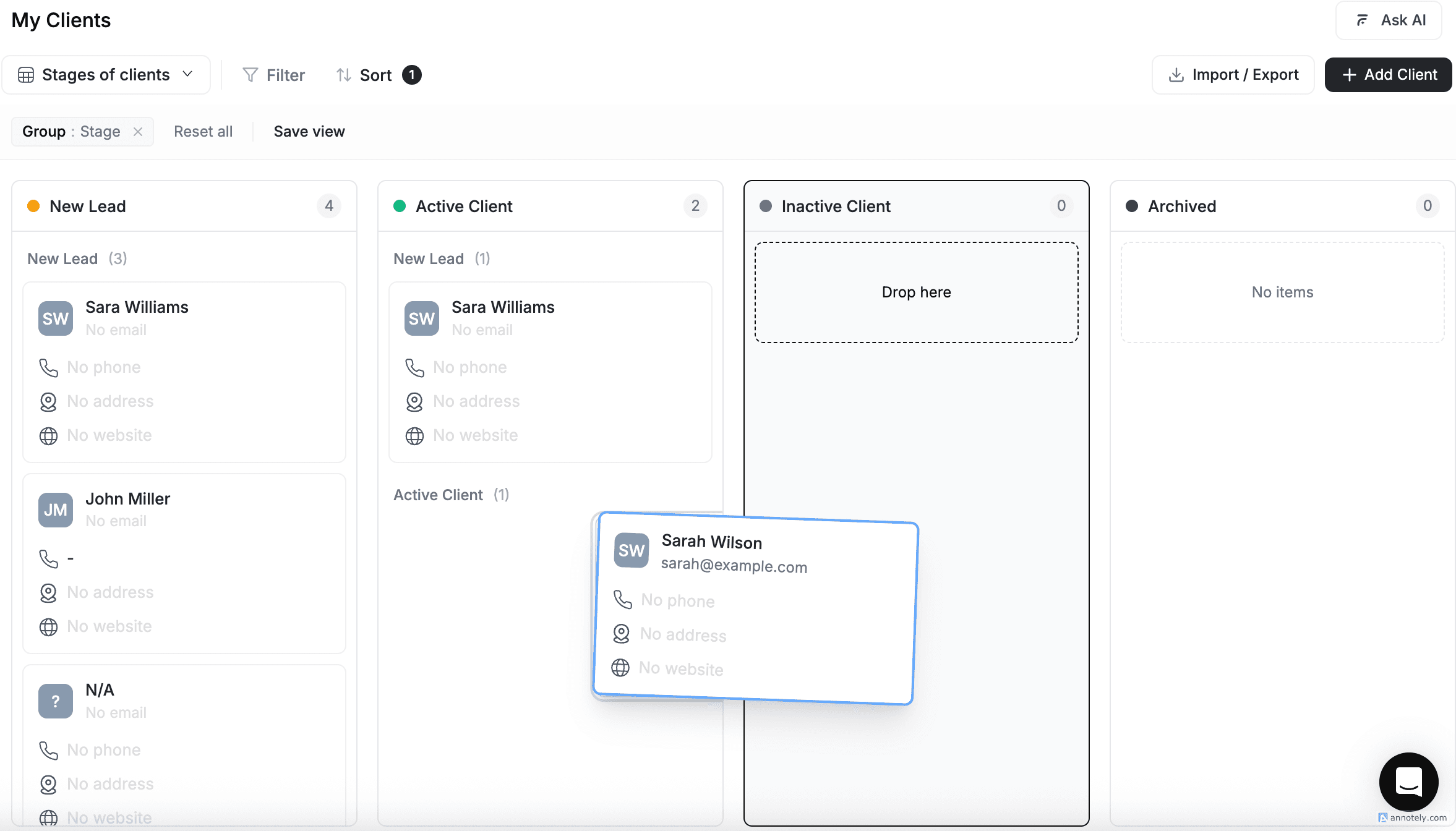
Note: Some stage transitions may be restricted by your admin's pipeline configuration. If a transition is blocked, you will see an error message explaining which fields need to be filled in or which conditions must be met.
Using Categories to Organize Your View
Click the category tabs (Leads, Pipeline, Clients) at the top of your Clients list to filter and see only the clients in that category. This helps you focus on the right group of prospects or clients.
Category tabs are visible in table view only. In kanban view, clients are grouped by stage columns instead. You can also filter, sort, and group within each category for more specific views.
Custom Stages
If the default stages do not fit your business, your admin can customize the full pipeline in Settings > Pipeline Config.
From Pipeline Configuration, admins can:
- Create new stages with custom labels and colors
- Assign stages to categories — each stage belongs to Leads, Pipeline, or Clients
- Set initial and final stages — mark which stages are starting points and endpoints
- Reorder stages — drag to change the display order
- Configure transition rules — control which stage-to-stage moves are allowed and what conditions must be met
- Delete custom stages — system default stages cannot be deleted
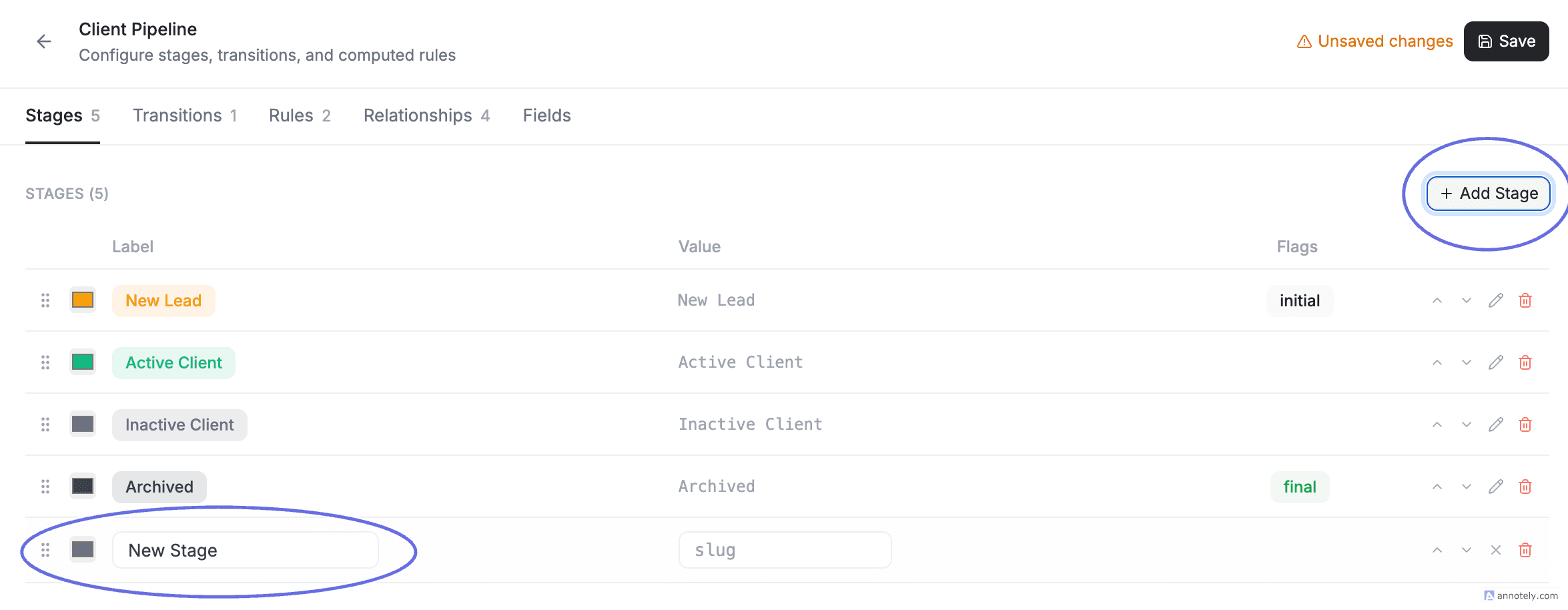
For example, a cleaning company might add stages like "Estimate Sent," "Scheduled," and "Completed" to match their workflow.
FAQs
What are the default client stages in FieldCamp?
FieldCamp includes four default stages: New Lead (yellow), Active Client (green), Inactive Client (grey), and Archived (grey). Additional stages like Contacted, Qualified, Proposal, Negotiation, Inspection, Won, and Lost can be enabled by your admin in Settings > Pipeline Config.
Can I create custom stages for my clients?
Yes. Admins can create and manage custom stages in Settings > Pipeline Config. For each stage, you can set a label, color, category assignment (Leads, Pipeline, or Clients), and whether it is an initial or final stage. You can also reorder stages and configure transition rules.
How do I move a client between stages?
You can change a client's stage in three ways: (1) type "Move [name] to [stage]" in the Command Centre, (2) open the client detail page and use the Stage dropdown, or (3) in Stage Kanban view, drag and drop the client card between columns.
What is the difference between categories and stages?
Categories are the three broad groupings — Leads, Pipeline, and Clients — that organize your client list into tabs. Stages are specific positions within those categories that describe where a client is in your relationship (e.g., "New Lead" is a stage within the Leads category). Categories are determined by the stage — you do not set them manually.
Related Articles
- Client Views — Table, kanban, and saved custom views
- Filter, Sort & Group — Narrow down clients by stage, location, and more
- Delete or Archive a Client — Archive or permanently delete client records
- Client Detail Page — View and manage all client information
- CRM Overview — How the FieldCamp CRM works
Save Custom Client Views | FieldCamp
Create custom client views with table and kanban layouts in FieldCamp. Save filters, sorts, and column settings as reusable named views for one-click access.
Sales Pipeline Kanban Board for Field Service Leads in FieldCamp
Use the sales pipeline Kanban board in FieldCamp to track field service leads, drag deals between stages, and convert opportunities into jobs.