 FieldCamp
Client Files, Documents & Drive | FieldCamp
Upload client files, view estimates and invoices, and manage cloud storage with FieldCamp's Files, Documents, and Drive tabs on the client detail page.
Under the hood — see how Customers work in the FieldCamp data model: the fields they hold, how they connect to your other records, and how to customize them.
Every client detail page in FieldCamp includes three dedicated tabs for managing documents and files: Files, Documents, and Drive. Each serves a different purpose, so you always know where to look.
- Files - quick uploads for photos, PDFs, and documents attached directly to the client record, with AI-powered search and chat
- Documents - a summary of all billing activity for the client, including estimates, invoices, products, and payments
- Drive - a full folder-based file storage system with upload, rename, move, and AI file chat capabilities
Use the Command Centre to find files quickly — type "Show me files for Smith Residence" or "Find the latest invoice for ABC Company." See AI Skills for more.
Files Tab
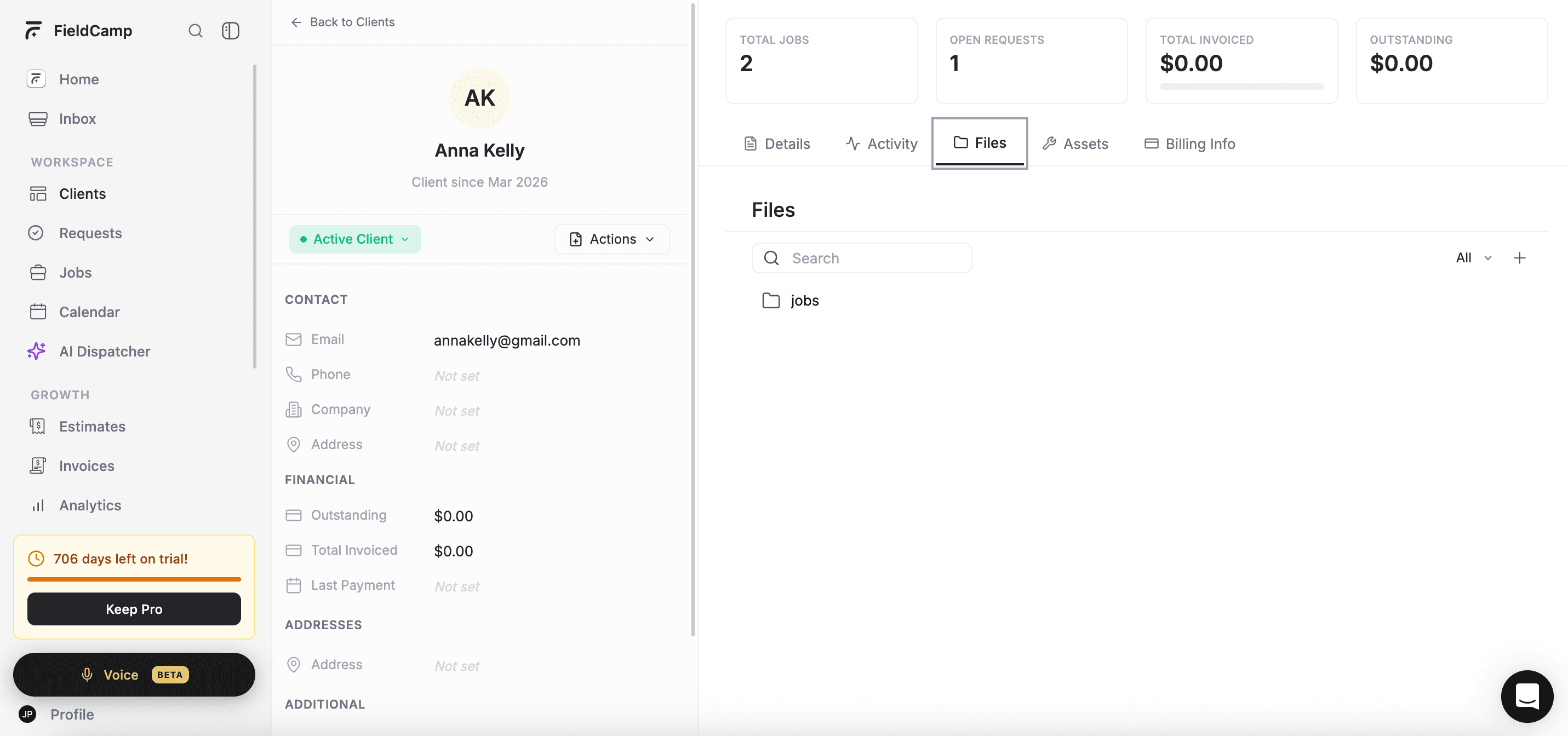
The Files tab is the fastest way to attach a document to a client record. Upload a site photo, a signed contract, an inspection report - anything relevant to the client that your team may need to reference. For example, attach a property inspection report to the Smith Residence client record so your team can reference it before the next visit.
Uploading Files
- Click Upload file in the top-right corner of the Files tab
- Select a file from your computer
- FieldCamp uploads it and adds it to the client's file list immediately
Supported file types: PNG, JPG, JPEG, and PDF
Maximum file size: 10 MB per file
Only one file can be uploaded at a time. Once uploaded, the file appears in the list with its name. PDF files are processed by FieldCamp's AI in the background, which enables the AI Document Chat feature for that file.
Viewing and Managing Files
Each uploaded file appears as a row in the list. Click any file name to open it in AI Document Chat - a side panel where you can ask questions about the document's content.
To delete a file:
- Click the three-dot menu (vertical dots) on the right side of any file row
- Select Delete
- The file is removed immediately
Deleting a file from the Files tab is permanent. There is no way to recover a deleted file. Download or back up any file before deleting it if you may need it in the future.
Searching Files and Content
The Files tab includes a Search field at the top. When you type a query, FieldCamp searches both file names and the content inside uploaded documents (for PDF files that have been processed by AI).
Search results appear in a dropdown panel below the search bar. Each result shows:
- The file name
- A snippet of matching text from inside the document
- The upload date
Click any search result to open that file in AI Document Chat, positioned at the relevant section.
If no AI-processed files are available, the search falls back to matching file names only.
AI Document Chat
Clicking a file opens the AI Document Chat panel. This feature lets you ask natural language questions about the file's content. For example:
- "What is the total amount on this invoice?"
- "What materials were listed in this estimate?"
- "Summarize the key points in this report."
AI Document Chat works with PDF files that have completed processing. A file's processing status is visible in the Drive tab (see below). If a file is still processing, FieldCamp shows a message to wait before opening it.
Documents Tab
The Documents tab shows all billing-related records linked to this client. It is divided into four sub-tabs: Billing, Products, Payments, and Job Forms.
Billing Sub-tab
The Billing sub-tab lists every estimate and invoice created for this client. Each row shows:
- Document type - Estimate or Invoice
- Document number - the unique identifier for the record
- Status - color-coded badge showing the current status (e.g., Draft, Sent, Accepted for estimates; Unpaid, Paid for invoices)
- Total amount - the document value in your account currency
- Date - when the document was created
Click any row to open the estimate or invoice in a new tab, where you can view the full PDF, edit details, or take action on it.
Products Sub-tab
The Products sub-tab shows all products and services that have been added to jobs or estimates for this client. This gives you a quick view of what items have been sold or quoted to this client over time.
Payments Sub-tab
The Payments sub-tab lists all payments recorded against this client's invoices. Each payment record shows the amount, date, and associated invoice. This is useful for confirming payment status without opening individual invoices.
Job Forms Sub-tab
The Job Forms sub-tab is available when the Job Forms add-on is connected to your account. It lists all completed job forms submitted for jobs linked to this client.
The Job Forms sub-tab only appears when the Job Forms add-on is enabled. If you do not see this tab, contact your administrator to check add-on settings.
Drive Tab
The Drive tab gives each client their own file storage area with a full folder hierarchy. Unlike the Files tab, the Drive supports folders, renaming, moving files between folders, and notes - making it the right choice for organizing larger collections of client documents.
Browsing the Drive
When you open the Drive tab, you start at the root level of the client's drive. Files and folders are listed in a grid or list view. A breadcrumb trail at the top shows your current location, and you can click any segment to navigate back to that level.
Use the filter dropdown (All / Files / Folders) to narrow the view to just files or just folders.
Uploading Files to the Drive
- Navigate to the folder where you want to upload (or stay at the root level)
- Click the + button and select Upload file
- Choose a file from your computer
FieldCamp uploads the file and adds it to the current folder. PDF files are automatically ingested by the AI, enabling AI file chat for that document.
Supported file types include common image formats (JPG, PNG, GIF, WebP, BMP), PDFs, Excel files (.xlsx, .xls), and CSV files.
Creating Folders
Organize your files by creating folders:
- Click the + button in the toolbar
- Select New folder
- The folder appears in the list with its name field active - type a name and press Enter to save
Folder names must be unique within the same parent folder. FieldCamp alerts you if you try to create a duplicate.
File and Folder Actions
Right-clicking a file or folder, or clicking the three-dot menu (vertical hamburger icon), reveals a context menu with available actions:
| Action | Applies to | Description |
|---|---|---|
| Rename | Files and folders | Change the display name of the item |
| Delete | Files and folders | Permanently remove the item |
| Download | Files | Download the file to your computer |
| Move | Files and folders | Move the item to a different folder |
| Copy link | Files | Copy a shareable link to the file |
| Open in chat | PDF files (processed) | Open the file in AI file chat |
AI File Chat
Clicking a processed PDF file in the Drive opens the AI File Chat overlay. This panel lets you have a conversation with the document - asking questions, extracting data, and getting summaries - without downloading or opening the file separately.
When multiple files are available in the current folder, you can switch between them within the chat overlay.
If a file is still being processed (status: Processing), FieldCamp shows an informational message and prevents the file from being opened until processing is complete. This typically takes a few seconds to a minute depending on the file size.
Notes
The Drive also supports Notes - rich text documents you can create and store alongside uploaded files. To create a note:
- Click the + button
- Select Create note
- Write your content in the note editor
- The note is saved to the current folder
Existing notes appear in the file list with a note icon. Click any note to open it in the editor.
Search in the Drive
The Drive tab includes a Search field at the top. Similar to the Files tab, it searches both file names and the content within AI-processed PDF documents. Search results appear in a dropdown with file name, a content snippet, and the upload date.
Click any result to open the file in AI file chat.

Best Practices
- Use the Files tab for quick, one-off attachments. If you just need to attach a single photo or document to a client without organizing it, the Files tab is faster than the Drive.
- Use the Drive for ongoing client projects. When a client has a long history with multiple jobs, estimates, and site photos, create folders in the Drive to keep everything organized (e.g., "Site Photos 2024," "Signed Contracts").
- Always check the Documents tab before calling about payment. The Billing sub-tab gives you an instant view of open invoices so you can have an informed conversation.
- Wait for PDF processing before using AI chat. Uploading a large PDF and immediately trying to open it in chat may show a "still processing" message. Give it a moment after upload.
- Name files descriptively before uploading. FieldCamp stores the original file name. A name like
inspection-report-2024-10-15.pdfis far easier to find thanscan_001.pdf. - Use folder structure in the Drive consistently. Agree on a folder naming convention across your team so everyone knows where to find and save files for any client.
- Review the Payments sub-tab before creating a new invoice. Checking existing payments ensures you do not duplicate billing for work that has already been paid.
Related Articles
- Client Detail Page - View and manage all information about a client
- Client Communication - Emails, Calls and Messages - Send emails, review calls, and exchange SMS with clients
- AI Summaries for Clients, Jobs and Visits - Use AI to summarize client activity
- How to Create a Client in FieldCamp - Add new clients to your CRM
- Edit or Update Client Information - Keep client profiles accurate and up to date
- AI Skills - Everything you can do with the Command Centre
Manage Client Calls, Emails & SMS | FieldCamp
Manage all client communication from one place. Send emails, review call history, and exchange SMS messages directly from the client detail page in FieldCamp.
AI Summaries for Clients | FieldCamp
FieldCamp generates AI-powered summaries for clients, jobs, requests, and visits. Get instant insights on contact history, revenue, and job status with one click.