 FieldCamp
Delete or Archive a Client | FieldCamp
Archive clients to preserve their data or permanently delete them in FieldCamp. Learn what gets removed, how to restore archived clients, and how to bulk delete.
Under the hood — see how Customers work in the FieldCamp data model: the fields they hold, how they connect to your other records, and how to customize them.
Sometimes you need to remove a client record — whether they were added by mistake, are no longer relevant, or you want to clean up old data. FieldCamp gives you two options: archive (keeps all data) or delete (permanent removal).
With the Command Centre: Type "Archive client John Smith" or "Delete client ABC Company" in the Command Centre. The AI walks you through the process. See AI Skills for more.
Archiving vs. Deleting
| Action | What Happens | Data Preserved? | Best For |
|---|---|---|---|
| Archive | Moves the client to the "Archived" stage. They disappear from your active list but remain in the system. | Yes — all data (jobs, invoices, communications) is fully preserved | Clients you may reference later, or where you have legal/tax obligations to retain records |
| Delete | Permanently removes the client record. FieldCamp checks for related records first and shows you what will be affected. | No — most data is permanently removed (invoices/estimates kept for audit only) | Clients added by mistake, duplicates, or test records with no real history |
Archiving a Client
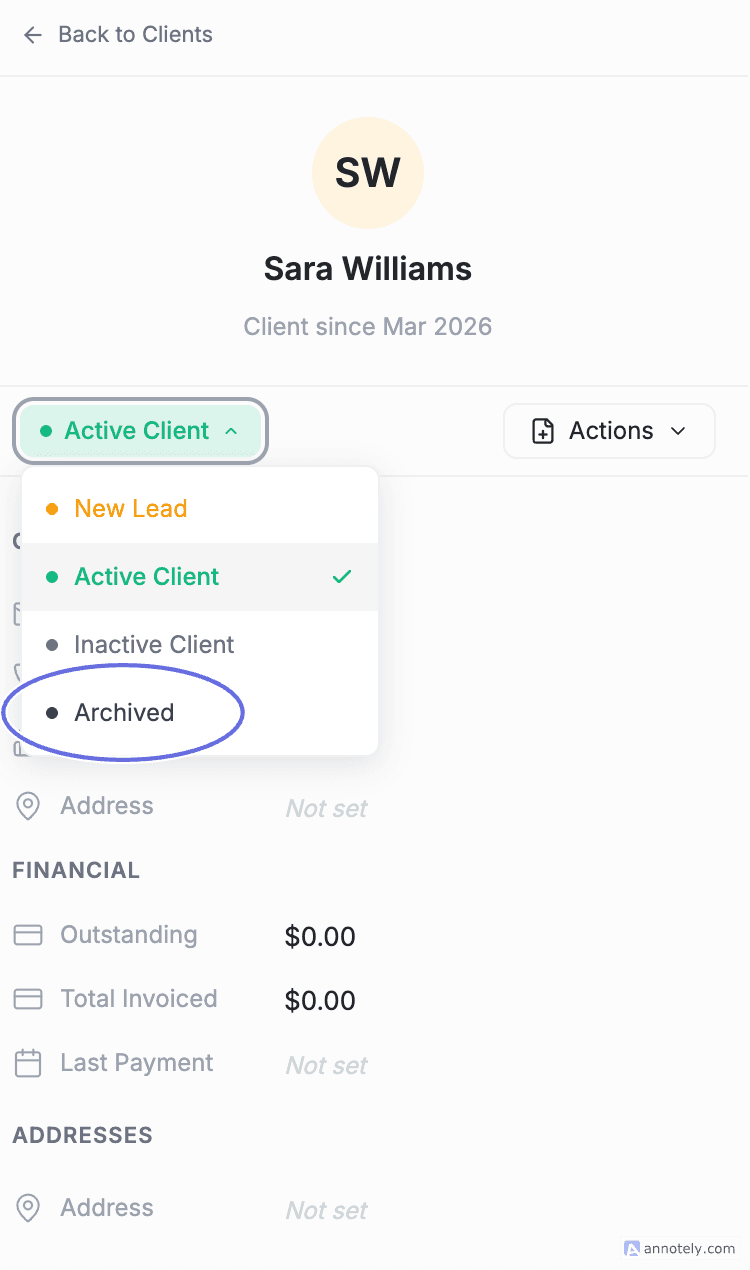
- Open the client's detail page
- Click the Stage dropdown
- Select Archived
- The client is moved out of your active list
Viewing Archived Clients
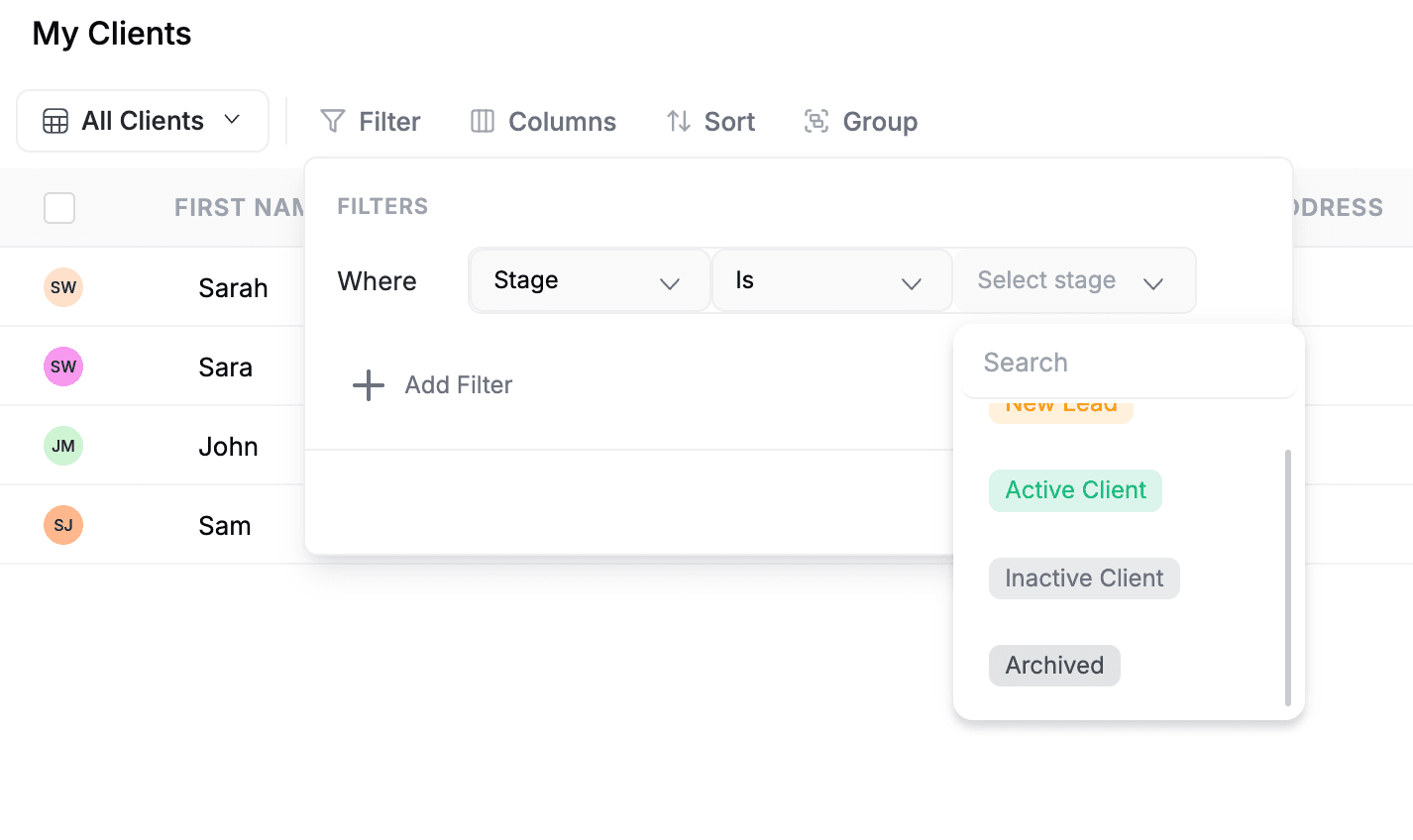
To see archived clients:
- Go to Clients in the sidebar
- Filter by the Archived stage, or use a saved view that includes archived clients
Restoring an Archived Client
To restore an archived client, open their detail page and change their Stage back to any active stage (e.g., Active Client, New Lead). They immediately return to your active client list.
Deleting a Client
When you delete a client, FieldCamp first checks for related data and shows you a confirmation dialog:
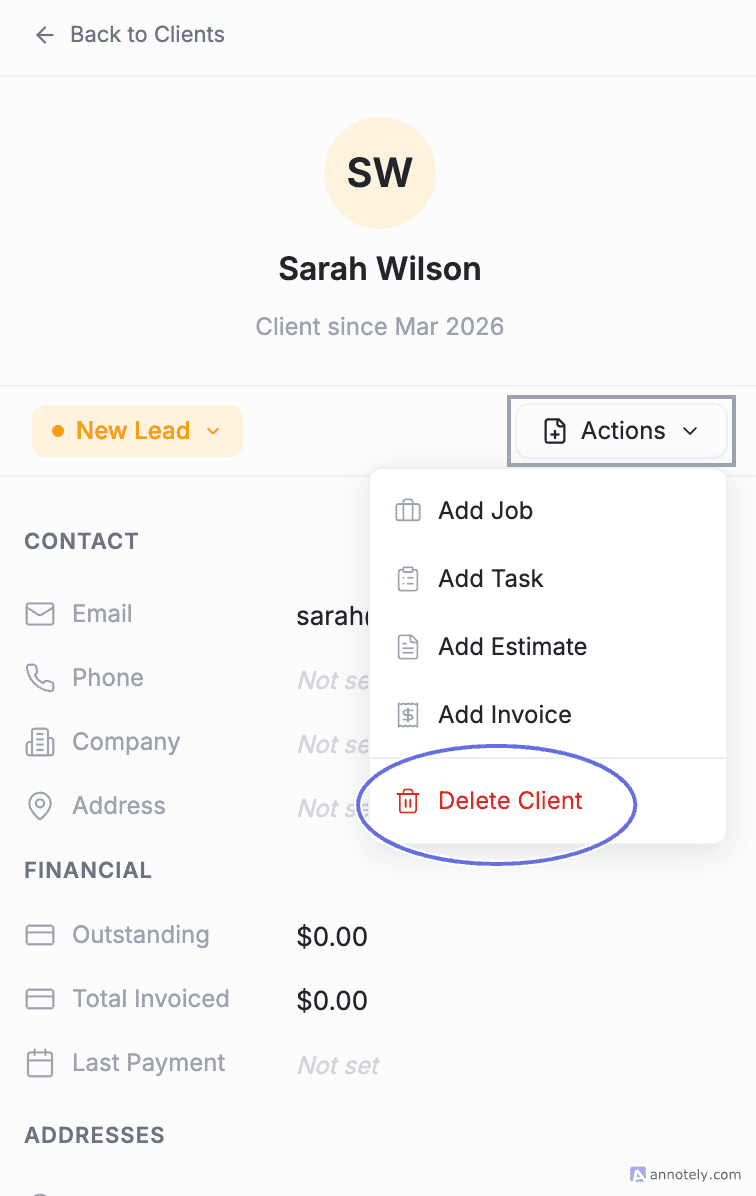
- Open the client's detail page
- Click the Delete button (or use the Actions menu)
- FieldCamp checks for related records (you will see "Checking related data...")
- A confirmation modal appears showing exactly what will be deleted
- Click Delete Client & All Data to confirm
Warning: Deletion is permanent and cannot be undone. If you are unsure, archive the client instead — you can always delete later, but you cannot restore deleted data.
What Happens to Related Data
When you delete a client, different types of data are handled differently:
| Data Type | What Happens |
|---|---|
| Jobs (and their visits, items, schedules) | Permanently deleted |
| Tasks linked to the client | Permanently deleted |
| Notifications related to the client | Permanently deleted |
| Requests and request items | Permanently deleted |
| Call and SMS records | Permanently deleted |
| Inventory allocations linked to jobs | Permanently deleted |
| Files attached to the client | Permanently deleted |
| Client profile and contact information | Permanently deleted |
| Invoices and estimates | Retained for audit and financial record-keeping |
| Client history record | Retained — one record kept marked as "Deleted" for audit trail |
Bulk Deleting Clients
You can delete multiple clients at once from the Clients table:
- Select multiple clients using the checkboxes in the table
- Click Delete from the bulk actions
- FieldCamp checks related data across all selected clients and shows combined counts
- Confirm to delete all selected clients and their related data
Permissions
Any user with delete permission can delete clients in their organization. However, only Admins and Super Admins can restore data from the archive. See your account settings for role details.
FAQs
Can I undo a client deletion in FieldCamp?
No. Deleting a client is permanent — once confirmed, the client record and all related data (jobs, visits, tasks, requests, calls, SMS, files) are permanently removed. Invoices and estimates are the only records retained for audit purposes. If you are unsure, archive the client instead.
What happens to invoices when I delete a client?
Invoices and estimates are retained for audit and financial record-keeping, even after the client is deleted. You will not be able to create new jobs or actions from them, but they remain in your system.
Can I delete multiple clients at once?
Yes. Go to the Clients table, select multiple clients using the checkboxes, and click Delete from the bulk actions toolbar. FieldCamp checks related data across all selected clients and shows you combined counts before you confirm.
Who can delete or archive clients in FieldCamp?
Any user with delete permission can delete clients. Archiving is done by changing a client's Stage to "Archived," which any user with edit access can do. Only Admins and Super Admins can restore data from the archive.
Related Articles
- Categories & Stages — Understand pipeline stages including Archived
- Client Detail Page — View and manage all information about a client
- Actions Menu — Quick actions from the client detail page
- Export Client Data — Download client data before deletion for backup
- Filter, Sort & Group — Find archived clients using filters and saved views
Edit Client Information | FieldCamp
Update client details like name, email, phone, address, and custom fields in FieldCamp. Edit inline in the table view, from the detail page, or with bulk actions.
Client Actions: Add Jobs, Estimates & More | FieldCamp
Use the client Actions menu to quickly add jobs, tasks, estimates, and invoices, or make calls and send SMS directly from the client detail page in FieldCamp.