 FieldCamp
How to Create a Client | FieldCamp
Add new clients to FieldCamp using the AI Command Centre, the manual form, or CSV import. Learn required fields, optional details, and automatic creation.
Under the hood — see how Customers work in the FieldCamp data model: the fields they hold, how they connect to your other records, and how to customize them.
Adding a client to FieldCamp takes seconds. You can ask the AI to do it for you, or add one manually from the Clients page.
Fastest way: Use the Command Centre to create clients with a single sentence. No forms, no clicking.
Creating a Client
Create a Client with the Command Centre
Open the Command Centre and type a natural sentence like:
- "Create a new client Sarah Johnson, phone 555-1234, email sarah@johnson.com, address 123 Oak Street"
- "Add client ABC Plumbing, phone 555-9876, business client"
- "New client Maria Garcia, email maria@garcia.com"
The AI creates the client record instantly and confirms what was added. You can include as much or as little detail as you want — the AI fills in what you provide and leaves the rest for later.
See AI Skills for the full list of things you can ask the Command Centre to do.
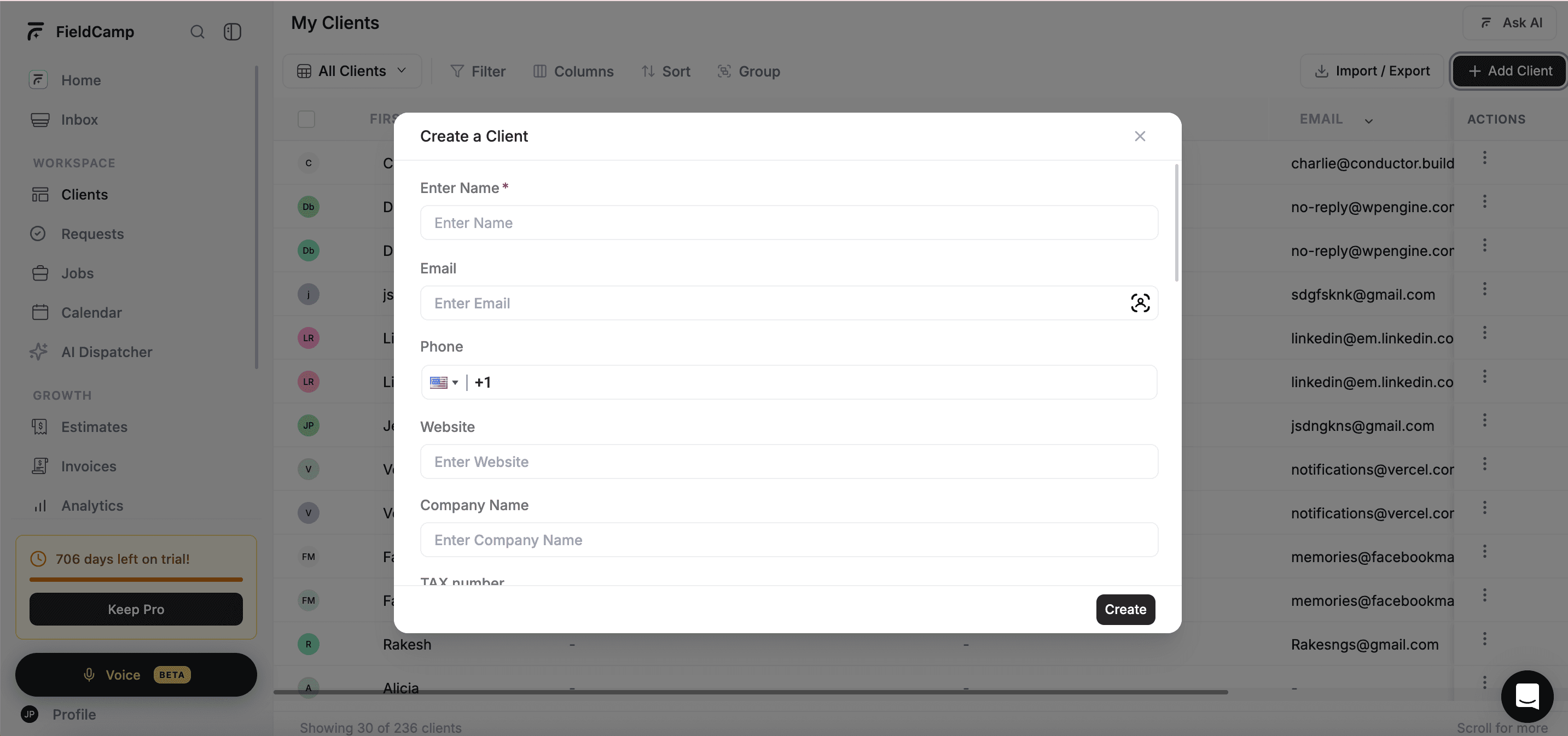
Create a Client Manually
- Click Clients in the left sidebar
- Click + New Client in the top-right corner
- Fill in the client details (only the name is required)
- Click Save
The new client appears in your client list immediately and is available across all devices.
Required and Optional Fields
Required:
- Name — First name (and optionally last name)
Optional but recommended:
- Email — For sending invoices, estimates, and communications
- Phone — For calls and SMS (includes country code selector)
- Company Name — For business clients
- Address — Property or service address (with Google Maps autocomplete)
- Billing Address — If different from the service address
- Client Type — Business or Individual
- Stage — Where they are in your pipeline (defaults to "New Lead")
- Notes — Gate codes, pet warnings, special instructions
- Custom fields — Any custom fields your business has set up
Tip: You do not need to fill in everything at once. Add the basics now and update details later from the client detail page.
Clients Created Automatically
Not every client needs to be added by hand. FieldCamp creates client records automatically when:
- Someone books online — When a customer uses your online booking page, a client record is created with their contact details
- A service request comes in — Incoming requests generate a client record if one does not already exist
- You import from a spreadsheet — Bulk import from CSV or Excel creates multiple clients at once
Next Steps
What Happens After You Create a Client
Once a client exists in FieldCamp, you can:
- Create jobs and link them to the client
- Send estimates and invoices from their record
- Track all communication (emails, calls, SMS) in one place
- View their full history on the client detail page
- Move them through your sales pipeline
FAQs
Can I create a client from the Command Centre?
Yes. Open the Command Centre and type something like "Create a new client John Smith, phone 555-1234." The AI creates the record instantly. You can include email, phone, address, and company name in the same sentence.
What is the only required field when creating a client?
The client's name (first name) is the only required field. Everything else — email, phone, address, company, custom fields — is optional and can be added later.
Are clients created automatically from online bookings?
Yes. When someone books through your online booking page, FieldCamp automatically creates a client record with the contact details they provide. You do not need to add them manually.
Related Articles
- Client Detail Page — View and manage all information about a client
- Editing Client Info — Update names, emails, addresses, and custom fields
- Import Clients — Add clients in bulk from CSV or Excel
- Client Views — Organize your client list with table and kanban views
- AI Skills — Everything you can do with the Command Centre
Using the Command Centre for Client Management | FieldCamp
Use FieldCamp's AI Command Centre to find, create, update, and manage clients with plain language. Search by stage, run complex queries, and pull CRM reports.
Client Detail Page | FieldCamp
View and manage all client information from one page in FieldCamp — contact details, jobs, emails, payments, files, custom fields, and communication history.