 FieldCamp
Import Clients (CSV & Excel) | FieldCamp
Import clients into FieldCamp from CSV or Excel files. Map spreadsheet columns to client fields automatically, track import progress, and bring custom fields along.
Under the hood — see how Customers work in the FieldCamp data model: the fields they hold, how they connect to your other records, and how to customize them.
If you are moving to FieldCamp from another system or have a list of clients to add, importing is much faster than creating clients one at a time.
Quick add for a few clients: If you only have a handful of clients to add, use the Command Centre instead. Type "Create a new client Sarah Johnson, phone 555-1234, email sarah@email.com" and the AI creates the record instantly. Import is best for 10+ clients. See AI Skills for more.
Before You Import
What You Can Import
| Format | Extensions | Description |
|---|---|---|
| CSV | .csv | Comma-separated values from spreadsheets |
| Excel | .xlsx, .xls | Microsoft Excel spreadsheets |
Google Sheets files cannot be imported directly. Export your Google Sheet as CSV or Excel first, then import the exported file.
Preparing Your File
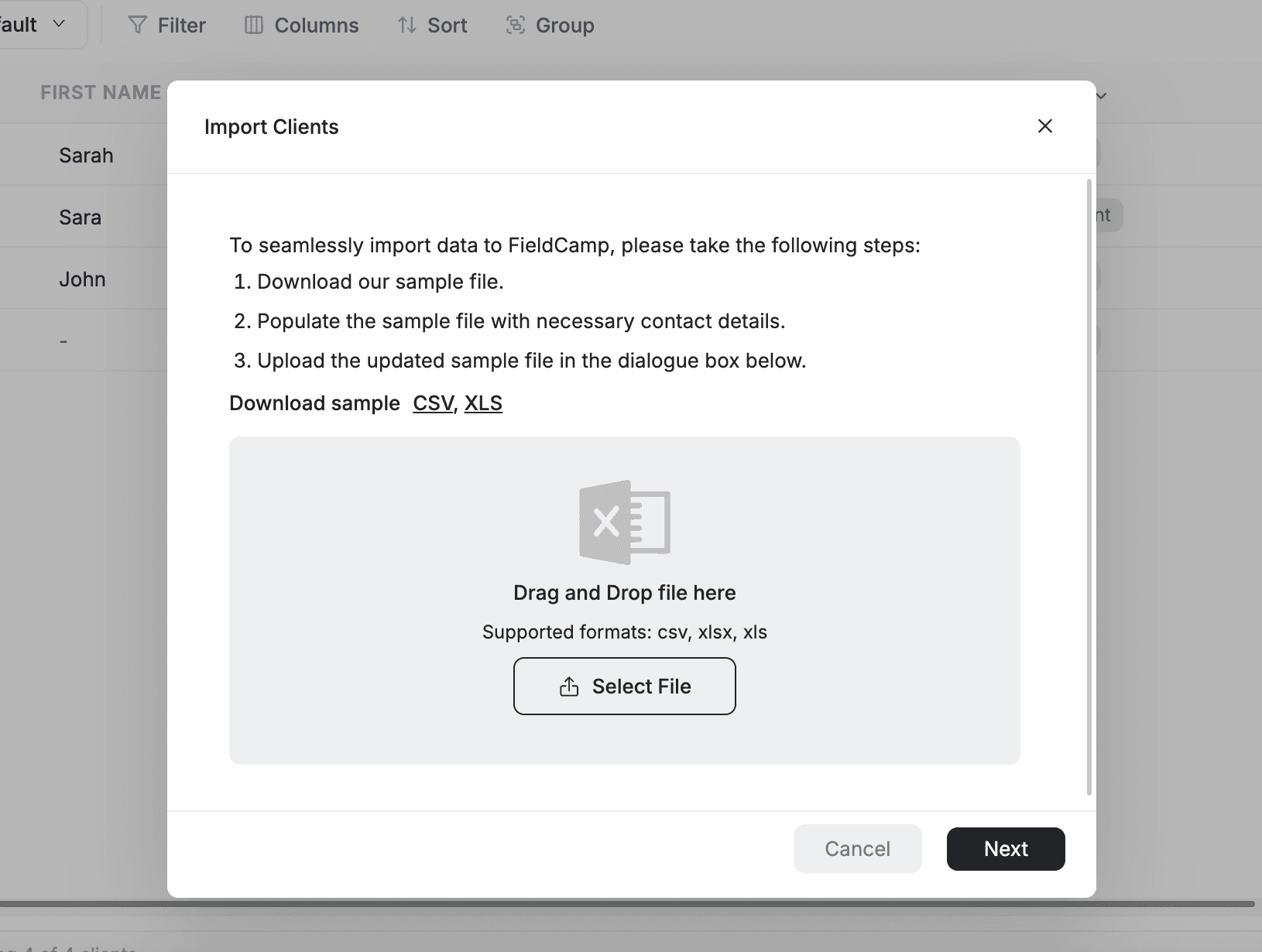
Before importing, organize your client data into a spreadsheet with column headers in the first row and one client per row. Remove any blank rows. A sample CSV template is available to download from the import modal — use it to ensure your file is formatted correctly.
FieldCamp recognizes these standard fields:
| Field Name | Required? | Description |
|---|---|---|
| First Name | Yes | Client's first name |
| Yes | Client's email address | |
| Last Name | No | Client's last name |
| Phone Number | No | Phone number (parsed with country code detection) |
| Company Name | No | Business or company name |
| Client Type | No | Type classification for the client |
| Primary Address | No | Main address (geocoded via Google Maps) |
| Business Address | No | Business address (geocoded via Google Maps) |
| Billing Address | No | Billing address (geocoded via Google Maps) |
| Website | No | Client's website URL |
| Tax Number | No | Tax identification number |
| Stage | No | Pipeline stage (defaults to "New Lead" if not set) |
Custom fields: You can include custom field columns if they are already set up in your FieldCamp account. Supported types: Text, Number, Date, Timestamp, Select, Multi-Select, Checkbox, and Phone.
How to Import
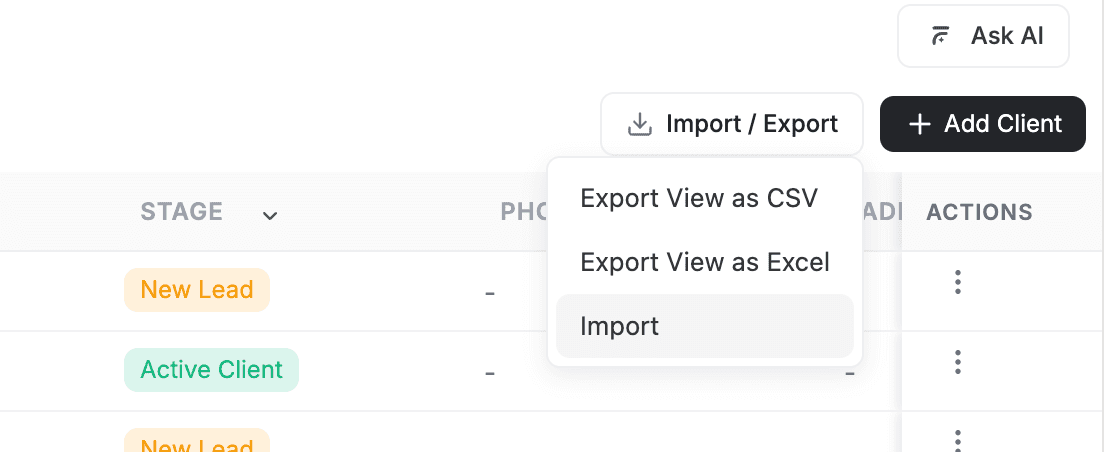
- Go to Clients in the sidebar
- Click the Import / Export button in the toolbar
- Select Import from the dropdown
- Drag and drop your file or click to browse
- FieldCamp displays the field mapping screen — review which spreadsheet columns are matched to which FieldCamp fields
- Adjust any incorrect mappings using the dropdown selectors (required fields are labeled)
- Click Import to start
After selecting your file, the field mapping screen appears. Here you can review and adjust how your spreadsheet columns map to FieldCamp fields. Required fields are clearly labeled so you know what needs to be matched before importing.
A progress modal appears showing percentage completion, records processed, and total count. You can minimize this modal and continue working in FieldCamp while the import runs in the background.
Field Mapping
During import, FieldCamp tries to match your spreadsheet columns to FieldCamp fields automatically. For example:
- "First_Name" or "FirstName" matches "First Name"
- "Phone_Number" matches "Phone"
- "Business_Name" matches "Company Name"
You can manually adjust the mapping if automatic detection does not work correctly. Unmapped columns are ignored.
Handling Duplicates
FieldCamp does not check for duplicate clients during import. All records in your file will be created as new clients regardless of whether a matching client already exists.
Tip: Clean your spreadsheet before importing — remove any clients that are already in your FieldCamp account. If duplicates are created accidentally, you can merge or delete them manually from the Clients list.
After Import
Once imported, clients appear in your Clients list immediately. You can:
- Edit any information that was not imported correctly
- Add clients to categories and stages if not included in the import
- Fill in any optional fields that were left blank
Imported addresses are geocoded automatically via Google Maps. If an address could not be geocoded, the record is still created but the address coordinates will be empty.
Tips for a Successful Import
- Start with a small batch — Test with 10-20 clients first to ensure field mapping works
- Clean your data first — Remove duplicates and fix formatting before importing
- Check phone number formats — FieldCamp uses your company's default country code (or US +1) to parse numbers automatically
- Download the sample CSV — Use the sample template available in the import modal
- Plan custom fields ahead — Create any custom fields you need before importing, so they appear in the field mapping step
FAQs
What file formats can I use to import clients?
FieldCamp accepts CSV (.csv) and Excel (.xlsx, .xls) files for client import. A sample CSV template is available to download from the import modal.
What fields are required when importing clients?
First Name and Email are the two required fields. All other fields are optional. FieldCamp flags records that are missing required fields during the mapping step.
Does FieldCamp detect duplicate clients during import?
No. All records in your file will be created as new clients. Clean your spreadsheet before importing to avoid duplicates.
Can I import custom fields along with standard client data?
Yes. If you have created custom fields in your account, include them as columns in your import file. Custom fields must already exist in your account before importing.
Related Articles
- Export Client Data — Download your client list as CSV or Excel
- Creating Clients — Add individual clients via AI or manually
- Custom Fields — Set up custom fields before importing
- Filter, Sort & Group — Organize your clients after import
- Client Views — Save views for your newly imported clients
Filter, Sort & Group Clients | FieldCamp
Filter clients by stage, custom fields, and location in FieldCamp. Sort by any column, group by city or property, and save combinations as reusable custom views.
Export Clients to Excel or CSV | FieldCamp
Export your FieldCamp client data to Excel or CSV for analysis, reporting, and backup. Filter by stage or location, customize columns, then download instantly.