 FieldCamp
Save Custom Client Views | FieldCamp
Create custom client views with table and kanban layouts in FieldCamp. Save filters, sorts, and column settings as reusable named views for one-click access.
Under the hood — see how Customers work in the FieldCamp data model: the fields they hold, how they connect to your other records, and how to customize them.
FieldCamp gives you multiple ways to view your client list. Switch between a spreadsheet-style table and a visual kanban board, save your favorite layouts as custom views, and jump between them with one click.
With the Command Centre: Type "Show me all active clients" or "Show me clients in New York" in the Command Centre to quickly pull up the clients you need. See AI Skills for more.
Accessing the Client List
Click Clients in the left sidebar. You land on the table view by default, showing all your clients in a list format with columns for First Name, Last Name, Phone, Address, Email, and Stage.
View Types
FieldCamp supports four view types. Switch between them using the buttons in the toolbar above your client list.
| View Type | Best For |
|---|---|
| Table View | Scanning and sorting large client lists. Spreadsheet-style layout with configurable columns, search, filtering, and sorting. |
| Kanban View | Visualizing how clients are distributed across a custom property. Client cards grouped by any Select-type custom property you choose. |
| Stage Kanban View | Managing your sales pipeline. Client cards grouped by pipeline stage (New Lead, Active Client, etc.) with drag-and-drop to move clients between stages. |
| Property Kanban | Kanban columns based on a custom Select property you define. Useful when you want to organize clients by a field like "Service Type" or "Lead Source" rather than by stage. |
Table View
The table view displays your entire client database in a clean, sortable list. It is the fastest way to find and manage clients.
- Required columns (always visible): First Name, Last Name, Email, Stage
- Optional columns: Phone, Address, Company Name, Client Type, Tax Number, Website, Billing Address, Business Address, Created Date, Updated Date, and any custom fields
- Category tabs at the top: Leads, Pipeline, Clients — click to filter by category
- Quick search at the top filters the list in real time as you type
- Pagination: 30 clients per page by default, or switch to infinite scroll
To customize columns, click Columns in the toolbar, then check or uncheck columns to show or hide them. Drag to reorder.
Kanban View
The kanban view shows clients as cards organized into columns. Each card shows the client name, contact info, and current stage.
- Standard Kanban groups clients by any custom Select property you choose
- Stage Kanban groups clients by their pipeline stage (New Lead, Active Client, etc.)
- Drag and drop clients between columns to change their stage or property value
- Every kanban view includes an Unassigned column for clients without a value
Kanban note: Kanban views can only group by Select-type custom properties or the built-in Stage field. If you need to group by something else, create a custom Select field first.
Toolbar Options
The toolbar at the top of the client list includes:
| Button | What It Does |
|---|---|
| + New Client | Create a new client record |
| Filter | Set conditions like "Stage = Active Client" to show only matching clients |
| Sort | Sort by any column (alphabetical, date, stage, etc.) |
| Group By | Group clients by city, state, country, or custom properties |
| Columns | Show, hide, and reorder columns |
| Import / Export | Import or export client data |
See Filter, Sort & Group Clients for a full guide on organizing your list.
What Gets Saved in a View
When you save a view, it remembers:
| Setting | What Gets Saved |
|---|---|
| Filters | Which clients are shown (e.g., only "Active Client" stage) |
| Sorts | The order clients appear in (e.g., by Last Name A-Z) |
| Column selection | Which columns are visible in the table |
| View type | Whether you are using Table, Kanban, or Stage Kanban |
| Kanban property | If using Kanban, which custom Select property groups the clients |
| Pagination | Scroll type (infinite scroll or button pagination) and rows per page (default 30) |
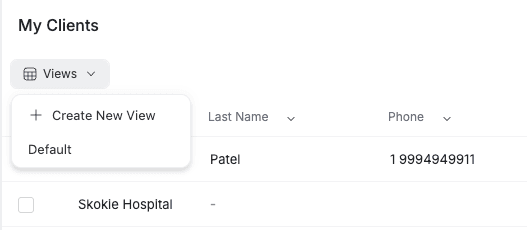
Accessing Your Views
- Go to the Clients page
- Click the view dropdown in the toolbar (shows "All Clients" by default)
- You will see your saved custom views plus a "Create New View" option at the top
- Click any view to load it instantly
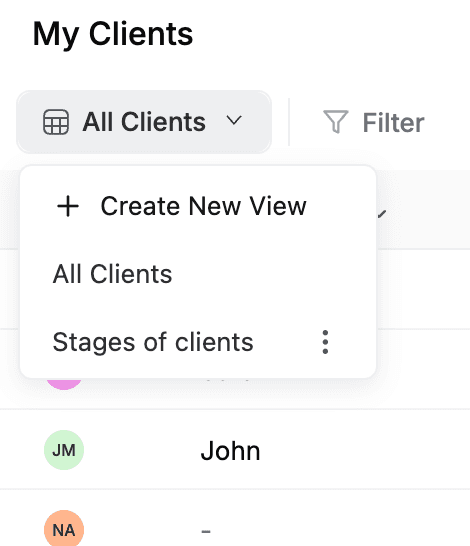
Creating a Custom View
- Set up your preferred organization on the Clients page — add filters, sorts, select columns, and choose your view type (Table or Kanban)
- Click the view dropdown and select "Create New View"
- Enter a clear name for your view (e.g., "High-Value Leads" or "Q1 Pipeline")
- Choose a view type: Table or Kanban
- If you chose Kanban, select the grouping property from the dropdown (only Select-type custom properties and the built-in Stage field are available)
- Click "Create view"
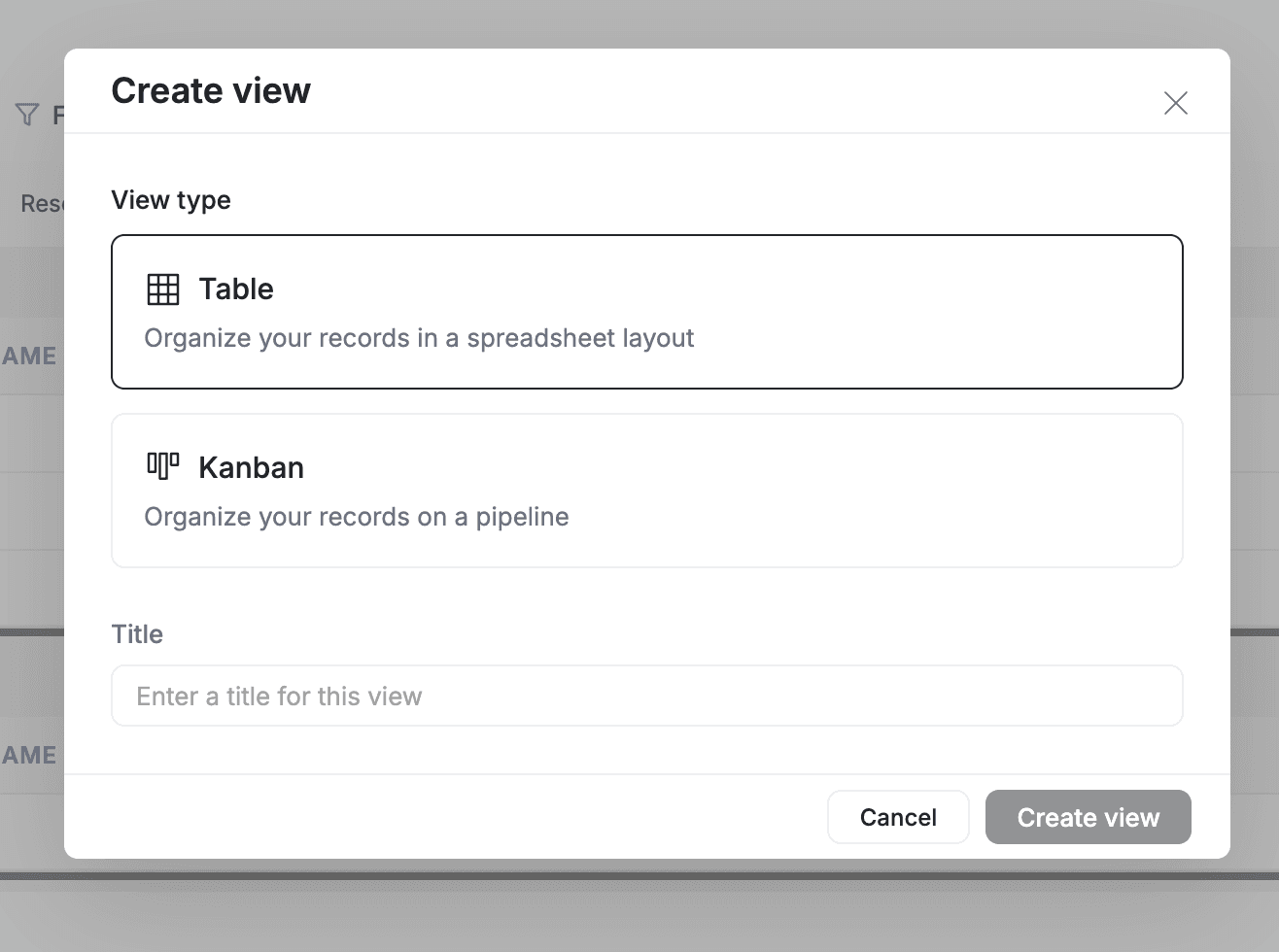
Your current filters, sorts, column selection, and pagination settings are saved with the view automatically.
Renaming a Custom View
- Open the view dropdown
- Click the three-dot menu next to the view you want to rename
- Select "Rename"
- Enter the new name and confirm
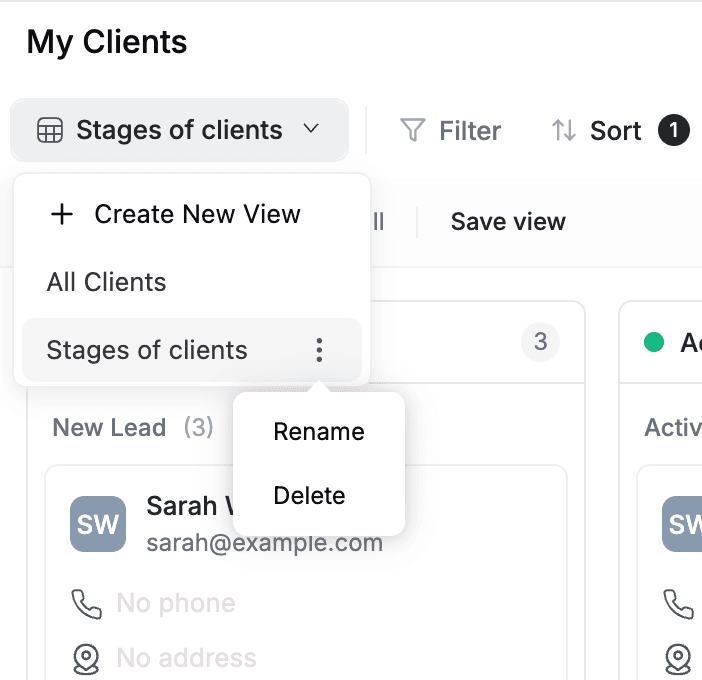
Important: Renaming is the only edit you can make to a saved view. To change a view's filters, sorts, columns, or view type, delete the existing view and create a new one with your updated settings.
Deleting a Custom View
- Open the view dropdown
- Click the three-dot menu next to the view
- Select "Delete"
- Confirm the deletion
If the deleted view was your currently active view, FieldCamp resets to the default "All Records" state. Deleting a view does not affect your client data.
Common Custom View Examples
Here are views many business owners find useful:
- "My Active Leads" — Filter to Stage = "New Lead", sorted by newest first
- "Ready to Invoice" — Filter to Stage = "Completed", table view with relevant columns
- "This Month's Signups" — Filter to Created Date = This Month, sorted by newest first
- "By Stage (Board View)" — Stage Kanban view showing all clients across pipeline stages
- "By Location" — Kanban grouped by a custom "City" Select property
Multi-User Access
Custom views are personal to your account. Each team member has their own set of saved and pinned views. One person's views do not affect anyone else's setup. Even when using the same filters, each team member sees only the clients their permission level allows.
Best Practices
- Use clear, descriptive names — "Q1 Prospects" is better than "View 1"
- Create views for recurring tasks — daily check-ins, weekly reviews, project-specific lists
- Pin your 3-5 most-used views — for fast switching in the dropdown
- Delete and recreate to change settings — since views can only be renamed, delete the old view and create a new one when your needs change
- Review and clean up quarterly — remove views you no longer use
FAQs
Can I share a saved view with my team?
No. Custom views are personal to your account. Each team member has their own set of saved and pinned views. If you want a teammate to use a similar view, share your filter and column setup so they can recreate it.
What is the difference between table view and kanban view?
Table view shows clients in a sortable, filterable spreadsheet layout with configurable columns. Kanban view shows clients as cards grouped by a property — either the built-in Stage field (Stage Kanban) or any custom Select-type property you have created. Table view is best for scanning and sorting large lists; kanban is best for visualizing pipeline stages.
Can I edit a saved view's filters or columns?
No. Once a view is created, you can only rename it. To change a view's filters, sorts, columns, or view type, delete the existing view and create a new one with your updated settings.
What happens when I delete a saved view?
The view is removed from your dropdown. If it was your currently active view, FieldCamp resets to the default "All Records" state. Deleting a view does not affect your client data — it only removes the saved configuration.
Related Articles
- Filter, Sort & Group Clients — Narrow down your client list with filters, sorts, and grouping
- Categories & Stages — Understand Leads, Pipeline, and Clients categories
- Creating Clients — Add new clients via AI or manually
- Client Detail Page — View and manage all information about a client
- Export Client Data — Download your client list as CSV or Excel
Clients and Requests: Managing Service Inquiries | FieldCamp
Learn how Requests work in FieldCamp — track pre-sales service inquiries per client, manage the pipeline, and convert Requests into Jobs, Estimates, or Invoices.
Client Categories & Stages | FieldCamp
Organize clients into Leads, Pipeline, and Clients categories in FieldCamp. Track relationships with customizable stages like New Lead, Active Client, and Archived.