 FieldCamp
Set up AI CSR for chat, SMS, WhatsApp and email | FieldCamp
Set up FieldCamp AI CSR, formerly AI Receptionist, to answer customers by chat, SMS, WhatsApp and email. Write its prompt, add knowledge, test and turn it on.
AI CSR is FieldCamp's AI customer service rep for text channels. It answers customers in the Online Booking chat, by SMS, on WhatsApp and by email, using one saved agent configuration. AI CSR was previously called AI Receptionist, and its screen may still be titled Receptionist.
AI CSR doesn't answer phone calls. For phone, use voice agents, which you build in FieldCamp Voice. To get a voice agent answering calls, follow the voice agent quickstart.
To open AI CSR, select Front Office AI in the sidebar, then the AI CSR tab. The page has four tabs: Agent, Knowledge, Rules and Settings.
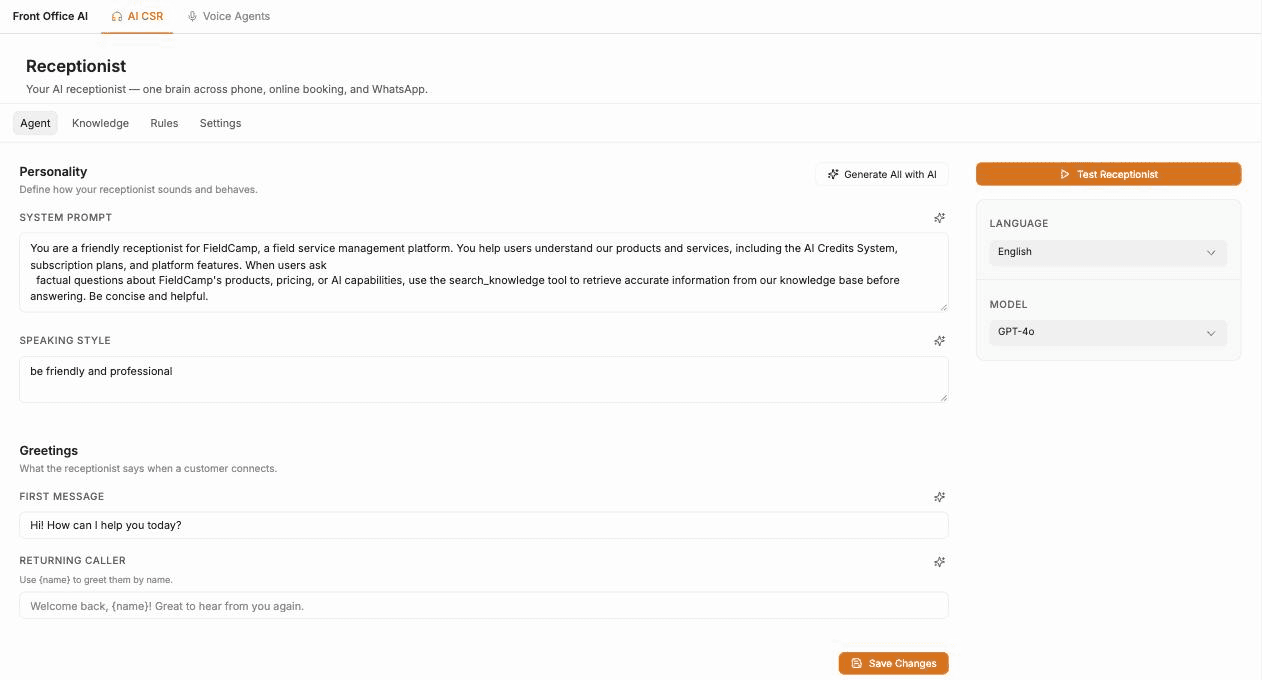
The Webhook tab that earlier versions of this page described is no longer shown in FieldCamp.
Before you begin
Only the Account Owner, an Admin, or a Super Admin can open AI CSR and change its configuration. Review Roles and permissions before delegating setup.
Connect each channel you want AI CSR to answer on before you turn it on there:
| Channel | Required setup |
|---|---|
| Online Booking chat | An active Online Booking page. Follow Setting up Online Booking. |
| A connected mailbox. See Email management. | |
| A connected WhatsApp account. See Set up WhatsApp messaging. | |
| SMS | A FieldCamp phone number that can send and receive texts. See Two-way text messaging. |
Don't use a live booking page, mailbox or number for your first test unless your team is ready to handle unexpected replies.
Recommended setup order
- Write and save the Agent configuration.
- Add and review Knowledge sources.
- Test the saved agent in chat.
- Add Intake Forms on the Rules tab if you want AI CSR to collect structured details.
- Turn on Receptionist Enabled in Settings and save.
- Turn on AI CSR for one channel at a time.
- Test each channel from the customer's side.
Configure the Agent
- Select Front Office AI in the sidebar, then AI CSR.
- Open Agent.
- Under Personality, complete System Prompt and Speaking Style.
- Under Greetings, complete First Message and, optionally, Returning Caller.
- In the right panel, choose a Language and Model.
- Select Save Changes.
- Wait for confirmation before testing or opening Settings.
Agent field reference
| Field | Default | Purpose |
|---|---|---|
| System Prompt | Empty | Defines the business identity, what AI CSR can do, restrictions, when to hand over to a person, and what to do when information is missing. Required before enabling. |
| Speaking Style | Empty | Defines tone, formality, and how to handle unclear questions. Optional. |
| First Message | Hi! How can I help you today? | Opens a new conversation. Required before enabling. |
| Returning Caller | Empty | Greeting for a recognized customer. Use {name} to greet them by name. Optional. |
| Language | English | The language AI CSR replies in. |
| Model | GPT-4o | The AI model that writes replies. |
Write a useful System Prompt
A production prompt should cover:
- Business name, service area, business hours, and supported services.
- What AI CSR may book, change, quote, or collect.
- Information it must gather before taking action.
- Topics it must not guess about, such as final price or emergency advice.
- When it should hand the conversation to a person.
- What to say when no verified answer exists.
- Privacy boundaries for payment, health, access, or customer data.
Avoid putting frequently changing service details in the prompt when you can keep them in a Knowledge source instead.
Use the AI writing controls
You can write the fields yourself or let FieldCamp draft them.
Generate all personality fields
- Select Generate All with AI.
- Describe the business in up to 2,000 characters.
- Generate the four fields.
- Review and edit every generated result.
- Select Apply All.
- Select Save Changes on the Agent tab.
Apply All replaces the current System Prompt, Speaking Style, First Message, and Returning Caller values, but it doesn't save them until you select Save Changes.
Generate or refine one field
Select the magic-wand icon beside a field. When the field is blank, it generates a suggestion. When the field has text, it refines that text. Applying the result replaces the current field, so copy any wording you want to keep first.
The generator aims for these lengths:
| Generated field | Target length |
|---|---|
| System Prompt | 1,200 characters |
| Speaking Style | 400 characters |
| First Message | 200 characters |
| Returning Caller | 250 characters |
These are generation targets, not limits for text you type yourself.
Build the Knowledge source library
Use Knowledge for approved business information that you want to maintain separately from the agent's personality. It's the same knowledge library that the Online Booking assistant uses, described in Booking AI knowledge base and personas.
- Open Knowledge.
- Turn on Enable Knowledge Base to show the source manager.
- Select Add.
- Upload a document, import a website, or add text.
- Wait until the source is Ready.
- Test a question that depends on the new source.
Enable Knowledge Base also controls whether the assistant launcher shows on your Online Booking page. The toggle doesn't show which sources a channel will use, so check each source's status and test answers before you go live.
Upload a document
- Select Add > Upload document.
- Choose one or more PDF, DOC, DOCX, or TXT files.
- Wait while FieldCamp uploads each file and refreshes the source list.
- Confirm each file reaches Ready.
FieldCamp takes the source title from the filename and uploads multiple files one at a time. Upload limits can vary, so this guide doesn't promise a fixed maximum size.
Import a website
- Select Add > Import website.
- Enter the website URL.
- Optionally enter a display title.
- Select Preview Website.
- Review the extraction method, character count, estimated chunks, warnings, and issues.
- Correct the extracted content if needed.
- Select Add and Train.
- Wait for Ready.
The reviewed content can't be blank when you add it for training.
Add text
- Select Add > Add text.
- Enter a Title.
- Enter the approved Content.
- Add the source.
- Wait for Ready.
Both Title and Content are required. Text sources suit short policies, FAQs, service boundaries, and notes that don't already exist in a document.
Understand source states
| State | Meaning and next step |
|---|---|
| Queued | The source is waiting to be processed. Don't test it yet. |
| Processing | Training is in progress. Wait for the final state. |
| Ready | The source is available for answers. |
| Failed | Processing didn't complete. Review the error, correct the source, and retry. |
Don't rely on a source in customer conversations until it's Ready and you've tested its answers.
Maintain a source
Open the action menu beside a source to:
- Review its extracted content.
- Reindex the source.
- Deactivate or Activate it.
- Delete it.
- Use Save & Retrain after editing extracted content.
Deactivating a source removes its content from answers. Reactivating it queues processing again, so wait for Ready before testing it.
Add intake forms
The Rules tab holds Intake Forms: structured forms the AI collects from customers, such as the details your team needs before a visit.
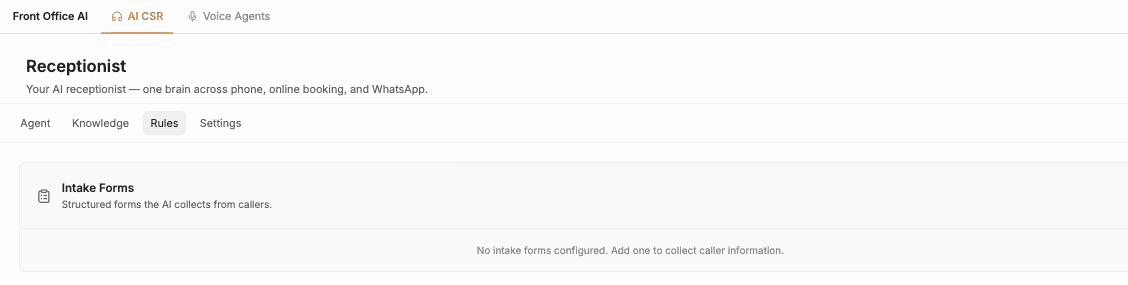
Select Add to create a form. Until you add one, the tab shows "No intake forms configured."
Test AI CSR
The test uses the saved configuration. Unsaved text on the Agent tab isn't included.
- Open Agent and select Test Receptionist.
- Choose Chat.
- Optionally enter a customer phone number and email to test customer context.
- Select Connect.
- Send a message, or attach an image.
- End the session when the scenario is complete.
- Update the Agent or Knowledge configuration, save it, and reconnect for another test.
Chat shows Type a message when it's ready.
Minimum test checklist
Test more than the happy path:
- The first greeting and a returning-customer greeting.
- A common question with a verified Knowledge answer.
- A question the source library can't answer.
- A request outside your service area or business rules.
- A booking or service-request intent.
- A request to speak to a person.
- A message containing an image, if your workflow expects it.
Note any wording or routing that needs correcting, update and save the configuration, and repeat the same test so the results are comparable.
Turn AI CSR on
System Prompt and First Message must contain text before you can turn AI CSR on.
- Confirm your Agent changes are saved.
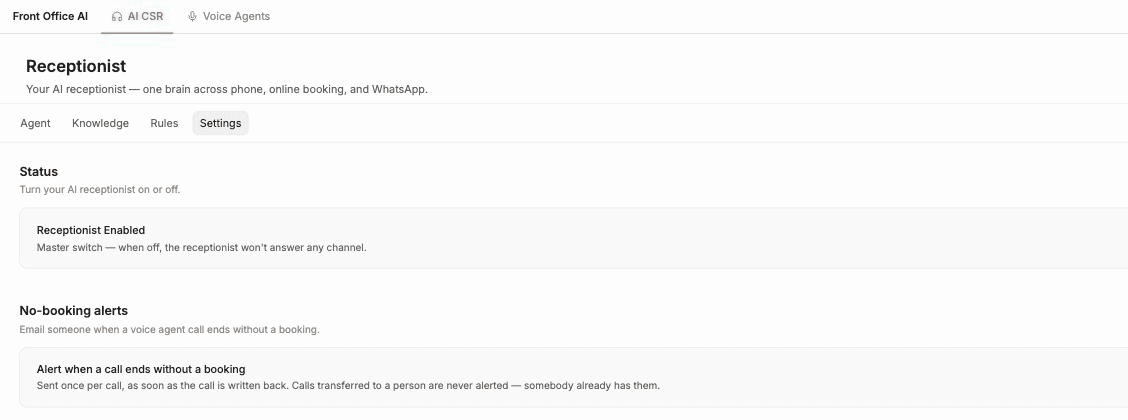
- Open Settings.
- Under Status, turn on Receptionist Enabled. This is the master switch: when it's off, AI CSR doesn't answer on any channel.
- Select Save Changes.
- Refresh or reopen Settings and confirm the switch is still on.
If either required field is empty, FieldCamp rejects the change and asks you to complete the agent instructions and greeting.
No-booking alerts
No-booking alerts is for voice agent calls, not AI CSR conversations. Turn on Alert when a call ends without a booking to email someone when a voice agent call ends without a booking. The alert is sent once per call, as soon as the call is written back. Calls transferred to a person are never alerted.
Choose where AI CSR answers
Each channel has its own switch, so you can turn AI CSR on for one channel at a time.
Online Booking chat
AI CSR answers in the chat on your Online Booking page. Set up the booking page and its chat as described in AI chat assistant setup for Online Booking, then open the public booking page and test the chat and the booking path you expect customers to take.
- Go to Settings > Apps & Integrations > Email Channels.
- Find the connected mailbox.
- Turn on its AI receptionist switch.
- Send a test email from an external address.
AI CSR replies only on mailboxes where this switch is on. Turning it on for one mailbox doesn't turn it on for the others.
Connect your WhatsApp account in Apps & Integrations > WhatsApp. Once it's connected and AI CSR is turned on for it, AI CSR can answer messages on that account. Send a test message from an account that isn't your team's.
SMS
Incoming texts to your FieldCamp number can be answered by AI CSR when it's turned on for that number. Text the number from an external phone to test it. For how texting works in FieldCamp, see Two-way text messaging.
Pause or stop AI CSR safely
- Open Settings and turn off Receptionist Enabled.
- Select Save Changes.
- Refresh or reopen Settings and confirm the switch is off.
- To keep a specific channel off when you turn AI CSR back on, turn off that channel's own switch, such as a mailbox's AI receptionist switch.
- Test the booking page, mailbox, WhatsApp account and number from the customer's side.
Troubleshooting
AI CSR is missing from the sidebar
Confirm that you're the Account Owner, an Admin, or a Super Admin. If the sidebar was customized, restore Front Office AI in Customize Sidebar.
AI CSR can't be turned on
Open Agent, complete System Prompt and First Message, and select Save Changes. Then return to Settings and save Receptionist Enabled.
The test says to save settings first
Refresh the page, confirm you're signed in to the correct workspace, save the Agent settings, and reconnect. If the message persists, contact FieldCamp support.
The test shows a service or authentication error
Rewriting the prompt won't fix this. Contact FieldCamp support with the time of the test and the error shown.
A Knowledge answer is missing
Confirm the source is active and Ready, then test a direct question whose answer appears clearly in the source. Reindex it, or use Review > Save & Retrain after correcting the extracted content.
Email, WhatsApp or SMS doesn't get a reply
Confirm that Receptionist Enabled is on and saved, that the mailbox, WhatsApp account or number is connected, and that AI CSR is turned on for that specific channel. Test from an external account rather than the connected business account.
A customer calls instead of messaging
AI CSR doesn't answer phone calls. To answer calls with AI, set up a voice agent and see how voice agents work with FieldCamp.
Frequently asked questions
Is AI CSR the same as AI Receptionist?
Yes. AI CSR is the new name for the in-app assistant that was called AI Receptionist. The screen may still show Receptionist. The AI Receptionist section of these docs now covers voice agents, which answer phone calls.
Does AI CSR answer phone calls?
No. AI CSR handles chat, SMS, WhatsApp and email. Phone calls are handled by voice agents, which you'll find on the Voice Agents tab under Front Office AI.
Where do AI CSR conversations appear?
Conversations are stored in the FieldCamp Inbox with your other customer messages. See the Inbox overview.
Related articles
- AI Receptionist voice agents: answer phone calls with AI voice agents built in FieldCamp Voice
- AI chat assistant setup for Online Booking: configure the chat on your booking page
- Inbox overview: find and work the conversations AI CSR handles
- Email management: connect the mailboxes AI CSR can reply on
- Two-way text messaging: send and receive SMS in FieldCamp
Message Templates | FieldCamp
Edit the emails and texts FieldCamp sends automatically — booking confirmations, payment reminders, review requests and AI agent messages — with variables.
Email Management | FieldCamp
Connect Gmail, Outlook, or an IMAP/SMTP mailbox to FieldCamp Inbox, then read, search, and reply to customer email conversations.