 FieldCamp
Saved replies for Inbox conversations | FieldCamp
Create personal or organization-wide Saved Replies, use supported placeholders, and insert reusable text from the FieldCamp Inbox picker or a slash shortcut.
Saved Replies are reusable messages that you insert into an Inbox draft. They help your team answer common questions consistently while leaving the final message available for review and editing.
Inserting a Saved Reply does not send it. FieldCamp adds the rendered text to the composer, where you can check names, dates, prices, and channel-specific details before sending.
Before you begin
Your role needs full Inbox access, including access to all conversations, to load and manage Saved Replies. Access limited to only your own conversations is not enough.
Use the Inbox overview to confirm that you can open the Inbox and understand its conversations and channels.
Saved Replies have two visibility scopes:
- Everyone in the org creates a Global reply available to authorized Inbox users in the workspace.
- Just me creates a Personal reply returned only to the teammate who created it.
Global and Personal are the only supported scopes. A Team scope is not available.
Open Saved Replies
- Open Settings.
- Under Customer Experience, select Saved Replies.
- Wait for the reply list to load.
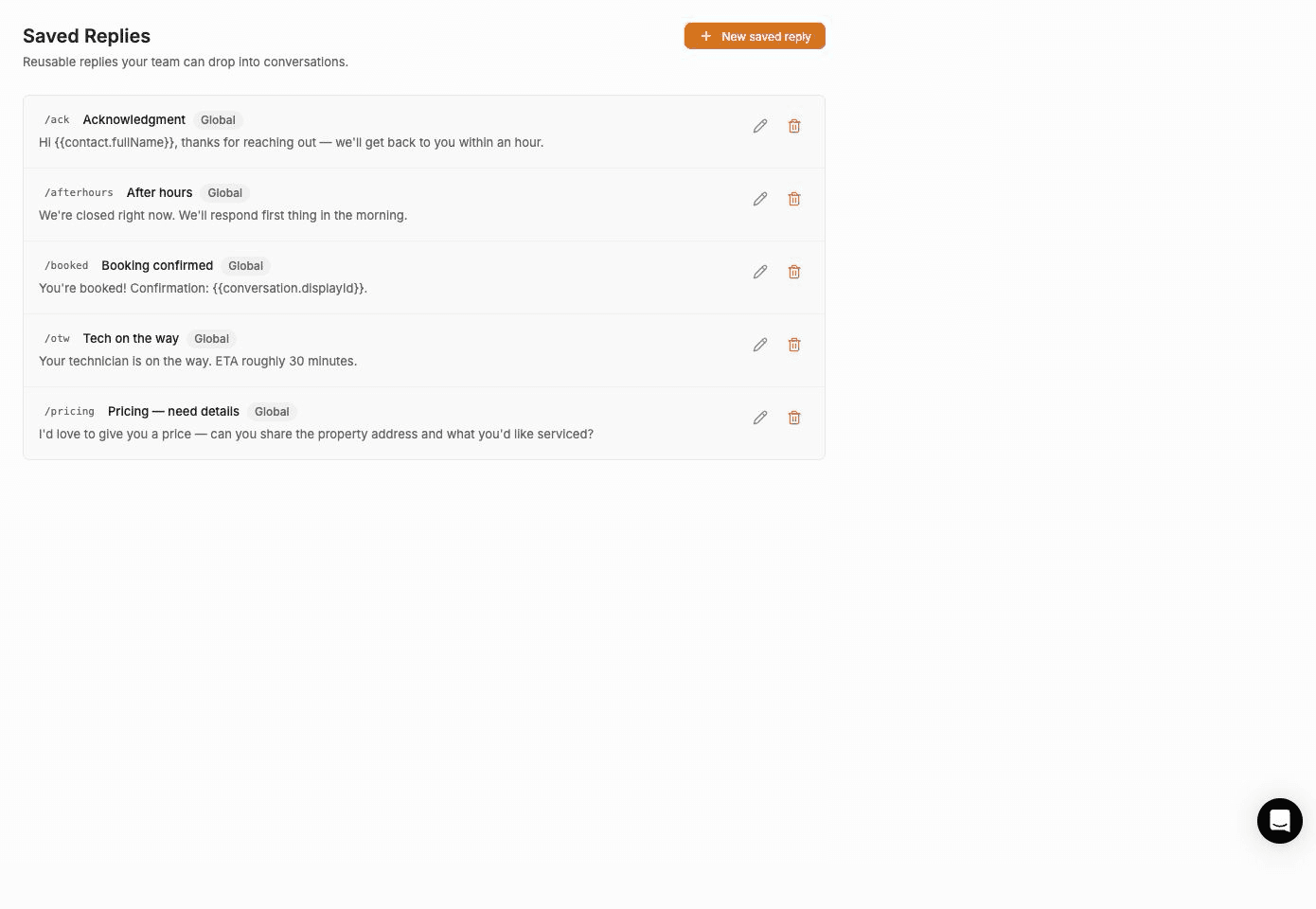
On the first authorized load, FieldCamp ensures these starter Global replies exist:
| Shortcut | Title |
|---|---|
/ack | Acknowledgment |
/otw | Tech on the way |
/pricing | Pricing — need details |
/booked | Booking confirmed |
/afterhours | After hours |
You can edit or delete a starter reply just like another Global reply. Its shortcut is already reserved in the workspace.
Create a Saved Reply
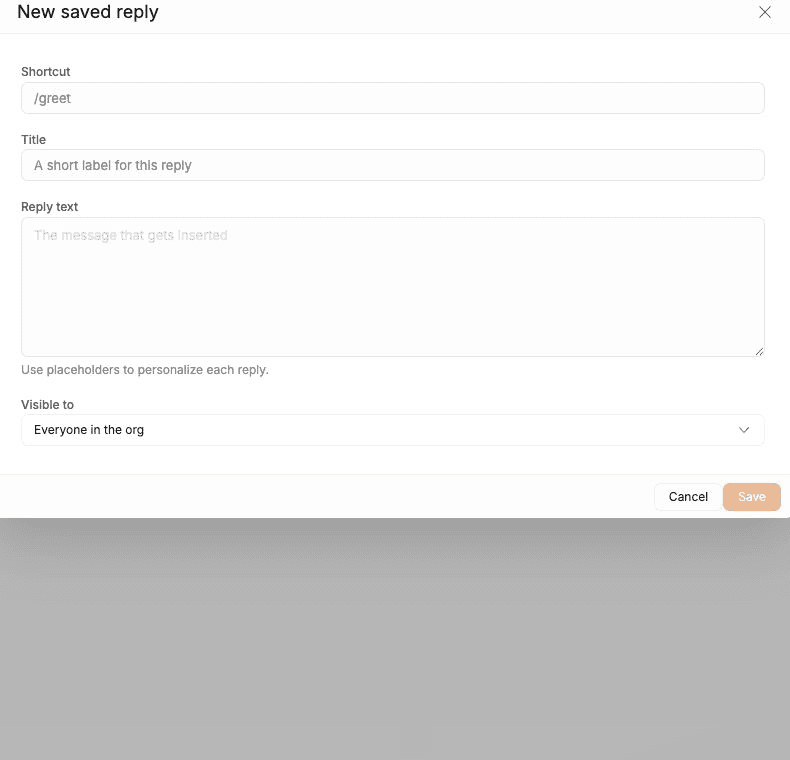
- Select New saved reply.
- Enter a Shortcut.
- Enter a Title.
- Write the Reply text.
- Under Visible to, choose Everyone in the org or Just me.
- Select Save.
- Wait for Saved and confirm the reply appears in the list.
The list shows the shortcut, title, Global or Personal scope, and a preview of the reply text.
Complete field reference
| Field | Required | Rules and behavior |
|---|---|---|
| Shortcut | Yes | One to 32 letters, numbers, hyphens, or underscores after /. FieldCamp adds the leading slash if you omit it. |
| Title | Yes when creating | A recognizable internal label used in the settings list and picker search. |
| Reply text | Yes | The message inserted into the draft. It can include supported placeholders. |
| Visible to | Yes | Defaults to Everyone in the org. Choose Global or Personal visibility. |
Shortcut examples:
- Valid:
/arrival,/estimate-ready,/follow_up2 - Invalid:
/follow up,/price?, or a shortcut longer than 32 characters after/
Shortcuts are unique across the entire organization. A Personal reply cannot reuse a Global shortcut, and one teammate's Personal shortcut cannot be reused by another teammate.
Complete the Title even if the Save action appears available. New replies are rejected without a title, and keeping titles populated makes edited replies searchable and recognizable.
Personalize reply text with placeholders
Placeholders use double braces. FieldCamp replaces a supported placeholder with data from the open conversation when the reply is inserted.
| Placeholder | Inserted value |
|---|---|
{{contact.firstName}} | Contact first name |
{{contact.lastName}} | Contact last name |
{{contact.fullName}} | Contact full name |
{{contact.phone}} | Contact country code and phone number |
{{contact.email}} | Contact email address |
{{conversation.displayId}} | Display conversation number with a leading # |
{{conversation.id}} | Internal conversation ID |
{{agent.firstName}} | Replying teammate's first name |
{{agent.fullName}} | Replying teammate's full name |
{{org.businessName}} | Workspace business name |
Example reply
Hi {{contact.firstName}},

Thanks for contacting {{org.businessName}}. We received conversation {{conversation.displayId}} and will follow up shortly.

— {{agent.firstName}}
If the conversation has all required values, FieldCamp inserts a draft such as:
Hi Jordan,

Thanks for contacting North Star Heating. We received conversation #1842 and will follow up shortly.

— Sam
Unknown, misspelled, or unavailable placeholders remain visible in the draft. FieldCamp does not show a separate placeholder warning, so always review the inserted message before sending it.
Insert a reply from the picker
- Open a conversation in the Inbox.
- Select Saved replies in the composer toolbar.
- Search by shortcut or title if needed.
- Select the reply.
- Review the inserted text.
- Edit it for the current customer and send it when ready.
The picker shows up to 30 matching replies. When text already exists in the draft, a picker selection is inserted on a new line instead of replacing the existing text.
Select Manage saved replies in the picker to open the settings page in a new browser tab.
For email threads, signatures, and recipients, see Email management.
Insert a reply with a slash shortcut
Slash typeahead is useful when you already know the shortcut.
- Place the cursor at the beginning of the draft or immediately after a space or line break.
- Type
/followed by the start of the shortcut, such as/pri. - Use Arrow Up or Arrow Down to move through the matches.
- Press Tab or Enter to insert the selected reply.
- Press Escape instead if you want to close the suggestions.
Typeahead behavior:
- Matching is prefix-based, not a full-text search.
- At most eight suggestions appear.
- The shortcut must begin at the start of the draft or immediately after whitespace.
- Insertion replaces only the slash token immediately to the left of the cursor.
- Existing text before and after that token remains in the draft.
Example inside an existing draft
If the draft is:
I checked your appointment. /otSelecting /otw replaces /ot with the rendered reply while preserving I checked your appointment.
Edit a Saved Reply
- Return to Settings > Saved Replies.
- Select the pencil action on the reply.
- Update its shortcut, title, reply text, or visibility.
- Select Save.
- Confirm the updated values appear in the list.
An edited shortcut must still be unique across Global and Personal replies in the organization.
Delete a Saved Reply
- Select the delete action on the reply.
- Review the confirmation.
- Confirm the deletion.
Deletion permanently removes the reply from the Saved Replies data and from newly loaded picker results. It does not change messages already sent or text already inserted into an open draft.
Design replies that are safe to reuse
- Keep account-specific prices, promises, and dates out of a generic reply unless the teammate must fill them in.
- Use placeholders only for values supported in the current conversation.
- Put the action or answer first, then any explanation.
- Create short, memorable shortcuts that are easy to type after
/. - Use Global scope for approved team language and Personal scope for individual working notes.
- Re-read starter and Global replies after policy, pricing, or operating-hour changes.
Troubleshooting
The page or picker is empty
Confirm that your role has full Inbox access, including access to all conversations. Saved Reply permission failures can appear as an empty list rather than a visible error. After an access change, reload the page and reopen the conversation.
Shortcut already exists
Choose a different shortcut. Uniqueness applies across every Global and Personal reply in the organization, including the five starter shortcuts.
A new reply is missing from an already-open conversation
The composer caches its reply data when it mounts. Reload the page to fetch the new list.
Slash suggestions do not appear
Make sure the slash token begins at the start of the draft or after whitespace. Use only letters, numbers, hyphens, and underscores, and type the beginning of an existing shortcut.
A placeholder remains visible
The placeholder is misspelled, unsupported, or its value is missing from the current conversation. Replace it manually before sending. Do not add job placeholders; the current Inbox composer does not supply job data to Saved Replies.
The reply inserted below existing text
This is expected when you use the picker with a nonempty draft. FieldCamp adds the reply on a new line. Move or edit the inserted text before sending.
An edited or deleted reply still appears
Reload the page so the composer fetches Saved Replies again. Deleting a Saved Reply does not remove text already placed in a draft.
Related articles
- Two-way text messaging — send and manage customer SMS conversations
- Client calls, emails, and messages — understand client communication across FieldCamp
- AI Email Composer — draft a new email response with AI instead of inserting fixed reusable text
Inbox Overview | FieldCamp
Learn the current FieldCamp Inbox layout, including conversation folders, channels, handlers, saved views, assignment, snoozing, resolution, and Trash.
Message Templates | FieldCamp
Edit the emails and texts FieldCamp sends automatically — booking confirmations, payment reminders, review requests and AI agent messages — with variables.