 FieldCamp
Create Your Account
Sign up for FieldCamp in under two minutes. Create your account and land in the AI Command Centre dashboard.
Under the hood — see how Team Members work in the FieldCamp data model: the fields they hold, how they connect to your other records, and how to customize them.
Getting started with FieldCamp takes less than two minutes. You need an email address and a password — that is it.
Sign up
- Go to app.fieldcamp.ai/signup.
- Enter your name, email address, and choose a password.
- Click Create Account.
- Check your email for a verification link and click it to confirm.
- You will be taken to the onboarding flow inside FieldCamp.
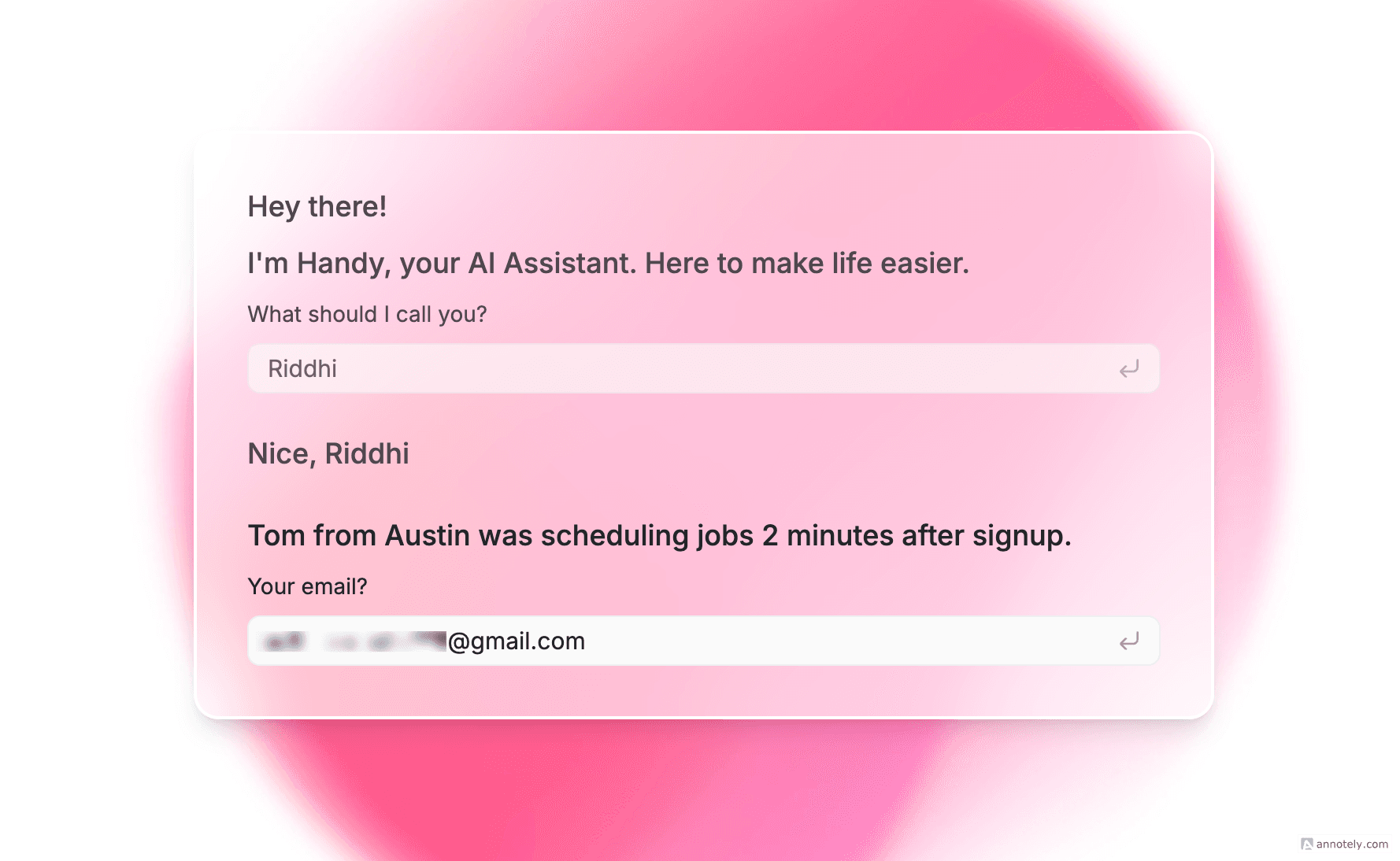
You can also sign up with your Google account. Click Sign up with Google on the signup page for one-click registration.
Choose your setup path
After creating your account, FieldCamp asks how you want to get started:
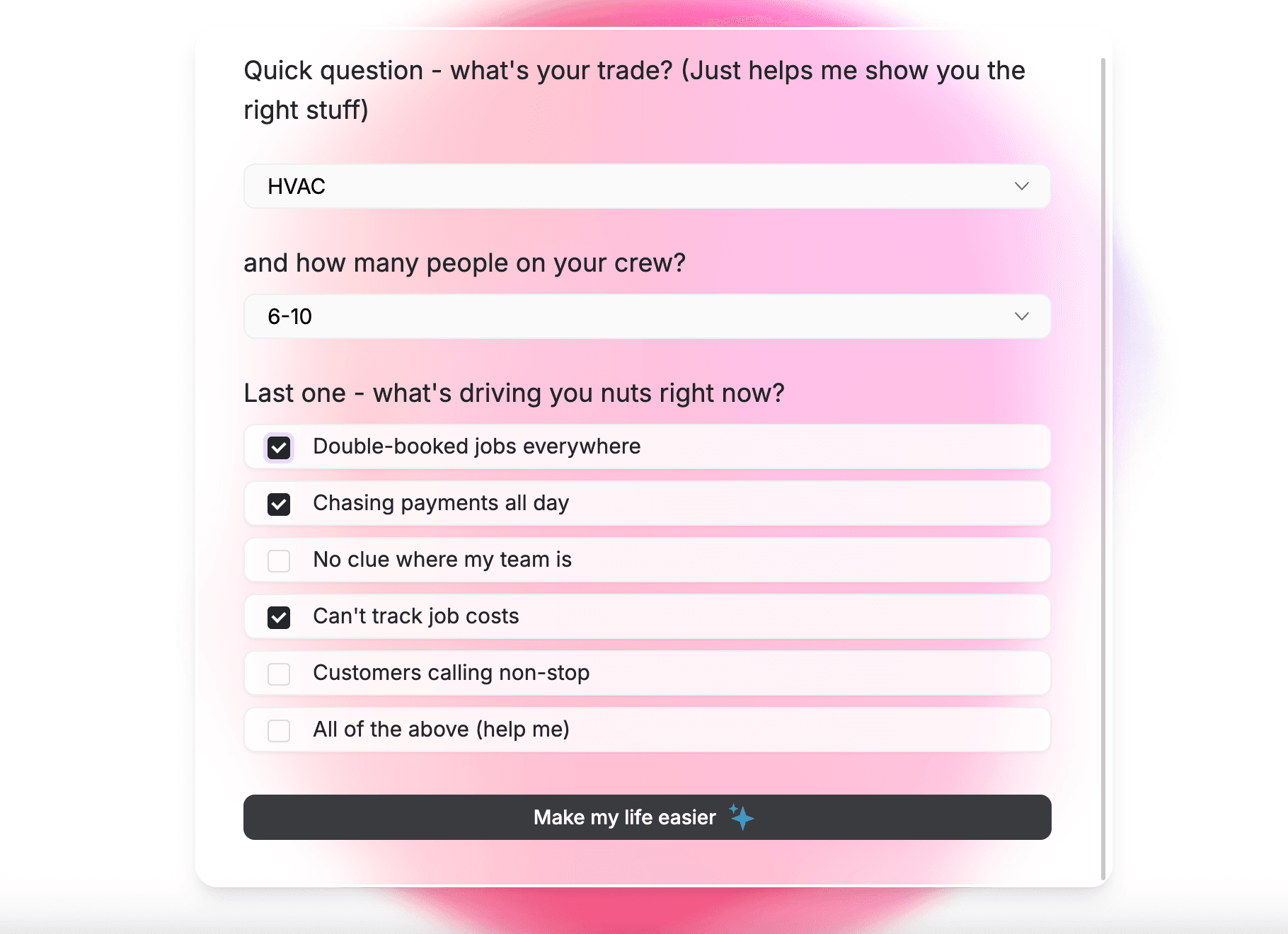
| Business Setup (recommended) | Explore with Sample Data | |
|---|---|---|
| Best for | Users ready to configure their real business | Users who want to explore the interface first |
| What happens | 4-step wizard: company name, type, address, hours | Workspace pre-filled with example clients, jobs, invoices |
| Data | Starts clean — only your real data | Starts with sample data you can delete later |
| Time to start | ~5 minutes | Instant |
See Quick Start — Setting Up Your Business for a detailed walkthrough of the Business Setup wizard.
Choosing your plan
FieldCamp plans are built around your team size, and pricing is custom to your team and workflow. See Plan & Billing for what each plan includes, or book a demo for a custom quote.
What you will see first
After onboarding you land on the Command Centre — FieldCamp's AI chat interface. This is your home screen. Start by typing what you need — "add a new client," "create a job for tomorrow," or "show me today's schedule" — and the AI will handle it.
From here you can also navigate to any module using the sidebar.
Next steps
- Key Concepts — understand how Clients, Jobs, Requests, and Invoices connect
- Navigate the interface — learn the sidebar and layout
- Invite your team — add team members and assign roles
What is FieldCamp?
FieldCamp is an AI-powered field service management platform. Manage clients, jobs, invoices, scheduling, and your team from one place — or just ask the AI.
Web & Mobile Access
Access FieldCamp from any browser at app.fieldcamp.ai or download the iOS and Android mobile apps. The AI Command Centre works seamlessly on web and mobile.