 FieldCamp
Change Your Password
Change your FieldCamp password from Settings or reset it from the login page if you have forgotten it. Keep your field service management account secure.
Under the hood — see how Team Members work in the FieldCamp data model: the fields they hold, how they connect to your other records, and how to customize them.
You can also navigate to account settings quickly from the Command Centre by asking the AI to help with account tasks.
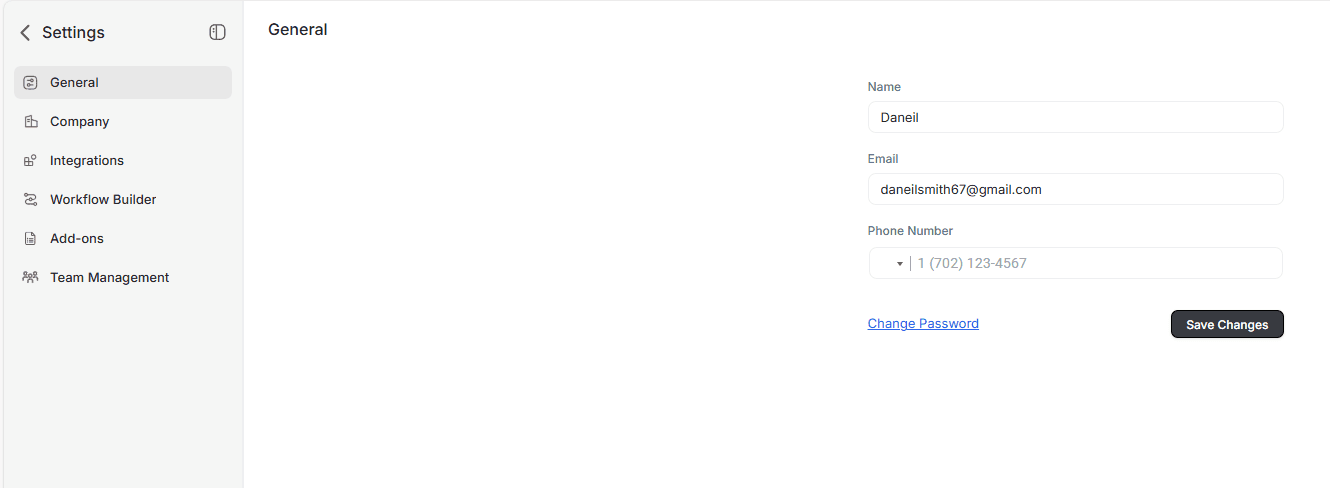
Change your password from Settings
If you know your current password:
- Log in to FieldCamp at app.fieldcamp.ai.
- Click your profile icon (top-right) or open Settings from the sidebar.
- Go to the General tab.
- Click Change Password.
- Enter your current password, then type and confirm your new password.
- Click Save.
Reset a forgotten password
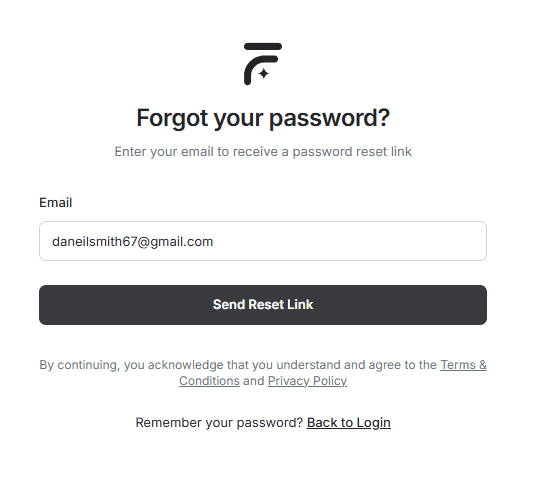
If you cannot remember your password:
- Go to the FieldCamp login page.
- Click Forgot Password?
- Enter your registered email address.
- Check your inbox for a verification code.
- Enter the code, set a new password, and confirm it.
- You will be redirected to the login screen — sign in with your new password.
Security tips
- Use a strong password with a mix of letters, numbers, and symbols.
- Do not reuse passwords across different services.
- Change your password immediately if you suspect unauthorized access.
- Consider using a password manager to generate and store unique passwords.
If you manage a team, remind your team members to keep their passwords secure as well. Each person should use their own unique credentials.
Related Articles
- Create Your Account — sign up and get started with FieldCamp
- Web and Mobile Access — access FieldCamp from any device
- Adding and Managing Team Members — invite your team and assign roles
- Roles and Permissions — control who can see and do what
Web & Mobile Access
Access FieldCamp from any browser at app.fieldcamp.ai or download the iOS and Android mobile apps. The AI Command Centre works seamlessly on web and mobile.
Quick Start — Set Up Your Business | FieldCamp
Set up FieldCamp in 15 minutes. Configure your company profile, connect email and Stripe, invite your team, and start scheduling field service jobs step by step.