 FieldCamp
Pipeline Stages & Configuration | FieldCamp
Set up pipeline stages, transitions, and automation rules for the request pipeline in FieldCamp — control flow, required actions, and stage-driven workflows.
Under the hood — see how Stages & Workflows work in the FieldCamp data model: the fields they hold, how they connect to your other records, and how to customize them.
Pipeline stages and configuration in FieldCamp controls the entire shape of your request pipeline — which stages exist, which stage-to-stage moves are allowed, what must be captured before a transition fires, and what side effects run automatically when a record changes stage. This guide expands the Transitions tab and the Rules tab so you can move beyond the default flow and bend the request pipeline to match how your business actually closes work.
Accessing Pipeline Configuration
Go to Settings > Pipeline Config. Only Admin and Superadmin roles can access this page. See Roles and Permissions for the full permission matrix.
You will see a list of all objects grouped into two sections:
- System Objects — Jobs, Visits, Clients, Requests, Estimates, Invoices, Products/Services
- Custom Objects — Any custom objects you have created with pipelines enabled
Each row shows the object name, description, and the number of stages and transitions configured. Click Requests to open the request pipeline settings.
AI-First: Ask About Pipeline Config
Open the Command Centre and ask:
- "What stages does the request pipeline have?"
- "How many requests are in each stage?"
- "Show me the pipeline configuration"
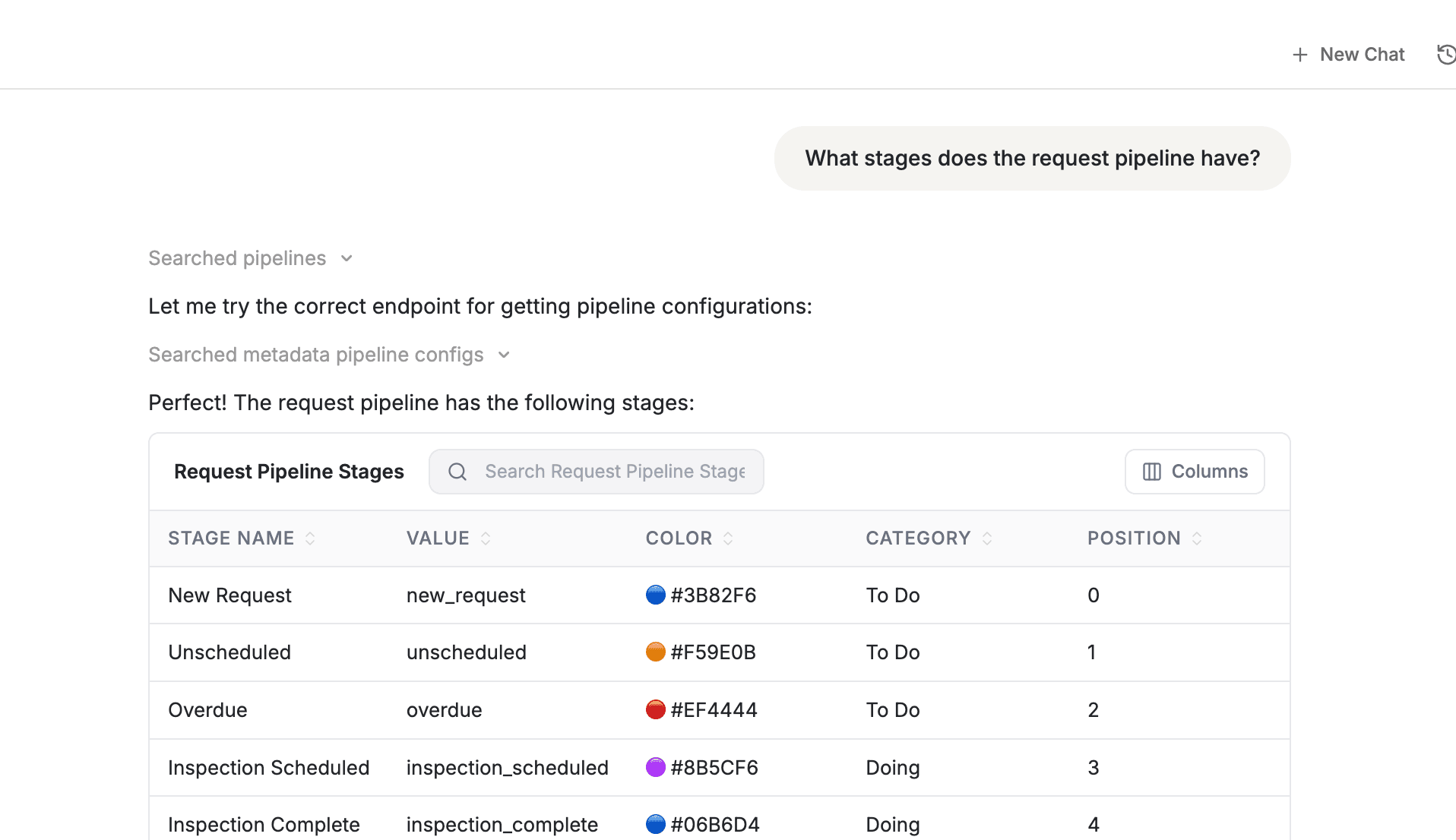
Default Request Stages
FieldCamp ships with 12 request stages organised across three tab groups — Requests, Pipeline, and Archived:
| Tab Group | Stage | Default Value |
|---|---|---|
| Requests | New Request | new_request |
| Requests | Unscheduled | unscheduled |
| Requests | Overdue | overdue |
| Pipeline | Inspection Scheduled | inspection_scheduled |
| Pipeline | Inspection Complete | inspection_complete |
| Pipeline | Quote Created | quote_created |
| Pipeline | Quote Sent | quote_sent |
| Pipeline | Converted | converted |
| Archived | Lost - No Response | lost_no_response |
| Archived | Lost - Rejected | lost_reject_quote |
| Archived | Cancelled | cancelled |
| Archived | Duplicate | duplicate |
New Request is the initial stage. Converted, the four archived stages, all act as final stages. Stage values are the slugs the system uses internally — labels are what your team sees on the kanban and in lists.
Managing Stages
Viewing Stages
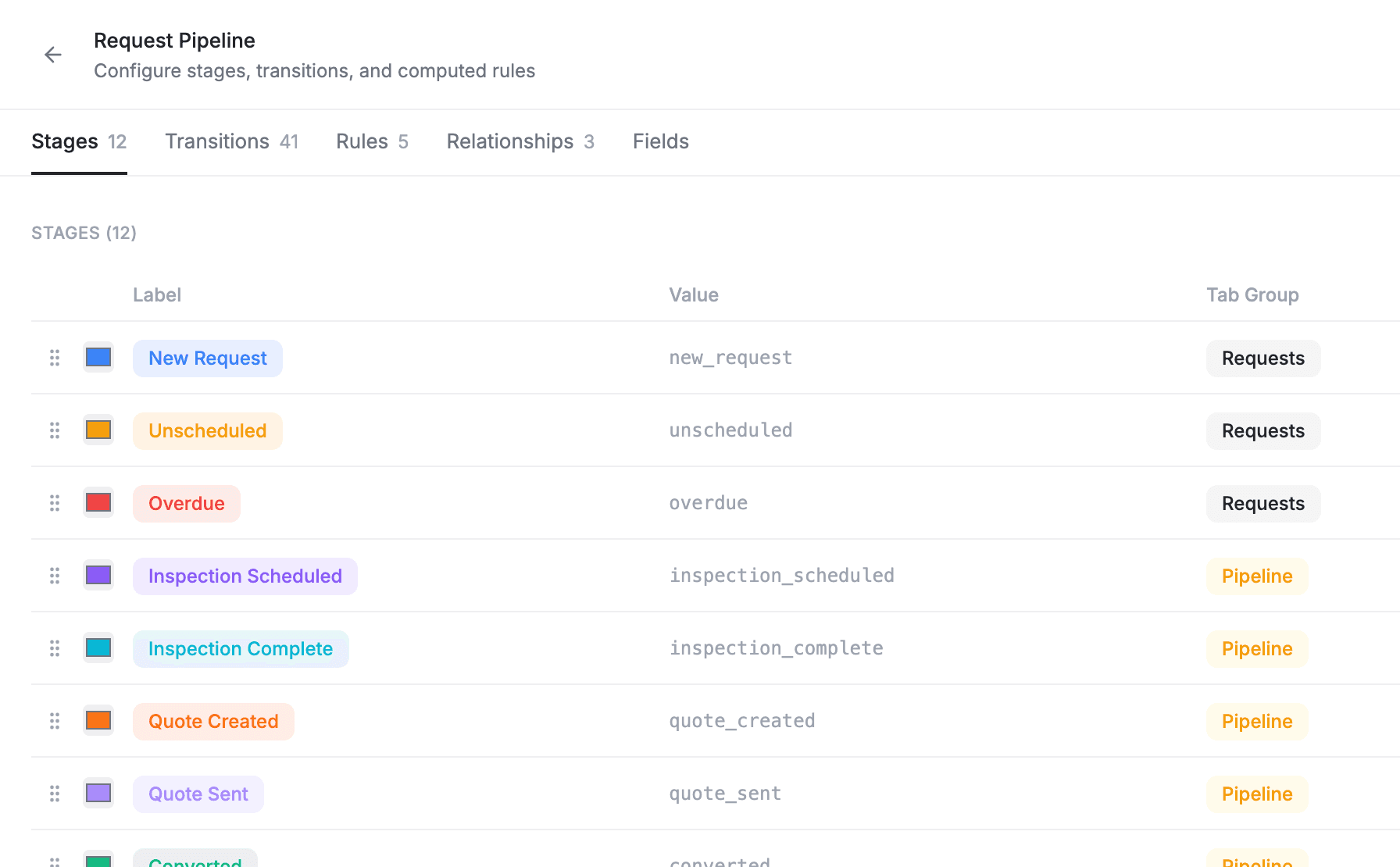
Open the Stages tab to see all configured stages. Each row has:
| Property | Description |
|---|---|
| Label | The display name your team sees (click the badge or pencil to open the editor) |
| Value | Internal slug used by the system and by other rules to reference the stage |
| Color | A color picker that drives badge and kanban column colors |
| Tab Group | One of three groups: Requests, Pipeline, or Archived |
| Flags | system, initial, and final flags shown as small badges |
Creating Custom Stages
Click Add Stage
Open the Stages tab and click Add Stage at the top right.
Enter a label and value
Pick a clear label like "Pending Approval". The value field auto-generates a slug, which you can edit.
Choose a color and tab group
Pick a colour and assign the stage to Requests, Pipeline, or Archived so it lands in the right column group on the kanban board.
Save
Save your changes. The unsaved-changes indicator appears in the header until you click Save to commit everything at once.
Reordering Stages
Use the up/down arrow buttons next to each stage to change the display order. The order also controls the column order on the kanban view.
Deleting Stages
Click the trash icon next to any custom stage to remove it. System stages cannot be deleted — the trash icon is hidden for those rows.
Before deleting a custom stage, make sure no requests are currently in that stage. Move or reassign records to a different stage first, otherwise the save will fail.
Managing Transitions
The Transitions tab controls which stage-to-stage moves are allowed. Each row represents one allowed move and is defined by:
| Property | Description |
|---|---|
| From stage | The starting stage. Pick a specific stage or * (Any) to allow this transition from every stage |
| To stage | The target stage |
| Button label | The text that appears on the action button shown to your team — supports translations for each language |
| Conversion flag | Marks the transition as a conversion move (e.g. "Create Quote") so reporting and analytics can track conversions separately |
| Required Capabilities | Capability checks (signature, photo, form, log entry, notes, voice note, confirmation) that must be satisfied before the transition can fire |
Click Add Transition to open the editor, then choose From, To, a button label, and optionally toggle Conversion. FieldCamp blocks duplicate transitions — the same (from, to) pair cannot be added twice.
Wildcard "Any" transitions
Setting From stage to * (Any) makes the transition available from every stage in the pipeline. Use this for housekeeping moves like "Cancel" or "Mark Duplicate" that should always be available without listing every starting stage individually.
Default request transitions
Out of the box, the request pipeline ships with transitions for the full lifecycle, including:
New Request→Inspection Scheduled("Schedule Inspection")New Request→Quote Created("Create Quote") — flagged as a conversionInspection Scheduled→Inspection Complete("Complete Inspection")Inspection Complete→Quote Sent("Send Quote")Quote Sent→Converted("Convert")Quote Sent→Lost - Rejected("Rejected")- Reopen paths from terminal stages back to
New Request
You can keep these as-is, edit their button labels for clarity, or delete the ones that do not match your sales motion. For the full conversion mechanics see Converting Requests.
Required capabilities (gating a transition)
Expand any transition row and you will see a Capability Picker with two sections — Required before transition and Actions on transition. Each capability is a built-in check such as signature, photo, job form, job log, notes, voice notes, or confirmation.
When a capability is enabled on a transition, FieldCamp shows the user a banner on the record detail page calling out what is missing (e.g. "Signature required before closing"). The transition button only succeeds once every required capability is satisfied.
Gate "Send Quote" with a signature or form. Open the Inspection Complete → Quote Sent transition, enable the Signature (digital signatures) or Job Form (job forms & checklists) capability, and now your team cannot send the quote without first capturing the customer's sign-off or completing the inspection checklist.
If a capability is greyed out as unavailable, the picker shows an inline link to enable it in Apps & Integrations so admins can wire it up without leaving the page.
Stage Rules and Required Fields
Required fields are enforced through Validation rules rather than on the stage itself. Combine them with transitions for a "must be filled before this stage" effect.
- Open the Rules tab and add a Validation Rule.
- Pick the Before Create or Before Update trigger (or both).
- Add one or more constraints —
required,minLength,maxLength,min,max,enum(allowed values),format(email / phone / URL), orpattern(regex) — and set a custom error message.
When a save would violate any rule the request is blocked and the error message is returned to the form. The default request pipeline already enforces that clientId is required on every create and update.
Partial updates are change-aware. On a beforeUpdate, required checks are only enforced for fields the user actually changed in that save — so an unrelated PATCH to one field will not fail because some legacy field is still empty.
Automation Rules
The Rules tab is where you set up automation that runs around the request lifecycle. FieldCamp's rule engine supports the following rule types:
Status Propagation
Automatically computes a parent's stage from its children. Use this when a request should advance based on what is happening on its visits — for example, when ANY child visit reaches completed, move the parent request to inspection_complete. Choose ANY child matches or ALL children match as the condition type.
Child Creation
Creates child records when a parent reaches a stage. Three generator types are available:
- Single — creates one child record (e.g. one visit per scheduled request)
- Date Range — creates one record per entry in a parent array field (e.g. multi-day jobs)
- Recurrence — creates records on a repeating schedule
Each rule can specify field mappings and default values for the new child.
Conversion Actions
Conversion actions turn a request into a different object — an estimate, an invoice, or a job. The defaults include:
- Convert to Estimate — available from
new_request,unscheduled,inspection_scheduled,inspection_complete,quote_created, andduplicate. Sets the request stage toquote_createdand tracks the new estimate ID. - Convert to Invoice — available from
new_request,unscheduled,inspection_complete,quote_created,quote_sent, andduplicate. Sets the stage toconverted. - Convert to Job — available from most working stages. Copies the client, address, line items, taxes, and totals, and sets the stage to
converted.
See Converting Requests for what data carries over and what happens on the estimate, job, or invoice side after a request converts.
Cascade Delete
Defines what happens to related records when a request is deleted:
- Hard delete — permanently removes related records (line items, taxes)
- Soft delete — marks related records as deleted but keeps them recoverable
- Archive First — moves records to an archive collection before deletion
- Force Required — the delete must be confirmed with a force flag, blocking accidental loss
The default request cascade soft-deletes the request itself and hard-deletes its line items, item taxes, and request taxes.
Side Effects
Side effects fire on stage transitions. They are configured with Trigger on transition to so they only run when the request reaches a specific stage. Supported effects include:
- Update Children — update fields on related child records (e.g. cancel open visits when a request is cancelled)
- Workflow Event — emit a workflow event so a workflow can pick it up and run any sequence you have built
- Recalculate — refresh derived data on the record
- Integration — trigger a sync with a connected integration
FieldCamp also automatically emits a stage_changed event for every transition and a record_created event after creation, so workflows can listen even without an explicit side effect rule.
Auto-Calculation
Sets a field value automatically based on conditions evaluated against child records. Choose a source field on the parent, a child object, a child field, an operator (in, equals, not_in), the match values, and the result value.
Visit Phase Mapping
When a visit phase reaches a chosen status, the parent's pipeline stage advances automatically. Useful for "when the inspection visit completes, move the request to Inspection Complete" type behaviour without writing a Status Propagation rule.
Rules apply per object. Each object (request, job, visit, client, estimate, invoice, custom objects) has its own rule list. Configure each one separately from its pipeline-config page.
Tying Transitions to Workflow Automation
Every transition that fires emits a stage_changed workflow event that includes objectSlug, recordId, fromValue, toValue, and the full record. That means any workflow you build can listen on stage changes and take it from there — sending an email, creating a task, calling an integration, or updating another record.
Combined with Side Effects, this gives you two layers of automation:
- Pipeline rules — tight, deterministic actions that always run alongside the transition (e.g. "always cancel open visits when a request is cancelled").
- Workflows — flexible, multi-step branches you author in the workflow builder that react to those same stage changes.
You can also pre-build common automations from the Workflow Templates library.
Table View and Graph View
At the top of the Pipeline Configuration page, switch between:
- Table view (default) — lists all objects with their stage and transition counts
- Graph view — a visual data model diagram of all objects and their relationships (One-to-Many, Many-to-One, Many-to-Many, Action)
The graph view is handy for seeing how a converted request flows downstream into estimates, jobs, visits, and invoices.
Saving Changes
When you make changes, an unsaved-changes indicator appears in the header. Click Save to commit all stage, transition, field, and rule edits at once. Validation runs on save — if anything is invalid you will see an error toast and the save is rolled back.
Test transitions before going live. After configuring new stages or transition gates, create a test request and walk it through each stage to make sure your rules behave as expected. Pay particular attention to required capabilities — a field technician may not have the permission or device feature to satisfy them in the field.
Troubleshooting
A transition button does not appear for one of my users
Check the Required Capabilities on the transition. If the capability is unavailable (e.g. the integration powering it is off), the button still shows but the banner asks the user to capture the missing capability before firing. If the user is on a role that cannot see the action at all, review their permissions in Roles and Permissions.
A save is blocked with a validation error
Open the Rules tab and look for a Validation Rule with the beforeCreate or beforeUpdate trigger that references the failing field. Either fill the field on the record, or relax the rule (e.g. remove required).
My request is not moving forward when visits complete
You need a Status Propagation or Visit Phase Mapping rule. Add one that listens on the child visit object's status and sets the parent's stage to the desired value when ANY (or ALL) visits reach the target status.
A new stage I added does not show up on the kanban
Save the pipeline first — unsaved stages do not appear on the kanban. Then make sure the stage's tab group is set so it lands in the right column group on the sales pipeline board.
FAQs
Can I delete a system stage?
No. System stages are built into FieldCamp and cannot be removed. You can delete custom stages, and only when no records are sitting in them.
What is the difference between hard delete and soft delete in cascade rules?
Hard delete removes related records permanently. Soft delete marks them deleted but keeps them in the database for recovery and auditing. Each cascade target can choose its own strategy.
Who can access Pipeline Configuration?
Admin and Superadmin roles. Dispatchers, field technicians, and other roles cannot view or modify pipeline settings. See Roles and Permissions.
How do I auto-advance a request when an inspection visit is complete?
Use a Status Propagation rule on the request — child object visit, child field status, operator in, value completed, condition type ANY, result stage inspection_complete. Or use a Visit Phase Mapping rule, which is the lighter-weight equivalent.
Can a transition trigger a workflow automation?
Yes. Every transition emits a stage_changed workflow event automatically — listen for it in the workflow builder. For deterministic in-engine effects, add a Side Effect rule with the Workflow Event effect.
Related Articles
- Requests Overview — what requests are and the full lifecycle
- Creating & Tracking Requests — capture incoming inquiries
- Sales Pipeline Kanban — the visual pipeline board
- Converting Requests — turn requests into jobs, estimates, or invoices
- Request Detail Page — manage a single request end-to-end
- Roles and Permissions — who can configure pipelines
- Building Workflows — automate actions beyond pipeline rules
- Workflows Overview — how workflows listen to stage events
- Workflow Templates — pre-built automations to start from
- Custom Objects, Fields, and Pipelines — pipelines for your own data types
- Command Centre — ask the AI about your pipeline
- Apps & Integrations — enable capabilities used by transitions
- Creating Estimates — what happens after a request converts to a quote
Sales Pipeline & Kanban | FieldCamp
Manage service requests on FieldCamp's visual kanban board. Drag and drop requests between pipeline stages to track leads from initial inquiry to conversion.
Converting Requests | FieldCamp
Convert qualified service requests into jobs, estimates, or invoices in FieldCamp. Learn what data carries over, what happens after conversion, and best practices.