 FieldCamp
Products for Online Booking | FieldCamp
Enable online booking for your products and services in FieldCamp. Add images, set recurring schedules, configure pricing, and attach customer intake forms.
Under the hood — see how Price Book items work in the FieldCamp data model: the fields they hold, how they connect to your other records, and how to customize them.
Connecting Products to Online Booking
When you enable online booking for a product or service, it appears on your customer-facing booking page. Customers can browse your offerings, see images and descriptions, select what they need, fill out intake forms, and book an appointment — all without calling your office.
You can also manage products and services from the Command Centre — just ask the AI to create or update items in your catalog. See AI Skills for available commands.
This feature connects your price book directly to your online booking setup. You control exactly which items are bookable and what information customers provide.
Enabling Online Booking for an Item
A product or service shows an Online Booking tab in its detail view only when the Online Booking add-on is connected for your workspace and your role has the Online Booking permission for Products. If the tab is missing, connect the add-on in Settings > Apps & Integrations first, then ask an administrator to check your role.
- Open the product or service you want to make bookable.
- Click the Online Booking tab.
- Check Enable Online Booking.
- Configure the booking settings (see below).
- Save the item.
The item now appears on your online booking page for customers to select.
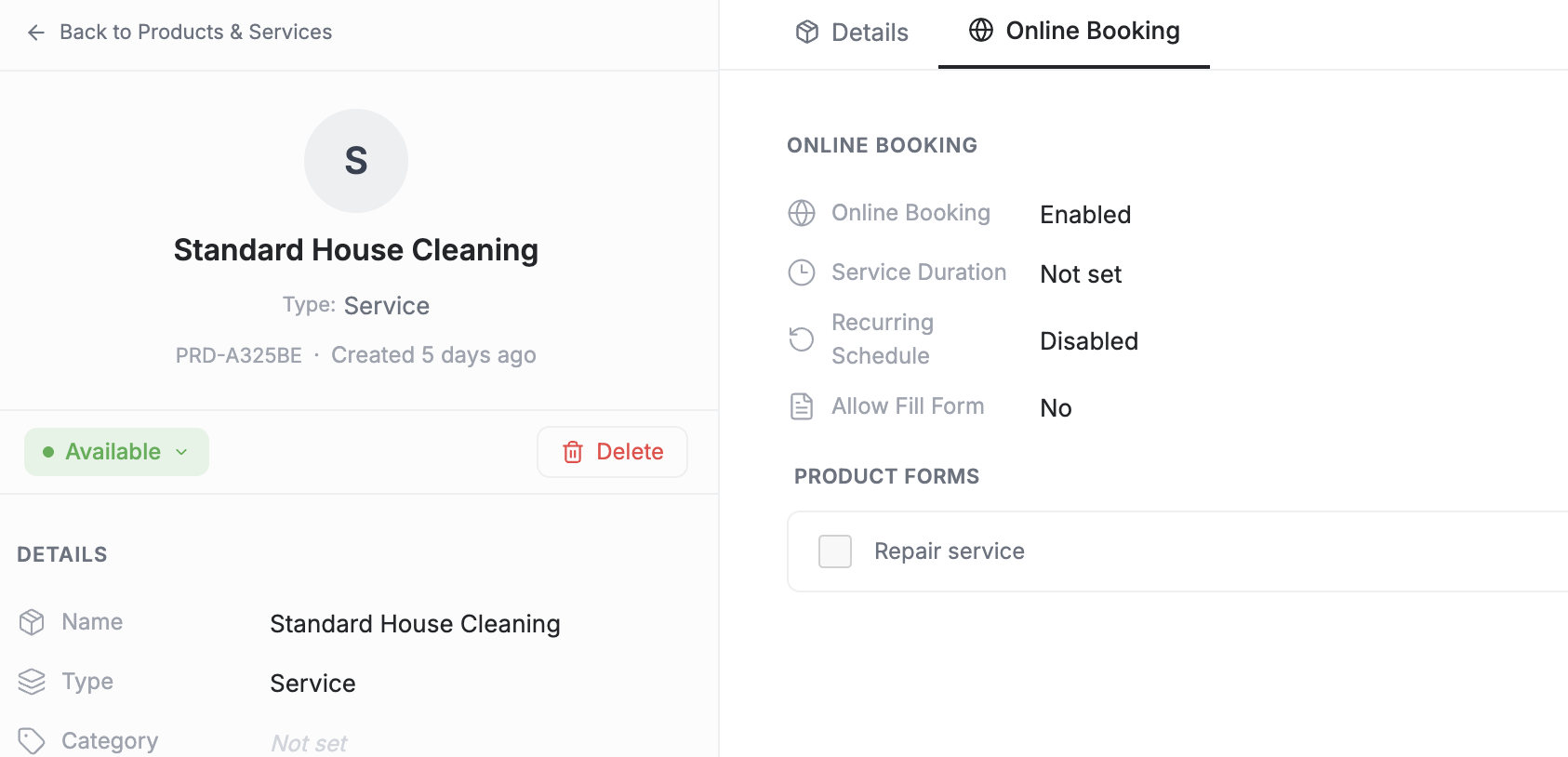
Online Booking Settings
| Setting | What it does |
|---|---|
| Enable online booking | Makes the item visible on your customer booking page |
| Service Duration (Minutes) | How long the visit takes — shown to customers and used for scheduling |
| Enable recurring schedule | Allows customers to book this service on a repeating basis |
| Frequency | Daily, Weekly, Monthly, Yearly, or As Needed (Manual visits) — with an End after N series length for anything but As Needed |
| Allow customer to fill form | Shows intake forms after the customer selects this service |
| Attached forms | Which forms the customer fills out during booking |
Service Duration (Minutes) is its own field on the Online Booking tab, separate from the Duration on the product detail. The tab asks you to fill it in whenever online booking is on. When it is set it wins for bookings; when it is blank FieldCamp falls back to the product's Duration. It controls how much time FieldCamp blocks on your schedule when a customer books this service.
Product Images on the Booking Page
Images make your booking page look professional and help customers understand what they are booking. Upload images in the product or service detail view:
- Open the item.
- Drag and drop images or click to browse.
- The first image becomes the thumbnail on the booking page.
Customers see these images when browsing your services during the booking flow. Clear photos of your work or the products you install build trust and help customers choose the right service.
Recurring Booking
Some services happen on a regular schedule — weekly lawn care, monthly pest control, quarterly HVAC maintenance. FieldCamp's recurring booking lets customers set this up during the booking process.
To enable recurring booking for an item:
- Open the item's Online Booking tab.
- Check Enable Recurring Schedule.
- Select the frequency — Daily, Weekly, Monthly, Yearly or As Needed (Manual visits) — and, for anything but As Needed, how long the series runs under End after N. Use Customize to set an every-N interval or day-of-week and day-of-month rules.
- Save.
When customers book this service, they see an option to make it recurring. They choose their preferred frequency and FieldCamp creates the repeating visits automatically.
For more details on the customer experience, see Recurring Booking.
Customer Intake Forms
Intake forms collect information you need before the visit — property size, equipment age, access instructions, photos of the issue. Forms are created in the Forms module and then attached to specific products or services.
Attaching a form to a bookable item:
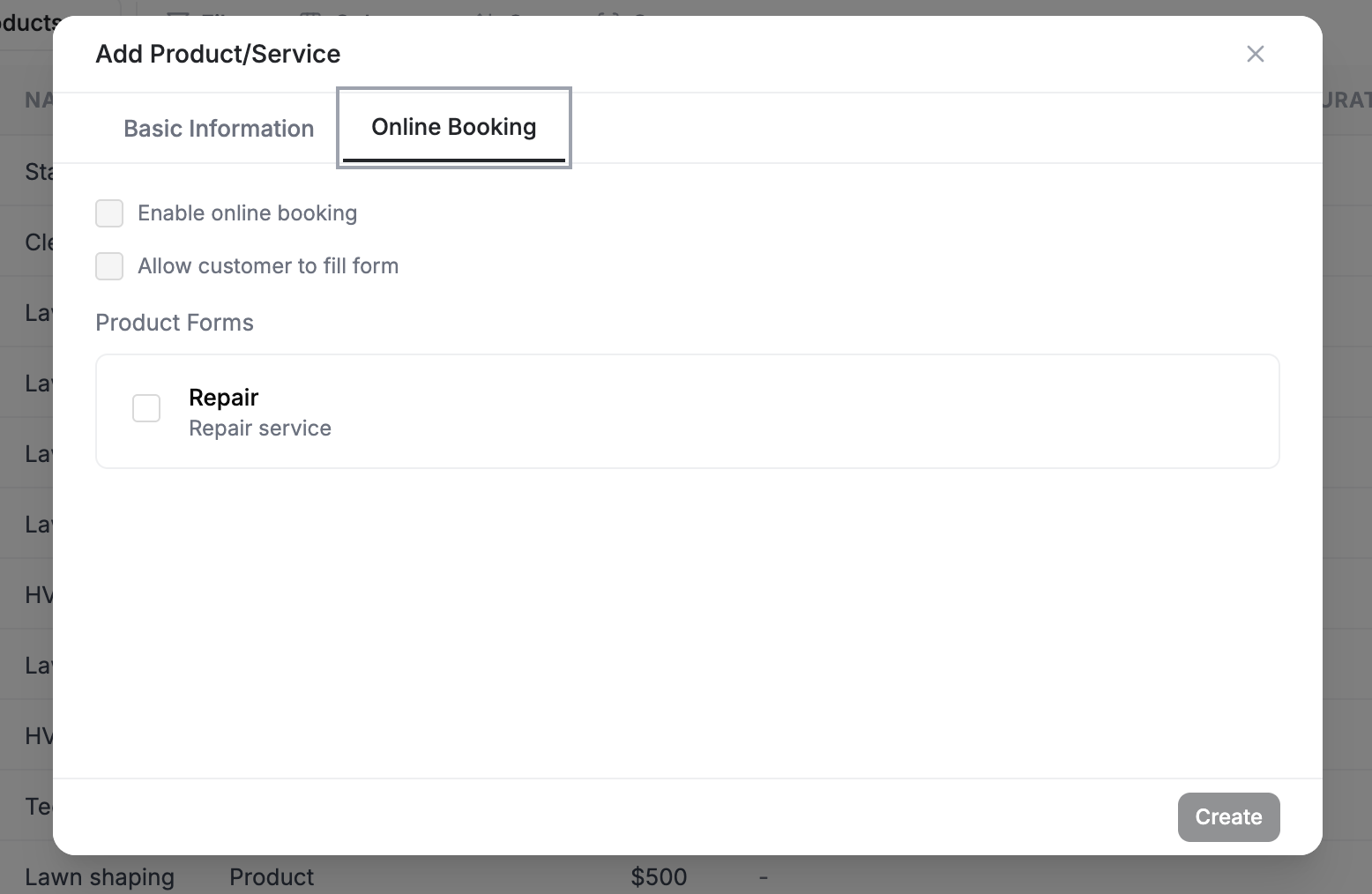
- Open the item's Online Booking tab.
- Check Allow customer to fill form.
- Select one or more forms from the list.
- Save.
How it works for customers:
- Customer selects the service on your booking page.
- After selecting, the attached form appears.
- Customer fills in the required fields.
- Responses are automatically attached to the job created from the booking.
Your technicians see the form responses before they arrive at the job site.
Intake forms reduce back-and-forth with customers. Instead of calling to ask about equipment details or access instructions, your team has everything they need before the visit.
How Products Appear on the Booking Page
When a customer visits your online booking page:
- They see all services and products you have enabled for online booking.
- Items are grouped by category if categories are set up.
- Each item shows its name, description, image, price, and duration.
- The customer selects one or more items.
- If forms are attached, they fill out the form.
- They choose a date and time (with recurring options if enabled).
- They confirm the booking.
FieldCamp creates a job from the booking with all the details — services selected, form responses, customer information, and scheduled date.
Which Items Should Be Bookable?
Not every product or service needs to be on your booking page. Focus on:
- Standard services with predictable pricing and duration — AC tune-ups, drain cleaning, lawn mowing
- Popular services that customers frequently request
- Bundles that offer clear value — maintenance packages are great for online booking
Avoid enabling booking for items that require a site visit to quote, highly custom work, or internal-only products like parts that are not sold directly to customers.
Connecting to Online Booking Settings
The product-level settings described here work together with your global online booking configuration. The global settings control your booking page appearance, business hours, and general availability. The product-level settings control which items appear and how they behave.
Make sure your online booking is set up before enabling products for booking.
What to Read Next
- Setting Up Online Booking — Configure your booking page, hours, and appearance
- Recurring Booking — How recurring schedules work for customers
- Managing Products and Services — Create and edit the items in your catalog
- Price Book and Bundles — Build bundle packages for online booking
Vendors & Purchase Orders | FieldCamp
Create vendors and purchase orders in FieldCamp, add catalog items or packages, email saved orders, and understand current PO status and inventory behavior.
Inbox Overview | FieldCamp
Learn the current FieldCamp Inbox layout, including conversation folders, channels, handlers, saved views, assignment, snoozing, resolution, and Trash.