 FieldCamp
Categories & Organization | FieldCamp
Organize your FieldCamp price book with categories and subcategories. Group products and services by trade for faster job creation, quoting, and invoicing.
Under the hood — see how Price Book items work in the FieldCamp data model: the fields they hold, how they connect to your other records, and how to customize them.
What Categories Do
Categories group your products and services into logical sections — HVAC, Plumbing, Electrical, Parts, Labor. Instead of scrolling through a flat list of hundreds of items, your team navigates a structured catalog that matches how your business actually works.
Categories appear everywhere your price book is used: when adding line items to jobs, building estimates, creating invoices, and on your online booking page.
Creating Categories
The AI-First Way
Tell the Command Centre what you need:
- "Create a category called HVAC"
- "Add a subcategory under HVAC called Installation"
- "Show me all categories"
Creating Manually
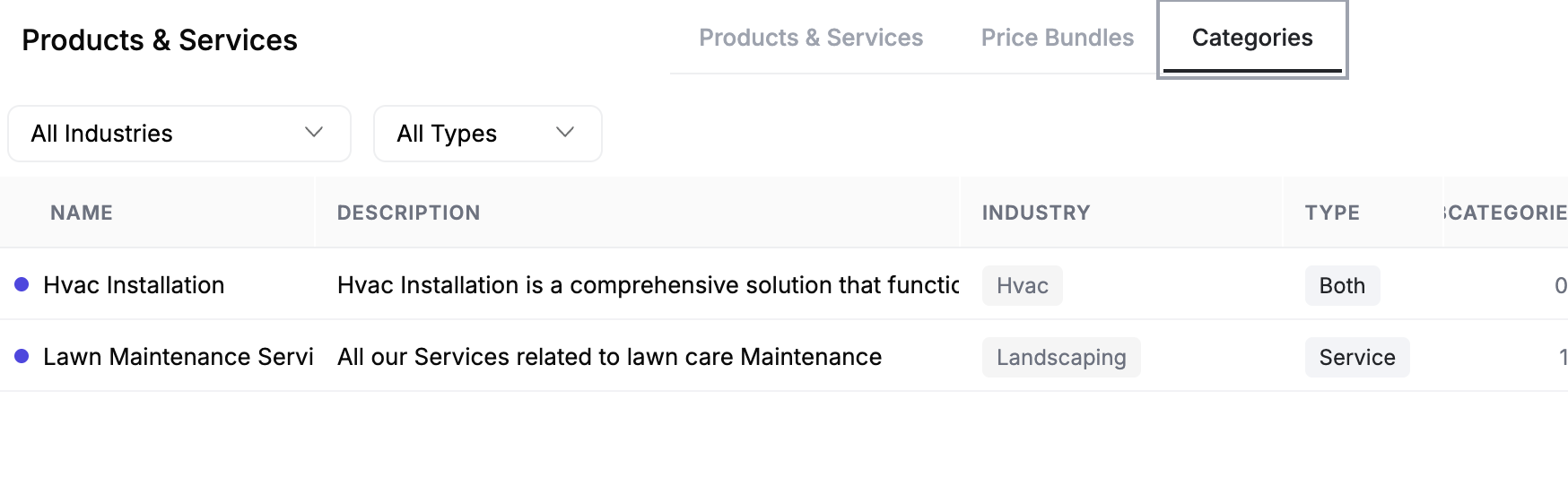
- Go to Products and Services in the sidebar.
- Click the Categories tab.
- Click Add Category.
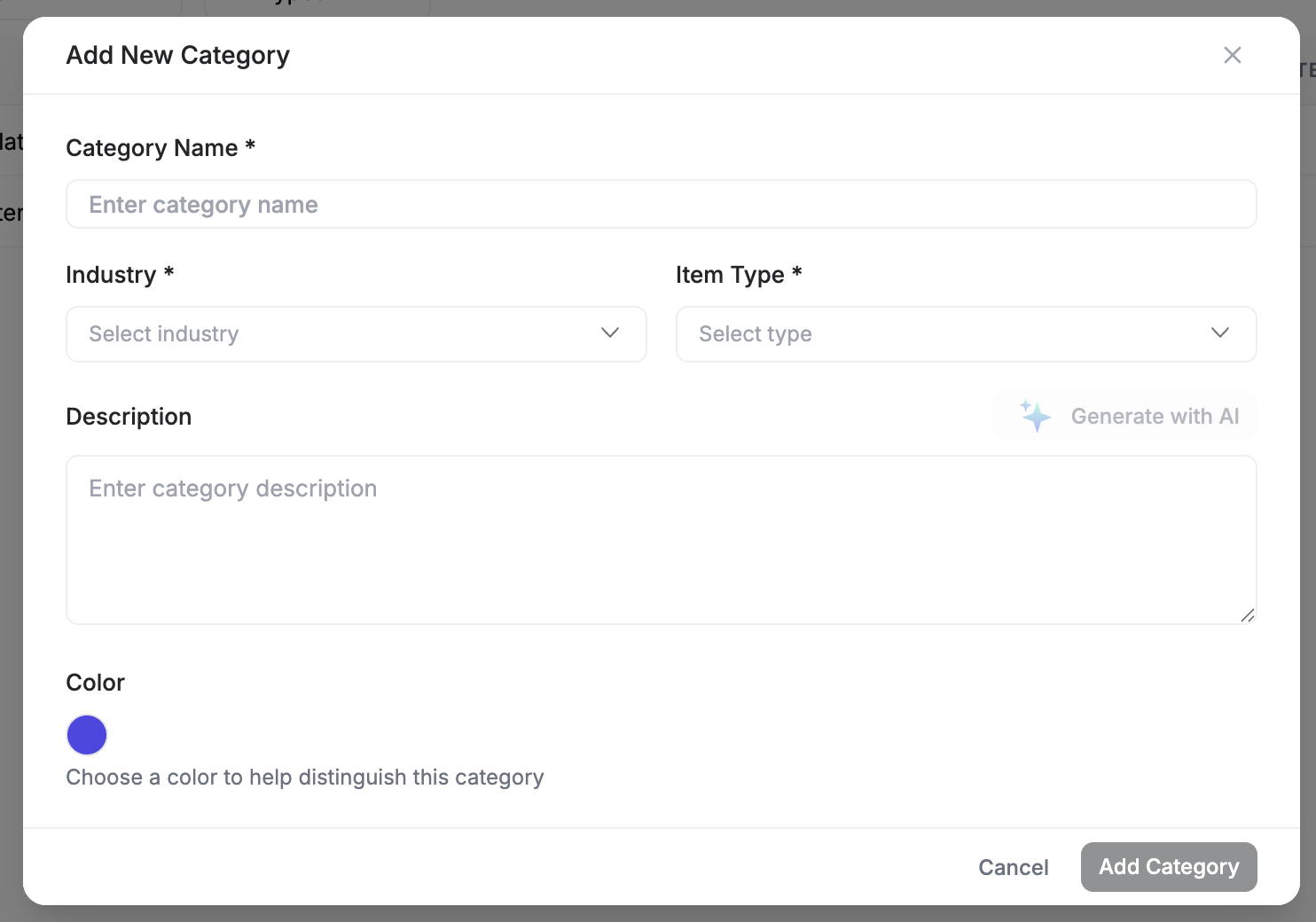
- Fill in the category details.
- Click Add Category to save.
Category Fields
| Field | Required | Description |
|---|---|---|
| Category name | Yes | A clear label like "Residential HVAC" or "Plumbing Parts" |
| Industry | Yes | Pick your trade from the list — HVAC, Plumbing, Electrical, Cleaning, Landscaping, Handyman, Roofing, Pest Control, Pool Service and more, ending in Other |
| Item type | Yes | What the category contains: Product, Service, or Both |
| Description | No | A note for your team explaining what belongs here. Generate with AI fills it in once name, industry and item type are set |
| Color | No | Color coding for visual differentiation in lists |
| Allow customer reschedule | No | On by default. Lets customers reschedule appointments for items in this category |
Building a Category Hierarchy
Categories support multiple levels, so you can organize from broad to specific:
HVAC
  ├── Installation
  │     ├── Residential
  │     └── Commercial
  ├── Maintenance
  │     ├── Preventive
  │     └── Emergency
  └── Parts
        ├── Filters
        ├── Compressors
        └── Thermostats

Plumbing
  ├── Repairs
  ├── Installation
  └── Parts
There is no parent-category dropdown. To create a subcategory, open the parent category on the Categories tab first, then click Add Subcategory — the parent is shown at the top of the form, and Industry and Item Type are inherited from it and cannot be changed. Repeat inside a subcategory to nest as deep as your business needs.
Start simple. You can always add subcategories later as your catalog grows. Many businesses start with 3-5 top-level categories and expand from there.
Assigning Products and Services to Categories
You assign a category when creating or editing a product or service:
- Open the item detail view.
- Select a category from the Category dropdown.
- Save the item.
Each item belongs to exactly one category — the Category control is a single-select, so choosing a new one replaces the old one.
Using Categories to Find Items Faster
Categories transform how your team adds line items to jobs and invoices. Instead of typing and searching, they browse a structured catalog.
Price Book Navigation
When creating a job, estimate, or invoice:
- Click Price Book next to the line items section.
- The categorized catalog opens.
- Navigate through categories to find what you need.
- Select multiple items at once.
- All selected items are added to the job instantly.
This is dramatically faster than adding items one at a time — especially for jobs that need 10 or more line items.
Filtering by Category
On the Products and Services table, use the Filter option to show only items in a specific category. This is useful when you need to review or update all items in one group.
Category-Based Reporting
In Analytics, the Items by Category metric (in the Inventory group) shows an item count and total stock value per category, with an optional breakdown by item type. There is no revenue-by-category or jobs-by-category metric. The Products and Services list cannot be grouped by category either — group by Type, or open a category on the Categories tab to see its items.
Well-organized categories make your online booking page easier for customers to navigate too. Customers see your services grouped by category when they book from your website.
What to Read Next
- Managing Products and Services — Create and edit items in your catalog
- Price Book and Bundles — Package multiple items into bundles
- Products and Services Overview — How products and services connect to your workflow
Managing Products & Services | FieldCamp
Create and maintain products and services in FieldCamp, including fixed or hourly pricing, billing rules, zone prices, taxes, and inventory tracking settings.
Price Book & Bundles | FieldCamp
Create product and service packages in FieldCamp, set one package price, review calculated savings, and manage bundle availability for estimates and booking.