 FieldCamp
Route Optimization | FieldCamp
Optimize technician routes, lock routes per team member, preview and apply changes, and review AI dispatch decisions from FieldCamp's calendar.
Under the hood — see how Visits work in the FieldCamp data model: the fields they hold, how they connect to your other records, and how to customize them.
Route optimization in FieldCamp takes a technician's list of jobs for the day and reorders them to minimize driving time. Instead of visiting stops in the order they were scheduled, FieldCamp calculates the most efficient path — saving fuel, reducing windshield time, and fitting more jobs into every day. For automated assignment within the Suite workspace, see AI Dispatcher inside FieldCamp.
This feature is built directly into FieldCamp. No third-party routing tools, no extra fees.
Start with the Command Centre
Open the Command Centre with Cmd+/ (Mac) or Ctrl+/ (Windows) and optimize routes with plain language:
- "Optimize today's route for Mike" — runs route optimization for a specific technician
- "Show me tomorrow's routes" — preview the planned routes for the whole team
- "How many miles is David driving today?" — check drive distance before and after optimization
- "Reorder Sarah's stops to start from the warehouse" — adjust the route starting point
For everything the Command Centre can do, see the Command Centre guide.
How to Access Route Optimization
Open the Calendar
Click Calendar in the main navigation. For a tour of every layout, see the Calendar Overview.
Switch to Team Tracking
Select the Team Tracking tab — the same interface used for Live Team Tracking. The route optimization interface opens.
Configure the run
Choose the date, pick technicians, and filter which jobs to include before clicking Optimize Routes.
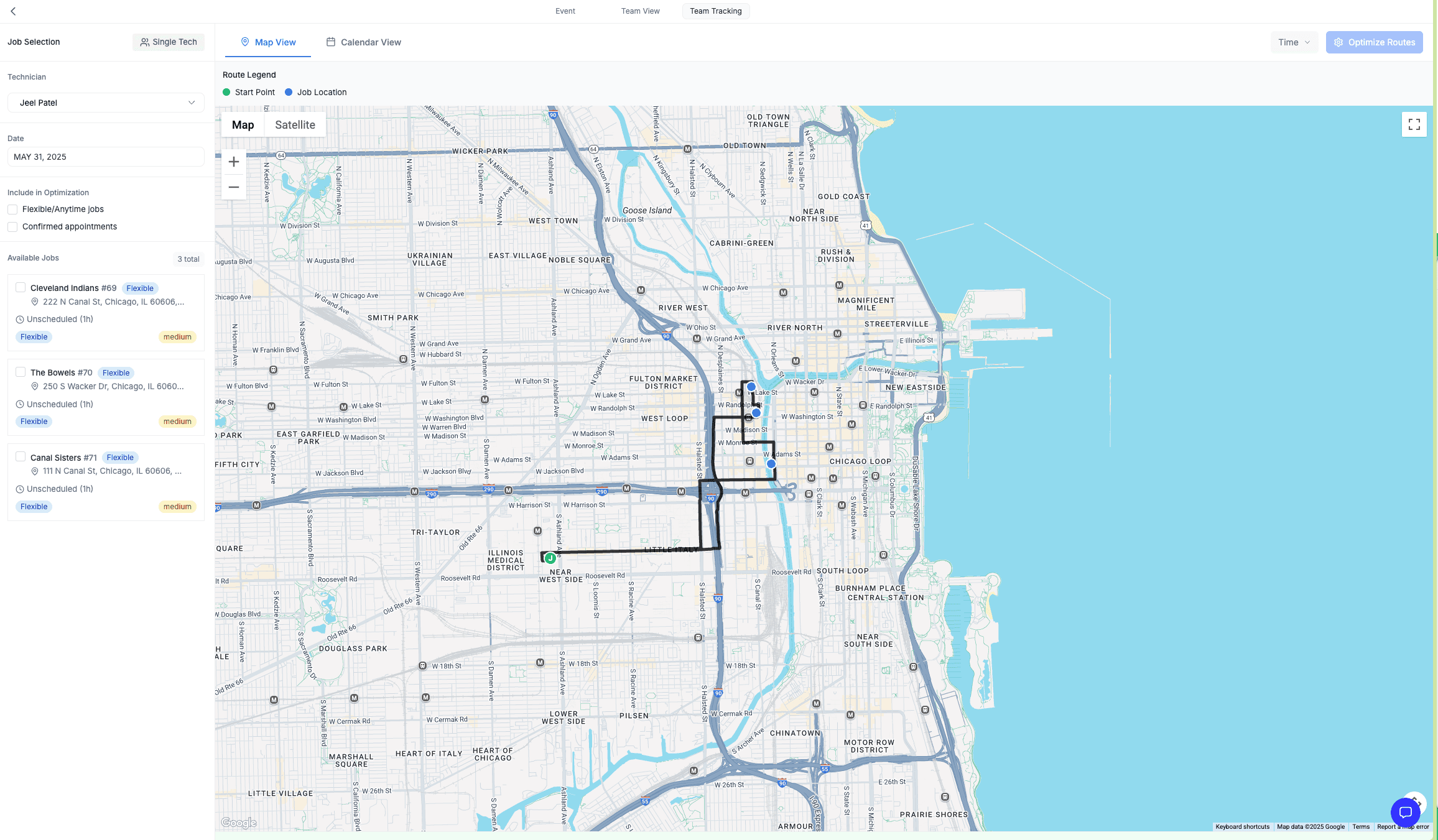
The Job Selection Sidebar
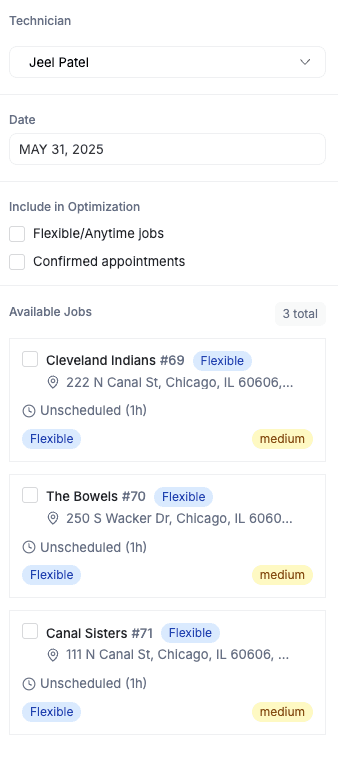
On the left side of the screen, you'll configure what to optimize.
Pick a Technician
Select the technician whose route you want to optimize. Their scheduled jobs for the selected date load automatically. For larger teams, switch to Multi Tech mode (see below) to select multiple technicians at once.
Pick a Date
Use the date picker to choose which day to optimize. The system loads all jobs for that date and groups them by type.
Filter Jobs
Jobs fall into two categories:
| Category | Description | Optimization Behavior |
|---|---|---|
| Confirmed | Fixed technician and time — the customer is expecting you at a specific hour | The optimizer works around these; they stay locked in place |
| Flexible | Assigned technician but set to "Anytime" — no specific time commitment | These are the ideal candidates for reordering |
For the best optimization results, set flexible jobs to "Anytime" when scheduling them. This gives the algorithm maximum freedom to find the shortest route.
You can filter the view to show only flexible jobs (recommended for pure optimization), only confirmed jobs (to see your constraints), or all jobs together.
Four Route Views
Once jobs are loaded, you can view the route in four different ways from the tabs at the top of the workspace: Map View, Calendar View, Timeline, and Route View. For the broader set of layouts FieldCamp offers, see Calendar Views Explained.
Map View
The default view shows all job stops as pins on a map connected by driving lines. The original route order is displayed so you can see the current path before optimizing.
Side-by-Side View
After running optimization, this view shows the Original Route and the Optimized Route next to each other. You can visually compare the two paths and see how much driving distance the new order saves.
Timeline View
A drag-and-drop timeline where stops are listed in order. You can manually reorder stops by dragging them up or down — useful for fine-tuning after the AI optimizes, or when you know a customer prefers a morning visit.
This view includes Undo, Redo, and Reset All buttons so you can experiment with different orderings without losing your work. The timeline also enforces a guardrail: you cannot move visits between different technicians from this view (use Reassign Tech from the right-click menu instead — see the Job Tray & Dispatch guide).
Route View
A tabular list of all stops showing stop number, job number, address, ETA, duration, scheduled time, and status. Inline actions let you add a job above or below a stop, edit the visit, or delete it. This is the best view for reviewing the numbers — total drive time, total distance in kilometres, and time saved.
Running Optimization
Click the Optimize Routes button. FieldCamp submits the day's visits, vehicle availability, and address coordinates to the routing engine, which recalculates the best order considering:
- Geographic proximity between stops and your defined service areas
- Confirmed appointment time windows that can't move
- Each technician's home base (start and end address) and weekly availability
- Estimated service duration at each stop
The optimized route appears in side-by-side view for comparison. Nothing is applied yet — this is a preview.
Optimization Preference
Before running, you can choose whether the optimizer prioritises Time (shortest total duration) or Distance (shortest total drive) using the optimization preference toggle. Re-running with a different preference recomputes the suggestion without overwriting the original schedule.
The Optimization Callback (in-progress runs)
Route optimization runs asynchronously. When you click Optimize Routes, FieldCamp creates an optimization request and assigns it a queue ID. The status of that request flows through three stages tracked on each technician's record:
- Pending — the request has been queued with the routing engine and is being computed.
- Success — the engine returned a solution and FieldCamp has stored the new stop order, ETAs, distance, duration, and an encoded polyline for the map.
- Failed — the engine could not return a valid solution (usually due to limits or invalid input). The original schedule is left untouched.
You can leave the page while a run is Pending. When the callback completes, the Optimized Route view fills in automatically on your next refresh. If a Command Centre request triggered the run, the optimized map and stats are pushed back into the chat thread as a new assistant message when the callback arrives.
Long runs usually mean a large number of stops, many time-window constraints, or technicians spread across a wide service area. If a run stays Pending for more than a few minutes, refresh and try again with fewer flexible jobs.
Applying or Discarding Suggested Changes
Review the suggested route and choose one of three actions:
Commit the optimized order to the calendar. Visit start and end times are updated, the technician's dispatch calendar is refreshed, and the run is marked as applied so you don't accidentally re-apply it.
Discard the suggestion entirely. The original route remains in place and the stored optimization for the selected technicians is deleted. Use this when the suggestion doesn't fit constraints you know about (gate codes, customer preferences, fuel stops).
For more granular control, you can also delete a single visit from the Route View before applying. FieldCamp will automatically re-run a partial optimization for the remaining stops so the schedule stays consistent.
Always review the optimized route before applying. The algorithm minimises drive time, but you may know about customer preferences, gate codes, or access restrictions that the system doesn't.
Locking a Technician's Route
For multi-technician days, you often want to lock one technician's route so that re-optimising the rest of the team doesn't shuffle them. From the Timeline view, click the lock icon next to a technician to toggle their lock state.
When a technician is locked:
- Their stops cannot be dragged or reordered in the Timeline.
- Drop zones on their row are disabled, so a stop from another technician can't be dropped onto them.
- The row colour switches to grey to make the locked state obvious at a glance.
- Re-optimisation runs skip their visits and only rebalance the unlocked team members.
Locks are stored per technician per day, so locking Mike on Tuesday does not affect Wednesday's plan. The toast confirms each change with Team member locked or Team member unlocked. Unlocking is the same action — click the icon again.
Lock your senior or specialised technician first if you know they have non-negotiable confirmed appointments, then run optimisation for the rest of the team to fill around them.
Multi-Tech Mode
For full-team optimisation, switch to Multi Tech mode. Instead of optimising one person's route, this mode:
- Looks at all selected technicians' schedules for the selected date
- Rebalances flexible work across the team based on geography
- Respects confirmed appointments, technician availability windows, and home base coordinates
- Honours any technician you've already locked
This is ideal for morning planning when you want to optimise the entire day before dispatching from the Job Tray. Combine Multi Tech mode with selective locking to fix critical routes and let the optimiser solve the rest.
Sharing a Route
Once routes are applied, technicians using the FieldCamp mobile app see their optimised route directly in the app. The dispatch calendar also shows the new stop order to admins and dispatchers immediately.
Missing Coordinates
If a job doesn't have a service address (or the address couldn't be geocoded), FieldCamp shows a Missing Coordinates Detected dialog listing every affected stop. Jobs without coordinates are excluded from route optimisation since the system can't calculate driving distances.
Use Verify Remaining Addresses to retry geocoding, or Fix All Addresses to open the affected records and update them. You can also fix missing addresses by updating the job or client record before running optimisation.
Technician home base coordinates are also required. If you see an error like "Please add <email> Team member address," the technician's profile is missing latitude and longitude. Update their address from Adding and Managing Team Members before retrying.
Dispatch Decision History
Every time you accept or reject an AI Dispatch suggestion — for one-off jobs or recurring visits — FieldCamp records the decision along with the suggestion ID, the technician chosen, any rejection reasons, and a timestamp. This history gives you an auditable trail for the visit.
You can review and act on these decisions in two ways:
- From the calendar, accept or reject suggested assignments individually before they roll into the optimised route.
- In bulk, accept or reject batches of jobs at once. FieldCamp chunks the request automatically so even large batches process reliably.
For the separate product's workflow, see Standalone AI Dispatcher: Accept or reject suggestions and Standalone AI Dispatcher: Review suggestions.
Tips for Better Routes
- Set flexible jobs to "Anytime" — this gives the optimiser the most room to work with.
- Use Single Tech mode for one-off adjustments and Multi Tech mode for morning planning.
- Lock your most constrained technician before optimising a multi-tech day.
- Review every morning — routes optimised yesterday may need updating based on new jobs, cancellations, or technician availability.
- Check for missing addresses before optimising — incomplete data leads to incomplete routes.
Troubleshooting
My optimisation is stuck on "Pending." The request is still being computed by the routing engine. Refresh the Team Tracking tab — if the run completed in the background, the optimised view will populate. Runs longer than a few minutes usually mean too many stops or constraints. Reduce the number of flexible jobs and re-run.
I locked a technician but their stops still moved. Locks apply only to subsequent optimisation runs and drag-and-drop within the Timeline. If you applied an optimisation that was generated before you locked them, those changes are already committed. Use Reset to discard the suggestion, lock the technician, then re-run.
The optimiser says "No visits found." FieldCamp only optimises visits that are Active and not yet completed, in transit, on-site, in progress, or cancelled. Make sure the technician has at least one eligible visit on the selected date, then try again. See Job and Visit Statuses for status definitions.
Apply All Changes shows "Failed to apply changes." Usually one or more visit IDs no longer exist (deleted in another tab) or a confirmed visit's time window conflicts with the suggestion. Refresh the page and re-run the optimisation to pick up the latest state.
I rejected a dispatch suggestion by mistake. Rejected suggestions are recorded with reason and timestamp; you can re-submit the job for AI dispatch from the AI Dispatch tab to generate a fresh suggestion. For the separate product, see Standalone AI Dispatcher: Submit a job for dispatch.
FAQs
Does locking a technician cancel their existing route? No. Locking only freezes the current order so subsequent optimisation runs and drag-and-drop edits skip them. The technician's schedule remains exactly as it is until you unlock and rerun.
Can I apply only some of the suggested changes? Yes — delete the visits you don't want from the Route View before clicking Apply All Changes, or use the Timeline to manually drag individual stops back to where you want them.
What happens when I delete an optimised route? Reset removes the saved optimisation record for the selected technicians and their per-stop ETAs. The original schedule remains untouched. The routing engine queue ID is detached, so you can safely start a new run.
Is route optimisation included in every plan? Route optimisation is built into FieldCamp's calendar. For plan-level details, see FieldCamp Pricing Plans and Subscription.
How is this different from the AI Dispatcher? Route optimisation reorders stops on an already-scheduled day. AI Dispatcher inside FieldCamp decides which technician should take a new job and when. Together they cover the full dispatch workflow: AI Dispatcher assigns the job, and route optimisation sequences the day.
Related articles
- Calendar Overview
- Calendar Views Explained
- Job Tray & Dispatch
- Live Team Tracking
- Standalone AI Dispatcher: Accept or reject suggestions
- Standalone AI Dispatcher: Review suggestions
- Standalone AI Dispatcher: Submit a job for dispatch
- Standalone AI Dispatcher overview
- Standalone AI Dispatcher: How it works
- Adding and Managing Team Members
- Command Centre AI Chat for Field Service Management
- Job and Visit Statuses in FieldCamp
Job Tray & Dispatch | FieldCamp
Dispatch jobs from the Job Tray using drag-and-drop. Assign technicians, resolve conflicts, bulk reassign, and use AI suggestions to optimize your day.
Unscheduled Visits & the Dispatch Queue in FieldCamp
Manage unscheduled visits in FieldCamp — park work with Schedule Later, dispatch from the Job Tray, and clear overdue Alerts.