 FieldCamp
Email Templates | FieldCamp
Customize the emails sent with estimates and invoices in FieldCamp. Edit subject lines, body text, and use variables for client name, amount, and more.
Under the hood — see how Estimates & Invoices work in the FieldCamp data model: the fields they hold, how they connect to your other records, and how to customize them.
Every time you send an estimate or invoice by email, FieldCamp uses an email template to generate the message. When you send documents from the Command Centre, your email templates apply automatically. You can customize these templates to match your brand voice, include specific instructions, and ensure every client communication looks professional.
Where to Find Email Templates
Go to Settings then Document Templates and select the Email Templates tab. You will see a list of all available templates, organized by type.
Template Types
FieldCamp includes templates for each stage of the estimate and invoice lifecycle:
| Template | When it is sent |
|---|---|
| Estimate Sent | When you click Send on an estimate |
| Invoice Sent | When you click Send on an invoice |
| Payment Reminder | When you send a reminder for an unpaid invoice |
| Overdue Notice | When you send a notification for a past-due invoice |
| Payment Receipt | When a payment is recorded and you email the receipt |
Editing a Template
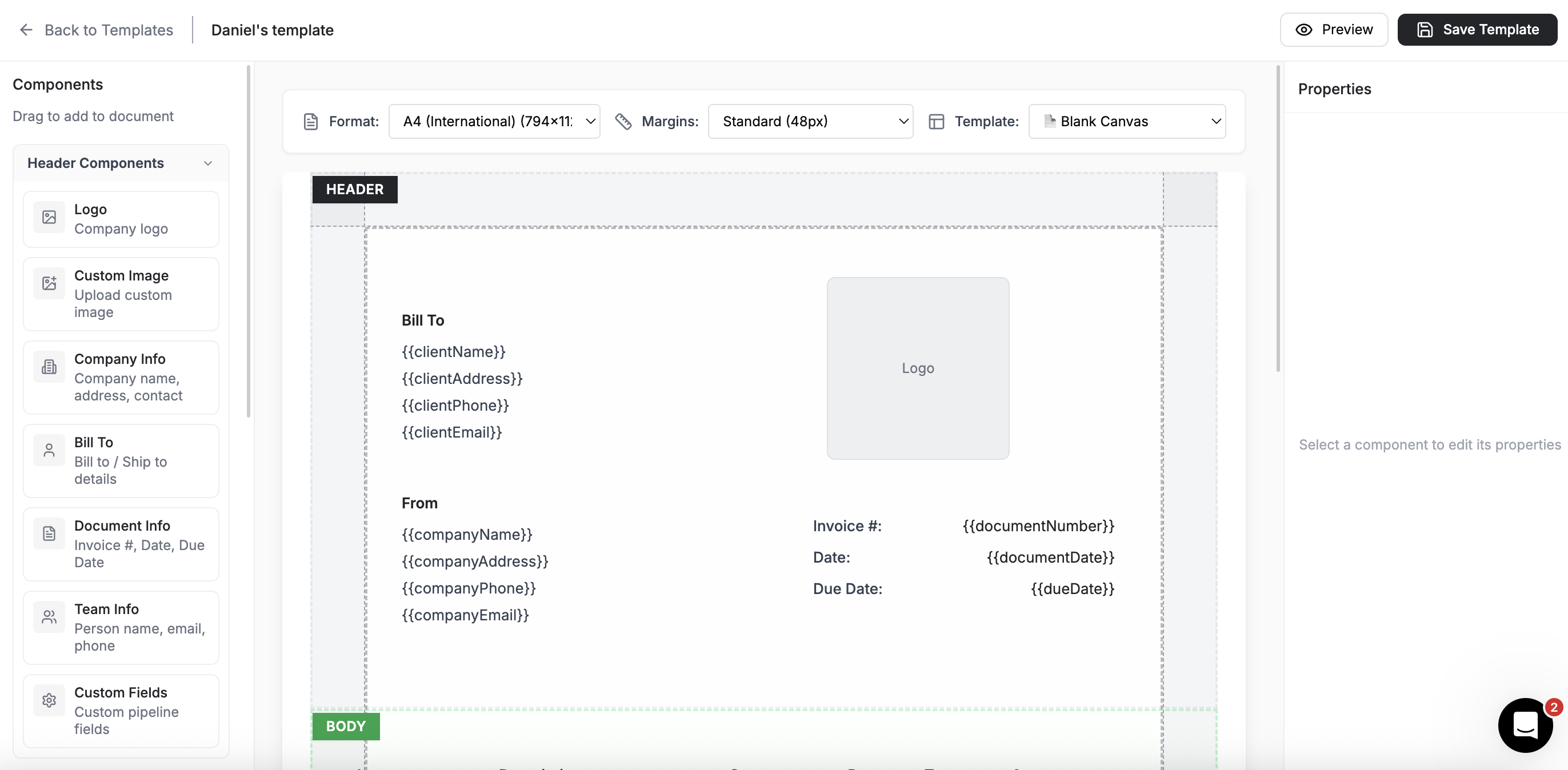
- Go to Settings then Document Templates then Email Templates
- Click on the template you want to customize
- Edit the Subject line and Body
- Use variables (see below) to personalize the email automatically
- Click Save
Available Variables
Variables are placeholders that FieldCamp replaces with real data when the email is sent. Insert them into the subject line or body by typing the variable name inside double curly braces.
| Variable | Replaced with | Example output |
|---|---|---|
{{client_name}} | The client's full name | Sarah Johnson |
{{client_first_name}} | The client's first name | Sarah |
{{company_name}} | Your company name | ABC Plumbing |
{{document_number}} | The estimate or invoice number | EST-2026-0042 |
{{amount}} | The total amount | $1,250.00 |
{{due_date}} | The due date (invoices) | April 15, 2026 |
{{expiration_date}} | The expiration date (estimates) | April 30, 2026 |
{{balance_due}} | The remaining balance | $750.00 |
{{document_link}} | A link to view the document online | (clickable link) |
Example: Customized Estimate Email
Subject: Your estimate from {{company_name}} -- {{document_number}}
Body:
Hi {{client_first_name}},
Thank you for the opportunity to quote this work. Please find your estimate attached and click the link below to view it online:
{{document_link}}
This estimate is valid until {{expiration_date}}. If you have any questions or would like to discuss the options, just reply to this email.
Best regards, The {{company_name}} Team
Tips for Effective Email Templates
- Keep subject lines short and clear -- Include the document number so clients can find the email later
- Lead with the action -- Tell the client what to do: "Review and approve your estimate" or "Your invoice is ready for payment"
- Include the document link -- Always use
{{document_link}}so the client can view the full document online - Set expectations -- Mention the expiration date on estimates or the due date on invoices
- Stay professional but friendly -- Match the tone your clients expect from your business
Email template changes apply to all future emails of that type. Previously sent emails are not affected.
What to Read Next
- Document Templates -- Customize the layout and branding of estimates and invoices
- Creating Estimates -- Build and send professional estimates
- Creating Invoices -- Build and send invoices
- Stripe Payments -- Accept online payments from your invoices
Document Templates | FieldCamp
Customize the layout, branding, and content of your estimates and invoices in FieldCamp. Control logos, colors, headers, footers, and which fields display.
Digital Signatures | FieldCamp
Add digital signature fields to estimates and invoices in FieldCamp. Clients sign online or on mobile devices, with automatic timestamps and audit trails.