 FieldCamp
Estimate Options & Templates | FieldCamp
Create multi-option estimates and quotes in FieldCamp so customers can choose between pricing tiers. Save option templates for reuse across all estimates.
Under the hood — see how Estimates & Invoices work in the FieldCamp data model: the fields they hold, how they connect to your other records, and how to customize them.
Multi-option estimates (quotes) let you present multiple pricing tiers on a single estimate so the customer picks the one that fits their budget and needs. You can also create estimates from the Command Centre — see AI Skills for available commands. Instead of sending three separate quotes, you send one document with all the choices laid out clearly.
Example: A landscaping company quotes a backyard renovation:
| Option | What is included | Price |
|---|---|---|
| Basic Service | Lawn grading, basic sod installation | $2,500 |
| Standard Package | Grading, premium sod, flower bed borders | $4,800 |
| Complete Renovation | Grading, premium sod, flower beds, patio pavers, irrigation system | $9,200 |
The customer reviews all three options and approves the one they want -- one document, one approval, no confusion.
Creating a Multi-Option Estimate
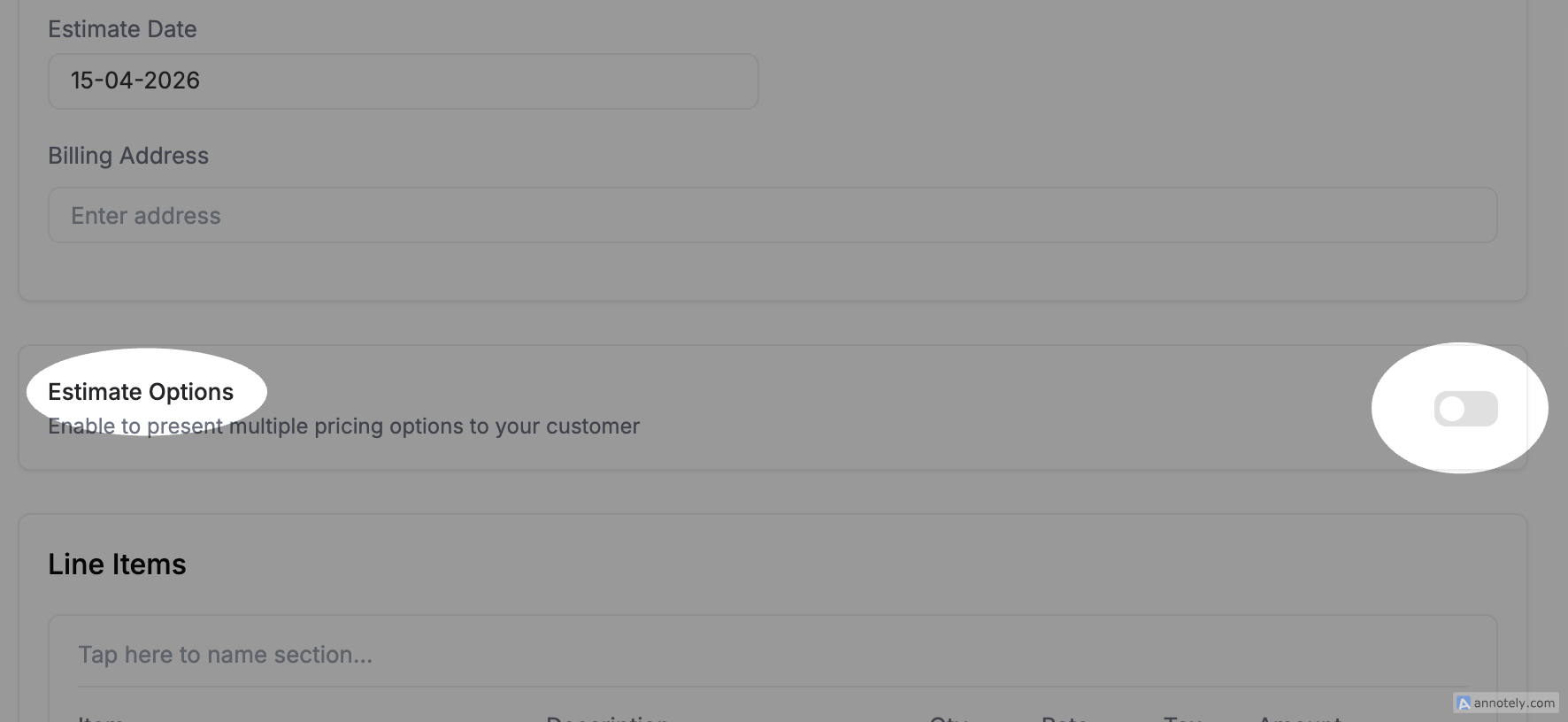
- Open a new or existing estimate
- Toggle Multi-Option at the top of the form
- Your current line items become Option 1
- Click Add Option to add more options
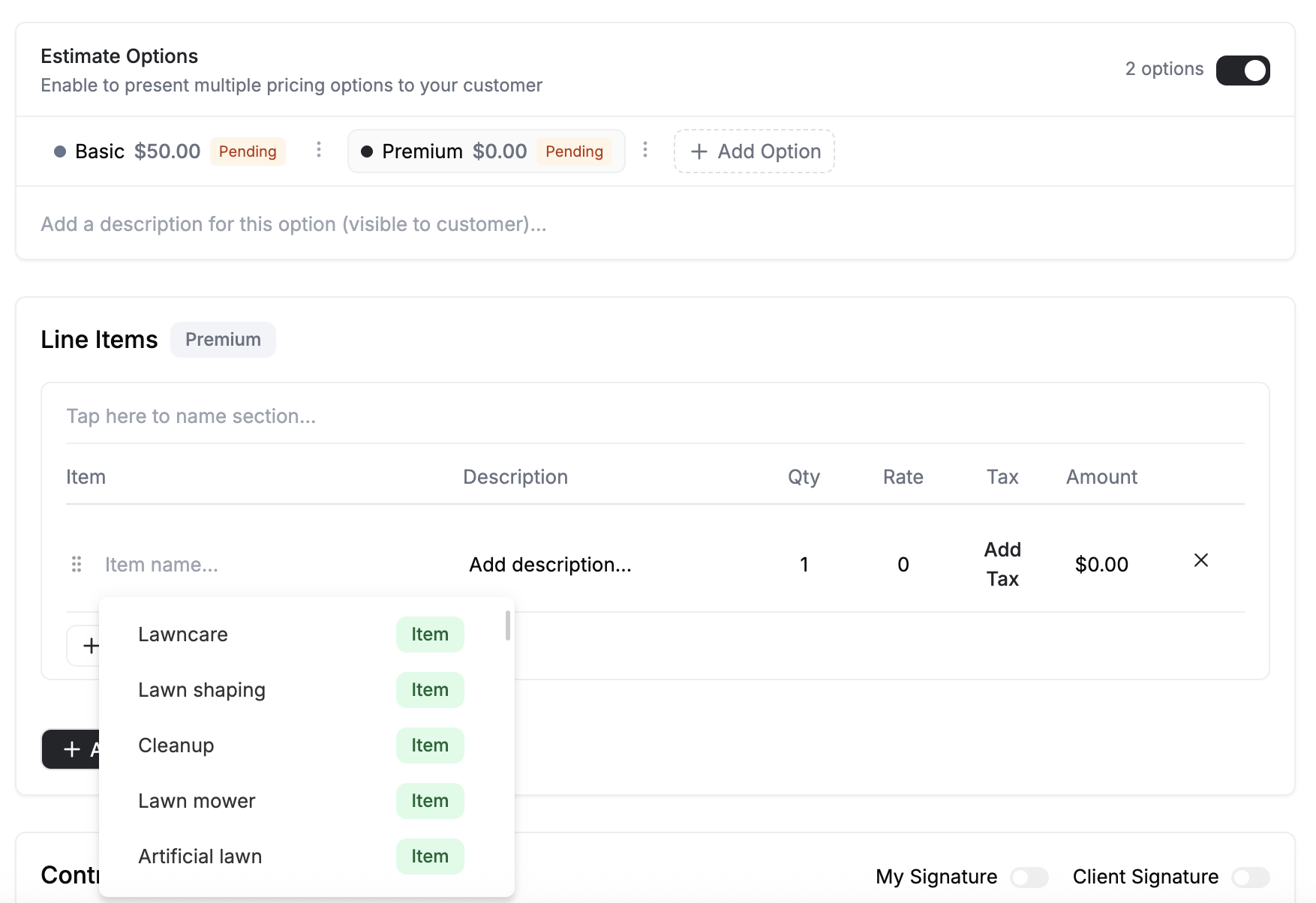
For each option, you can set:
- Option name -- A clear label like "Basic Service" or "Premium Package"
- Line items -- Each option has its own independent set of products, services, quantities, and rates
- Description -- An optional summary explaining what this option includes
- Color -- Each option gets a color so you and the customer can tell them apart at a glance
Ways to Add an Option
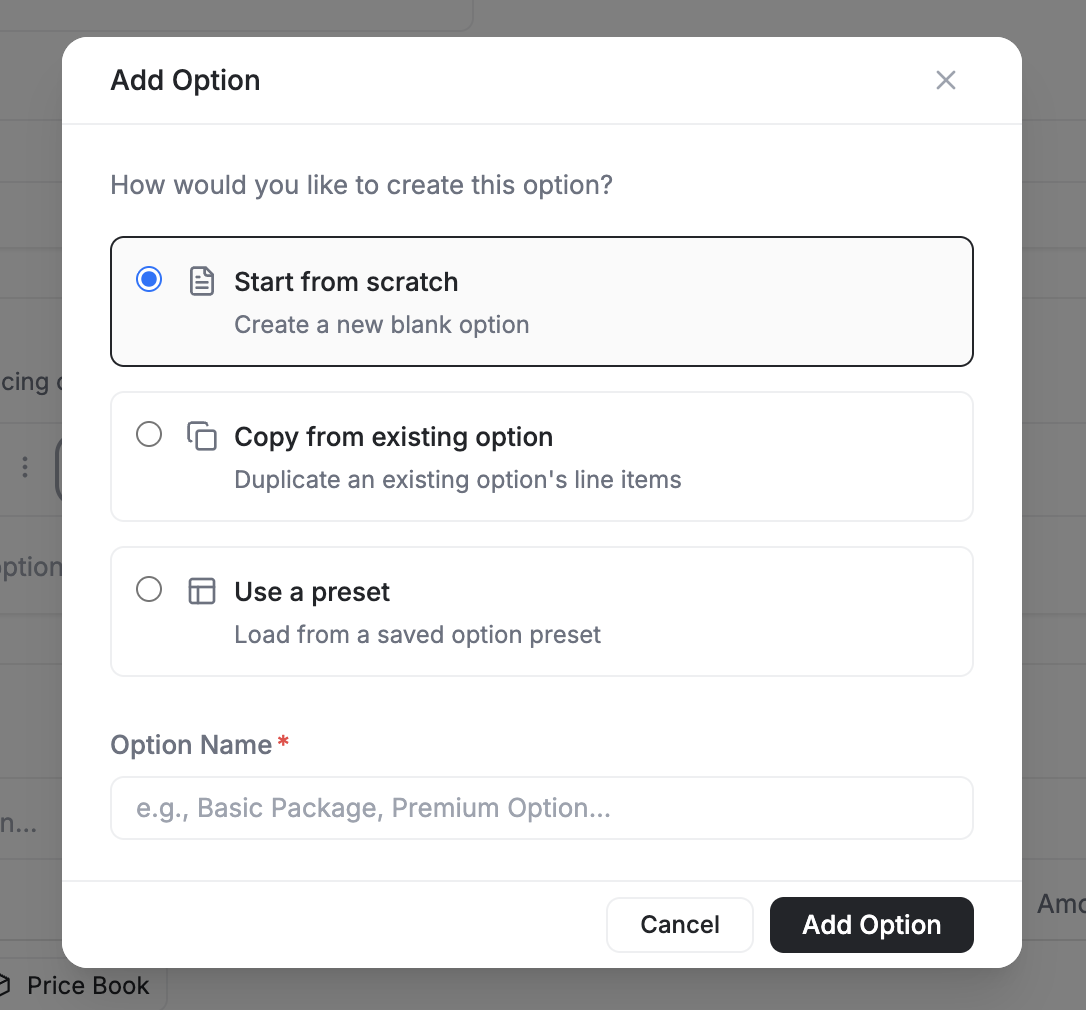
| Method | What happens |
|---|---|
| Start from scratch | Creates an empty option -- you add line items from scratch |
| Copy from existing option | Duplicates another option on this estimate so you can adjust the pricing or swap a few items |
| Use a preset | Loads a saved option preset with pre-configured line items and pricing (see below) |
Managing Options
- Reorder -- Drag the option tabs to change the display order (customers see them in this order)
- Duplicate -- Copy an option to use as a starting point for a variation
- Delete -- Remove an option you no longer need (at least one option must remain)
- Rename -- Click the option name to edit it
What the Customer Sees
When the customer opens the estimate link, they see all options presented clearly with:
- The option name and description
- A full line-item breakdown for each option
- The total for each option
- An Approve button on the option they want to select
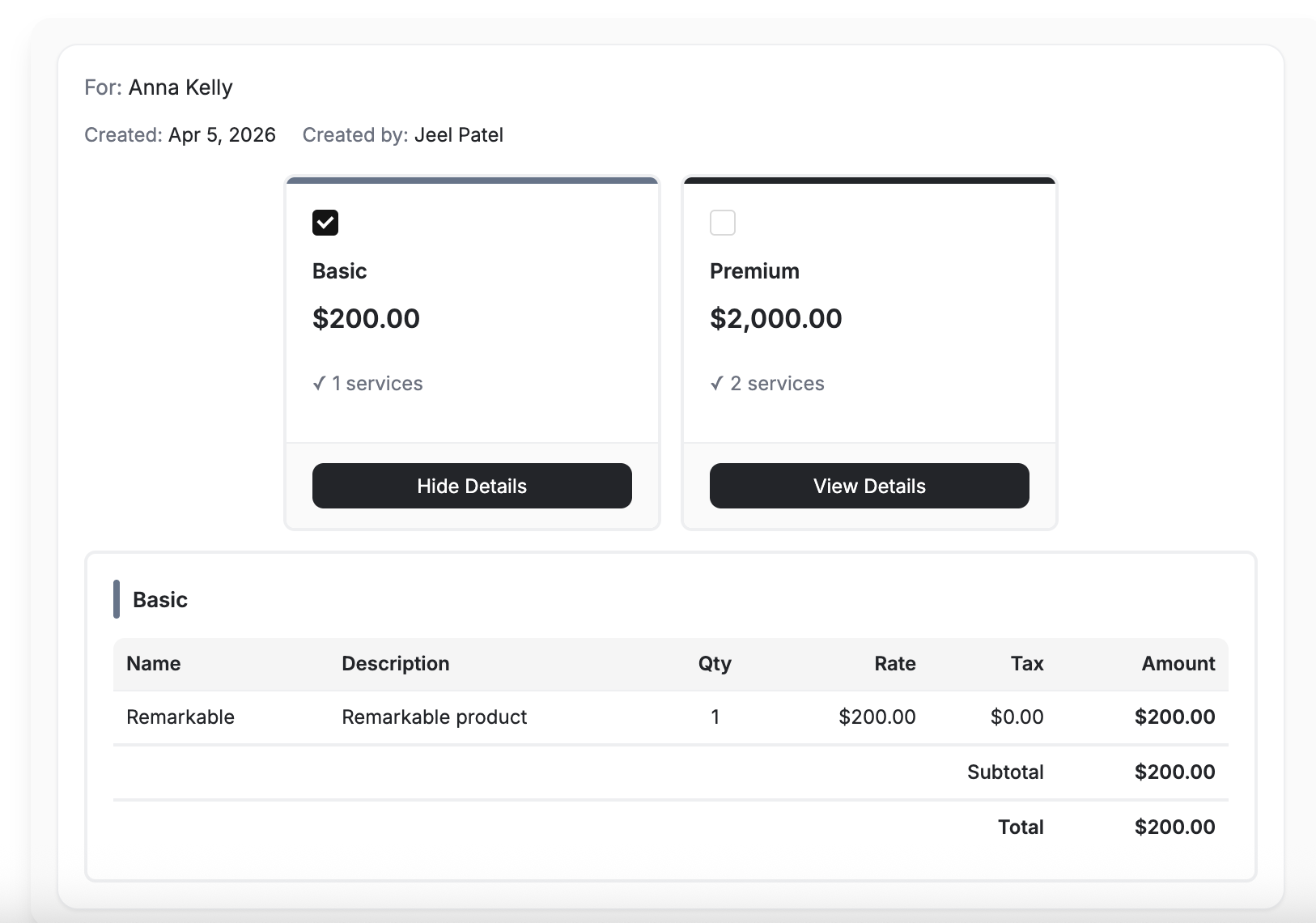
The customer clicks Approve on their preferred option. If a digital signature is required, they sign after selecting their choice. Only the approved option carries forward when you convert the estimate to a job.
Customers can only approve one option. If they want to mix items from different options, they can request changes by replying to the email, and you can revise the estimate accordingly.
Option Templates (Option Presets)
If you frequently offer the same set of options -- for example, a "Good / Better / Best" tier for AC installations -- you can save those options as a reusable template. Next time you create an estimate, load the template instead of building options from scratch.
Where to Manage Option Templates
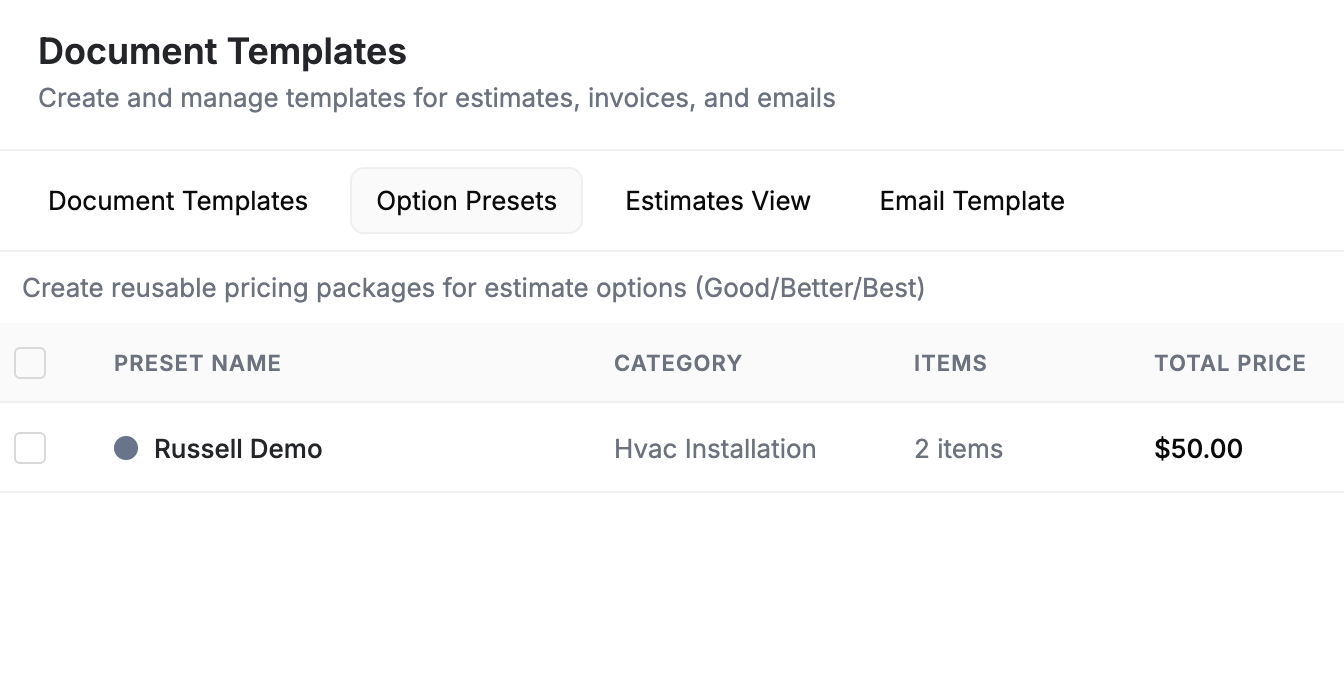
Go to Settings then Document Templates and select the Option Presets tab.
Creating an Option Template
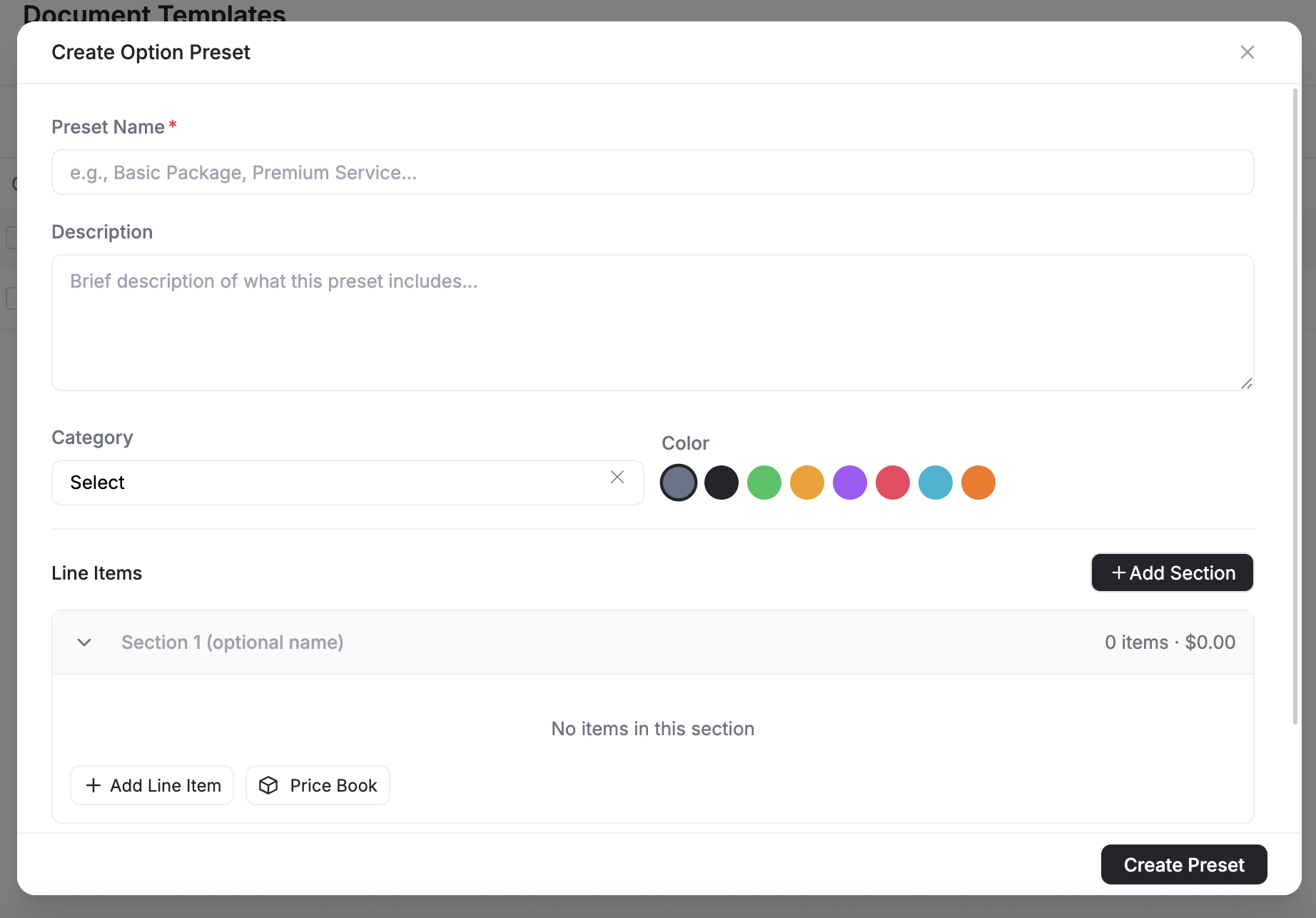
- Go to Settings then Document Templates then Option Presets
- Click Add Preset
- Give the template a name (e.g., "AC Installation Tiers" or "Bathroom Remodel Packages")
- Add the options, each with their own line items, descriptions, and pricing
- Click Save
Using an Option Template on an Estimate
- Open a new or existing estimate with Multi-Option enabled
- Click Add Option
- Select From Template
- Choose the template from the list
- The options and their line items are added to the estimate -- adjust quantities, rates, or descriptions as needed for this specific job
Editing and Deleting Templates
- Open any template from the Option Presets list to edit its options, line items, or pricing
- Delete templates you no longer use
Editing an option template does not change estimates that have already used it. Templates are copied onto the estimate at the time you apply them.
Tips for Multi-Option Estimates
- Use clear, descriptive option names -- "Basic AC Service $500" is better than "Option 1"
- Order options from lowest to highest price -- Customers tend to read left to right and compare upward
- Highlight the recommended option -- Add a note in the description like "Most popular" or "Recommended" to guide the customer's decision
- Keep it to 2-4 options -- Too many choices can cause decision fatigue. Three options is the sweet spot for most field service work.
- Save your best performers as templates -- If a set of options consistently wins approvals, turn it into a template so your whole team can use it
What to Read Next
- Creating Estimates -- The complete guide to building and sending estimates
- Document Templates -- Customize the layout and branding of your documents
- Digital Signatures -- Require signatures on estimates
- Estimate to Job to Invoice -- The full billing lifecycle
Creating Estimates | FieldCamp
Create professional estimates (quotes) in FieldCamp with multi-option pricing, line items from your price book, deposits, customer approvals, and one-click job conversion.
Estimate Views & Analytics | FieldCamp
Switch between table, kanban, and analytics views for your estimates and quotes. Track conversion rates, pipeline value, and approval trends in FieldCamp.