 FieldCamp
Client Payment Methods | FieldCamp
Store and manage credit cards on client profiles in FieldCamp. Add cards, set a default, remove old ones, and keep payment methods ready for auto-pay.
Under the hood — see how Estimates & Invoices work in the FieldCamp data model: the fields they hold, how they connect to your other records, and how to customize them.
When Stripe is connected, you can store one or more credit cards on each client profile. A saved card means faster payments on invoices, seamless deposit collection, and hands-free billing with auto-pay.
AI-powered card management: Open the Command Centre and type "Show payment methods for Johnson Landscaping" to check a client's saved cards. See AI Skills for more examples.
Where Cards Are Stored
Cards live on the client profile in the Payments tab. Open any client record and click the Payments or Payment Methods section to see all saved cards.
Security first: FieldCamp never stores card numbers. All card data is encrypted and held by Stripe, which is PCI DSS Level 1 compliant -- the highest level of security certification. You only see the card type, last four digits, and expiration date inside FieldCamp.
Adding a Card
- Open the client profile where you want to store the card.
- Navigate to the Payment Methods section.
- Click Add Card (or Add Payment Method).
- Enter the card details -- card number, expiration date, CVV, and cardholder name.
- The information is securely transmitted to Stripe for storage.
- The card appears in the client's profile showing only the card type and last four digits.
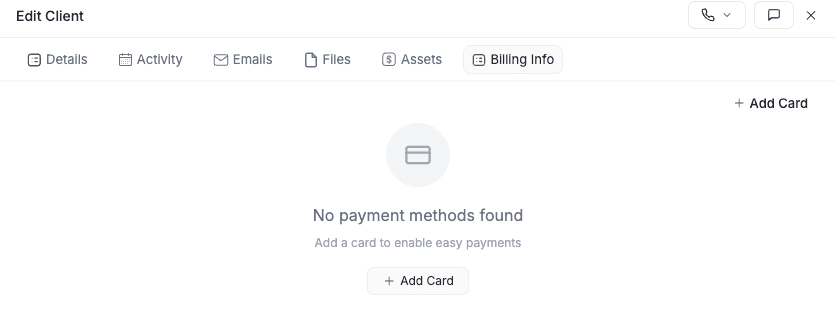
You can add as many cards as needed per client. There is no hard limit, though we recommend keeping 2-3 active cards to avoid confusion.
Viewing Saved Cards
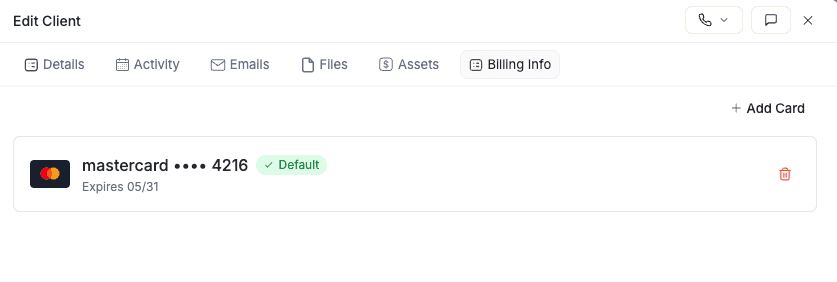
Each saved card displays:
| Detail | What you see |
|---|---|
| Card type | Visa, Mastercard, American Express, etc. |
| Last four digits | e.g., ending in 4242 |
| Expiration date | Month and year |
| Default badge | Shows which card is used for automatic payments |
Full card numbers are never visible in FieldCamp -- this is by design for security.
Setting a Default Card
The default card is the one FieldCamp uses for:
- Auto-pay on recurring jobs
- Quick payment collection on invoices
To set a default:
- Go to the client profile's Payment Methods section.
- Find the card you want to use as the default.
- Click Set as Default.
- The card is now marked as the primary payment method.
You can change the default card at any time by selecting a different card and updating the designation.
Removing a Card
- Navigate to the client profile's Payment Methods section.
- Find the card you want to remove.
- Click Delete (or Remove).
- Confirm the deletion when prompted.
The card is removed and can no longer be used for future payments. If the deleted card was the default, select a different card as the new default to keep auto-pay working.
Updating Card Details
Cards cannot be edited directly in FieldCamp. If a client needs to update their card (e.g., new expiration date or replacement card number):
- Delete the existing card from their profile.
- Add a new card with the updated information.
This approach ensures all card data goes through Stripe's secure channels.
When Saved Cards Are Used
| Scenario | How the card is used |
|---|---|
| Invoice payment | You or the client selects a saved card when paying an invoice |
| Auto-pay on recurring jobs | FieldCamp charges the default card automatically when an invoice is generated |
| Deposit collection | Client can pay a deposit using a saved card |
Best Practices
- Review cards periodically -- Check client profiles to ensure only current, active cards are stored
- Keep the default card updated -- An expired default card causes auto-pay failures
- Watch expiration dates -- Especially important for clients on recurring billing
- Let clients know -- Clients can manage their own cards, which reduces support requests
Frequently Asked Questions
Can I see the full card number in FieldCamp? No. For security and PCI compliance, FieldCamp only displays the last four digits. Full card data is stored by Stripe.
What happens if the default card expires? Automatic payments will fail. You receive a payment failure notification, and the client is notified of the declined card. Update the default to a valid card to resume auto-pay.
Can I add a card on behalf of a client? This depends on your workspace permissions. Some setups allow team members to add cards for clients; others restrict this to the client themselves. Check your admin settings.
Are cards safe with Stripe? Yes. Stripe is PCI DSS Level 1 compliant, the highest level of security certification. All card data is encrypted and protected to industry standards.
Who can manage payment cards? Clients can add and delete their own cards. Team member access depends on your FieldCamp workspace permissions -- check with your administrator for details.
Related Articles
- Payments Overview -- how payments work in FieldCamp
- Connect Stripe -- set up online card payments
- Auto-Pay & Recurring Payments -- charge the default card automatically
- Deposits & Partial Payments -- collect upfront payments on estimates
- Creating Clients -- add and manage client profiles
- Command Centre -- manage payment methods with plain language
Deposits & Partial Payments | FieldCamp
Add deposits to estimates in FieldCamp, collect partial payments via Stripe or manually, and apply them to invoices automatically. Track deposit status easily.
Auto-Pay & Recurring Payments | FieldCamp
How the Automatic Payment setting on a recurring job works in FieldCamp, and why no card is ever charged on your billing schedule.