 FieldCamp
Edit Client Information | FieldCamp
Update client details like name, email, phone, address, and custom fields in FieldCamp. Edit inline in the table view, from the detail page, or with bulk actions.
Under the hood — see how Customers work in the FieldCamp data model: the fields they hold, how they connect to your other records, and how to customize them.
Client information changes over time — new email addresses, moved to a different city, or updated billing details. FieldCamp makes it easy to keep your client records current.
With the Command Centre: Type "Update John Smith's phone to 555-9999" or "Change Sarah Johnson's stage to Active Client" in the Command Centre and the AI updates the record for you. See AI Skills for more.
Editing Methods
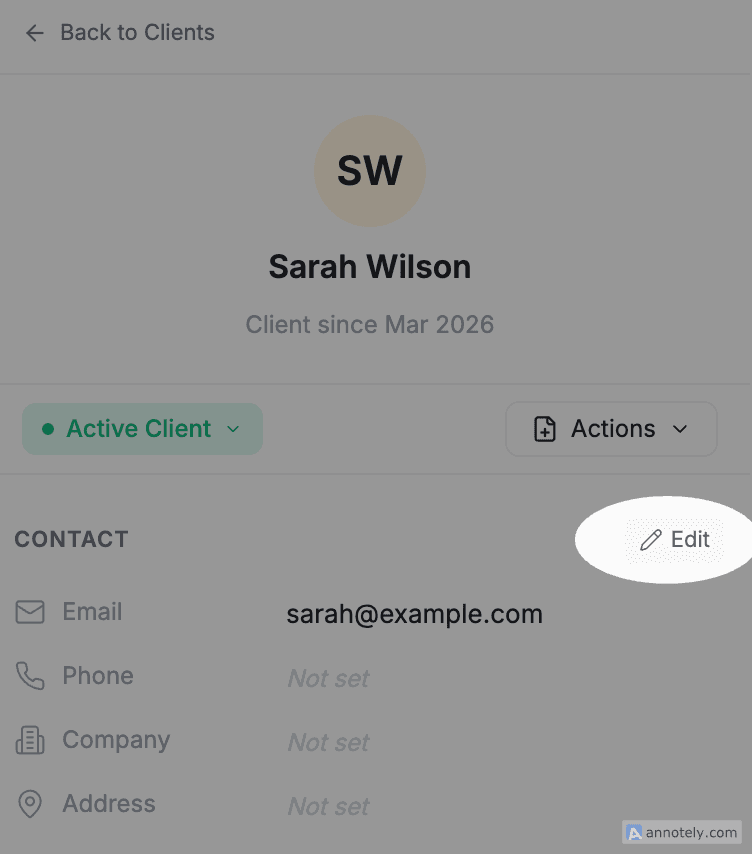
Editing From the Detail Page
- Click Clients in the left sidebar
- Search for or find the client in the list
- Click their name to open their detail page
- Click the Edit button (pencil icon) in the top-right
- Update any of their information
- Click Save to apply the changes
Editing Inline in the Table
For quick updates, click on any editable field value directly in the Clients table — type your change and press Enter or click away to save. This works for most fields including name, email, phone, stage, and custom properties. No need to open the full detail page.
What You Can Edit
You can update almost all client information:
| Field | Where to Edit |
|---|---|
| First Name / Last Name | Detail Page and Table |
| Detail Page and Table | |
| Phone | Detail Page and Table |
| Address (street, city, state, zip, country) | Detail Page |
| Website | Detail Page and Table |
| Company Name | Detail Page and Table |
| Tax Number | Detail Page |
| Billing Address | Detail Page |
| Client Category and Stage | Detail Page and Table |
| Custom fields | Detail Page and Table (if enabled for table view) |
Changing Category or Stage
As your relationship with a client evolves, you can move them between categories (Leads, Pipeline, Clients) or change their stage (New Lead, Contacted, Active Client, Past Client).
- From the detail page: Click the Stage dropdown and select the new stage
- From the table: Click the stage value directly in the table view
- From kanban view: Drag and drop the client card between stage columns
See Categories & Stages for the full list of stages and what they mean.
Bulk Editing
If you need to change the same information for multiple clients (like moving all leads in a region to a different stage):
- Click the checkbox next to each client's name in the Clients table
- Click Bulk Actions in the toolbar
- Select the action — change stage, update category, or edit shared fields
- Confirm to apply the changes to all selected records at once
Tip: Editing a client's contact information updates the client record itself. Existing jobs and invoices will reflect the updated name and details, but previously generated PDFs or sent estimates will not change retroactively.
FAQs
Can I edit a client's information directly in the table view?
Yes. Click on any editable field value in the Clients table to edit it inline — type your change and press Enter or click away to save. This works for most fields including name, email, phone, stage, and custom properties. It is the fastest way to make quick updates without opening the full detail page.
Can I update multiple clients at once in FieldCamp?
Yes. Select multiple clients using the checkboxes in the Clients table, then click Bulk Actions. You can change the stage, category, or other fields for all selected clients at once.
Does editing a client affect their linked jobs or invoices?
Editing a client's contact information updates the client record itself. Existing jobs and invoices that reference the client will reflect the updated name and contact details. However, previously generated invoice PDFs or sent estimates will not retroactively change — only new documents will use the updated information.
Related Articles
- Creating Clients — Add new clients via AI or manually
- Client Detail Page — View and manage all information about a client
- Delete or Archive a Client — Remove or archive client records
- Categories & Stages — Move clients through your pipeline
- Custom Fields — Track business-specific information on each client
Client Detail Page | FieldCamp
View and manage all client information from one page in FieldCamp — contact details, jobs, emails, payments, files, custom fields, and communication history.
Delete or Archive a Client | FieldCamp
Archive clients to preserve their data or permanently delete them in FieldCamp. Learn what gets removed, how to restore archived clients, and how to bulk delete.