 FieldCamp
Create Custom Client Fields | FieldCamp
Create custom client fields in FieldCamp to track business-specific information like industry, referral source, budget, and service preferences with eight field types.
Under the hood — see how Customers work in the FieldCamp data model: the fields they hold, how they connect to your other records, and how to customize them.
FieldCamp comes with standard client fields (name, email, phone, address), but every business is different. Custom fields let you capture information that matters uniquely to your business — industry type, referral source, service preferences, annual budget, contract length, or anything else you need to track.
With the Command Centre: Once custom fields are set up, you can use them with the Command Centre. Type "Show me all clients where industry is healthcare" or "Find clients with budget over 10000." See AI Skills for more.
What Are Custom Fields?
Custom fields are additional data fields you create to track information specific to your business. Examples include:
- Industry (manufacturing, retail, healthcare, etc.)
- Referral source (Google, word-of-mouth, ads, etc.)
- Service area or service type preferences
- Preferred contact method (email, phone, text)
- Annual budget or spend
- Contract length
- Preferred language
Who Can Create Custom Fields?
Account admins can create and manage custom fields. If you do not have admin access, ask your account admin to set up the custom fields your team needs.
Supported Field Types
| Type | Use For |
|---|---|
| Text | Single-line entries (names, codes, references) |
| Number | Numeric values (budget, employee count, rating) |
| Checkbox | Yes/No toggle (signed NDA, requires follow-up, etc.) |
| Date | Date picker (date only) |
| Date & Time | Date and time picker with timezone support |
| Select | Single choice from predefined options (industry, referral source) |
| Multi Select | Multiple choices from predefined options (services needed, preferred days) |
| Phone | Phone numbers with country code selector |
Creating a Custom Field
- Go to Settings then Pipeline Config
- Click the Clients row in the table
- Select the Fields tab
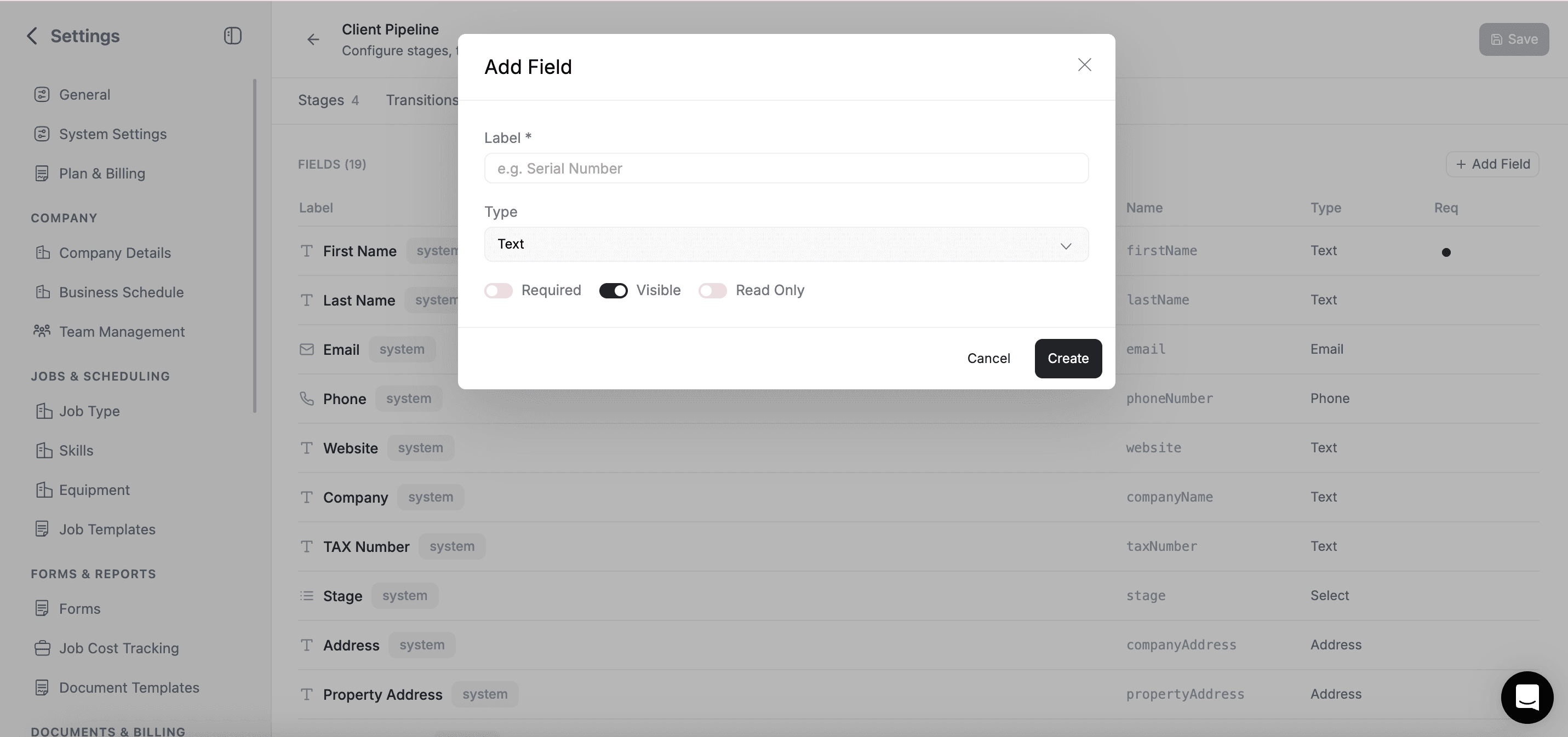
- Click Add Field
- Enter a Field Name (minimum 2 characters) and Label
- Select the Field Type from the dropdown
- Optionally set: Required (makes this field mandatory) and Default Value (pre-fills for new records)
- Click Save
Setting Up Select and Multi-Select Options
For Select and Multi-Select fields, you need to define the options users can choose from (minimum 2 options required):
- After selecting the field type, an options section appears
- Type the option name for each choice
- Click the color swatch next to each option to assign a color — options display as colored badges throughout FieldCamp
- Drag options to reorder them
- Add more options as needed
Reordering Custom Fields
Custom fields can be reordered by dragging them in the Properties list. The order you set here determines the display order on client detail pages and forms.
Field Validation
FieldCamp automatically validates certain field types when saving:
- Phone — Must contain at least 6 digits
- Required fields — Cannot be left empty regardless of type
Where Custom Fields Appear
Once created, custom fields show up in several places:
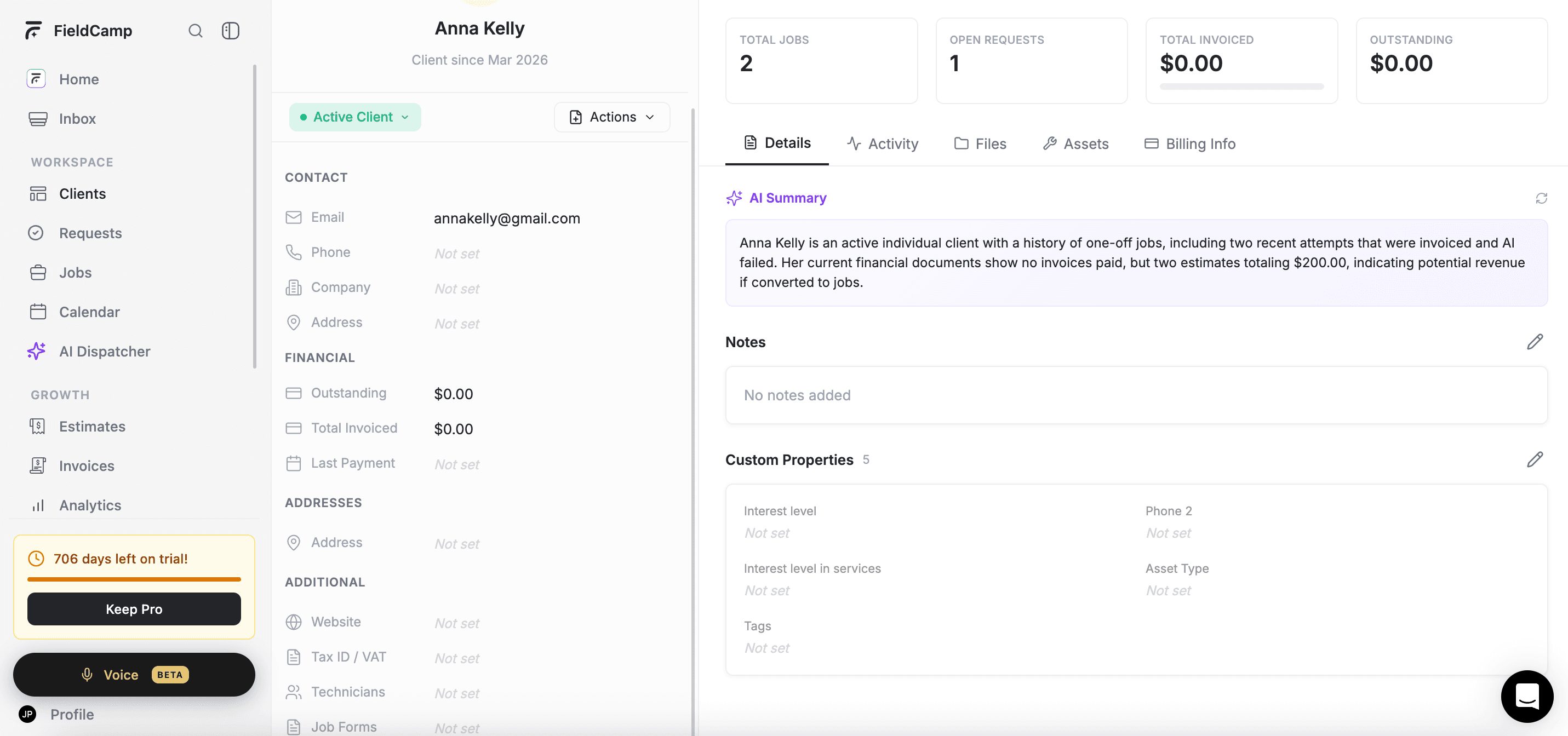
- Client detail page — Under the "Additional Information" section
- Client table — As optional columns (enable via the Columns setting)
- Create/Edit forms — Available when creating or editing a client
- Filters — Filter clients by custom field values
- Import/Export — Included as columns when importing or exporting client data
- Request forms — Custom fields also appear on request creation and detail pages
Filtering by Custom Fields
Custom fields support type-specific filter operators:
- Text fields — Contains, Does not contain, Is, Is not, Starts with, Ends with, Is empty, Is not empty
- Date fields — Equal to, Less than, Greater than, Date range
- Select fields — Is, Is not
- Multi-Select fields — Contains, Does not contain
- Number fields — Equal to, Less than, Greater than
Tip: Combine custom field filters with saved views to create reusable lists. For example, save a "Healthcare Clients" view that filters by Industry = Healthcare.
Viewing Custom Fields as Table Columns
To show custom fields as columns in your Clients table:
- In the Clients table, click the Columns button in the toolbar
- Find your custom field in the list
- Check the box next to it
- The column now appears in your table
Custom fields display with type-specific formatting in the table: Select and Multi-Select fields show as colored badges, Checkbox fields show "Yes" or "No", Date fields use your timezone settings, and Phone fields include the country code.
System Fields vs Custom Fields
FieldCamp has two kinds of fields:
- System fields (First Name, Last Name, Email, Phone, Company Name, Address, Tax Number, Website, Stage) — Built-in, cannot be deleted
- Custom fields — Created by you, can be edited or deleted at any time
Editing and Deleting Custom Fields
To edit a custom field, go to Settings then Pipeline Config then Clients then Fields, click the field you want to change, and update the label, required setting, default value, or options. You cannot change a field's name or type after creation.
To delete a custom field, click the delete icon next to it. Deleting a field removes it from all client records — this cannot be undone.
FAQs
Can I change a custom field's type after creating it?
No. Once a custom field is created, its type is locked. If you need a different type, create a new field with the correct type and manually transfer the data, then delete the old field.
Do custom fields appear in imports and exports?
Yes. Custom fields are included as columns in both imports and exports. For imports, custom fields must already exist in your account before they appear in the field mapping step.
Can I filter and group clients by custom fields?
Yes. Custom fields appear in the filter field list. Select and Multi-Select custom fields can also be used for grouping and as kanban properties in custom views.
Related Articles
- Custom Objects — Create entirely new data types beyond clients
- Filter, Sort & Group — Filter clients by custom field values
- Client Views — Use custom fields as kanban properties
- Import Clients — Import custom field data from spreadsheets
- Client Detail Page — See custom fields on the detail page
Export Clients to Excel or CSV | FieldCamp
Export your FieldCamp client data to Excel or CSV for analysis, reporting, and backup. Filter by stage or location, customize columns, then download instantly.
Create Custom Objects | FieldCamp
Create your own data types in FieldCamp to track equipment, properties, vehicles, or anything unique to your business with custom fields and pipelines.