 FieldCamp
Custom Data Views | FieldCamp
Create saved filter, sort, and group combinations on any module in FieldCamp. Build custom views for jobs, clients, invoices, and more to find data fast.
Under the hood — the FieldCamp data model shows how every record connects, how you can customize it, and how it maps to your trade.
Custom views let you save a specific combination of filters, sorting, and grouping on any module — Jobs, Clients, Invoices, Calendar, and more. Instead of re-applying the same filters every morning, save the view once and open it with a single click.
The Fastest Way: Ask the Command Centre
Open the Command Centre and describe what you want to see:
- "Show me all overdue jobs in New York"
- "List clients with no jobs in the last 90 days"
- "Find all unpaid invoices over $500"
The AI filters the data instantly. If you want to keep that filter for later, save it as a view. See AI Skills for more ways to search and filter with chat.
What Is a Custom View?
A custom view is a saved set of rules applied to a module's data list. It defines:
- Which records appear (filters)
- What order they appear in (sorting)
- How they are grouped (grouping)
- Which columns are visible (column selection)
Views are personal by default. You can also share them with your team so everyone works from the same data perspective.
Creating a Custom View
Step 1: Open the Module
Navigate to the module you want to filter — for example, Jobs from the sidebar.

Step 2: Apply Filters
Click Organize to open the filter panel. Available filters vary by module but commonly include:
| Filter | Examples |
|---|---|
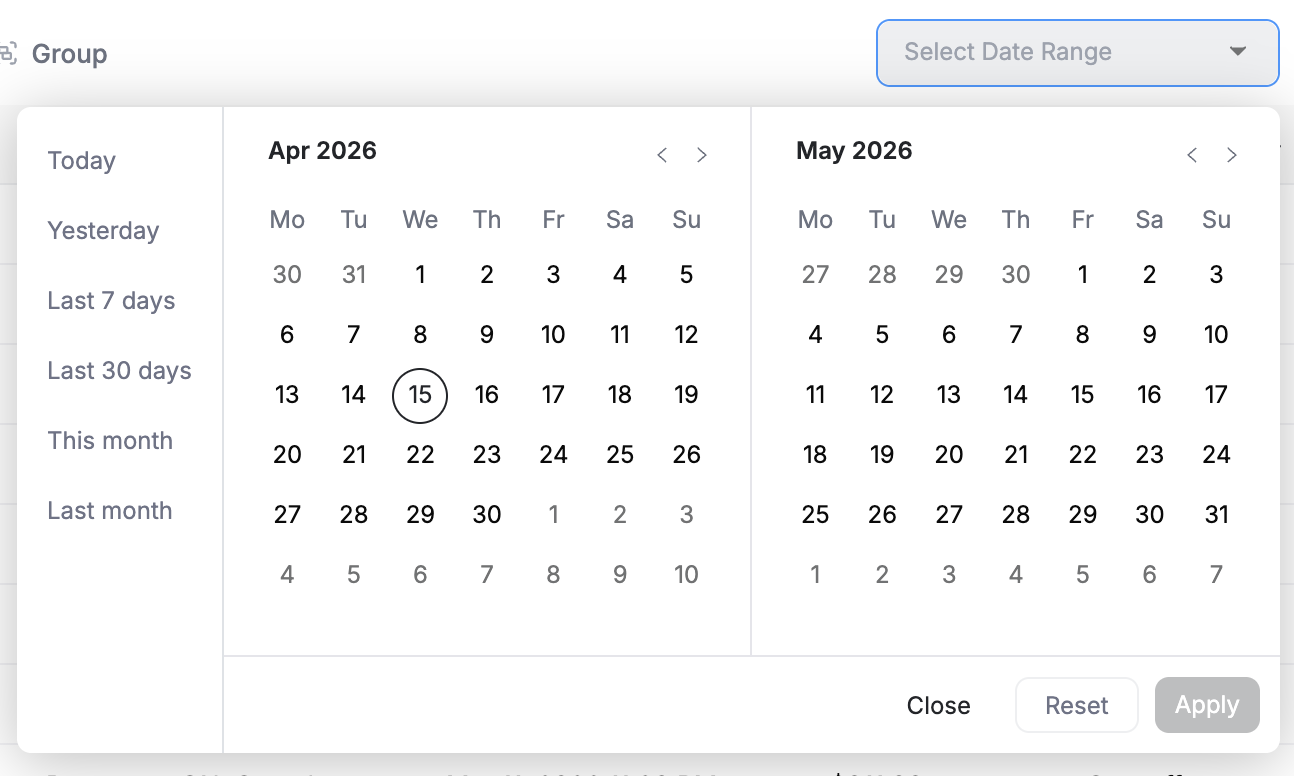
| Date Range | Today, This Week, This Month, Custom Range |
| Status | Active, Pending, Completed, Overdue, Cancelled |
| Assigned To | Specific team members or unassigned |
| Priority | Emergency, High, Normal, Low |
| Location | Service areas or regions |
| Custom Fields | Any properties you have added to the module |
Combine multiple filters to narrow down exactly what you need. For example: Status = Overdue and Priority = High and Assigned To = Unassigned.
Step 3: Set Sorting
Choose how records are ordered:
- Priority (High to Low)
- Date (Newest or Oldest First)
- Alphabetical (A-Z or Z-A)
- Status
Step 4: Choose Columns
Select which data fields appear in the list. Drag columns to reorder them and resize column widths to fit your screen.
Step 5: Save the View
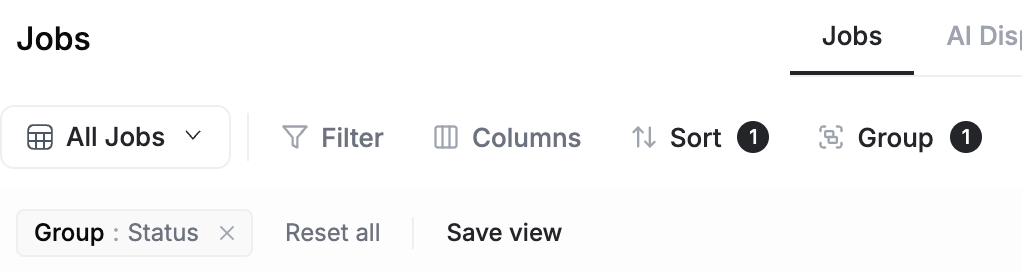
- Click Save View
- Enter a descriptive name (e.g., "Today's Urgent Jobs" or "Overdue HVAC Maintenance")
- Optionally toggle Pin to Sidebar for quick access
- Optionally set it as your Default View for that module
Views Across Modules
Custom views work on every list-based module in FieldCamp:
| Module | Example View |
|---|---|
| Jobs | "This Week's Open Jobs" filtered by status and date |
| Clients | "VIP Clients" filtered by a custom tag or revenue tier |
| Invoices | "Unpaid Over 30 Days" filtered by payment status and age |
| Calendar | "My Scheduled Visits" filtered by assigned team member |
| Requests | "New Requests — Unassigned" filtered by status |
| Products & Services | "Active Services Only" filtered to exclude archived items |
Sharing Views with Your Team
When you share a view, other team members see the same filters, sorting, and columns. This is useful for:
- Standardizing workflows — everyone on the dispatch team uses the same "Morning Queue" view
- Onboarding new hires — pre-built views help them find the right data without training
- Cross-team alignment — managers and field techs look at the same status breakdown
Shared views respect each member's permissions. If a team member does not have access to a module, they will not see views for that module.
Tips for Better Views
- Use descriptive names — "Dispatch - Morning Routes" is clearer than "My View 1"
- Keep it focused — a view with too many filters can hide useful records
- Review monthly — update or archive views as your workflow changes
- Pin your top 3-5 — too many pinned views clutter the sidebar
Custom Views vs. Workspace Views
Custom data views and Workspace Views serve different purposes:
| Custom Data Views | Workspace Views | |
|---|---|---|
| What it does | Filters and sorts records within a module | Pins and organizes modules in your sidebar |
| Scope | Data inside Jobs, Clients, Invoices, etc. | Which modules appear in your navigation |
| Example | "Overdue Jobs in Chicago" | Pinning Jobs, Calendar, and Analytics to the sidebar |
Keep Exploring
Custom Dashboards & Boards | FieldCamp
Build custom dashboards in FieldCamp using boards. Add charts, stat cards, and tables to create role-specific views for owners, dispatchers, and managers.
Workspace Views | FieldCamp
Pin and organize FieldCamp modules in your sidebar to build a personalized workspace. Quick-access the tools you use most without navigating through menus.