 FieldCamp
Sales Pipeline & Kanban | FieldCamp
Manage service requests on FieldCamp's visual kanban board. Drag and drop requests between pipeline stages to track leads from initial inquiry to conversion.
Under the hood — see how Stages & Workflows work in the FieldCamp data model: the fields they hold, how they connect to your other records, and how to customize them.
The Pipeline View
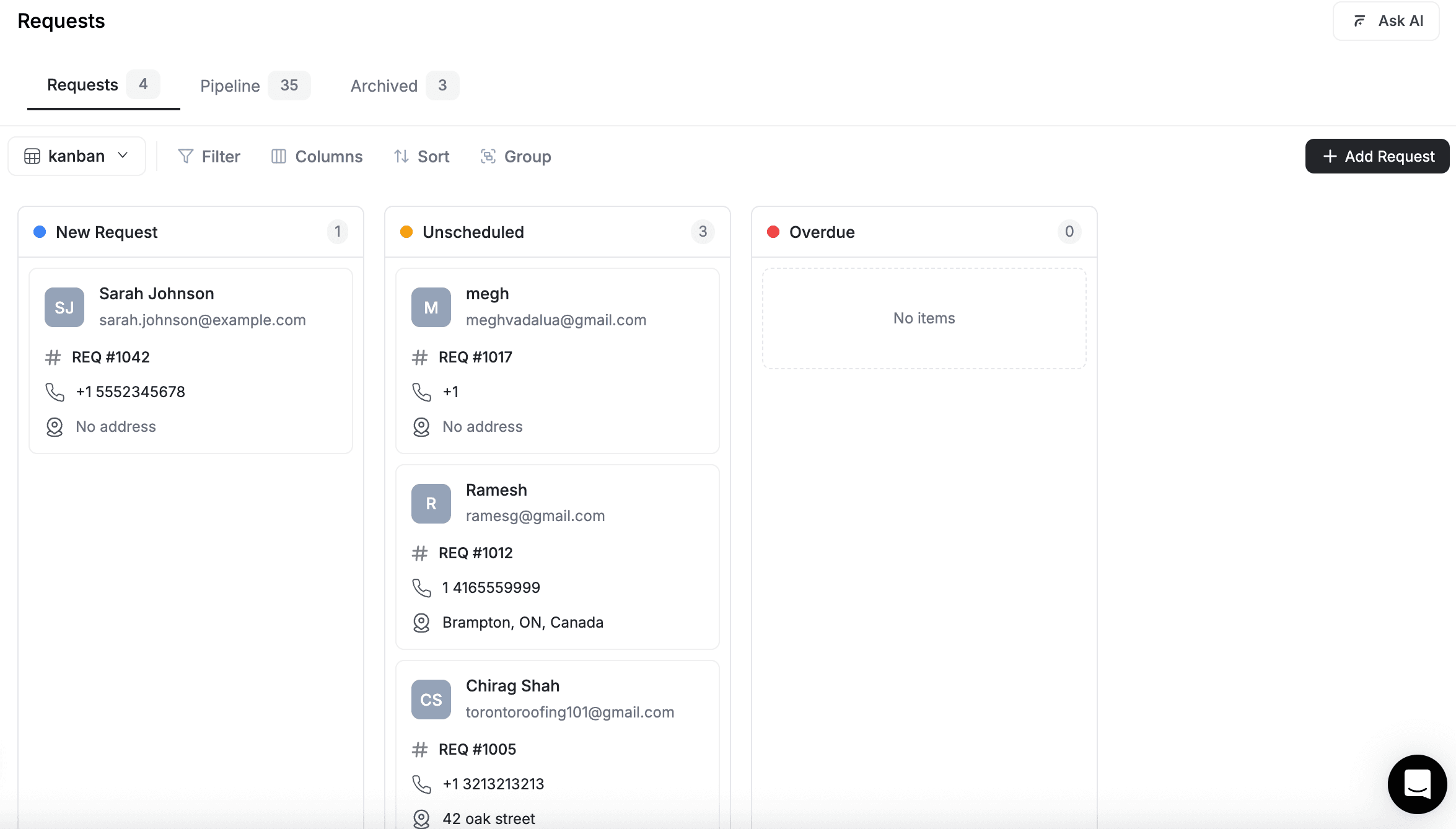
The pipeline is a kanban board that shows every request as a card, organized into columns by stage. Each column represents a stage in your sales process, and you move requests forward by dragging cards from one column to the next.
To access the pipeline, go to Requests in the sidebar and click the Pipeline tab.
AI-First: Work with the Pipeline from Chat
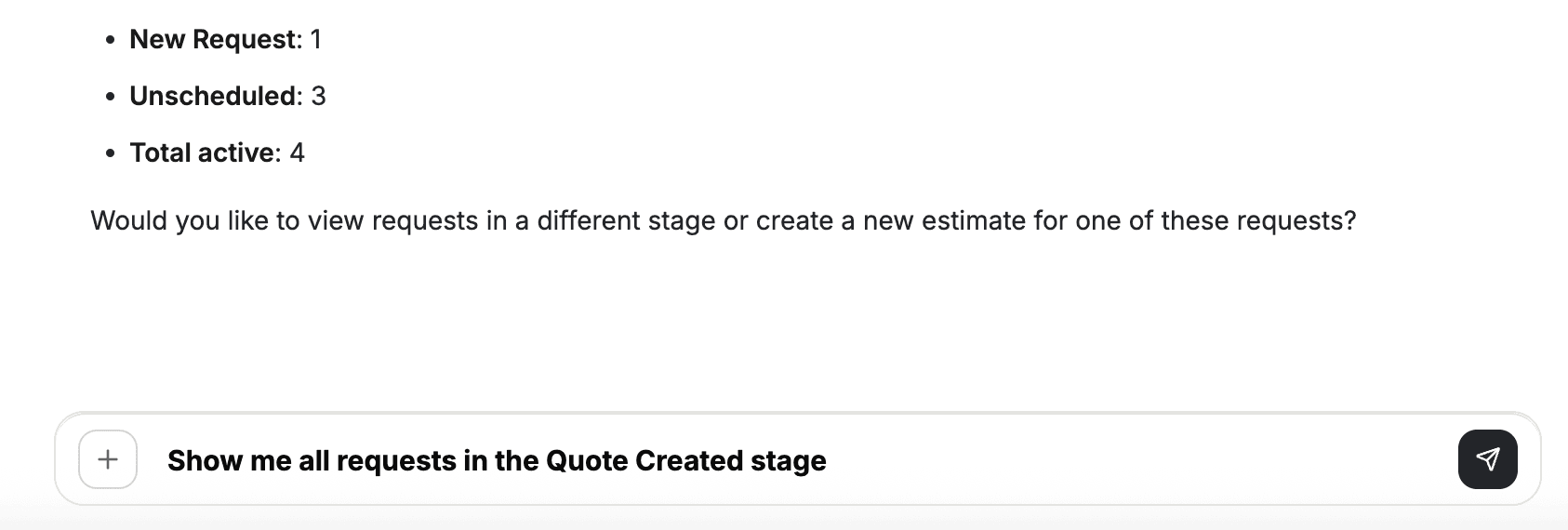
Open the Command Centre and ask:
- "Show me all requests in the Quote Created stage"
- "How many requests are in Inspection Scheduled?"
- "Move request 45 to Quote Sent"
- "What's stuck in the pipeline this week?"
The AI gives you instant answers and can move requests between stages without opening the board. See AI Skills for all pipeline commands.
Pipeline Columns
The default request pipeline has columns organized across three tabs:
Requests Tab (Needs Attention)
| Stage | Description |
|---|---|
| New Request | Just created — no action taken yet |
| Unscheduled | Captured but no inspection or visit scheduled |
| Overdue | Past its expected response or follow-up date |
Pipeline Tab (In Progress)
| Stage | Description |
|---|---|
| Inspection Scheduled | Site visit or consultation booked |
| Inspection Complete | Site visit done, ready for quoting |
| Quote Created | Estimate prepared but not yet sent |
| Quote Sent | Estimate delivered, waiting for customer response |
| Converted | Successfully turned into a job, estimate, or invoice |
Archived Tab (Closed)
| Stage | Description |
|---|---|
| Lost - No Response | Customer never responded |
| Lost - Rejected | Customer rejected the quote |
| Cancelled | Request cancelled by you or the customer |
| Duplicate | Duplicate entry, kept for records |
Stage colors are customizable. Each stage has a color indicator that makes it easy to scan the board at a glance. Admins can change colors in Pipeline Configuration.
Drag and Drop
Click and drag any request card from one column to another to update its stage instantly. For example:
- A new request comes in — it starts in New Request
- Your team reviews it and books an inspection — drag it to Inspection Scheduled
- After the site visit, your estimator prepares a quote — drag it to Quote Created
- The quote is sent to the customer — drag it to Quote Sent
- The customer approves — convert the request to a job
Stage changes save automatically and update across the system in real time.
What Each Card Shows
Each request card on the kanban board displays:
| Element | Description |
|---|---|
| Request Number | The auto-generated ID (e.g., REQ-045) |
| Client Name | The linked client |
| Stage Badge | Color-coded current stage |
| Urgency | Priority level indicator |
| Assigned To | Team member initials |
Click any card to open the full request detail page.
Filtering the Pipeline
Use the Organize button above the board to filter and sort:
- By date — show requests created this week, this month, or a custom range
- By source — filter for Manual or Online Booking requests
- By assigned to — see only requests assigned to a specific team member
- By urgency — focus on High and Critical requests
- By custom fields — filter on any custom properties you have configured
Combine multiple filters and save them as a Saved View for quick access. For example, create a view called "My Open Requests" that filters for your name and excludes Converted/Archived stages.
Kanban vs. Table View
The Requests page offers two ways to view your data:
| View | Best For |
|---|---|
| Kanban (Pipeline tab) | Daily standups, visual pipeline management, spotting bottlenecks |
| Table (Requests tab) | Bulk operations, detailed filtering, export/import, sorting |
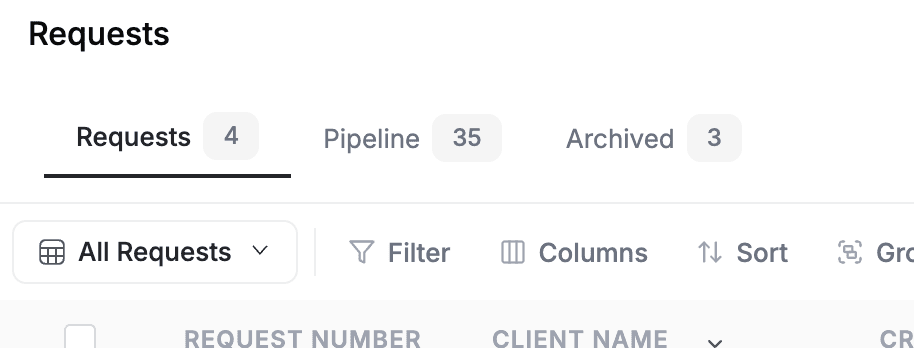
Switch between them using the tabs at the top of the Requests page. Both views show the same data — just organized differently.
Spotting bottlenecks: If you see too many cards stacked in one column (like "Quote Sent"), that is a signal. It could mean your team needs to follow up on pending quotes, or your quoting process needs attention.
The Client Sales Pipeline
FieldCamp also has a separate Sales Pipeline for managing client relationships through stages like New Lead, Contacted, Qualified, Proposal, Won, and Lost. This pipeline tracks clients rather than service requests.
Access it from Sidebar > Sales Pipeline (requires the Sales Pipeline add-on enabled in Settings > Add-ons).
The client pipeline stages include:
| Category | Stages |
|---|---|
| Leads | New Lead, Contacted, Qualified |
| Pipeline | Proposal, Negotiation, Inspection, Won, Lost |
| Clients | Active Client, Inactive Client, Archived |
Drag client cards between columns to advance them through your sales process. Click any card to open the full client detail page.
Two pipelines, two purposes. The Request Pipeline tracks individual service inquiries from intake to conversion. The Client Sales Pipeline tracks the overall relationship with a client from lead to active customer. Both use the same drag-and-drop kanban interface and are configured separately in Pipeline Configuration.
Related Articles
- Requests Overview — what requests are and how the lifecycle works
- Creating and Tracking Requests — create requests and manage them in table view
- Request Detail Page — full request information and actions
- Pipeline Stages and Configuration — customize stages, colors, and transitions
- Converting Requests — turn pipeline requests into jobs and estimates
- Job Tray and Dispatch — dispatching after conversion
Request Detail Page | FieldCamp
View and manage every detail of a service request — client info, schedule, line items, notes, and conversion actions — from the FieldCamp request detail page.
Pipeline Stages & Configuration | FieldCamp
Set up pipeline stages, transitions, and automation rules for the request pipeline in FieldCamp — control flow, required actions, and stage-driven workflows.