 FieldCamp
Tax Settings | FieldCamp
Set up tax rates in FieldCamp for your region. Configure state, local, and multi-rate taxes that automatically apply to estimates, invoices, and line items.
Under the hood — see how Estimates & Invoices work in the FieldCamp data model: the fields they hold, how they connect to your other records, and how to customize them.
FieldCamp calculates tax automatically on every estimate and invoice based on the tax rates you configure in Settings. Tax rates also apply when you create documents via the Command Centre. Set up your rates once, and they apply to new documents without manual math.
Setting Up Tax Rates
Step 1 -- Open Tax Settings
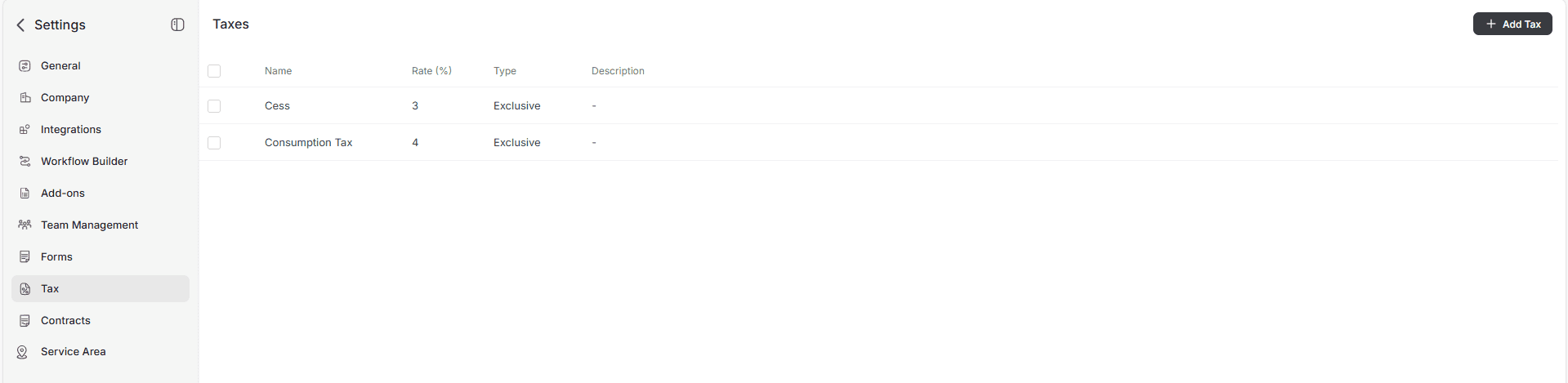
Click your username (top-right corner), select Settings, and navigate to the Tax section.
Step 2 -- Create a Tax Rate
Click Add Tax to create a new rate, or select an existing one to edit.
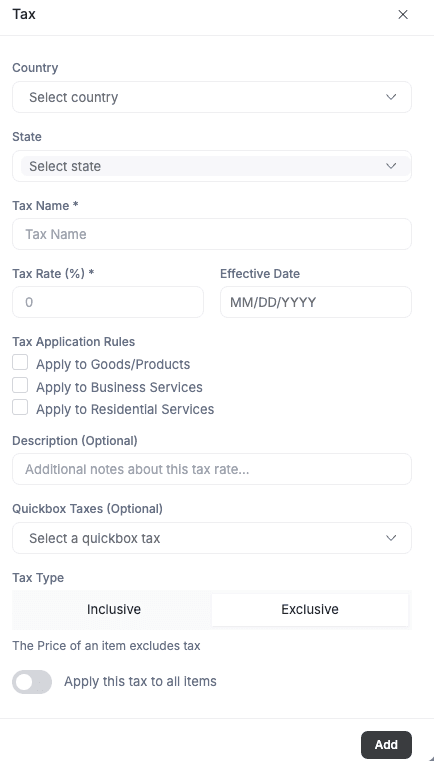
Fill in the following:
| Field | What to enter |
|---|---|
| Country & State | The location where this tax applies. Useful for multi-region businesses. |
| Tax Name | A clear label (e.g., "California State Tax", "GST", "NY Residential Tax") |
| Tax Rate (%) | The percentage (e.g., 7.5) |
| Effective Date | When this rate goes into effect |
| Applies to | Check one or more: Goods/Products, Business Services, Residential Services |
| Tax Type | Inclusive (tax included in the listed price) or Exclusive (tax added on top) |
| Apply to All Items | Toggle ON to auto-apply to every new line item, or leave OFF for manual selection |
| Description | Optional notes (e.g., "City-specific surcharge" or "For invoices over $500") |
| QuickBooks Tax | If you integrate with QuickBooks, map this to an existing tax label there |
Click Add to save.
How Tax Works on Documents
Per-Item Tax
When creating an estimate or invoice, each line item has a Tax dropdown. Select the appropriate rate and the tax calculates on that item's amount.
Overall Tax
You can also apply a single tax rate to the entire document subtotal instead of per item. This is useful when all items fall under the same tax jurisdiction.
Multiple Tax Rates
If your location requires stacking taxes (e.g., state tax plus local tax), add each rate separately and apply both to the relevant line items. FieldCamp calculates them independently and shows each on the document.
Tax-Exempt Clients
Some clients are tax-exempt (e.g., government agencies, nonprofits). When creating a document for a tax-exempt client, remove the tax from each line item or set the tax dropdown to None / Exempt.
You can also note the exemption in the client's profile so your team remembers to skip tax on future documents.
Default Tax
Set a default tax rate by toggling Apply to All Items when creating the rate. New line items on estimates and invoices will automatically use this rate. You can override it on individual items or documents when needed.
Tax on Estimates vs. Invoices
Tax rates on estimates and invoices are independent. An estimate might quote work at today's rate, but if the tax rate changes before you invoice, you can update the invoice to reflect the new rate.
When you convert an estimate to a job and later create an invoice from the job, the tax rates transfer at each step. Review them before sending the final invoice.
Best Practices
- Stay current -- Tax rates change. Review your rates in Settings whenever your state or local government updates their schedule.
- Use descriptive names -- "CA State 7.25%" is clearer than "Tax 1" when your team is selecting rates on a document.
- Set effective dates -- When a rate changes, create a new rate with the new effective date rather than editing the old one. This preserves historical accuracy on past documents.
- Train your team -- Make sure everyone knows how to select the right tax rate, especially if you operate in multiple jurisdictions.
If you use QuickBooks, map your FieldCamp tax rates to your QuickBooks tax labels. This ensures tax amounts match when you sync invoices for accounting.
Related Articles
- Creating Estimates — add tax to professional quotes
- Creating Invoices — apply tax rates to client invoices
- QuickBooks, Xero, and Wave — sync tax-inclusive invoices to your accounting software
- Settings Overview — all FieldCamp settings explained
Contracts, Terms & Attachments | FieldCamp
Add service contracts, terms and conditions, file attachments, and internal notes to your estimates and invoices in FieldCamp for clarity and protection.
Estimate to Job to Invoice | FieldCamp
Follow the complete billing lifecycle in FieldCamp: create an estimate, convert to a job, complete the work, generate an invoice, and collect payment.