 FieldCamp
Live Team Tracking | FieldCamp
Track your field team in real time with GPS on an interactive map. View live locations, movement history, daily analytics, and team status at a glance.
Under the hood — see how Visits work in the FieldCamp data model: the fields they hold, how they connect to your other records, and how to customize them.
FieldCamp's Live Team Tracking gives you real-time visibility of your entire field workforce on an interactive map. See where everyone is right now, monitor movement throughout the day, and use daily analytics to measure productivity — all without calling or texting your team.
The system uses GPS from the FieldCamp mobile app with 30-second update intervals, showing current positions, movement history, speed, and status for each team member.
Start with the Command Centre
Open the Command Centre with Cmd+/ (Mac) or Ctrl+/ (Windows) and check on your team instantly:
- "Where is Mike right now?" — get a technician's current location
- "Show me the team map" — open the live tracking view
- "Who's closest to 123 Main Street?" — find the nearest available technician
- "How far has David driven today?" — check daily mileage
For everything the Command Centre can do, see the AI Skills guide.
How to access live tracking
Live tracking is a direct sidebar destination. It is not a tab inside Calendar.
- Select Team Location in the sidebar.
- If the workspace has not completed tracking setup, follow the onboarding shown on the page.
- After setup, the live map opens at Team Location.
You need the Team Location Calendar permission and a Pro plan or higher. If the item is missing after those requirements are met, check whether it is hidden in your customized sidebar.

Initial Setup
Before tracking works, each team member needs to be configured:
Step 1: Access team setup
Open Team Location from the sidebar. Team member cards display on the left side, each showing their current setup status:
- Setup Required (yellow) — not yet configured
- Active (green dot) — currently tracking
- Idle (orange dot) — no recent location updates
- Offline (gray dot) — tracking disabled or no signal
- Off Duty (red) — outside working hours
Step 2: Set Up Each Device
- Find the team member card that needs setup
- Click "Setup Device" on their card
- The team member opens the FieldCamp mobile app on their phone
Step 3: Activate on the Mobile Device
On the technician's phone:
- Open the FieldCamp mobile app (or install it if needed)
- Grant location permissions — select "Always Allow" for background tracking and "Precise Location" for accuracy
- Confirm activation in the app
- Their card status changes to Active in the dashboard
Once setup is complete, you'll see a green checkmark on their card, a "Last seen" timestamp, and their current position on the map.
Live team tracking requires the FieldCamp mobile app installed on each technician's device with GPS location permissions set to "Always Allow." Tracking data is only collected during working hours.
The Live Tracking Interface
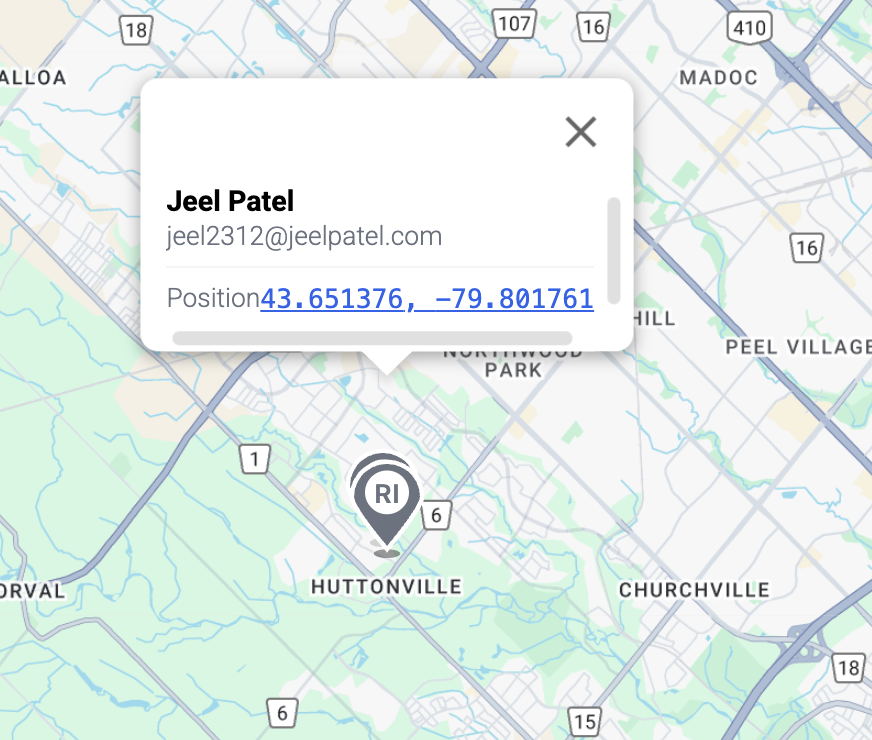
Map Display
The main area is an interactive Google Maps interface showing:
- Team member pins — circular icons with initials (e.g., "JP" for Jeel Patel), color-coded by status
- Job site markers — pins for scheduled visit locations
- Route paths — lines showing planned or completed routes
Each team member pin is color-coded:
| Color | Status |
|---|---|
| Green | Active and moving |
| Blue | Stationary at a job site |
| Yellow | Idle — no movement for 10+ minutes |
| Gray | Offline or off duty |
Team Member Cards

The left sidebar shows a card for each team member with:
- Profile photo or initials and full name
- Current status (Active, Off Duty, Break)
- Battery level of their device
- Last update time ("Just now", "5 minutes ago", etc.)
Actions on each card:
- View on Map — centers the map on that team member
- View History — opens their movement timeline
- Setup Device — for initial configuration
- Contact — quick call or message
Status Counter Bar

At the top of the interface, a summary bar shows:
- Total team member count
- Active count (green dot)
- Idle count (orange dot)
- Off Duty count (gray dot)
- Offline count (red dot)
- Visits counter — total visits and how many are completed
Viewing Live Locations
Click on any team member card or map pin to see their details:
- Full name and email
- Current GPS coordinates and street address
- Last update timestamp
- Current speed (if moving)
- Direction of travel
Map Controls
- Zoom — use the +/- buttons or mouse wheel
- Pan — click and drag the map
- View types — switch between Map, Satellite, and Terrain
- Center on Team — auto-zoom to fit all team members on screen
- Follow Mode — keep the map centered on a specific team member as they move
Movement History and Analytics
Accessing History
- Click "View History" on a team member card
- Select a date — today, yesterday, or pick a custom date
History Views
- Trips — individual journey segments between stops
- Stops — every location where the team member stopped
- Full Route — the complete path for the entire day
Daily Summary Metrics
Each day's history includes key performance indicators:
| Metric | What It Measures |
|---|---|
| Total Distance | Kilometers or miles traveled |
| Moving Time | Active driving and travel time |
| Idle Time | Time spent stationary |
| Max Speed | Highest speed recorded during the day |
| Stops | Number of distinct locations visited |
Movement Timeline
A chronological event list showing every movement and stop throughout the day — with timestamps, activity type ("Moving at 45 mph" or "Stopped at 123 Main St"), and duration at each location.
Make sure your team members have consented to location tracking before enabling this feature. FieldCamp provides a privacy notice that each technician must accept on their mobile device. Location data is collected only during configured working hours and is used solely for dispatch and operational purposes.
AI-Powered Tracking
For automated assignment and scheduling within the Suite workspace, see AI Dispatcher inside FieldCamp.
Related articles
Unscheduled Visits & the Dispatch Queue in FieldCamp
Manage unscheduled visits in FieldCamp — park work with Schedule Later, dispatch from the Job Tray, and clear overdue Alerts.
Calendar Sync & Preferences | FieldCamp
Connect FieldCamp to Google Calendar or Outlook with two-way sync. Customize event colors, labels, and dispatcher display settings for your field service team.