 FieldCamp
AI Email Composer | FieldCamp
Draft professional client emails in seconds using FieldCamp's AI. The Email Canvas reads client history and job details to generate context-aware messages.
Under the hood — see how Customers work in the FieldCamp data model: the fields they hold, how they connect to your other records, and how to customize them.
FieldCamp's AI Email Composer — called Email Canvas — generates professional email drafts in seconds using plain-language instructions. It pulls context from the client record, job details, and past communication so every draft is relevant and ready to review before you hit send.
Requires email integration: Gmail must be connected before you can use Email Canvas. Go to Settings > Integrations > Gmail to set it up, or see the Gmail & Outlook setup guide.
What Email Canvas Does
Instead of writing emails from scratch, you describe what you want to say and the AI does the rest:
- Generates a complete email with subject line, greeting, body, and sign-off
- Pulls the recipient's email address from the client record
- References relevant job details, appointment times, and invoice amounts
- Matches the tone you choose — professional, friendly, urgent, or apologetic
How to Use Email Canvas
Step 1 — Give a Prompt
Open the Command Centre and type your request in plain language. For example:
- "Write an email to John Smith thanking him for his business"
- "Send an invoice reminder to ABC Company"
- "Follow up with Sarah about tomorrow's HVAC maintenance at 2pm"
- "Confirm the appointment with the client at 123 Main Street"
- "Request payment for invoice #1234"
The AI reads the prompt, looks up the client and any related jobs, and drafts the email.
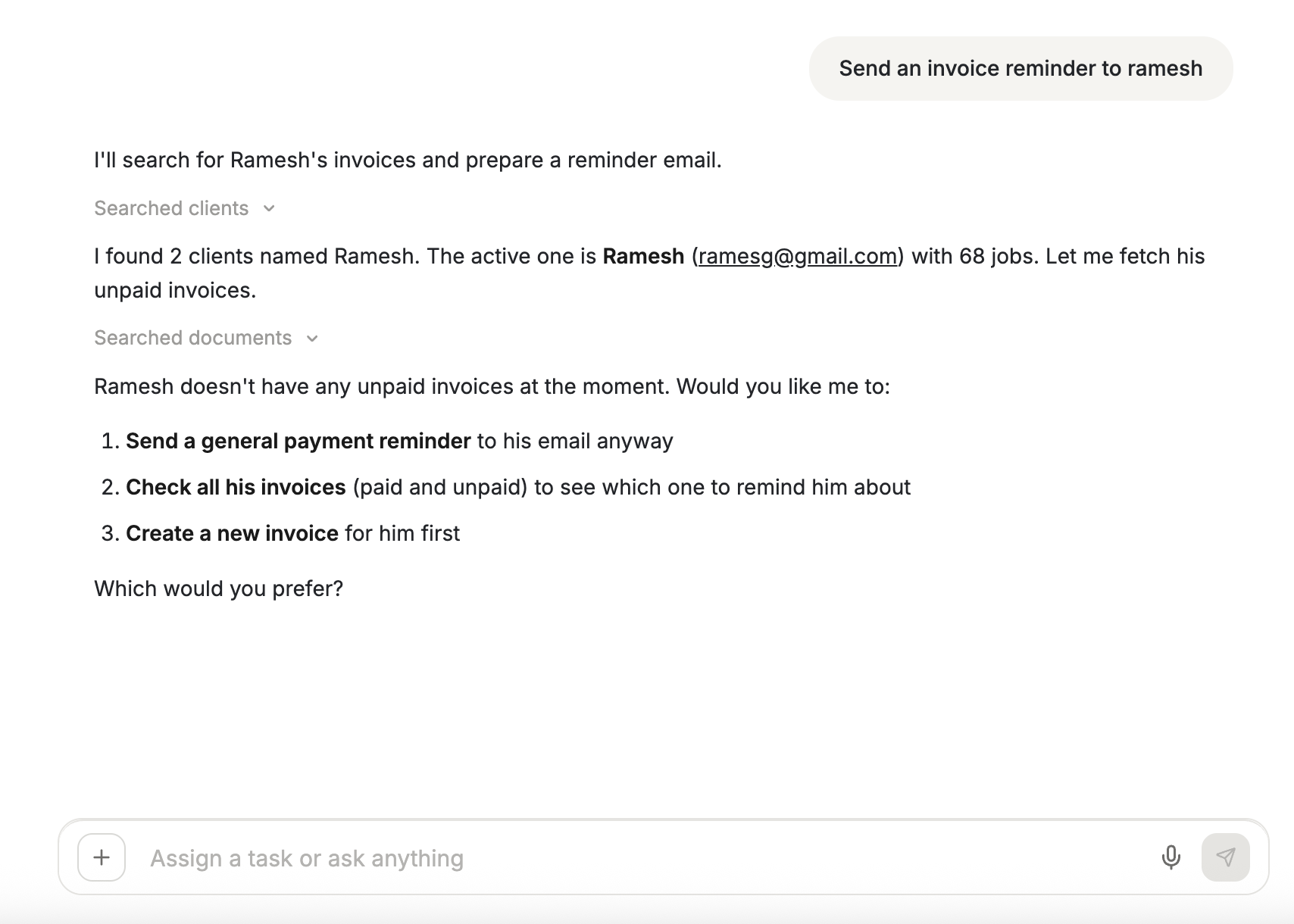
Step 2 — Review the Draft
Email Canvas generates:
| Field | What the AI Fills In |
|---|---|
| To | Pulled from the client record |
| Subject | Based on the purpose of the email |
| Body | Professional formatted content with relevant details |
| Signature | Your configured email signature |
Step 3 — Customize Before Sending
You can edit every part of the draft before it goes out:
- Subject line — adjust for clarity or urgency
- Body text — add details, remove sections, or rephrase
- Recipients — add CC or BCC addresses
- Attachments — add invoices, quotes, or documents
Tone Options
| Tone | When to Use |
|---|---|
| Professional | Formal business communication |
| Friendly | Warm, conversational approach |
| Urgent | Emphasizes immediate action needed |
| Apologetic | For service delays or issues |
Length Options
| Length | Output |
|---|---|
| Brief | 2-3 sentences |
| Standard | 1-2 paragraphs |
| Detailed | Comprehensive explanation |
Step 4 — Send or Save
Once the draft looks right, choose your action:
- Send Now — deliver immediately
- Save Draft — store in Gmail drafts for later
- Schedule Send — set a specific delivery date and time
- Cancel — discard the draft
Smart Reply
When you open an existing email in the Inbox, you can also use AI to draft a reply:
- Open any email thread
- Click the Smart Reply button
- The AI reads the full thread and generates a contextual response
- Edit the reply if needed
- Click Preview to see how it looks to the recipient
- Click Send
Smart Reply considers the client's past interactions, any linked jobs, and the content of the current thread to produce a relevant answer.
Prerequisites
Before using Email Canvas, confirm:
- Gmail integration is connected in Settings > Integrations > Gmail
- Client email addresses are stored in client records for auto-population
- User permissions include email access for your role
Best Practices
- Always review AI-generated drafts before sending — the AI is fast but you know your clients best
- Include specific details in your prompt (names, dates, amounts) for more accurate drafts
- Use Smart Reply for routine responses and save Email Canvas for new outreach
- Check the tone setting before generating — a friendly follow-up reads differently than an urgent payment reminder
Related Articles
- Email Management — Read, reply, and organize all client emails
- Connect Gmail & Outlook — Set up your email integration
- Command Centre — The AI chat that powers Email Canvas
- AI Skills — Full list of what the AI can do
Email Management | FieldCamp
Connect Gmail, Outlook, or an IMAP/SMTP mailbox to FieldCamp Inbox, then read, search, and reply to customer email conversations.
Calls — Setup & Usage | FieldCamp
Set up FieldCamp Twilio voice calls, SMS, dynamic FCM-to-number routing, voicemail greetings, business hours, and AI call summaries.