 FieldCamp
Connect Google Calendar | FieldCamp
Sync Google Calendar or Outlook with FieldCamp for seamless two-way scheduling. Jobs appear on your calendar automatically and changes sync back in real time.
Syncing your calendar with FieldCamp ensures your scheduled jobs appear alongside your personal events. This gives you a single view of your day, prevents double-booking, and helps your team stay on top of their dispatch schedule.
How to Connect Google Calendar
- Go to Settings → Apps & Integrations.
- Find Google Calendar and click Connect.
- Sign in with your Google account.
- Grant the requested calendar permissions.
- Select which Google Calendar you want to sync with FieldCamp (you may have multiple).
- Click Confirm. Google Calendar now shows as Connected.
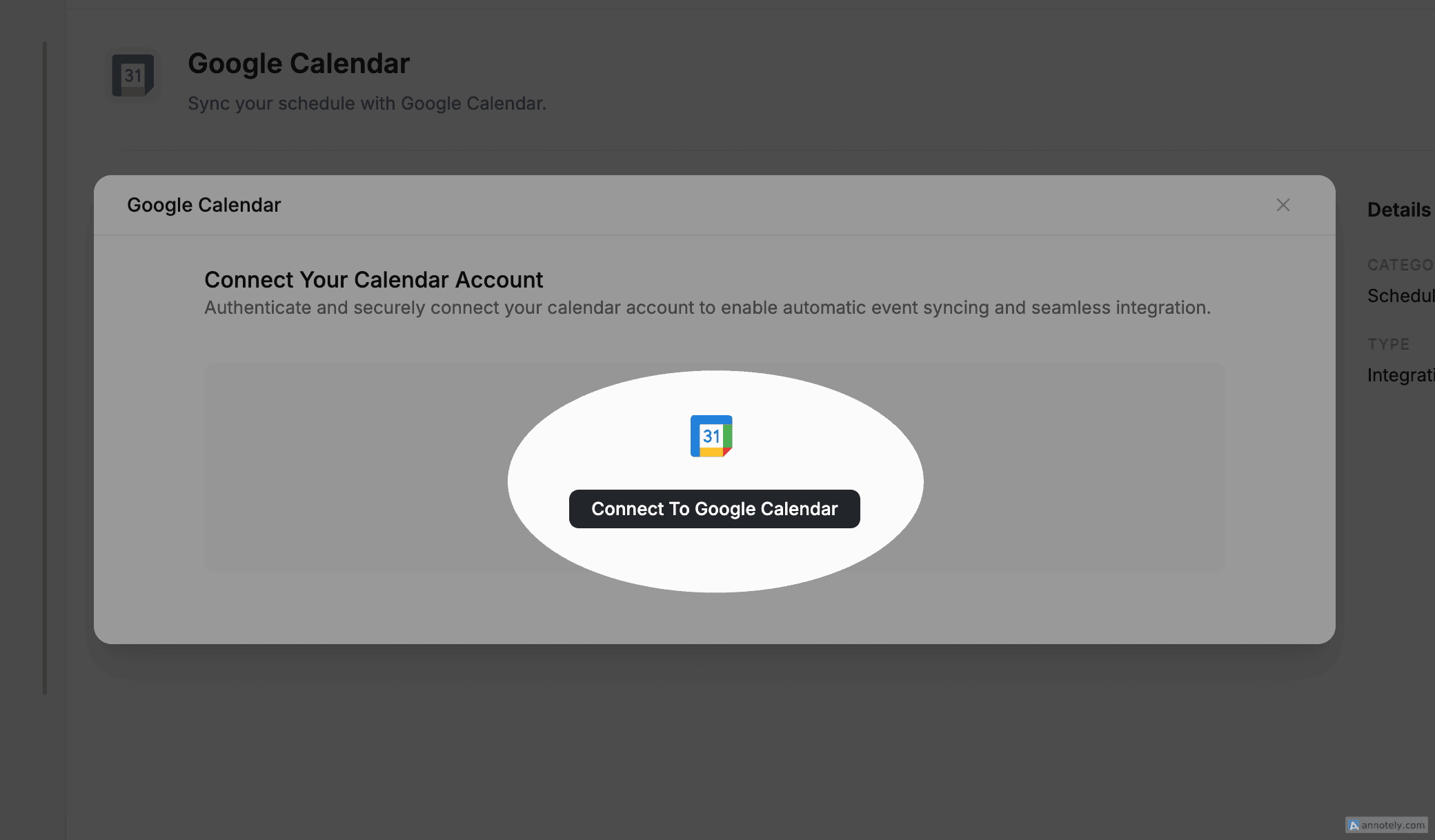
Using Outlook? The setup process is the same -- just look for Outlook Calendar in Settings → Apps & Integrations.
How the Two-Way Sync Works
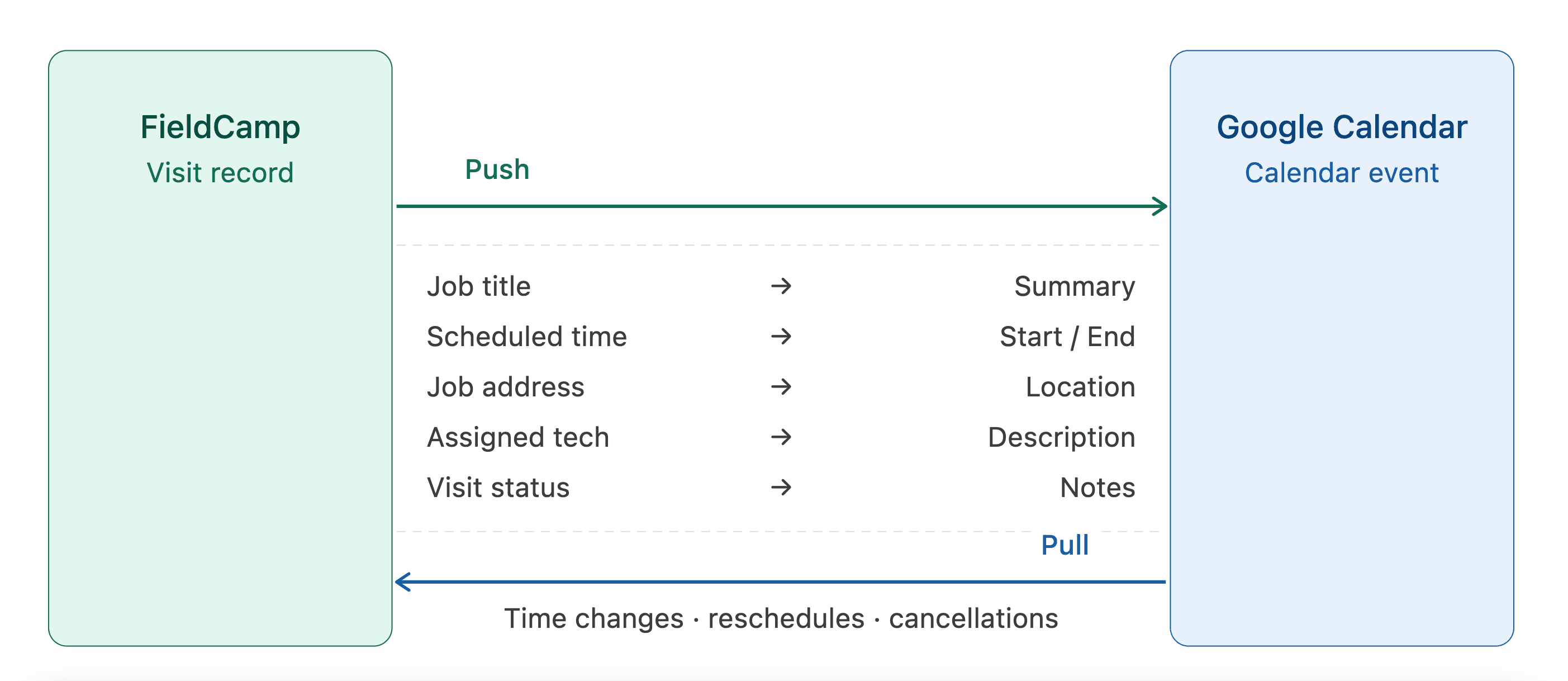
FieldCamp uses a true two-way sync with your calendar. Changes made on either side are automatically reflected on the other.
FieldCamp to Your Calendar
When a visit is scheduled in FieldCamp, it automatically appears on your connected calendar. Here is what syncs:
- Event title -- job title combined with the client name
- Start and end time -- matches the visit schedule in FieldCamp
- Location -- the job or client address
- Description -- the job description
Your Calendar to FieldCamp
FieldCamp pulls changes from your calendar so you can see your full schedule -- both FieldCamp jobs and personal events -- on the Dispatch Calendar. If you reschedule or delete an event on Google Calendar that was originally created by FieldCamp, those changes sync back to the corresponding visit.
Sync timing. Changes in either direction are typically reflected within a few minutes. Only visits with a specific date and time are synced -- jobs without a schedule will not appear on your calendar.
Disconnecting Google Calendar
- Go to Settings → Apps & Integrations.
- Find Google Calendar and click Disconnect.
- Confirm the disconnection.
After disconnecting, FieldCamp jobs will no longer appear on Google Calendar, and Google Calendar events will no longer appear in FieldCamp. Previously synced data is preserved.
Troubleshooting
- Events not syncing -- check that the connection still shows as Connected in Settings → Apps & Integrations
- Wrong calendar selected -- disconnect and reconnect to choose a different calendar
- Sync seems slow -- calendar sync can take a few minutes; wait and refresh the FieldCamp Calendar page
For more help, see Troubleshooting -- Common Issues & Fixes.
Related Articles
- Dispatch Calendar -- learn how to use the FieldCamp scheduling calendar
- Connect Gmail or Outlook -- set up email alongside calendar
- AI Dispatcher -- let FieldCamp automatically assign and schedule jobs
- Apps & Integrations Overview -- see all available connections
- Quick Start Guide -- complete setup checklist
FAQs
Does each team member need to connect their own calendar?
Yes. Each team member connects their own Google or Outlook account in their personal settings. As an admin, you cannot connect a calendar on behalf of team members -- they need to do it themselves.
Are recurring events from Google Calendar synced to FieldCamp?
Google Calendar recurring events appear on FieldCamp's Calendar view as individual occurrences. FieldCamp-to-Google sync is visit-based, so each visit is pushed as a standalone event. If you need recurring jobs, set them up using FieldCamp's recurring job feature and each generated visit will sync to Google Calendar individually.
What happens if I have multiple Google Calendars?
During setup, you choose which calendar to sync. Only that one calendar is used for the two-way sync. To change which calendar is connected, disconnect and reconnect, then select a different calendar.
Does this work with Google Workspace (business) accounts?
Yes. FieldCamp works with both personal Google accounts and Google Workspace accounts. If your organization uses Google Workspace, your admin may need to allow third-party app access in the Google Admin console.
A2P 10DLC and Toll-Free Verification Setup for FieldCamp SMS
Register your business, brand, and campaign through FieldCamp's compliance pages so US carriers reliably deliver your SMS.
QuickBooks, Xero & Wave | FieldCamp
Sync invoices and payments between FieldCamp and QuickBooks, Xero, or Wave. Keep your accounting books accurate without any manual double data entry needed.