 FieldCamp
How to create and activate a department
Create a department in FieldCamp, assign its local manager and job types, then activate it and choose whether to apply it to jobs that are already open.
This guide shows you how to create a department in FieldCamp, finish its setup and activate it so work can book into it. For what departments are and how they behave, read departments in FieldCamp first.
Watch: set up a department
This video walks through creating a department, finishing its setup and activating it. The written steps follow below.
Before you begin
- You need permission to manage system settings. Owners and admins have it.
- Each department needs a Local manager, so have at least one team member in your workspace. See adding and managing team members.
- Each department needs at least one job type. It's easiest to create job types first under Settings > Jobs & Scheduling > Job Type Presets. See job types and job templates.
Create a department
Open Departments
Go to Settings > Company > Departments. If you have no departments yet, the page shows Create your first department. Click New department.
Name the department
Enter a Name, for example "Plumbing". The Network key fills in from the name. The key is the department's permanent identity: it can't be changed after you create the department, so renaming later never breaks reports.
Describe the work
Optionally, add a Description, a Trade and a Work class. Pick from the lists or type your own; custom values are kept.
- Trade options: HVAC, Plumbing, Electrical, Drains, Excavation and General.
- Work class options: Service, Install, Sales and Maintenance.
Enter a reporting code
Enter a short Reporting code for exports and accounting, for example PLB. It's required, and FieldCamp turns it into capitals as you type. Use up to 12 letters, numbers, hyphens (-) or underscores (_), with no spaces.
Choose customer segments
Optionally, select Residential, Commercial or both under Default customer segments.
Create it
Click Create department. FieldCamp saves it and opens the department's page.
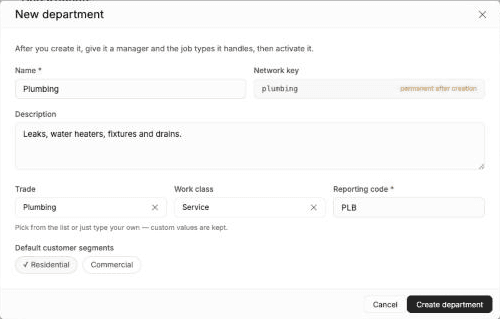
If you leave Reporting code empty, the dialog shows Reporting code is required and the department isn't created.
Finish setup
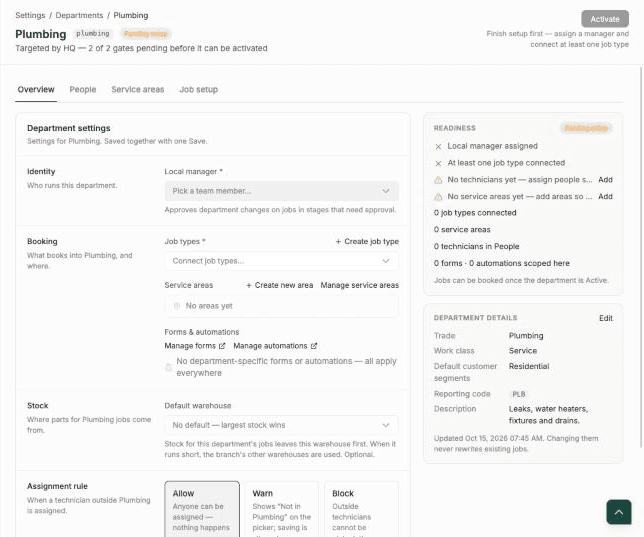
A new department starts as Pending setup. The Readiness card on the right shows what's missing.
Pick a local manager
On the Overview tab, choose a person in Local manager. This person approves department changes on jobs in pipeline stages that need approval. They're also added to the People tab as the department's manager.
Connect job types
Open Job types and select the job types that should book into this department. You can connect the same job type to more than one department.
Save
Click Save changes at the bottom of the page.
When both requirements are met, the department shows Ready to activate.
+ Create job type on the department page creates a new job type preset and adds it to Job types. If the job type isn't listed after you save, select it again in Job types and click Save changes.
The Readiness card also warns when the department has no technicians or no service areas yet. These warnings don't block activation. You can add people and service areas now or later; see department people, service areas and assignment rules.
Activate the department
You can activate from the department page or from the Departments list.
Save first
If you have unsaved changes, Activate stays disabled and shows Save your changes first, then activate. Click Save changes.
Click Activate
Click Activate. A confirmation opens: "New jobs will start booking into this department. You can also apply it to jobs that are already open."
Decide about open jobs
If you have open jobs that could belong to this department, the dialog shows Also set this department on N open jobs, with example job numbers. This box is ticked by default.
- Leave it ticked to set the department on those jobs now.
- Untick it to apply the department to new jobs only.
Only open jobs without a department whose job type is connected to this department are updated. Closed and invoiced jobs are never changed.
Confirm
Click Activate.
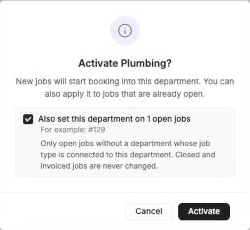
FieldCamp confirms with a message such as Department activated · 1 existing job updated. The department now shows Active in the list. Each job it updated gets a history entry: "Department set to Plumbing (applied to existing job when the department was activated)."
If your company is a branch in a franchise, HQ may define the department for you. You still finish its setup and activate it in your branch. See roll out departments across branches.
Related articles
Departments in FieldCamp
Learn what departments are in FieldCamp, how a department goes from Pending setup to Active, and what each department holds: a manager, job types and people.
Department people, service areas and rules
Set up a FieldCamp department's people, service areas, default warehouse and assignment rule, and see which job types, forms and workflows apply to it.