 FieldCamp
Roll out departments across franchise branches
Define a department once at franchise HQ, choose which branches run it, and manage edits, branch assignments and retirement from the Departments page.
A network department is an operating line, such as HVAC Service or Plumbing, that you define once at HQ and roll out to your branches. HQ owns the definition and its permanent network key. Each branch finishes its own local setup and then starts booking work into it. This guide covers the HQ side: creating a department, choosing target branches and managing it afterwards.
How network departments relate to company departments
Any FieldCamp company can run its own departments without the Franchise add-on. See departments in FieldCamp. In a franchise, it works differently:
- HQ defines departments for the whole network in the franchise console under Departments. The name, network key, trade, work class, reporting code and default customer segments come from HQ.
- Branch workspaces use the departments HQ assigns to them. A branch of a franchise doesn't create departments of its own. In the branch, these departments show as Managed by HQ.
- Each branch decides how it runs the department locally. It picks a local manager, connects job types, adds people and service areas, and activates it when it's ready.
Before you begin
- To create, edit, rename, retire or delete departments, your franchise role needs Create, rename and retire department definitions.
- To choose which branches run a department, your role needs Choose which branches run a department.
- Owners and admins have both. Members and viewers can view departments but can't change them. See franchise roles and permissions.
- Only branches that have a workspace can run a department: Location and Division branches. Regions and areas are folders with no data, so they can't be targeted. See build your branch structure.
Create a network department
Open Departments
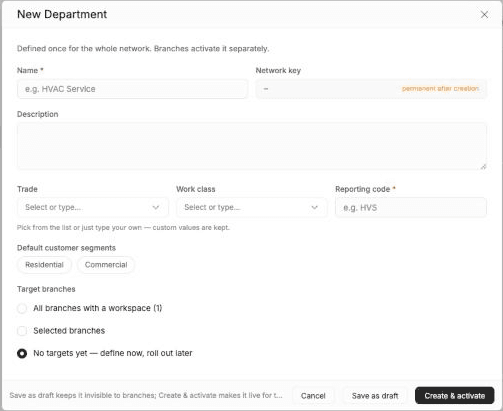
In the franchise console, select Departments under NETWORK. Click New Department.
Name the department
Enter a Name, for example "HVAC Service". The Network key fills in from the name and is marked permanent after creation. If another department already uses that key, the dialog tells you to change the name to get a different key.
Describe it
Optionally, add a Description, a Trade and a Work class. Pick from the lists or type your own; custom values are kept.
Enter a reporting code
Enter a Reporting code, for example HVS. It's required. Use up to 12 letters, numbers, hyphens (-) or underscores (_), with no spaces.
Choose customer segments
Optionally, select Residential, Commercial or both under Default customer segments.
Choose target branches
Under Target branches, pick one option:
- All branches with a workspace targets every branch that can run a department. The number in brackets is how many branches that is.
- Selected branches lets you pick branches from your branch tree.
- No targets yet — define now, roll out later is the default. You can assign branches later.
Save it
Click Save as draft or Create & activate. See the next section for the difference.
Save as draft or create and activate
| Button | What happens |
|---|---|
| Save as draft | The department is saved as Draft and stays invisible to branches. You can still edit it, activate it later from its row menu or delete it. |
| Create & activate | The department is created as Active. Targeted branches get it straight away as Pending setup and can start configuring it. |
If you picked branches that have no workspace, FieldCamp assigns the others and warns you which ones were skipped.
What each branch still has to do
Activating at HQ doesn't make a department bookable in a branch. Each targeted branch shows the department as Pending setup until it finishes its local setup:
- The branch opens Settings > Company > Departments in its own workspace.
- It assigns a Local manager and connects at least one job type.
- It activates the department.
The steps are the same as for a company department. See create and activate a department. After activation, the branch can add people, service areas and assignment rules, and pause the department locally. Retiring a department is an HQ decision.
Manage an existing department
The Departments list shows each department's network key, how many branches are active or pending, and its Status. Use the search box and the All, Active, Draft and Retiring filters to find one.
Click a department to open it. The Branches tab lists each assigned branch with its status and local manager. The other tabs are Definition, Coverage, Standards, History, Reporting (only for roles with View department reporting) and Accounting. For the last one, see department accounting mappings.
From the row menu or the department page you can:
- Edit: change the name, description, trade, work class, reporting code and segments. The network key never changes, so reports and branch mappings stay intact. You can also tick more branches under Assigned branches. You can untick a branch only while it's still Pending setup.
- Assign branches: shown while a department has no branches yet. Assigning is safe to repeat; branches that already have the department are skipped.
- Activate: makes a draft live.
- Retire: choose Retire now or Retire on a date and pick the last booking day. A retiring department stops being selectable for new work and new branches. History and reporting are kept.
- Delete: available for drafts only, when nothing has been built on them. This can't be undone.
How departments stay linked for reporting
A department's identity lives in its network key, not its name. Renaming it at HQ, or giving it a local alias in a branch, doesn't create a new department or break reports. Jobs, invoices and visits in each branch are stamped with the network department. That lets HQ compare the same department across every branch under By department in network performance reporting.
Related articles
Share technicians between franchise branches
Lend a technician from one franchise branch to another, choose between Assignable and Busy only, prevent double-booking across branches, and revoke a share.
Map franchise departments to accounting accounts
Map each franchise department to the right income account and tracking in every branch's accounting system, set fallbacks, and hold invoices until mapped.