 FieldCamp
Franchise modules, purchase orders and audit log
Turn franchise HQ modules on or off, set the purchase order price variance tolerance for branches, and review or export the franchise audit log.
The SYSTEM section of the franchise console holds the network's admin settings. Modules turns HQ areas on or off and sets the purchase order price tolerance for every branch. Audit log shows who changed what across the franchise.
Turn modules on or off
Open Modules
In the franchise console, select Modules under SYSTEM. The page says "Turn hub modules on or off for this franchise."
Find the module
Each module card shows a Live badge and whether it's Enabled or Disabled. You can switch these three:
- Network performance: rolled-up performance across every branch.
- Branches & people: your branch tree, corporate users and pending invites.
- Brand standards: every standard the network inherits.
Enable or disable it
Click Disable or Enable, then confirm.
Modules are enabled by default. Disabling a module:
- Hides it from the franchise console's sidebar for everyone in the franchise.
- Sends anyone who opens one of its pages back to the franchise home with the message "That module is turned off for this franchise."
- Leaves branch data untouched. Enabling it again only adds it back to the console. Nothing reaches your branches until you publish.
| Module | Pages it hides when disabled |
|---|---|
| Network performance | Dashboard, Analytics and Boards |
| Branches & people | Branches & people and Departments |
| Brand standards | Brand standards |
Modules and Audit log can't be turned off.
To open Modules, your role needs Turn network modules on or off and access to the whole franchise. Owners and admins have it. For anyone else, the page isn't shown in the sidebar. See franchise roles and permissions.
Set the purchase order price tolerance
The Purchase orders card on the Modules page controls how far a branch's received price can differ from the ordered price before FieldCamp flags it. The setting applies to every branch in the franchise.

Enter the tolerance
In Price variance tolerance (per unit), enter the largest difference per unit you accept, for example 0.50.
Save
Click Save. FieldCamp confirms with Purchase order settings saved.
How the tolerance works when a branch receives a purchase order:
- The tolerance is an amount per unit, in either direction, not a percentage.
- A difference up to the tolerance is accepted silently.
- A larger difference records a price variance for that line and sends a notification. It goes to the branch owner, or to the department's local manager when the purchase order belongs to a department. The branch reviews variances on the Variances tab in Inventory.
0flags every difference. This is the default.
To see and change the tolerance, your role also needs the permission to change franchise settings. Owners and admins have it. Each change is recorded in the audit log with the old and new value. For how branches create purchase orders, see vendors and purchase orders.
Review the audit log
Select Audit log under SYSTEM. It lists who changed what in the franchise, newest first.
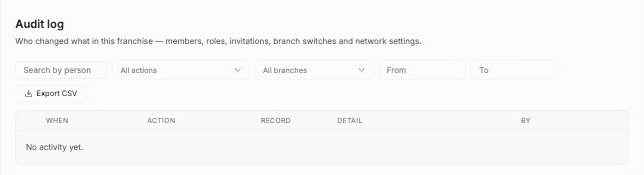
To open it, your role needs View the audit log and access to the whole franchise. Otherwise the page says "The audit log needs the "View the audit log" capability with whole-franchise access."
What's recorded
The log records changes across HQ, including:
- Members, invitations and roles, such as Member added, Invitation sent and Role changed.
- Branch switches (Entered branch) and branch structure changes, such as Branch created or Branch moved.
- Departments, their branch assignments and department settings.
- Brand standards published, pushed and synced, and branch change proposals.
- Shared technicians and network settings, such as Settings changed.
Each row shows When, Action, Record, Detail and By. Expand a row to see the full before and after values, plus the IP address and device or browser.
Filter the log
Narrow the list with Search by person, All actions, All branches and the From and To dates. Click Clear filters to reset them, and Load more to see older rows.
Export to CSV
Click Export CSV to download the rows that match your current filters, up to 500 at a time. The file includes the time, action, person, target, record, details and IP address of each change. To keep a longer history, export in date ranges.