 FieldCamp
Activate the Franchise add-on and set up HQ
Install the Franchise add-on in FieldCamp, enter the activation code from the FieldCamp team, and complete the setup wizard that turns your workspace into HQ.
This guide shows you how to turn on Franchise HQ: install the Franchise add-on, activate it with a one-time code and finish the setup wizard. For what Franchise HQ is, read the Franchise HQ overview first.
Watch: set up a multi-location business
This video walks through turning on Franchise HQ, building your branch structure, inviting members and switching between branches. The written steps for activation follow below; the other steps have their own guides, linked at the end of this page.
Before you begin
- To install and activate the add-on, you must be the account owner or an admin.
- Only the account owner can run the setup wizard.
- Activation is approved by the FieldCamp team. When you request it, FieldCamp emails a 6-digit code to the FieldCamp team, not to you. The team then sends you the code by email, WhatsApp or another channel.
- The workspace you're in becomes your HQ branch and keeps all its records. Have a name for the franchise, a name for the HQ branch and your company address ready.
Install the add-on and request access
Open the Franchise add-on
Go to Settings > Apps & Integrations. Under Operations, open Franchise. The page describes it as "Run multiple locations from one account: each branch keeps its own jobs, invoices and payments, and HQ sees the network."
Click Request access
Click Request access. FieldCamp installs the add-on and opens Activate Franchise, which explains that an activation request goes to the FieldCamp team and that the team will contact you with a 6-digit code.
Send the request
Click Request Activation. FieldCamp confirms with "Activation request sent! You will receive the code shortly."
The add-on page now shows Activation pending and the date of your request. You can't use the add-on until you enter the code.
Enter the activation code
Open the code box
On the Franchise add-on page, click Enter Code. The Enter Activation Code dialog opens.
Type the code
Enter the 6-digit code the FieldCamp team gave you.
Verify
Click Verify & Activate. FieldCamp shows "Franchise activated successfully!" and opens Settings > Franchise, where setup starts.
A code is valid for 24 hours after you request it, and you get five tries. If something goes wrong, you'll see one of these messages:
| Message | What to do |
|---|---|
| That code is not correct. followed by the attempts left | Check the code and try again. |
| This code has expired. Request a new code. | Click Resend request in the dialog. |
| Too many incorrect attempts. Request a new code. | Click Resend request in the dialog. |
Resend request sends a new request to the FieldCamp team. The new code replaces the old one, so the old code stops working.
Set up your franchise
After activation, the Set up your franchise wizard opens on Settings > Franchise. If you closed it, click Set up your franchise on that page to open it again.
Franchise
Enter a Franchise name, for example "MSE National". Click Next.
First branch
Enter a First branch name. This is your HQ branch: it holds the workspace you're in now and all its records, so it's always a Location. Click Next.
Company
Check the Address, Currency and Timezone. They come from your Company settings and become the HQ branch's company profile, which prints on its invoices. Address is required: start typing and pick it from the suggestions. Click Next.
Confirm
Review the summary. It says "Your existing records will belong to" your branch and counts the clients, jobs and documents involved. "Nothing is moved or changed — this branch is your current workspace." Click Finish setup.
If setup fails, the wizard stays on the confirm step and shows the reason. Nothing is changed, so you can retry.
What setup creates
When you click Finish setup, FieldCamp:
- Creates the franchise with the name you entered.
- Creates your HQ branch as a Location and links it to the workspace you're in. Your clients, jobs and documents stay where they are. Older records that are missing a workspace stamp get stamped to this branch.
- Makes you the franchise's Owner, with access to the Whole franchise.
- Saves the company details from step 3 back to your Company settings.
Settings > Franchise then lists your franchise under Your franchises. Click it to open the console on Branches & people. Next, build your branch structure and invite franchise members.
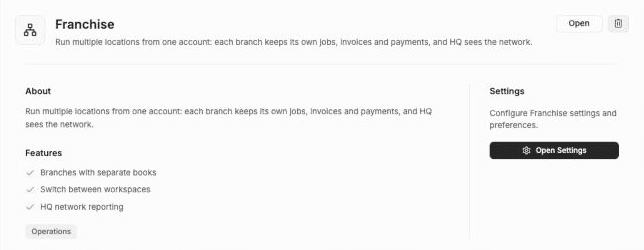
Once the add-on is active, Open and Open Settings on the add-on page both take you to Settings > Franchise.
Create another franchise
An account owner can run more than one franchise. On Settings > Franchise, click Create another franchise. Enter a Franchise name and an HQ / first branch name, then the new HQ's company details. Each additional franchise gets a fresh HQ workspace, and its name must differ from your other franchises.
Uninstall or reinstall the add-on
Only the account owner or an admin can uninstall the Franchise add-on, and only from their own HQ session. If you're switched into a branch, the add-on page shows Member of your franchise name — managed by HQ and no uninstall button.
Uninstalling suspends the whole network. FieldCamp warns you first:
Uninstalling Franchise suspends your whole franchise network. Every branch keeps working as an independent business, but departments, HQ standards and locks, shared technicians, department-scoped workflows and the franchise console all switch off. Nothing is deleted: install Franchise again to bring everything back as it was.
After uninstalling:
- People who were switched into a branch are signed out of it on their next action.
- A pending activation request is withdrawn, so its code stops working.
To bring the network back, open the Franchise add-on and click Reinstall. "Your franchise network comes back as it was — no activation code needed." FieldCamp confirms with "Franchise reactivated. Your branches, departments and HQ standards are back." An account that was never activated starts again at Request access.
Related articles
Franchise HQ in FieldCamp: run every branch from one place
Learn how Franchise HQ works in FieldCamp: one HQ console over branch workspaces that keep separate books, with shared standards and network reporting.
Switch between branch workspaces in FieldCamp
Use the FieldCamp workspace switcher to move between your HQ and branch workspaces, open the franchise console, and filter a branch's work by department.