 FieldCamp
Franchise roles and permissions
Understand the built-in franchise roles, create custom roles from presets, set role rank, and control Franchise HQ capabilities and branch workspace access.
A franchise role decides two things: what a member can do in Franchise HQ, and what they can do inside each branch workspace they switch into. Four roles are built in. You can create custom roles for anything else from the Roles tab under Branches & people.
A role never decides which branches someone reaches. That comes from the member's Access setting, which you choose when you invite a franchise member.
Built-in roles
Built-in roles are marked Built in and can't be edited. Choose View permissions from the row menu to see exactly what one grants.
| Role | Hub access | Branch access | Can manage |
|---|---|---|---|
| Owner | Everything | Branch admin · 14 of 14 modules | Everyone |
| Admin | Everything | Manager · 14 of 14 modules | Members & viewers |
| Member | Structure, People and 5 more | Technician · 12 of 14 modules | Viewers only |
| Viewer | View only · 8 | Read-only · 12 of 14 modules | Nobody |
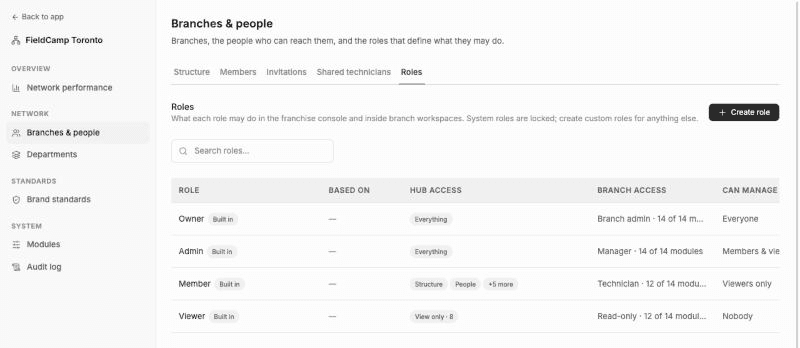
Only an owner with whole-franchise access can create, edit or archive custom roles. Everyone else who can open the tab sees "Read-only — only a network owner can change roles."
How rank works
Every role has a rank. A role manages only roles ranked below it. Rank decides:
- Whose role, access and status a member can change, suspend or revoke.
- Which roles a member can give when inviting someone or changing a role.
A custom role sits at one of three ranks:
| Rank | Who this role can manage |
|---|---|
| Viewers only | Viewers. Members, admins and owners are out of reach. |
| Members & viewers | Members and viewers. A typical regional manager. |
| Admins too | Admins as well. Only an owner can edit this role. |
Create a custom role
Open the Roles tab
In Franchise HQ, go to Branches & people and select Roles. Click Create role.
Start from a preset
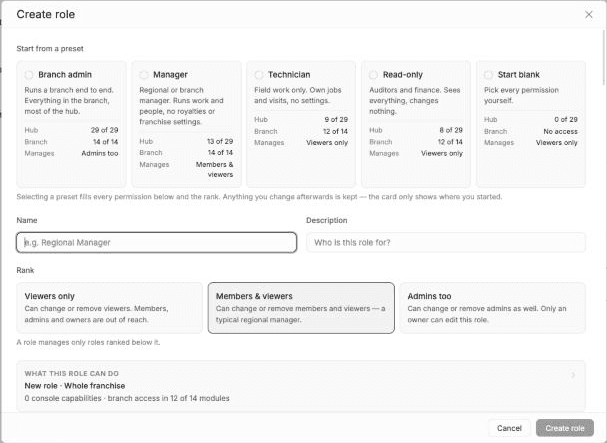
Under Start from a preset, pick the closest match. A preset fills every permission and the rank. Anything you change afterwards is kept.
Name the role
Enter a Name, for example "Regional Manager", and optionally a Description of who it's for. Names must be unique and 60 characters or fewer.
Set the rank
Under Rank, choose Viewers only, Members & viewers or Admins too.
Adjust permissions
Turn capabilities on or off under Franchise console, and set module access under Branch workspace. The What this role can do card updates as you go.
Save
Click Create role. FieldCamp confirms with Role created.
| Preset | Best for | Hub | Branch | Manages |
|---|---|---|---|---|
| Branch admin | Someone who runs a branch end to end | 29 of 29 | 14 of 14 | Admins too |
| Manager | A regional or branch manager who runs work and people | 13 of 29 | 14 of 14 | Members & viewers |
| Technician | Field work only: own jobs and visits, no settings | 9 of 29 | 12 of 14 | Viewers only |
| Read-only | Auditors and finance: sees everything, changes nothing | 8 of 29 | 12 of 14 | Viewers only |
| Start blank | Picking every permission yourself | 0 of 29 | No access | Viewers only |
Franchise console capabilities
The Franchise console section has 29 capabilities in groups. Use Select all or Clear to set a whole group. These groups cover the areas described in these docs:
| Group | Capabilities |
|---|---|
| Structure | View the branch tree · Add, move, rename and restore branches · View departments (definitions, branches, coverage, reporting) · Create, rename and retire department definitions · Choose which branches run a department · a legacy department capability replaced by the two before it |
| People | See members and invitations · Invite, change and remove members · Resend and revoke invitations |
| Reporting | View reports, analytics and boards · View department reporting (department-level revenue and counts) · Create and edit boards |
| Standards | View standards · Publish and push standards to branches |
| Governance | Turn network modules on or off · View the audit log · a capability for changing franchise settings |
Creating and editing roles is reserved for owners and can't be given to a custom role.
Branch workspace access
The Branch workspace section sets access inside every branch the member switches into. It uses the same levels as team roles in a workspace; see roles and permissions.
Turn a module on, then pick its level. A module that's off gives no access. The 14 modules are Clients, Teams, Jobs, Job Forms, Visits, Products, Inventory, Invoice/Estimate, Requests, Analytics, Calendar, System Settings, Inbox and Tasks.
Levels for each module
| Module | Levels |
|---|---|
| Clients | Can view assigned clients only (read-only) · View assigned clients with full details (read-only) · Can create clients and edit own records · Full access to clients except delete · Full access to clients including delete |
| Teams | View team list only (read-only) · View team and manage schedules · Full team management except delete · Full team management including delete and permissions |
| Jobs | View assigned jobs only, add notes, logs · View all jobs (read-only) with line items · Create jobs for assigned clients, edit own jobs, assign to self only · View assigned & unassigned jobs, full access except create/delete · Full job access except delete, can assign jobs · Full job access including delete |
| Job Forms | View job forms only (read-only) · View and create job forms · View, create, and edit job forms · Full job forms management including delete |
| Visits | View own assigned visits, update status, add/update notes · View own visits, edit visits, update status, add/update notes · View all visits, edit own assigned visits, add/update notes & logs · View all visits (read-only) · View all visits with full access except delete · Full access to visits |
| Products | View products, services, price books and categories (read-only) · View all products, services, price books and categories with export · Full product and category management except delete · Full product and category management including delete |
| Inventory | View inventory only (read-only) · View all inventory and purchase orders · Manage and transfer inventory · Full inventory management except delete · Full inventory management |
| Invoice/Estimate | View own invoices and estimates only (read-only) · View all invoices and estimates (read-only) · View all invoices and estimates (view only, no create) · Create and edit own invoices and estimates, generate invoices · Full access except delete, can convert to job · Full access including delete and QuickBooks sync |
| Requests | View assigned requests, can change stage · View all requests (read-only) · Create requests for assigned clients, edit, convert to job/estimate, assign self · Full request access except delete, can assign to team · Full request access including delete and assign to anyone |
| Analytics | Full access to analytics |
| Calendar | View own events, Calendar and Map view · View own events and unassigned events, Timeline view · View all events, Timeline, Map view and Resource view · Full calendar access with tracking and optimization |
| System Settings | View general settings only · General and Company access · Manage settings and terms and conditions, access system preferences · Full settings access with addon modules except integrations and addons settings and No workflow delete · Full access including all addons except integrations and addons settings |
| Inbox | View only conversations assigned to me · View and reply to conversations assigned to me · Full inbox — view all conversations, reply, assign, resolve · Full inbox including delete conversations |
| Tasks | View tasks assigned to me · Create tasks and assign to myself · Manage all tasks and assign to anyone · Full tasks including delete |
Two department toggles sit below the modules:
- Sees every department's records: records limited to departments stay hidden from people outside them. Turn this on for roles, such as dispatchers, that work across all departments.
- Can book into paused departments: lets the role book a job into, or move a job to, a paused department, with a reason.
For how departments use these, see pause, rename and department permissions.
Edit or archive a custom role
Open a custom role's row menu:
- Edit: change any field and click Save. Members holding the role get the new access on their next request.
- History: see past changes to the role.
- Archive: hides the role from pickers. You can archive a role only when no member holds it and no pending invitation grants it. Change those members to another role, or revoke the invitations, first.
- Restore: brings an archived role back.
Custom roles can't be deleted. Archive a role to retire it.
Related articles
Invite and manage franchise members
Invite people to Franchise HQ with a role and branch access, manage invitation links, and suspend, reinstate, revoke or change a franchise member's access.
Share technicians between franchise branches
Lend a technician from one franchise branch to another, choose between Assignable and Busy only, prevent double-booking across branches, and revoke a share.