 FieldCamp
Switch between branch workspaces in FieldCamp
Use the FieldCamp workspace switcher to move between your HQ and branch workspaces, open the franchise console, and filter a branch's work by department.
Each Location and Division in your franchise has its own workspace, with its own clients, jobs, invoices, team and settings. The workspace switcher at the top of the sidebar is how you move between them. For how branches and workspaces fit together, see the Franchise HQ overview.
What the switcher shows
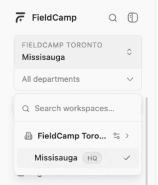
At rest, the switcher is a card at the top of the sidebar. The small line names the franchise and the larger line names the workspace you're in, for example FIELDCAMP TORONTO over Missisauga.
Click the card to open the list:
- Search workspaces… filters the list by branch or franchise name.
- The franchise row shows the franchise name. Clicking it opens the franchise console (its tooltip reads Open franchise console).
- Workspace rows sit under the franchise row: the HQ workspace first, marked HQ, then the branches in tree order. A branch inside a region or area shows that folder's name after it.
- A tick marks the workspace you're in.
Switch to another workspace
Open the switcher
Click the workspace card at the top of the sidebar.
Find the branch
Scroll the list, or type part of the branch name in Search workspaces….
Pick it
Click the branch. The list shows Switching… and the page reloads in that branch.
If you were on a single record, such as a job, FieldCamp opens that module's list instead, because the record belongs to the workspace you left.
If the switch fails, FieldCamp says "Could not switch workspace. You are still in" and names your current workspace.
What changes when you switch
Everything you see after a switch belongs to that branch: its clients, jobs, requests, estimates, invoices, calendar, team and settings. Switching doesn't copy or move any data between workspaces.
What you can do inside the branch comes from the branch access in your franchise role. See franchise roles and permissions.
When you work in a branch that isn't your own, records you create or change show your name followed by "(HQ)", so the branch can see who did it. If you already have your own active login in that branch with the same email, FieldCamp uses that login instead.
If your franchise role or branch access changes while you're in a branch, FieldCamp ends that branch session: "Your access to that branch ended — your franchise role or branches were changed."
Go back to your own workspace
If you own the account that runs HQ, your HQ row is your own workspace. Click it to go back.
If you're a franchise member with your own separate FieldCamp workspace, the list also shows My personal workspace. Click it to go back to your own data.
Open the franchise console
You can open the console in three ways:
- Click the franchise row in the switcher.
- Click Franchise HQ in the sidebar. This item shows only if your franchise role can view the branch structure.
- If you own the account, go to Settings > Franchise and click the franchise under Your franchises.
The console always works on the HQ workspace. If you open it from a branch, FieldCamp switches to HQ first and shows Opening HQ….
To leave the console, use the link at the top of its menu:
- Back to app returns you to the app.
- If you opened the console from a branch, the link reads Back to followed by that branch's name, and it switches you back to the branch.
- If you opened it from your own personal workspace, the link reads Back to my workspace.
Filter a branch's work by department
In a branch workspace, a department picker sits directly under the switcher. It shows All departments until you pick one.
Pick a department to filter the lists that support it, including jobs, requests, estimates, invoices, visits, the calendar and custom object lists. Choose Unassigned (no department) to find work without a department. Picking a department doesn't reload the page or switch workspaces.
Your choice is "Saved for you on this workspace. Other people are not affected." For how departments work, see departments in FieldCamp.
Who sees which workspaces
The switcher appears only for franchise members. It lists a workspace when all of these are true:
- Your franchise membership is active.
- The franchise isn't suspended. If the Franchise add-on is uninstalled, the switcher stops listing that franchise's workspaces.
- The branch has its own workspace. Only Locations and Divisions do. Regions and areas never appear in the list.
- The branch is inside your access: Whole franchise, Branch and below (a branch or region and every branch under it) or Specific branches.
To give someone access to more branches, change their access on the Members tab. See invite franchise members.
Branch switches in the audit log
Each time someone switches into a workspace, including HQ, FieldCamp records it in the franchise's Audit log as Entered branch, with the person and the branch. See modules, purchase orders and audit log.
Related articles
Activate the Franchise add-on and set up HQ
Install the Franchise add-on in FieldCamp, enter the activation code from the FieldCamp team, and complete the setup wizard that turns your workspace into HQ.
Build your franchise branch structure
Add locations, divisions, regions and areas to your franchise branch tree, give a branch its own workspace, and rename, move, delete or restore branches.