 FieldCamp
Set up and publish franchise brand standards
Choose the HQ records every FieldCamp branch inherits, set a rule for each record and price book field, then save a draft or publish a new version.
Brand standards are the records HQ sets once and every branch inherits, such as your company branding, job types, document templates and price book. For each record you include, you choose a rule that decides whether branches get HQ's version as-is, can edit their own copy, or don't receive it. This guide covers the Set up tab, where you build a standard and publish it. To send a published standard to your branches, see push standards and manage branch changes.
Watch: keep one price book across every branch
This video shows the price book standard end to end: choosing records and rules, setting per-field rules, publishing and pushing to branches, and reviewing branch changes.
Before you start
- You need a franchise role that can publish and push standards, with access to the whole franchise. The Owner and Admin roles can. Roles that can only view standards, and members without whole-franchise access, see the page in view-only mode. See franchise roles and permissions.
- The records you send come from the HQ workspace. Create them in HQ first, for example add your services to the HQ price book, then include them in the standard.
Open brand standards
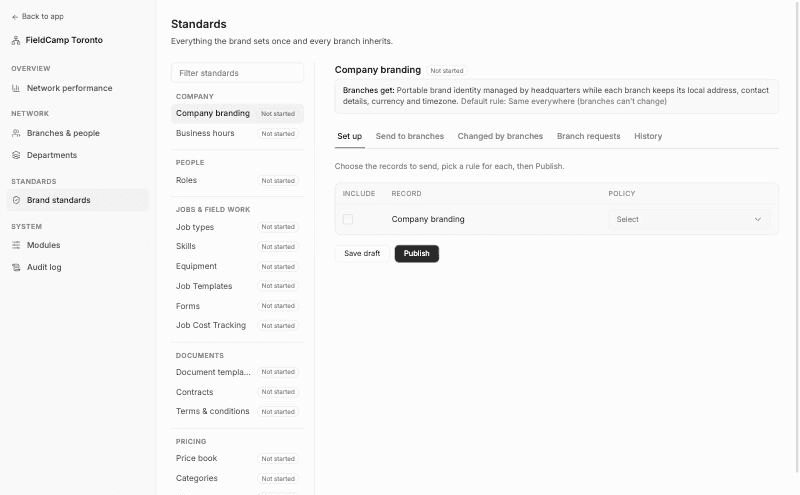
In the franchise console, go to Brand standards under STANDARDS. The Standards page lists every standard on the left, grouped by area. Use Filter standards to find one by name.
| Area | Standards |
|---|---|
| Company | Company branding, Business hours |
| People | Roles |
| Jobs & field work | Job types, Skills, Equipment, Job Templates, Forms, Job Cost Tracking |
| Documents | Document templates, Contracts, Terms & conditions |
| Pricing | Price book, Categories, Kits, Tax |
| Setup | Pipeline Config, Custom Objects |
Job Templates, Forms and Job Cost Tracking are listed only when HQ has the matching add-on connected (Multi-day jobs, Forms or Job logs).
Each standard shows a status badge:
| Badge | Meaning |
|---|---|
| Not started | No version of this standard has been set up yet. |
| Draft | Work has started but nothing has been published. |
| Published | At least one version has been published. |
When you open a standard, a Branches get: box sums up what a branch ends up with and, where one applies, the default rule. For example, Company branding gives branches HQ's brand identity while each branch keeps its own address, contact details, currency and timezone. Its default rule is Same everywhere (branches can't change).
Each standard has five tabs: Set up, Send to branches, Changed by branches, Branch requests and History. This guide covers Set up.
Choose records and a rule for each
Open the standard
Click a standard in the list, for example Price book. The Set up tab opens with the hint "Choose the records to send, pick a rule for each, then Publish."
Pick the record type, if there's more than one
Some standards are set up together and share one draft, version and push. Price book has sub-tabs for Price book, Categories and Kits. A number on a sub-tab shows how many of its records you've included.
Include records
The table lists the HQ workspace's records in three columns: INCLUDE, RECORD and POLICY. Tick INCLUDE for each record you want in the standard. If HQ has no records of that type yet, FieldCamp says so and offers Add in HQ settings.
Choose a policy
In the POLICY column, choose a rule for each ticked record. A newly ticked record starts with the standard's default rule, or with Same everywhere (branches can't change) when the standard has none.
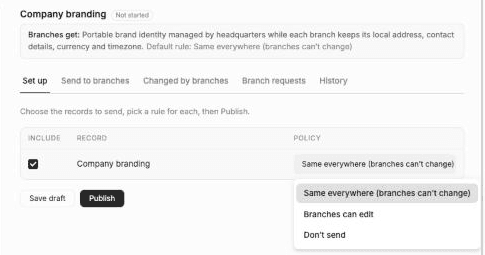
| Policy | What branches get |
|---|---|
| Same everywhere (branches can't change) | HQ's version. Branches can't edit it, and every push replaces the branch copy with HQ's. |
| Branches can edit | HQ's version as a starting point. A branch can change its own copy. Later pushes keep the branch's changes and update only the fields it hasn't changed. HQ sees the changes on Changed by branches. |
| Don't send | The record stays in the standard but is never pushed. Each branch manages its own. |
The default rule depends on the standard. Standards that protect the brand or its liability, such as Company branding, Roles, Job types, Forms, Contracts and Terms & conditions, default to Same everywhere (branches can't change). Standards that vary locally, such as Business hours, Equipment, Document templates and Tax, default to Branches can edit. You can change the rule for any record.
Set rules for individual price book fields
A price book item can have a different rule for each part of the record. When you tick an item, its field rules appear below it.
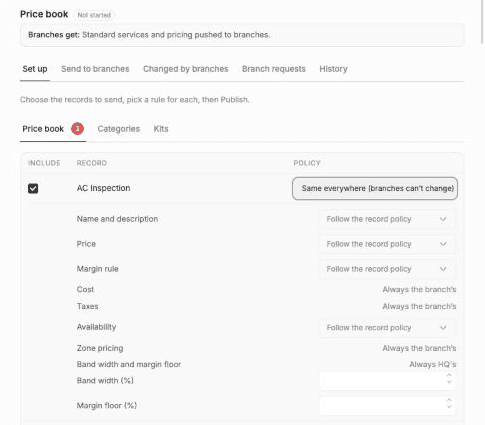
| Field | Options |
|---|---|
| Name and description | Follow the record policy, Same everywhere (branches can't change) or Branch sets this |
| Price | Follow the record policy, Same everywhere (branches can't change), Branch may adjust within a band or Branch sets this |
| Margin rule | Follow the record policy, Same everywhere (branches can't change) or Branch sets this |
| Availability | Follow the record policy, Same everywhere (branches can't change) or Branch sets this |
| Cost | Always the branch's |
| Taxes | Always the branch's |
| Zone pricing | Always the branch's |
| Band width and margin floor | Always HQ's |
Follow the record policy applies the item's own policy to that field. Branch sets this leaves the field to each branch, and HQ never sends it. Cost, taxes and zone pricing are always local, because they depend on where the branch operates.
Band width and margin floor
Below the field rules, two numbers set guardrails for the branch's price:
- Band width (%): with Branch may adjust within a band, a branch can set its own price within this percentage above or below HQ's price. HQ's price is sent when the item is first created in a branch, and later pushes don't overwrite the branch's adjusted price.
- Margin floor (%): the lowest margin HQ expects, checked against the branch's own price and cost. Enter a value below 100.
Band width and margin floor save to HQ's own price book item as soon as you leave the field. They reach branches with the next publish and push. Neither one blocks a branch from saving a price. A price outside the band or below the floor shows up on Changed by branches.
Save a draft or publish
When your selections are ready, use one of the buttons below the table:
- Save draft keeps your selections without changing anything for branches. FieldCamp takes a copy of each included record's current values when you save.
- Publish saves the draft and creates a new numbered version from it. The first publish is version 1, and each publish after that adds one. FieldCamp confirms with the version number, for example Published v1.
You need at least one included record to publish. Publishing does not change any branch. Branches get the new version only when you push it from Send to branches.
If you edit an HQ record after saving the draft, save the draft or publish again to pick up the change. A published version never changes after it's created.
Related articles
Map franchise departments to accounting accounts
Map each franchise department to the right income account and tracking in every branch's accounting system, set fallbacks, and hold invoices until mapped.
Push franchise standards and review branch changes
Push a published FieldCamp standard to branches, preview with a dry run, review branch changes, grant exceptions, answer branch requests and restore versions.