 FieldCamp
Share technicians between franchise branches
Lend a technician from one franchise branch to another, choose between Assignable and Busy only, prevent double-booking across branches, and revoke a share.
When one branch needs extra hands, HQ can lend it a technician from another branch. You set up shares on the Shared technicians tab under Branches & people. A share has no end date: it stays until you revoke it.
Before you begin
- You need the Invite, change and remove members capability and Whole franchise access. The built-in Owner and Admin roles with whole-franchise access can share. Anyone with See members and invitations can view the tab. See franchise roles and permissions.
- Both branches need their own workspace. See build your franchise branch structure.
- The technician must be an active team member of the lending branch who can be assigned to jobs.
Choose a scope
| Scope | What the borrowing branch gets |
|---|---|
| Assignable | The technician appears in the borrower's pickers and can be scheduled there. Bookings are visible in both branches. |
| Busy only | Only the technician's busy times are visible to the borrower. They can't be assigned there. |
With either scope, the technician's bookings in the other branch show on the calendar as blocks labelled Busy · followed by the branch name. These blocks show the time only, not the job details.
Share a technician
Open Shared technicians
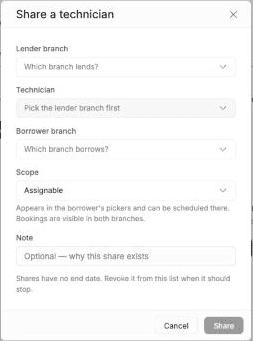
In Franchise HQ, go to Branches & people and select Shared technicians. Click Share a technician.
Pick the lending branch
In Lender branch, choose the branch the technician works for.
Pick the technician
In Technician, choose who to lend. The list shows that branch's active team members who can be assigned to jobs.
Pick the borrowing branch
In Borrower branch, choose the branch that needs help. It must be a different branch.
Choose the scope
Choose Assignable or Busy only.
Add a note
Optionally, add a Note explaining why the share exists.
Save
Click Share. FieldCamp confirms with Technician shared.
FieldCamp refuses the share, and explains why in the dialog, when:
- The technician is already shared with that branch.
- The technician doesn't belong to the lending branch.
- With Assignable, the technician already has their own account in the borrowing branch. Reactivate that account in the borrowing branch instead.
How double-booking is prevented
A shared technician works one calendar across branches. When anyone in either branch schedules, reschedules or reassigns a visit for them, FieldCamp checks their bookings in the other branches. If the times overlap, the save is refused. The message names the technician and the other branch, gives the time of the existing booking in the scheduling branch's local time, and asks you to pick another time or another technician.
This check always runs for shared technicians, whatever the branch's own conflict-detection setting. If FieldCamp can't reach the other branch's bookings, nothing is saved and you're asked to try again. For how scheduling works in a branch, see the calendar overview.
Review shares
The table lists each share with the Technician, who shared them and when, the Lender → borrower branches, the Scope, the technician's status In borrower branch and the State. Revoked shares are hidden by default; click Show revoked to see them.
Revoke a share
Find the share
On an active share, click the Revoke icon at the end of the row.
Check the impact
The confirmation shows what stays behind in the borrowing branch, including how many future visits are still assigned to the technician there.
Confirm
Click Revoke. FieldCamp confirms with Share revoked — history kept.
Nothing is deleted. The technician disappears from the borrower's pickers, and their past visits, history and timesheets stay visible in that branch. Future visits already assigned there stay assigned, so the borrowing branch's dispatcher decides whether to reassign them. The borrowing branch can no longer assign new work to the technician.
Transfer a technician permanently
If a technician should move to the borrowing branch for good, click the Transfer permanently icon on the active share and confirm. The person keeps the same login and password. Their account in the new branch becomes their login, the old one is kept as inactive with its history, and shares lent by the old branch end. The new branch sets their skills, pay rate and department memberships again.
Related articles
Franchise roles and permissions
Understand the built-in franchise roles, create custom roles from presets, set role rank, and control Franchise HQ capabilities and branch workspace access.
Roll out departments across franchise branches
Define a department once at franchise HQ, choose which branches run it, and manage edits, branch assignments and retirement from the Departments page.