 FieldCamp
Invite and manage franchise members
Invite people to Franchise HQ with a role and branch access, manage invitation links, and suspend, reinstate, revoke or change a franchise member's access.
Franchise members are the people who can open Franchise HQ, such as owners, regional managers and auditors. You add them from the Members tab and track their invitation links on the Invitations tab. This guide covers inviting someone, accepting an invitation and managing members after they join.
Franchise members and branch team members
A franchise member and a branch's team member are different things:
- Franchise members are listed on Branches & people > Members. Their franchise role decides what they can do in Franchise HQ and inside each branch they can reach.
- Branch team members are the technicians and office staff each branch adds in its own workspace. They work only in that branch and don't get Franchise HQ access. See adding and managing team members.
To give someone access to Franchise HQ, invite them as a franchise member.
Before you begin
- You need the Invite, change and remove members capability. The built-in Owner and Admin roles have it. Without it, the Members tab is read-only.
- You can give only a role ranked below your own. Owners can give any role. See franchise roles and permissions.
- You can only give access to branches you can reach yourself. Whole franchise is offered only if you have whole-franchise access.
Invite a member
Open the Members tab
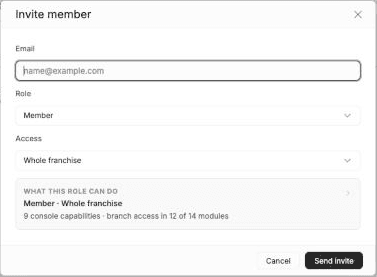
In Franchise HQ, go to Branches & people and select Members. Click Invite member.
Enter their email
Type the person's Email. You can't invite someone who is already an active member, or an email that already has a pending invitation.
Choose a role
Pick a Role. It defaults to Member.
Choose their access
Pick an Access option:
- Whole franchise: every branch, now and in future.
- Branch and below: the branches you pick plus everything under them. Pick a region to include every branch below it.
- Specific branches: only the branches you pick. Only branches with their own workspace can be picked.
Check what the role can do
The What this role can do card summarises the role and access, for example "Member · Whole franchise — 9 console capabilities · branch access in 12 of 14 modules". Expand it to see the details.
Send the invitation
Click Send invite. FieldCamp emails the invitation and shows an Invitation link you can copy with Copy link. The link is shown only once.
Accept an invitation
The invited person opens the link from the email. The page shows which franchise and role they're invited to, then guides them through one of these paths:
- Signed in with the invited email: the invitation is accepted straight away.
- Has a FieldCamp account but isn't signed in: they click Sign in as their email, sign in and return to the invitation.
- No FieldCamp account yet: they enter Your name, Password and Confirm password, then click Create account & accept. The email is fixed to the invited address.
- Signed in as someone else: the page explains the mismatch. They click Sign out and open the link again with the invited account.
When it works, the page shows You're in. They click Continue and use the workspace switcher to enter the franchise; see switch between branch workspaces.
Links expire after 14 days. An expired, revoked or already used link shows an error and asks the person to request a new invitation.
Manage invitations
The Invitations tab lists every invitation with who it was Sent to, who Invited by, when it was Sent and when it Expires. Filter by Pending, Expired or Revoked.
For a pending invitation, open the row's menu:
- Resend: emails a new link. The old link stops working.
- Copy new link: creates a new link without emailing it, so you can share it yourself. The old link stops working.
- Revoke: the link stops working immediately.
Resending and revoking need the Resend and revoke invitations capability.
Manage members
The Members tab lists each member's Role, Access and Status. Search by name or email, filter by Active, Suspended or Removed, or filter by Role.
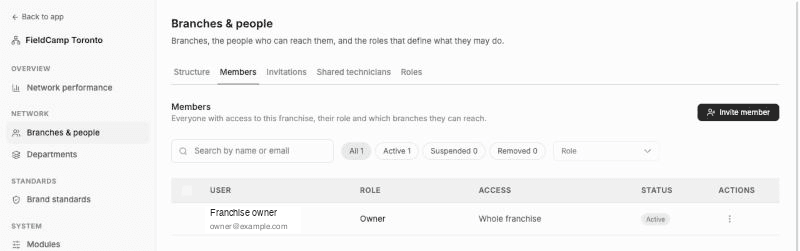
You can manage a member only if their role ranks below yours and their access sits within yours. Owners with whole-franchise access can manage anyone.
| Action | How | What happens |
|---|---|---|
| Change role | Pick a new role in the Role column, then click Change role | They're signed out of any branch workspace they're in, get the new access on their next request and are notified by email. |
| Edit access | Row menu | Change their Access option and branches. |
| Suspend | Row menu | They lose access immediately. Their role and branches are kept. |
| Reinstate | Row menu on a suspended member | They get their previous role and access back. |
| Revoke | Row menu | They lose access to the franchise immediately. The row shows Revoked and is listed under Removed. |
| History | Row menu | Shows the member's access history. |
To act on several members at once, select their rows and choose Suspend, Reinstate or Revoke. A franchise must always keep at least one active owner. To let a revoked member back in, invite them again.
Related articles
Build your franchise branch structure
Add locations, divisions, regions and areas to your franchise branch tree, give a branch its own workspace, and rename, move, delete or restore branches.
Franchise roles and permissions
Understand the built-in franchise roles, create custom roles from presets, set role rank, and control Franchise HQ capabilities and branch workspace access.