 FieldCamp
Notification settings by role | FieldCamp
Configure FieldCamp role-based notifications for assignments, schedule changes, service requests, and customer messages, or restore the default matrix.
Use Notifications Settings to choose which listed notifications are enabled for each role in your FieldCamp workspace. The page uses one organization-level matrix: when you change a role column, the preference applies to everyone assigned to that role.
This page controls role-based notification preferences. It does not configure customer-facing messages or the email, SMS, and WhatsApp channels that receive those messages. See the Inbox overview for customer communication channels.
Before you begin
You must be the Account Owner, an Admin, or a Super Admin to open Notifications Settings. Dispatcher and technician accounts are redirected away from this page.
Before changing the matrix:
- Review roles and permissions so you know which team members use each role.
- Check team member assignments before disabling assignment or schedule-change notifications.
- Decide whether the change should affect the complete role. This page does not provide per-user controls.
The matrix has an Admin column, but it does not provide separate Account Owner or Super Admin columns. Do not assume that changing Admin also changes notifications for those account types.
Open Notification Settings
- Open Settings.
- Select Notifications Settings.
- Wait for the Notification Settings page and role matrix to load.
For a map of the other workspace settings, see the FieldCamp settings overview.
Understand the matrix
The first column groups notifications by purpose. The remaining columns represent roles, usually in this order:
- Admin
- Dispatcher
- Tech Lite
- Tech Pro
- Custom roles
If the workspace has more role columns than fit on the screen, use the horizontal arrow controls above the matrix or scroll horizontally.
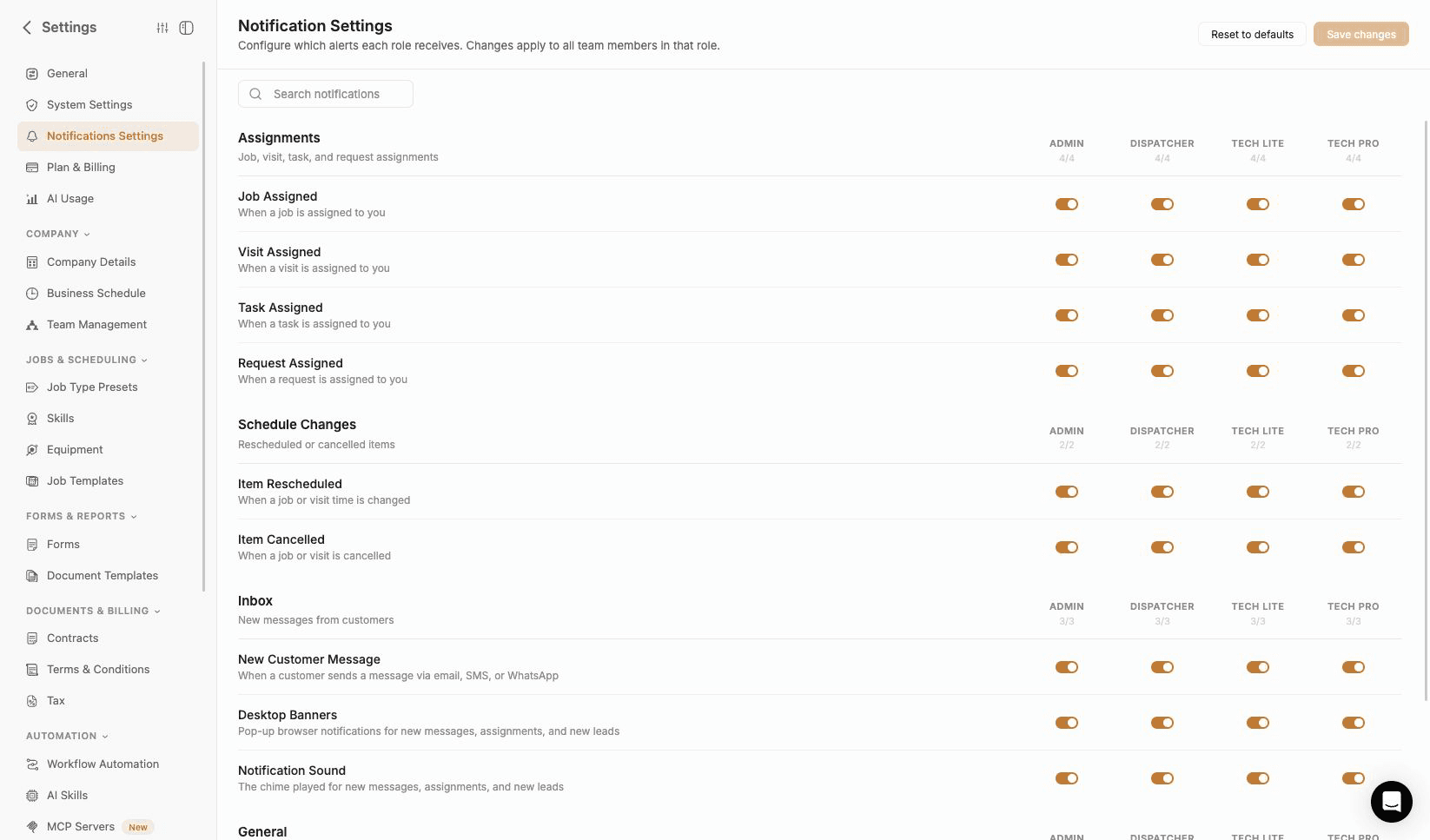
Each role heading shows an enabled/available count for the current notification group. For example, 2/3 means two of the three notification types available to that role are enabled.
The count represents the complete group. Searching can hide rows without changing the count.
Read each matrix cell
- An on toggle means the role preference is enabled.
- An off toggle means the role preference is disabled, subject to the delivery-path limitation described for New Customer Message below.
- A dash means the notification is unavailable for that role and cannot be changed.
- Custom roles use technician availability rules.
- When no saved preference exists for an available notification, FieldCamp treats it as enabled.
Notification reference
All available notification types default to on.
| Group | Notification | What it covers | Admin | Dispatcher | Technician and custom roles |
|---|---|---|---|---|---|
| Assignments | Job Assigned | A job is assigned to the recipient | Available | Available | Available |
| Assignments | Visit Assigned | A visit is assigned to the recipient | Available | Available | Available |
| Assignments | Task Assigned | A task is assigned to the recipient | Available | Available | Available |
| Assignments | New Service Request | A request is assigned to the recipient | Available | Available | Available |
| Schedule Changes | Item Rescheduled | A job or visit time is changed | Available | Available | Available |
| Schedule Changes | Item Cancelled | A job or visit is cancelled | Available | Available | Available |
| Inbox | New Customer Message | A customer sends a message through email, SMS, or WhatsApp | Available | Available | Available |
| Inbox | Desktop Banners | The operating-system banner shown for a new Inbox message | Available | Available | Available |
| Inbox | Notification Sound | The sound played for a new Inbox message | Available | Available | Available |
| General | Incoming Lead Alert | A new lead arrives, with its own sound and an in-app toast | Available | Available | Not available |
| General | Self Assignment Notifications | Alerts for records you assign to yourself. Off by default | Available | Available | Available |
New Customer Message behaves differently from the assignment and schedule rows. Turning it off can suppress mobile push eligibility for that role, but it does not guarantee that the in-app Inbox notification will be removed. It also does not stop the customer message, disconnect the channel, or prevent the conversation from entering the Inbox.
Change notification preferences
You can change one cell or prepare several changes and save them together.
- Find the notification row.
- Find the role column you want to update.
- Switch the available toggle on or off.
- Repeat for any other notification and role combinations.
- Review the enabled/available counts.
- Select Save changes.
- Wait for Notification preferences saved before leaving the page.
Save changes remains disabled until the current matrix differs from the last saved version. If saving fails, your unsaved selections remain on the screen and the button stays available so you can try again.
Example: reduce technician schedule noise
Suppose technicians should see new assignments but should not be alerted when a dispatcher reschedules a visit.
- Keep Job Assigned, Visit Assigned, and Task Assigned enabled for the technician role.
- Turn off Item Rescheduled for that role.
- Leave Item Cancelled on if technicians still need cancellation awareness.
- Select Save changes.
The change applies to every current and future team member assigned to that role. If only one person should behave differently, use a separate role instead of changing a shared role column.
Search a large matrix
Use Search notifications to find a notification by its label or description. Search is case-insensitive, so terms such as assigned, cancelled, or message work.
Search has these limits:
- It does not search group names or role names.
- It only changes the rows shown on the page; it does not change any preference.
- It does not change the enabled/available counters.
- It can leave the matrix blank when no notification matches. Clear the search to show every row again.
Reset every preference to default
Reset removes the saved organization-level matrix and rebuilds the default preferences.
- Select Reset to defaults.
- Review the Reset to defaults? confirmation.
- Confirm the reset.
- Wait for Notification preferences reset to defaults.
After reset:
- Every notification available to a role is on.
- Notifications unavailable to a role still show a dash.
- The reset affects the complete matrix, including rows hidden by the current search.
Reset is not limited to the visible group, role, or search result. Review the entire matrix after resetting it.
What this page does not control
Notifications Settings is a role matrix, not a complete delivery-channel manager.
- It does not change who belongs to a role.
- It does not provide a separate preference for one team member.
- It does not configure customer email, SMS, or WhatsApp delivery.
- It does not turn Inbox channels on or off.
- A notification's final delivery can also depend on the event, recipient, and the workflow that created it.
Desktop Banners and Notification Sound are workspace-level switches on this same matrix. Turning Desktop Banners off for a role also suppresses the in-app lead toast for that role, because both use the same gate. Your browser must still grant notification permission for a banner to appear; without it, FieldCamp falls back to the sound and the unread count in the browser tab.
Troubleshooting
Notifications Settings is missing
Confirm that you are signed in as the Account Owner, an Admin, or a Super Admin. Dispatcher and technician roles cannot use this page. If you recently changed roles, sign out and back in before checking again.
The page has no roles or notification rows
Reload the page. If the matrix still does not load, wait and try again before making other settings changes. The page cannot save a reliable configuration until the roles and rows are visible.
A role shows a dash instead of a toggle
That notification is unavailable for the role category. New Service Request and New Customer Message are available to Admin and Dispatcher roles, but not technician or custom roles.
Search shows a blank matrix
Clear Search notifications. Search only matches notification labels and descriptions, not group or role names.
Save changes is disabled
The matrix still matches the saved configuration. Change an available toggle. A dash cannot be changed, and filtering the matrix does not count as a preference change.
Changes did not save
Select Save changes again and wait for the success message. If you see Failed to save notification preferences, reload the saved configuration, repeat the intended changes, and save again.
A team member still receives or misses an alert
Confirm the person's current role, the correct role column, and whether the notification is available for that role. Also confirm that the underlying job, visit, task, request, or Inbox event involves that recipient. The role matrix alone does not make someone a recipient.
Related articles
- Calendar overview — understand the jobs and visits behind assignment and schedule-change notifications