 FieldCamp
Booking Steps Configuration | FieldCamp
Configure which steps appear in your FieldCamp online booking flow, reorder them with drag-and-drop, and set your service area validation method for customers.
The Flow tab gives you full control over which steps customers see when booking through your website. Enable or disable individual steps, reorder them with drag-and-drop, and choose how service area verification works — all without writing code.
To get started, go to Settings → Online Booking → Flow.
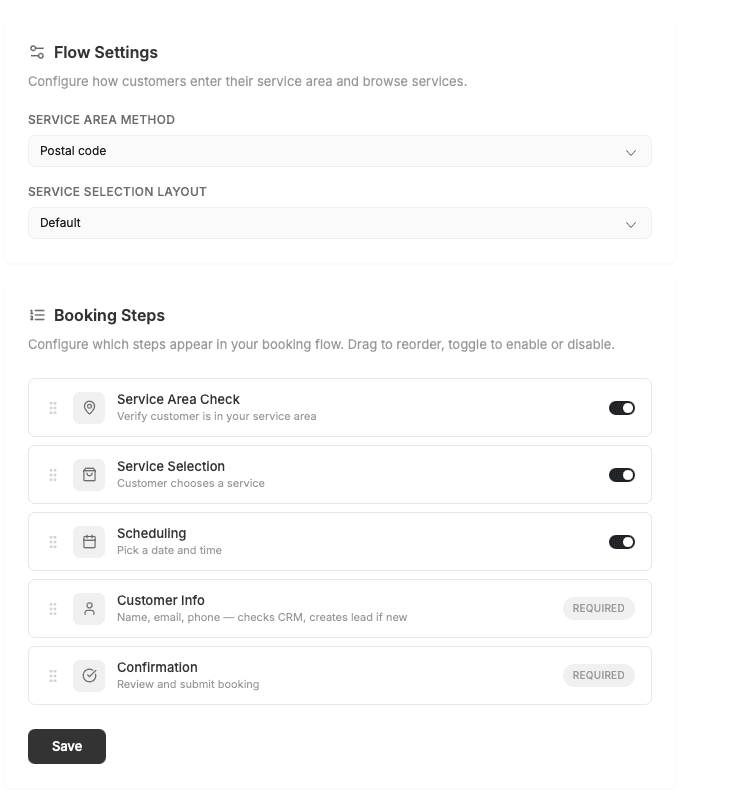
Available Booking Steps
Each step serves a specific purpose in the booking journey:
- Postal Code / Service Area — verifies the customer's location is within your coverage zone. Optional.
- Service Selection — lets customers browse and choose from your available services. Optional.
- Scheduling — displays available time slots based on your team's capacity. Optional.
- Contact Info — collects name, email, phone number, and address. Required — cannot be disabled.
- Summary — shows a complete overview for confirmation before submission. Required — cannot be disabled.
Contact Info and Summary are always required. They ensure you capture essential customer details and give the customer a chance to review before confirming.
Enable, Disable, and Reorder Steps
Each optional step has a toggle switch. Turn it on to include it in the flow, or off to skip it entirely.
To reorder steps:
- Hover over the step to reveal the drag handle.
- Click and hold, then drag up or down.
- Release to drop into the new position.
The live preview on the right updates instantly so you can verify the customer experience before saving.
Service Area Method
When the Postal Code / Service Area step is enabled, choose how customers verify their location:
- Postal Code — customers enter their zip or postal code. Best for businesses with clearly defined postal code coverage.
- Radius — customers enter an address, and the system checks whether it falls within a radius around your service locations.
- Custom Zone — uses polygon-based boundaries you have drawn on the map. Best for irregular or complex service territories.
Configure your service areas in detail from Service Areas settings.
Keep your booking flow short. Fewer steps means higher conversion. Disable any step that is not essential for your workflow.
Related Articles
- Setting Up Online Booking — initial setup and customer journey options.
- Service Areas — define where you provide services.
- Content & Text Customization — customize headings and button labels on each step.
- Fixed Time Scheduling — configure specific time slot availability.
Online Booking Content & Text Customization | FieldCamp
Customize headings, subtitles, and button labels on every step of your FieldCamp online booking widget to match your brand voice and improve conversions.
AI Chat Assistant Setup for Online Booking | FieldCamp
Set up and customize the AI-powered chat assistant on your FieldCamp online booking page to answer customer questions, qualify leads, and hand off to your team.