 FieldCamp
Arrival Windows with Provider-Based Capacity | FieldCamp
Set up arrival windows with automatic provider-based capacity in FieldCamp. The system calculates available slots from service duration, travel time, and team size.
Provider-based capacity automatically calculates how many jobs fit in each arrival window based on service duration, travel time, and team availability. This is the best option for businesses that want intelligent, hands-off scheduling that adapts as your team and bookings change.
If you prefer to set exact booking limits yourself instead of using automatic calculations, see Arrival Windows with Manual Capacity. For exact appointment times rather than windows, check out Fixed Time Scheduling.
What Is Provider-Based Capacity?
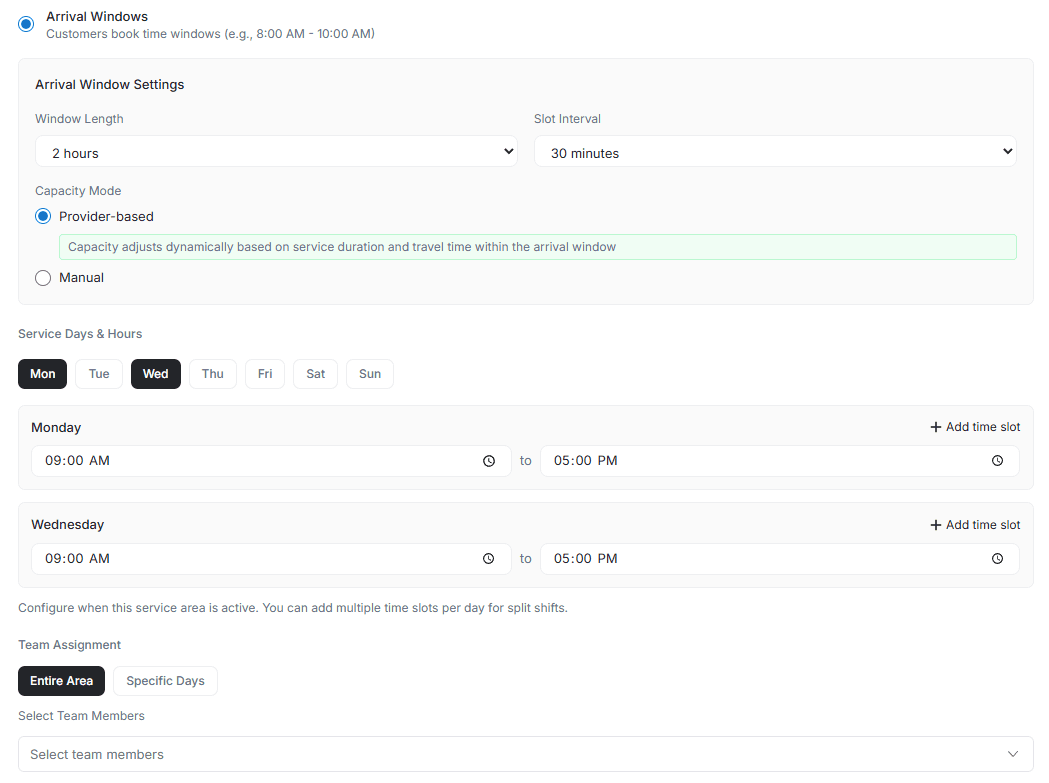
Provider-based capacity automatically calculates how many jobs can fit within each arrival window. The system considers service duration, travel time between jobs, and team availability to optimize your schedule.
Example: For a 2-hour window with 45-minute services, the system calculates how many jobs are possible based on travel time and technician availability.
How It Works
The Smart Calculation Engine
The system automatically factors in five key elements when determining capacity:
- Service Duration — How long each job takes to complete
- Travel Time — Driving time between customer locations
- Team Availability — Number of technicians working
- Buffer Time — Extra time for delays or setup
- Geographic Distribution — How spread out customers are
Real-Time Optimization
As customers book appointments, the system continuously adjusts:
- Capacity updates dynamically with each booking
- Routes optimize for minimal travel time
- Team assignments balance automatically
- Available slots reflect real-time capacity
Configuration Steps
Make sure you have completed Setting Up Online Booking before configuring your scheduling format.
Step 1: Set Up Arrival Windows
Navigate to Service Area Settings and select your configuration.
- Choose your window length between 1-4 hours
- Set how often new slots start (15, 30, or 60 minutes)
- Select "Arrival Windows" as your scheduling format
- Choose "Provider-Based" for capacity mode
Step 2: Configure Service Parameters
Define the key timing elements for accurate capacity calculation.
- Service Duration — Average time to complete each service
- Travel Buffer — Additional percentage for travel between jobs
- Setup Time — Minutes needed for equipment preparation
Step 3: Assign Your Team
Connect team members to service areas for capacity calculation.
- Assign technicians to specific service areas
- Set individual working schedules
- Configure any skill requirements or specializations
Calculation Examples
Example 1: HVAC Maintenance
Service Configuration:
- Service Duration: 45 minutes
- Average Travel Time: 15 minutes
- Setup Time: 10 minutes
- Window Length: 2 hours (120 minutes)
- Available Team: 1 technician
Calculation Process:
Total time per job equals 45 + 15 + 10 = 70 minutes. With a 120-minute window, the system calculates 120 / 70 = 1.7, rounding down to 1 job.
Result: System shows 1 available slot for the 9:00 AM - 11:00 AM window.
Example 2: Home Cleaning Service
Service Configuration:
- Service Duration: 90 minutes
- Average Travel Time: 20 minutes
- Setup Time: 5 minutes
- Window Length: 4 hours (240 minutes)
- Available Team: 2 cleaners
Calculation Process:
Total time per job equals 90 + 20 + 5 = 115 minutes. Each cleaner can complete 240 / 115 = 2.08, rounding to 2 jobs. With 2 team members, total capacity is 4 jobs.
Result: System shows 4 available slots for the 8:00 AM - 12:00 PM window.
Setup Walkthrough
Basic Configuration
Start in Service Area settings to define your coverage zone. Choose your area type and set boundaries. Select "Arrival Windows" as your scheduling format. Choose "Provider-Based" for automatic capacity calculation.
Service Parameters
- Enter your average service duration in minutes
- Set a travel buffer percentage (10-25% recommended)
- Add setup or breakdown time if needed
- Save your configuration to activate
Team Setup
- Assign team members to each service area
- Configure individual working schedules
- Set skill levels if certain services need specific technicians
- Review and confirm all assignments
Provider-based capacity is only as accurate as the data you provide. If your actual service times are consistently longer than configured, customers may experience delays. Review your service durations and travel buffers after the first few weeks of bookings and adjust as needed.
Testing and Optimization
Run test bookings to verify capacity calculations. Monitor how actual times compare to predictions. Adjust parameters based on real-world performance. Fine-tune settings for optimal efficiency.
Related Articles
- Arrival Windows with Manual Capacity — set exact booking limits per window instead of automatic calculation
- Fixed Time Scheduling — offer precise appointment times instead of arrival windows
- Setting Up Online Booking — complete initial booking configuration
- Team Management — manage team members and schedules that feed into capacity
Arrival Windows with Manual Capacity | FieldCamp
Configure arrival windows with manual capacity limits in FieldCamp's online booking. Control exactly how many jobs each time slot accepts per day for scheduling.
Recurring Booking for Online Booking | FieldCamp
Let customers book recurring services like weekly, bi-weekly, or monthly appointments through your FieldCamp online booking widget with automated scheduling.